

-
AuthorPosts
-
January 14, 2026 at 3:55 pm #1493909
Hi,
also il your demo there is the missing eye icon (the one what would suggest to see the password:The strange littpe square the should contain it is also misplaced (should be inside the password field)

It should look like this svg (default theme)
data:image/svg+xml,<svg width="20" height="20" viewBox="0 0 20 20" fill="none" xmlns="http://www.w3.org/2000/svg"><path d="M17.3 3.3C16.9 2.9 16.2 2.9 15.7 3.3L13.3 5.7C12.2437 5.3079 11.1267 5.1048 10 5.1C6.2 5.2 2.8 7.2 1 10.5C1.2 10.9 1.5 11.3 1.8 11.7C2.6 12.8 3.6 13.7 4.7 14.4L3 16.1C2.6 16.5 2.5 17.2 3 17.7C3.4 18.1 4.1 18.2 4.6 17.7L17.3 4.9C17.7 4.4 17.7 3.7 17.3 3.3ZM6.7 12.3L5.4 13.6C4.2 12.9 3.1 11.9 2.3 10.7C3.5 9 5.1 7.8 7 7.2C5.7 8.6 5.6 10.8 6.7 12.3ZM10.1 9C9.6 8.5 9.7 7.7 10.2 7.2C10.7 6.8 11.4 6.8 11.9 7.2L10.1 9ZM18.3 9.5C17.8 8.8 17.2 8.1 16.5 7.6L15.5 8.6C16.3 9.2 17 9.9 17.6 10.8C15.9 13.4 13 15 9.9 15H9.1L8.1 16C8.8 15.9 9.4 16 10 16C13.3 16 16.4 14.4 18.3 11.7C18.6 11.3 18.8 10.9 19.1 10.5C18.8 10.2 18.6 9.8 18.3 9.5ZM14 10L10 14C12.2 14 14 12.2 14 10Z" fill="%23111111"/></svg>January 15, 2026 at 4:55 am #1493930Hey SurigliaStudio,
Thank you for the inquiry.
The input fields on the login and registration pages don’t have that feature or option by default. It’s a custom icon implemented on custom login pages and it’s not a default browser feature. Let us know if you need more info.
Best regards,
IsmaelJanuary 15, 2026 at 10:36 am #1493966Hey Ismael, thanks for your reply.
What I mean is that in the Enfold version of the login screen there is a tiny stuff unser the field that is doind the revail password thing:
https://www.awesomescreenshot.com/video/48386775?key=6b73c617bba3728fd0fbc925e8be1fe5
It’s not recognizable at all.
It should look like more as the default theme feature.
The little strange button ist’s shown only in Enfold. Any other theme will have that eye on the fild as I was showing in my previous post.Thanks!
January 15, 2026 at 3:26 pm #1493982well this wordpress login screen is not influenced by the themes installed !
This is a pure wordpress setting – so you have to check where it might be set a different Login Page.i often make an own settup for it by this snippet for child-theme functions.php:
function custom_loginlogo_url($url) {
  $url = get_site_url();
  return $url;
}
add_filter( 'login_headerurl', 'custom_loginlogo_url' );

function my_login_logo(){
$logo = avia_get_option('logo');
?>
<style type="text/css">
    #login h1 a, .login h1 a {
      background-image: url(<?php echo $logo; ?>);
      height: 120px;
      width: 320px;
      background-size: contain !important;
      background-repeat: no-repeat;
      background-position: center top;
      position: relative;
      left: 50%;
      transform: translateX(-50%);
    }
    body.login {
      background-image: -webkit-radial-gradient(circle farthest-corner at center center, #B8E1FC 0%, #231421 100%) !important;
      background-image: radial-gradient(circle farthest-corner at center center, #B8E1FC 0%, #231421 100%) !important;
      background-repeat: repeat;
    }
    body.login form {
      background: rgba(255,255,255,0.2);
      box-shadow: 0 0 15px rgba(0,0,0,0.3);
    }
</style>
<?php
}
add_action( 'login_enqueue_scripts', 'my_login_logo' );
you see in the snippet that the logo you set in the logo input field of enfold will be dynamically inserted there. If you like to have a differente one – then insert an absolute url on that place:
background-image: url(<?php echo $logo; ?>);this is then the look for it:
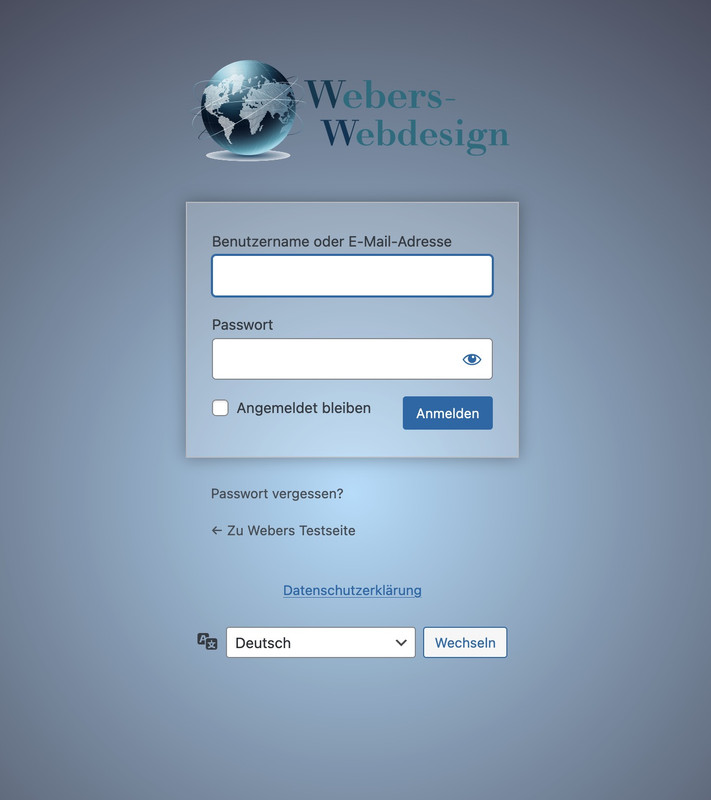 January 15, 2026 at 3:54 pm #1493983
Hey Guenni!
Thanks a lot for your reply! :)The login in the wp-admin page form is very ok!
I’m referring to the account login page of woocommerce. The one where client log in or register into.Sorry for not making it clear. My bad :)
January 16, 2026 at 5:33 am #1494007Hi,
Thank you for the clarification.
You can try this css code to apply your own toggle password icon to the password input field.
.show-password-input {
  width: 24px;
  height: 24px;
  border: 0;
  background-color: transparent;
  background-repeat: no-repeat;
  background-position: center;
  cursor: pointer;
  position: absolute;
  top: 4px;
  right; 9px;
}

.show-password-input[aria-label="Show password"] {
  background-image: url("eye-closed.svg");
}

.show-password-input[aria-label="Hide password"] {
  background-image: url("eye-open.svg");
}
Make sure to replace eye-closed.svg and eye-open.svg images with your own images.
Best regards,
IsmaelJanuary 19, 2026 at 10:17 am #1494064Hey Ismael, thanks for the reply. What I don’t understand is why the plain theme of enfold doesn’t work properly on it’s own, and why when I select any other theme I see correctly the eye icon.
I also encountered another thread on this forum and I tried to add that css to solve the issue and ( content: “\e010” !important;) except it doesn’t work, like it’s not loading properly the fontello font or something.In fact if you go on my client website you’ll see that I got a square instead of the eye icon.
I’m sure the function you wrote will work properly, but why it’s not working on the enfold version of the website?
Thanks!January 20, 2026 at 5:41 am #1494085Hi,
Thank you for the update.
It’s probably a style conflict between the theme and one of the plugins. Did you apply the suggestions from the previous thread and try the ones we suggested here?
.woocommerce .woocommerce-form-login .show-password-input {
    position: absolute;
    top: 0.8rem;
    right: 1.2rem;
    cursor: pointer;
}
Best regards,
IsmaelJanuary 20, 2026 at 10:13 am #1494093Hello Ismael,
thanks for the reply. I did and I still have the issue. In fact I can see the same identical problem on your original enfold page so my guess: it’s not a plugin issue.
I also tried the full code you typed above, still nothing.January 21, 2026 at 6:05 am #1494123Hi,
This code should fix the issue — you just need to supply your own password toggle images (eye-closed.svg, eye-open.svg).
— https://kriesi.at/support/topic/missing-eye-icon-on-login-page/#post-1494007
Best regards,
IsmaelJanuary 23, 2026 at 5:27 pm #1494234Hello Ismael,
the code is not working, I cannot see any visible difference in the front end.If I put instead this code
.woocommerce form .password-input {
	display: flex;
	flex-direction: column;
	justify-content: center;
	position: relative
}
.woocommerce form .password-input input {
	padding-right: 2.5rem !important;
	margin-bottom: 0;
}
.woocommerce form .password-input input::-ms-reveal {
	display: none
}
.woocommerce form .show-password-input {
	background: transparent;
	border: 0;
	color: #222;
	cursor: pointer;
	font-size: inherit;
	padding: 0;
	position: absolute;
	right: .7em;
	top: 50%;
	transform: translateY(-50%);
}
.woocommerce form .show-password-input.display-password {
	color: #999
}
.woocommerce form .show-password-input::after {
	font-family: WooCommerce;
	speak: never;
	-webkit-font-smoothing: antialiased;
	content: "\e010" !important;
	margin-top: -2px;
	vertical-align: middle;
	display: inline-block
}
Which I found on the other thread, I see a rectangle instead of the eye, because clearly the content: “\e010” !important; is not linking anything properly,
Any clue?January 27, 2026 at 5:16 am #1494355Hi,
Have you tried including the scss file as described in the following documentation? If you can provide the login details, we’ll try to check this further.
— https://woocommerce.com/document/utilising-the-woocommerce-icon-font-in-your-extensions/
Best regards,
IsmaelJanuary 27, 2026 at 11:10 am #1494365This reply has been marked as private.January 28, 2026 at 5:12 am #1494403Hi,
Thank you for the login info.
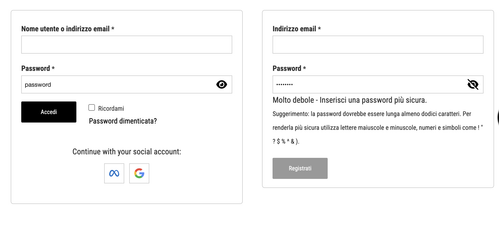
We commented out the password modification in the Quick CSS field and adjusted it a bit.
.woocommerce .password-input {
    position: relative;
}

.woocommerce .show-password-input {
  width: 24px;
  height: 24px;
  border: 0;
  background-color: transparent;
  background-repeat: no-repeat;
  background-position: center;
  cursor: pointer;
  position: absolute;
  top: 30px;
  right: 9px;
  background-image: url("https://www.morsoworld.com/wp-content/uploads/2026/01/eye-slash-solid-full.svg");
}

.woocommerce .show-password-input.display-password {
  background-image: url("https://www.morsoworld.com/wp-content/uploads/2026/01/eye-solid-full.svg");
}
Result:
Best regards,
Ismael -
AuthorPosts


- You must be logged in to reply to this topic.