

-
AuthorPosts
-
December 11, 2019 at 8:01 pm #1164966
Hi,
I recently bought your item and I have some questions.
1st I can install two demos in my wordpress? (It’s because I like some page configuration that exists in another of his demos)
It’s possible? Or just install the page that interests me?2nd I have installed one of the demos but it has not uploaded everything, the blog, audio page, etc …
Can you help me?For now that’s all (I’m starting the development)
I look forward to, thank you very much in advance!Ana
December 12, 2019 at 7:58 am #1165106Hi Ana,
Thanks for the login details, though I can’t access the login page. Please see private.
1. If you import another demo then your theme settings will be overwritten. If you only want the content from a page or two then you can enable debug mode in order to see builder shortcodes: https://kriesi.at/documentation/enfold/intro-to-advanced-layout-builder/#debug-mode, then let us know which page you are looking to import and we’ll give you the shortcodes for them.
2. Since I can’t access your I couldn’t really check the content.
Best regards,
RikardDecember 12, 2019 at 9:59 am #1165140This reply has been marked as private.December 13, 2019 at 10:20 am #1165448This reply has been marked as private.December 14, 2019 at 11:48 pm #1165955Hi,
Sorry for the late reply I was able to login to your site but I can’t see your theme settings because it is not an admin login, please upgrade our access.
So when installing a demo you will need to choose one that you most like, such as the Enfold Church Demo, and then to get a page from another demo you like such as the home page of Enfold Shop we can assist with the shortcode by using the Avia Layout Builder Debugger we can turn this on for you if we have full admin access and the WordPress > Appearance > Editor option is visible.
Please note that for the Shop pages you will need to install the WooCommerce plugin it is free and creates the “store”
It may be easier to install woocommerce, then the Shop Demo, then add a page or two from the Church Demo, only because there are a lot of settings in the Shop Demo if you plan on setting up an online store. We can try either way, is an online store your main goal or do you only want to sell a couple of items?Best regards,
MikeDecember 15, 2019 at 2:18 pm #1166076This reply has been marked as private.December 15, 2019 at 3:44 pm #1166087Hi,
Thank you for enabling the login, I have Enabled the Avia Layout Builder Debugger in your child theme functions.php, now you will see a new text field below the Advanced Layout Builder, here you can copy and paste the raw shortcodes for elements and pages. Please note that this shortcode needs to be in Plain Text, be careful of “curly quotes” & special characters from some text editors.It sounds like you would like to copy many pages from a few demos, so I recommend installing another instance of Enfold on a localhost or on a testing sub-domain, we allow a sub-domain “staging” or “testing” install and often recommend this practice for testing updates before updating your live site. On your testing site you can import a demo and use the debugger to copy the shortcode to your live site, and then use a reset plugin before importing a different demo. Please note every demo will overwrite your site, so please don’t try to import multiple demos to your live site.
Also the images in the shortcode are not copied when you do this, so if you want the images you will have to move them manually. The same is true for custom css, although all of the elements settings and options, such as background color, padding, and margins, that are made within the element is copied over because that css in inline.When you want to import the “Shop Demo” on your testing site, please install woocommerce before you import the shop demo so all of the settings are imported.
Now about your child theme and adding css to the stylesheet, each time you add css to the child theme stylesheet the theme settings needs to be saved again so the compressed css file is updated, simply saving the stylesheet will not do this.
I recommend turning the Enfold Theme Options > Performance > JS & CSS file merging and compression off while you are building your site, or using the Enfold Theme Options > General Styling > Quick CSS field until you are done and then moving your css to the child theme stylesheet, or after adding css to the child theme stylesheet you can add a blank line to the Quick CSS and save the theme settings to force the file to be rebuilt.Well, that is all I can think of that you might need to know for this to go quickly and smoothly for you, but if you have any questions we are happy to help.
Best regards,
MikeDecember 18, 2019 at 11:16 am #1167208This reply has been marked as private.December 19, 2019 at 4:11 am #1167580Hi Ana,
I tried logging into your site but I’m still getting the error message that I posted earlier in this thread, so I can’t view your theme settings. If the settings are not applying then it might be local browser cache, or it can be that you have file compression active under Enfold->Performance. If you have file compression active then you can turn that off until you are done with the site, or select to delete the old CSS and JS files on the same page after you have done changes to the theme options.
Best regards,
RikardJanuary 5, 2020 at 2:57 pm #1170448This reply has been marked as private.January 5, 2020 at 3:29 pm #1170452This reply has been marked as private.January 5, 2020 at 4:45 pm #1170465Hi,
To add a screenshot please try using https://postimages.org/ and pasting the image URL in your post.
Sorry, our contact form doesn’t have an upload option, please try using the contact form 7 plugin.Best regards,
MikeJanuary 5, 2020 at 5:00 pm #1170467This reply has been marked as private.January 5, 2020 at 5:38 pm #1170474Hi,
Please try going to Enfold Theme Options > General Styling > Content | Sidebar Ratio and change the width of the sidebar to suit.
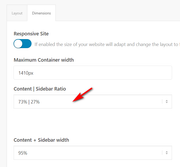
Best regards,
MikeMarch 3, 2020 at 10:27 am #1189662This reply has been marked as private.March 4, 2020 at 6:09 pm #1190137Hi
I haven’t had an answer yet, can you answer me? please.Thank you
Ana
March 5, 2020 at 3:03 pm #1190448Hi,
Sorry for the late reply, to hide the logo when scrolling down, we don’t have a built-in option for this, but you can try this css to achieve this:#header.header-scrolled .container.av-logo-container { display: none !important; }On your mobile page the logo is showing for me, Please see the screenshot in Private Content area.
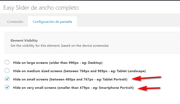
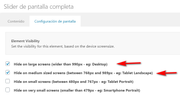
For mobile to have a bigger slider please try adding a “full screen” slider and select the visibility options to only show on mobile and set your easy slider to show all other times.
For the downgrading and controlling of virtual products you will need to use a woocommerce plugin to add this function, I don’t have experience which woocommerce will be best for you in this case but I recommend first going to the woocommerce site a look at the ones they have available.Best regards,
MikeMarch 5, 2020 at 6:12 pm #1190530This reply has been marked as private.March 6, 2020 at 2:47 pm #1190885Hi,
To make the header sticky for mobile I adjusted the css above for hiding the logo on desktop so it would not conflict with the mobile effect, and I then added css to make the mobile header fixed at the top, this is the new css:@media only screen and (min-width: 767px) { #header.header-scrolled .container.av-logo-container { display: none !important; } } @media only screen and (max-width: 766px) { .responsive #top #wrap_all #header { position: fixed; } }Please note that since your site is in maintenance mode when you look at your site you probably are seeing the “WordPress Admin Bar” at the top, so when you scroll in mobile view your new fixed header may look like there is a space above the header where the admin bar was when it scrolls out of view. Your visitors will not see this, if you want to see what they see then go to your profile and disable the admin toolbar.
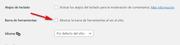
You can add screenshots by uploading your images to a service such as postimages.org and pasting the html code, or link given in your post or Private Content area.To demonstrate what I meant about the mobile slider, I hope you don’t mind that I added a “full screen slider” to your page under your “easy slider” with the same image, text, and two buttons. Then I set the “easy slider” to not show on mobile:
and I set the “full screen slider” to only show on mobile:
and I added this css so the “full screen slider” would not take the full screen:@media only screen and (max-width: 767px) { #top #main #fullscreen_slider_1.avia-fullscreen-slider .avia-slideshow { height: 70vh !important; max-height: 70vh !important; } }Please see the screenshots in Private Content area.
Best regards,
MikeMarch 6, 2020 at 4:19 pm #1190915This reply has been marked as private.March 6, 2020 at 4:37 pm #1190920This reply has been marked as private.March 7, 2020 at 12:11 am #1191034Hi,
To correct the burger menu on the cart icon, I added this css:.html_visible_cart .av-burger-menu-main { padding-right: 45px !important; }As for the background image on /curso/ and some of the other pages I added this css:
@media only screen and (min-width: 767px) {
#main > div > div {
	height: 425px;
}
#main > div {
	background-position: center !important;
}
}
please clear your browser cache and check.
Best regards,
MikeMarch 9, 2020 at 5:50 pm #1191605This reply has been marked as private.March 10, 2020 at 10:39 am #1191760This reply has been marked as private.March 11, 2020 at 12:29 pm #1192227Hi,
Sorry for the late reply, when I check your site at different screen widths I don’t see a blank space, but this might be possible at odd in-between sizes when you don’t refresh the page.
Checking different screen sizes on a desktop screen by reducing the screen width of the window can get unexpected results.
A better approach is to use the dev tools and Toggle the Device Toolbar and click the predefined device sizes such as 320px, 375px, 425px, 768px, etc. and also refresh the page for each size you check.
Please see the screenshot in Private Content area.
This way you will see the page as a user on a real device would see it. Think of it like this, a user on a small iPhone, 320px, would never suddenly have their device change to a iPad, 768px, but if they switched to a iPad the page, javascript, and css would be loaded for the iPad.
I hope I have explained this well.Best regards,
MikeMarch 11, 2020 at 1:03 pm #1192245This reply has been marked as private.March 12, 2020 at 11:54 am #1192557Hi,
1) I’m not sure I understand, Please see the screenshots in Private Content area of what I see when looking at your page on mobile.
2) as for your social share buttons at the bottom of your posts, I see that you are using Enfold v4.6.3.1, you will need to update to v4.7.3 to correct the WordPress error with v5.3.2.
3) To post images please try uploading to an image host like https://savvyify.com/img/ and then copy the embed codes into your post.Best regards,
MikeMarch 12, 2020 at 11:56 am #1192559Hi,
1) I’m not sure I understand, Please see the screenshots in Private Content area of what I see when looking at your page on mobile.
2) as for your social share buttons at the bottom of your posts, I see that you are using Enfold v4.6.3.1, you will need to update to v4.7.3 to correct the WordPress error with v5.3.2.
3) To post images please try uploading to an image host like https://savvyify.com/img/ and then copy the embed codes into your post.Best regards,
MikeMarch 12, 2020 at 12:22 pm #1192565This reply has been marked as private.March 13, 2020 at 1:49 pm #1192881Hi,
1) Thanks for the screenshots, Please try this code in the General Styling > Quick CSS field or in the WordPress > Customize > Additional CSS field:@media only screen and (max-width: 767px) { .responsive #top #wrap_all #main .slide-entry { width: 100% !important; } .responsive #top #wrap_all #main .content .entry-content-wrapper { padding: 0px !important; } .responsive #top #wrap_all .container { width: 95% !important; max-width: 95% !important; } }2) Typically the theme options will tell you when there is an update and you can update through the theme options, but you must have a “valid Envato private token” in the theme options, but on your site I see this is empty, please follow the instructions on the theme options page.
3) glad that helped.Best regards,
Mike -
AuthorPosts


- You must be logged in to reply to this topic.