
Viewing 30 results - 94,351 through 94,380 (of 142,832 total)
  • Author
    Search Results
  • #647276

    Hi @gemac-fieldbus ;
    This topic “Remove Post Navigation for a post type” from Enfold Documentation may help you

    #647253

    Thanks Rikard,
    this solves the issue with the gap from the top header to the main content (Slider etc.).

    But I suspect another problem as this doesn’t solve the issue with this extra line crossing through the top logo… (see link below)

    I gave my customer editor rights to edit text on pages and they managed to mess with the design, but I can’t figure out how?

    • This reply was modified 9 years, 9 months ago by beenee.
    #647243

    Hi guys,

    A long outstanding topic… My client just informed me she is going to stop her business, so can you please flag this topic as solved?

    Thanks & regards,
    Monique

    #647241

    Hi guys,

    I used Yigit’s solution and informed the client. No reply on this by her so far.

    Anyway she just informed me she is going to stop her business, so can you please flag this topic as solved?

    Thanks & regards,
    Monique

    #647228

    Hey Vinay

    Thank you! I have changed to:

    #top .iconbox .iconbox_content {
    background: rgba(0,14,105,.55)!important;
    }

    now its perfect :-)

    Have a nice day and

    best regards
    Daniel

    Hi Andy,
    you can find the two screenshot at the bottom.

    Regarding the Problem. I have a Slider with Pictures which are uploaded to WP in exact 1500 x 630 px. At the slider I choose 1500 x 630px, too.
    Additional to these Settings I have set the maximum height of the slider to 630px in the custom css.

    Up to this point, everything is ok. The problem begins when the width of the Screen is bigger than 1500px and the height of picture normally gets bigger than 630px (proportional). Because of the setting of the Maximum height to 630px, the slider is cropping the picture at the bottom.
    For us it is very important that the slider croppes the picture at the top. So the bottom of the picture is still visible.

    best regards ridcon

    #647225

    Okay thanks team – sorry for not getting back sooner. That’s great – I’ve used the masonary gallery and set up the html links.

    Just one more question – the last image on the gallery at the top of the page is over to the right – is there anyway to make it to the left?

    Cheers

    #647224

    Hi,

    Please try adding this code to the Quick CSS section under Enfold > General Styling or to your child themes style.css file:

    .avia_mega_div .avia-bullet {
        margin-top: 8px!important;
        left: -12px!important;
    

    Best regards,
    Vinay

    Hi,

    That is a lot of css you have posted to change the header background color and most of that is not required. If i understand correctly you only need the header color to change when a single portfolio item is opened correct? if so Please try adding this code to the Quick CSS section under Enfold > General Styling or to your child themes style.css file:

    #top.single-portfolio #header_main {
         background: #0090ce!important;
    }
    

    Best regards,
    Vinay

    You mean only in the mobile view? or also on desktop view?

    #647201

    Thanks Vinay! I tried it in the header and the icons don’t appear on mobile devices so best to just leave them up in the top bar you are right. Thanks again.

    #647198

    Hi,

    Great, glad you got it working. Please let us know if you should need any more help on the topic.

    Regards,
    Rikard

    #647191

    In reply to: Tablepress background

    Hi,

    Great, glad you found a working solution. Please let us know if you should need any more help on the topic.

    Best regards,
    Rikard

    Hi,

    We added this code to the Quick CSS section under Enfold > General Styling :

    #top .widget_nav_menu ul .sub-menu li {
        padding-left: 10px!important;
    }
    

    Please review the site and let us know if you have any questions.

    Best regards,
    Vinay

    #647186

    Hi,

    Great, please let us know if you should need any more help on the topic.

    Regards,
    Rikard

    Hey Jbyorkman,

    Thanks for getting in touch with us!

    Not exactly seeing how the header is jammed up against the slider. Please see my screenshot in the private section. Maybe you could a give a little bit more detail as to what you wish the header to look like in terms of spacing.

    You can follow this link to add a Google font – http://kriesi.at/documentation/enfold/register-additional-google-fonts-for-theme-options/

    Please try adding this code to the Quick CSS section under Enfold > General Styling or to your child themes style.css file to change the H1 color and remove the green line:

    h1.av-special-heading-tag {
        color: #93c83f !important;
    }
    
    .flex_column.av_one_full.av-animated-generic.bottom-to-top {
        background-color: transparent !important;
    }
    

    Best regards,
    Jordan

    #647163

    Hi mcmoya,

    Great, please let us know if you should need any more help on the topic.

    Thanks,
    Rikard

    #647157

    Hi,

    Thanks a lot, I’ll go ahead and close this topic. Please open a new one if you should have any more questions/problems.

    Best regards,
    Rikard

    #647150

    Hi,

    Here you go please try adding this code to the Quick CSS section under Enfold > General Styling or to your child themes style.css file:

    #top.page-id-4614 .av-section-color-overlay {
    	background-size:cover!important;
    }
    

    Best regards,
    Vinay

    #647141

    Hi,

    Thanks for getting back to me.

    Please try the suggestions found here – https://kriesi.at/support/topic/having-problems-after-updating-to-enfold-3-6-please-read-this-first/

    If that does not help, could you please provide login details to your site, so that we can have a closer look. You can place the information in the Private Content section of your reply.

    Best regards,
    Jordan

    #647136

    Hey yes9310,

    To be honest there is just enough space on the main menu to fit the social icons it might look ok on the large screen but on small screens the menu will run into logo. I would recommend keeping it on top as you have it right now. if yous till like to add the social icons inline with menu please change the settings in Enfold > Header > Extra Elements > Header Social Icons

    It appears you figured out how to make the RSS icon is orange? please see attached screenshot.

    Best regards,
    Vinay

    Hi Nicola,

    Yes you can select to only show top level items in the theme options, but if you select that option the child items will not be available in the menu unfortunately.

    Thanks,
    Rikard

    #647132

    Hey Stefan,

    Please try the following in Quick CSS under Enfold–>General Styling:

    .pf-content {
    padding-top:20px;
    }

    Regards,
    Rikard

    #647131

    Hi again
    I had a look at the dropdown menu on other pages on the site. It looks like the dropdown menu is sitting behind the other boxes ie special header and the colour section on the home page. If the dropdown is displayed on top to the other boxes maybe it will work?

    #647123

    Hi Vinay
    Thank you for the reply. I inserted the code but what I am trying to achieve didn’t change. When you hover over CREATIONS in the menu at the top I would like the whole dropdown menu to be white not just when one hover over the the page names in the drop down.

    Also can you please tell me how to insert an image with transparent background. I really appreciate your help with this.

    #647118
    chrisbelote
    Participant

    Hello,

    I have a one page design setup for the home page of the site, which is working perfectly. When I would go to a section of the website, the menu item text would be highlighted lighter than the other menu items. (e.g. I click on “Services” and go to that section and the word “Services” is white and the other menu items are grayed out.)

    I wanted to incorporate a blog, but was having a hard time setting up a menu for the home page with links like “#services” for the link and then a menu setup for the blog and post pages with a link like “http://rocketleads.net/#services” for the header menu items.

    I came across a plugin that allows you to pick which menus you want for each post, page, etc. It works perfectly, but the problem is that every menu item on the home page is now white (highlighted). Is there a way for me to have the menus highlight as they were before?

    I did try to incorporate one menu for the entire site and just use “http://rocketleads.net/#services” for the menu items (instead of just “#services” as the link), but that made all of the menu items highlight, too. Maybe this is the way to go.. I just need some CSS to fix the highlighting menus items? Not sure..

    EDIT 1: My site speed has slowed down tremendously since I added the above-mentioned plugin to pick which menus go with which page/post/etc., so I am going to be removing that plugin. Hopefully, making the links the full link instead of just the hashtag will work.. I will just need to figure out to have the menu items highlight correctly.

    EDIT 2: Something else I noticed is that when I am on a blog post, the “HOME” menu item is highlighted, but I am technically not on the home page. If I change this from “http://rocketleads.net/#top” to just “http://rocketleads.net” it will not work on the home page. You can see what I am talking about at the blog post below:

    EDIT 3: I have found one option which includes removing “HOME” from the menu item bar at the top. I would prefer to keep it up there, but will do it as a worst case scenario.

    Also, if there is a better way to handle what I am trying to do, please let me know. I am open for any ideas and recommendations. Again, I am trying to have a one-page home page, a separate blog page and separate post pages.

    One page homepage: http://rocketleads.net
    Blog page: http://rocketleads.net/blog

    Thanks,
    Chris

    • This topic was modified 9 years, 9 months ago by chrisbelote.
    #647110

    Hey Lucille,

    1. I noticed that the menu link color is showing up fine but the text in the phone info and social icons are white on white, to fix it please try adding this code to the Quick CSS section under Enfold > General Styling or to your child themes style.css file:

    @media only screen and (max-width: 767px) {
    .phone-info  {
        color:#000!important;
    }
    .social_bookmarks a[data-av_icon]:before {
       color:#000!important;
    }
    }


    2 and 3 i checked a few pages couldn’t find what you mentioned please provide a precise link to the page, showing the elements in question? We need to be able to inspect them in order to help :)

    4. To include the images in search result please refer to the post here https://kriesi.at/support/topic/thumbnails-on-search-results-page/#post-165009

    Best regards,
    Vinay

    #647104

    Thank you very much! That got me most of the way there. The individual list items inside were still being floated left, but I added this to what you posted, and I’m now getting the desired result:

    	body.home #avia-menu li.menu-item-top-level{
    		float:none;
    		display: inline-block;
    	}
    
    	body.home #avia-menu #menu-item-search {
    		float:none;
    		display: inline-block;
    	}
    
    • This reply was modified 9 years, 9 months ago by Scott Beyer.
    yes9310
    Participant

    Hi,

    1. Can’t see mobile menu on 3.5.2 or now 3.6 endfold.

    2. Shrinking header doesn’t work and if you put the menu above the logo, it covers part of the logo even with the default enfold logo.

    3. The scroll to top is not there.

    4. Add media doesn’t work in default design mode

    The only custom css I have is here:
    #top #header_meta {
    background-color: #000000 !important;
    }
    #top #wrap_all .av-social-link-facebook a {
    color: #fff;
    background-color: #37589b;
    }
    #top #wrap_all .av-social-link-twitter a {
    color: #fff;
    background-color: #46d4fe;
    }
    #top #wrap_all .av-social-link-rss a {
    color: #fff;
    background-color: #FFA133;
    }
    #scroll-top-link {
    background-color: #2361A1;
    color: white;
    border-color: black;
    }
    span.news-thumb{
    display:none !important;
    }

    • This topic was modified 9 years, 9 months ago by yes9310.
    FelixB
    Participant

    Hello guys,

    I have a question regarding changing the header colour. This is the screenshot of my portfolio:

    and this is the same page if I scroll the page down (this is the colour that I want btw):
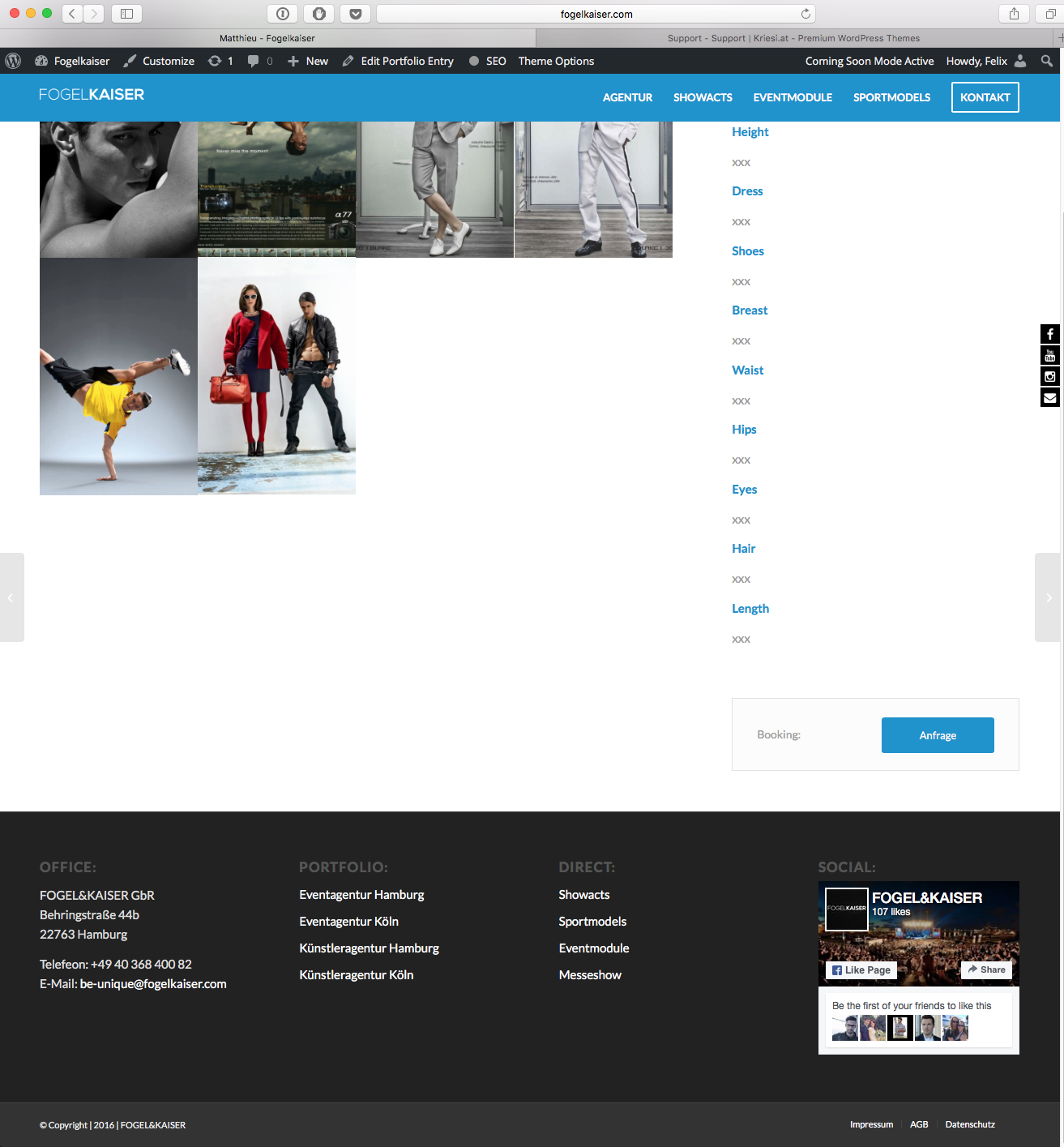
    Screenshot 2

    I’ve inserted the codeblock in order to make the header colour blue. But there’s no change, unless I change the colour in the General Styling. This is the code:

    <style>header#header.header-scrolled * {background-color: #0091ce;}
    #top .av-siteloader {
        border-color: #e1e1e1;
        border-left-color: #0091ce;
    }
    .main_color a, .main_color .widget_first, .main_color strong, .main_color b, .main_color b a, .main_color strong a, .main_color #js_sort_items a:hover, .main_color #js_sort_items a.active_sort, .main_color .av-sort-by-term a.active_sort, .main_color .special_amp, .main_color .taglist a.activeFilter, .main_color #commentform .required, #top .main_color .av-no-color.av-icon-style-border a.av-icon-char, .html_elegant-blog #top .main_color .blog-categories a, .html_elegant-blog #top .main_color .blog-categories a:hover {
        color: #0091ce;
    }
    .main_color a:hover, .main_color h1 a:hover, .main_color h2 a:hover, .main_color h3 a:hover, .main_color h4 a:hover, .main_color h5 a:hover, .main_color h6 a:hover, .main_color .template-search a.news-content:hover, .main_color .wp-playlist-item .wp-playlist-caption:hover {
        color: #0091ce;
    }
    .av-hotspot-container .av-image-hotspot_inner {
        background-color: #0091ce !important;
    }
    .main_color .primary-background, .main_color .primary-background a, div .main_color .button, .main_color #submit, .main_color input[type='submit'], .main_color .small-preview:hover, .main_color .avia-menu-fx, .main_color .avia-menu-fx .avia-arrow, .main_color.iconbox_top .iconbox_icon, .main_color .iconbox_top a.iconbox_icon:hover, .main_color .avia-data-table th.avia-highlight-col, .main_color .avia-color-theme-color, .main_color .avia-color-theme-color:hover, .main_color .image-overlay .image-overlay-inside:before, .main_color .comment-count, .main_color .av_dropcap2, #top #wrap_all .main_color .av-menu-button-colored > a .avia-menu-text, .main_color .av-colored-style .av-countdown-cell-inner, .responsive #top .main_color .av-open-submenu.av-subnav-menu > li > a:hover, #top .main_color .av-open-submenu.av-subnav-menu li > ul a:hover {
        background-color: #0091ce;
        color: #ffffff;
        border-color: #0091ce !important;
    }
    .main_color .button:hover, .main_color .ajax_controlls a:hover, .main_color #submit:hover, .main_color .big_button:hover, .main_color .contentSlideControlls a:hover, .main_color #submit:hover, .main_color input[type='submit']:hover {
        background-color: #0091ce;
        color: #ffffff;
        border-color: #0091ce;
    }
    
    #scroll-top-link:hover {
        color: #0091ce;
    }
    .main_color .required {
        color: #0091ce;
    }
    *::selection {
        background-color: #0091ce;
    }
    #athleten,#network{
         min-height: 1px;
    }
    </style>

    So my question is how to change the header colour, in particular for the portfolio page, without changing the setting in general styling. Thanks in advance for your awesome support!

    Kind regards,
    Felix

Viewing 30 results - 94,351 through 94,380 (of 142,832 total)