Hey schwabino,
Thank you for the inquiry.
Would you mind providing a link to the page and a screenshot of the issue? You can use platforms like FreeImage, ImgBB, PostImages or Dropbox to upload and share the screenshot. Here are the steps to follow:
1.) Visit the website of your chosen platform, such as Savvyify, ImgBB, PostImages or Dropbox.
2.) Locate the option to upload a file or an image.
3.) Select the screenshot file from your computer or device and upload it to the platform.
4.) After the upload is complete, you will be provided with a shareable link or an embed code.
5.) Copy the link or code and include it in your message or response to provide us with the screenshot.
Thank you for taking the time to share the screenshot. It will help us better understand the issue you’re facing and provide appropriate assistance.
Best regards,
Ismael
Hi,
Thank you for the screenshot.
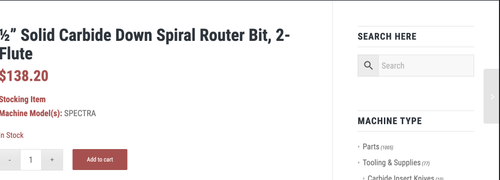
To move the separator up, try o add this css code:
.single-product .template-shop.sidebar_right {
    padding-top: 0;
}

#top.single-product .template-shop.sidebar_right .product > div, #top.single-product .template-shop.sidebar_right .product > .sidebar {
    padding-top: 50px;
}
Result:
Best regards,
Ismael
Hmm – you’re giving up early. I’ve now created the final version and inserted it above; or rather, I’ve made it available on my page for copy & paste. As you can see, it works for me – and even when Masonry switches to a single-column layout, the perfect grid now looks like the flexible grid. Image by image with the captions underneath.
Your decision.
I cleaned up the snippet a little, as the flexible Masonry Grid option already behaved this way! (Captions below the image)
Hi Rikard,
Apologies for late reply.
Using this code
#top ui-datepicker-header ui-widget-header ui-helper-clearfix ui-corner-all .ui-icon,
.ui-widget-content .ui-icon {
background-image: url(“/wp-content/plugins/yith-woocommerce-booking-premium/assets/css/images/ui-icons_444444_256x240.png”);
}
The file is at on server and accessible
I just don’t understand why it doesn’t appear.
Have you tried making changes yourself using CSS? Because the spacing between the images is not the Enfold standard spacing when set to “large gap.”
so in total : replace the snippet by:
( btw. i changed the code on my page too – if you hover the snippet there is on top right of the codeblock a copy button)
/**
 * Enfold Masonry Caption Fix - NUR für Perfect Grid
 * Schiebt die Caption unter das Bild, ohne es zu verdecken.
 */

function enfold_masonry_perfect_grid_caption_fix() {
?>
<style>
    /* ========================================
       PERFECT GRID CSS
       ======================================== */

    /* Erlaubt der Caption, über den Container hinauszuragen */
    #top .av-masonry.av-fixed-size.av-masonry-gallery .av-inner-masonry,
    #top .av-masonry-gallery.av-masonry-gallery-fixed figure.av-inner-masonry {
        overflow: visible !important;
    }

    /* Positioniert die Caption direkt unter das Bild-Quadrat */
    #top .av-masonry.av-fixed-size.av-masonry-gallery .av-inner-masonry-content,
    #top .av-masonry-gallery.av-masonry-gallery-fixed figcaption.av-inner-masonry-content {
        position: relative !important;
        top: 100%;
        background: #ffffff; /* Hier ggf. deine Wunschfarbe für den Hintergrund */
    }

    /* Korrektur für Tablets */
    @media only screen and (min-width: 767px) and (max-width: 989px) {
        .responsive .av-masonry-gallery .av-masonry-entry .av-masonry-entry-title + .av-masonry-entry-content {
            display: block !important;
        }
    }
</style>

<script>
    (function($) {
        'use strict';

        function fixPerfectGrid() {
            // Nur für Masonry Galerien mit festem Raster (Perfect Grid)
            $('.av-masonry-gallery.av-masonry-gallery-fixed, .av-masonry.av-fixed-size.av-masonry-gallery').each(function() {
                var $gallery = $(this);
                var columnCount = 1;

                // Spaltenanzahl ermitteln
                if ($gallery.hasClass('av-masonry-col-2')) columnCount = 2;
                else if ($gallery.hasClass('av-masonry-col-3')) columnCount = 3;
                else if ($gallery.hasClass('av-masonry-col-4')) columnCount = 4;
                else if ($gallery.hasClass('av-masonry-col-5')) columnCount = 5;
                else if ($gallery.hasClass('av-masonry-col-6')) columnCount = 6;

                if ($gallery.hasClass('av-masonry-col-flexible')) {
                    var $items = $gallery.find('.av-masonry-item-with-image:visible');
                    if ($items.length >= 2) {
                        var firstTop = $items.eq(0).offset().top;
                        var itemsInFirstRow = 1;
                        for (var i = 1; i < Math.min($items.length, 10); i++) {
                            if (Math.abs($items.eq(i).offset().top - firstTop) < 10) {
                                itemsInFirstRow++;
                            } else { break; }
                        }
                        columnCount = itemsInFirstRow;
                    }
                }

                // Maximalhöhe der Captions finden, damit die Zeilen gleichmäßig bleiben
                var maxCaptionHeight = 0;
                $gallery.find('.av-masonry-item-with-image').each(function() {
                    var $caption = $(this).find('figcaption.av-inner-masonry-content, .av-inner-masonry-content');
                    if ($caption.length && $caption.is(':visible')) {
                        maxCaptionHeight = Math.max(maxCaptionHeight, $caption.outerHeight(true));
                    }
                });

                // Abstand unten einfügen, damit das Masonry-Layout Platz für die Caption lässt
                if (maxCaptionHeight > 0) {
                    $gallery.find('a.av-masonry-entry, .av-masonry-item-with-image').css('margin-bottom', maxCaptionHeight + 'px');
                }
            });

            // Layout neu berechnen
            $('.av-masonry-gallery.av-masonry-gallery-fixed, .av-masonry.av-fixed-size.av-masonry-gallery').isotope('layout');
        }

        // ========================================
        // INITIAL LOAD - Nur auf Bilder warten, nicht auf die ganze Seite
        // ========================================
        (function() {
            var $gallery = $('.av-masonry-gallery');

            if ($gallery.length && typeof $.fn.imagesLoaded === 'function') {
                // Wartet NUR auf die Bilder in der Galerie
                $gallery.imagesLoaded(function() {
                    setTimeout(fixPerfectGrid, 200);
                });
            } else {
                // Fallback für den Notfall
                setTimeout(fixPerfectGrid, 600);
            }
        })();


        // Nach Enfold Events
        $(document).on('av-masonry-complete', function() {
            setTimeout(fixPerfectGrid, 250);
        });

        // Bei Größenänderung
        $(window).on('debouncedresize', function() {
            // Reset Margin
            $('.av-masonry-gallery.av-masonry-gallery-fixed .av-masonry-item-with-image, .av-masonry.av-fixed-size.av-masonry-gallery .av-masonry-item-with-image').css('margin-bottom', '');
            fixPerfectGrid();
        });

    })(jQuery);
</script>
<?php
}
add_action('wp_footer', 'enfold_masonry_perfect_grid_caption_fix', 999);
i also replaced the on load event by:
// Run initially
$(window).on('load', function() {
    $('.av-masonry-gallery').imagesLoaded(function() {
        setTimeout(fixAllMasonryModes, 200);
    });
});
and implemented the enfold debounceresize function on performance reasons.
If you make the browser window a little bigger or smaller, you will see that it works. It seems to be a timing problem affecting your page.
So try changing the timings:
Try to change inside the snippet the values of :
// Initial loading: Wait longer for images
$(window).on('load', function() {
    setTimeout(fixAllMasonryModes, 600);  // 300 → 600ms
});

// After events: A little more time
$(document).on('av-masonry-complete', function() {
    setTimeout(fixAllMasonryModes, 250);  // 100 → 250ms
});

$('body').on('av-isotope-finished', function() {
    setTimeout(fixAllMasonryModes, 250);  // 100 → 250ms
});
by the way:
Different Solution – even the captions will have the same height on perfect Grid
However, this does not look so good in some cases if the captions are of too different sizes.
I’ll remove that because it doesn’t make sense. As soon as one caption is very long in all Masonries, all the others are pulled up to the height of that caption—it doesn’t look good.
It would be different if he adjusted the same caption heights in a row—but I can’t think of a way to do that.
Hi Mike –
Yes correct – images in color sections are not showing across about dozen sites. I am using the Flush Cache provided by the host within WordPress.
Yes I will try that.
This has just suddenly become an issue – are you aware of a fix coming?
Thanks for the reply!
Hey annameis,
I assume that your issue is that some images are not showing until you clear your cache, is this your browser cache, WordPress cache, cache plugin, theme cache, or server cache?
Are the images background images in your color sections? These are shown via CSS in the post_css function, depending on your cache time limits, this is typically not an issue with the theme, but you could try this function in your child theme functions.php file to disable:
function custom_avf_post_css_create_file( $create ) {
	return false;
}
add_filter( 'avf_post_css_create_file', 'custom_avf_post_css_create_file', 10, 1 );
Then clear all of the above caches and check again.
Best regards,
Mike
For the past couple weeks I have had issues with images showing up on my Enfold theme websites. All are hosted with GoDaddy and as soon as I clear the cache and they are fine. This happening randomly several times a week. I have contacted the host and they have not solved.
Is this a new issue with Enfold and if so how do I fix as I have dozens of Enfold websites.
Thank you!
Hello – for some reason, my website has the page’s header images removed, and the text is super small. When I log in and update the page, it fixes itself. I did a theme update but still needed to update each page manually? Do you know what is causing this?
HI
Is it possible to place the titles / excerpts below the images in masonry galleries and grids?
I’d like to be able to see the whole image.
Thanks
Nancy
For some reason one of my websites has suddenly stopped displaying some of the images properly.
This is how the home page looks now https://insiderdealingsw4.com/about-insider-dealings-2-copy-2/
I have had to put in still images on the real home page to stop it being blank.
Scroll to the bottom and there should be a portfolio grid. If you roll over the images they display, otherwise don’t show at all.
I have tried rebuilding the page which hasn’t helped. I have NOT updated anything for a week or so. Last time I looked at the website it was displaying perfectly.
The whole website is the same!
I can give you access to the back end if that helps?
Hey daninap,
Thank you for the inquiry.
You can add this css code to adjust the position of the language switcher.
#top li.menu-item.menu-item-gtranslate {
    position: fixed !important;
    left: 0;
    top: 150px;
}

Best regards,
Ismael
Hi,
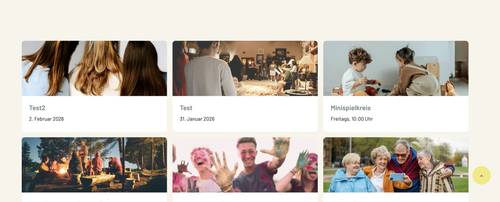
We adjusted the code in the functions.php file to move the posts with the date field first, but we’re not certain if the first two posts are ordered correctly. Could you check?
Best regards,
Ismael
Hey studioinktvis,
Thank you for the inquiry.
Adding this css code should help capitalize the heading element.
.template-page .entry-content-wrapper h1, .template-page .entry-content-wrapper h2 {
    text-transform: capitalize;
    letter-spacing: 1px;
}

Best regards,
Ismael
Hey condonp,
Thank you for the inuquiry.
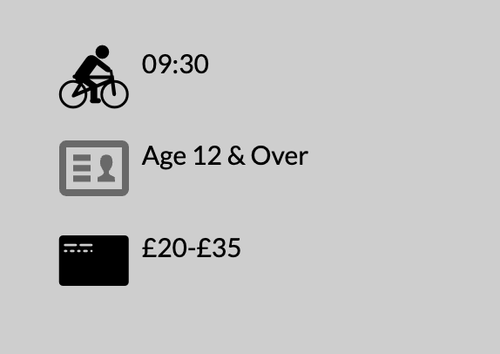
Looks like you have added the icons manually using html. Make sure to add a unique class name to the icon container, for example “av-custom-icon”, and then add this css code to adjust their minimum height.
#top .slide-entry-excerpt.entry-content .av-custom-icon {
    min-height: 40px;
}
Result:
Best regards,
Ismael
Is there a way to add a drop shadow to all the buttons that are Light Transparent? They are on most of the pages at the top of the page: https://neighborhoodsinphoenix.com/
They all have images behind them and it sometimes gets hard to read.
Let me know if there is an CSS that would work for the site.
thanks!!
Hey Lee Sang Min,
Thank you for the inquiry.
Did you add any html tags in the Tab Section element? Please make sure that all tags are valid and properly closed. Invalid html tags could break the page layout and cause errors in the builder.
We tried accessing the video, but the file is not accessible on our end, without logging in. Would you mind using a different video hosting platform like streamable (https://streamable.com/)? You can also use platforms like FreeImage, ImgBB, PostImages or Dropbox to upload and share a screenshot.
In the meantime, please make sure that the theme is updated to version 7.1.3 and WordPress to version 6.9.1. Let us know if the issue persists.
Best rega
Hey Lee Sang Min,
Thank you for the inquiry.
The file is not accessible on our end. Would you mind using a different video hosting platform like streamable (https://streamable.com/)? You can also use platforms like FreeImage, ImgBB, PostImages or Dropbox to upload and share a screenshot.
In the meantime, make sure that the team is updated to version 7.1.3 and WordPress to 6.9.1. Let us know if the issue persist.
Best regards,
Ismael
Hi,
Thank you for the info.
To remove the default pencil icon for posts without featured images, try to add this css code:
.rounded-container .iconfont, .small-preview .iconfont {
    display: none;
}
Then add this code to ensure the featured image covers the entire container.
.small-preview img, .big-preview img {
    width: 100%;
    object-fit: cover;
    height: 80px;
}
Result:

Best regards,
Ismael
Hey daninap,
Thank you for the inquiry.
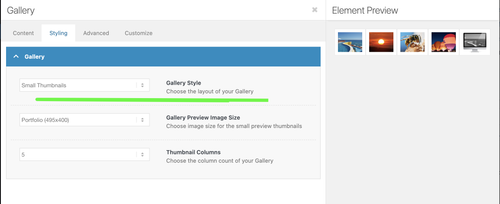
You can change the size of the thumbnails used in the gallery by adjusting the Styling > Gallery > Gallery Preview Image Size setting. Please refer to the screenshot below.
Best regards,
Ismael
al link seguente si è presente una galleria, con 4 immagini alla quale ho impostato la dimensione 300X300
come mai una la vedo di dimensione diversa ?
potete aiutarmi?
Hi Ismael,
Yes I did remove the css code you suggested and the Preview image appears in the “Blog Posts Content Element”
uvpublichealth.oorg/news
but when I hide the featured image on the blog post I get still get a large icon with a pencil — how do I hide that pencil icon?
 Lee Sang Min
Guest
https://drive.google.com/file/d/1LCTDadxGKcECUNuGReQtH9zo9_5tCZ4O/view?usp=sharing
This is a screen recording of my workspace.
No HTML code or additional custom code has been applied.
When I try to add images or columns, the editor crashes during the save process, as shown in the video.
https://drive.google.com/file/d/1LCTDadxGKcECUNuGReQtH9zo9_5tCZ4O/view?usp=sharing
This is a screen recording of my workspace.
No HTML code or additional custom code has been applied.
When I try to add images or columns, the editor crashes during the save process, as shown in the video.
Hi,
Thank you for the update.
Another option is to use the Layout > Feature Image settings in the post editor — see the screenshot below for reference.
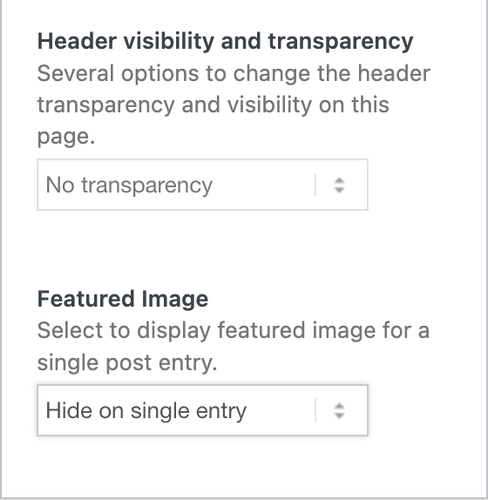
If you want to completely remove it by editing the template files, open the includes > loop-index.php file and remove the block of code, found on lines 256 and 430.
if( ! in_array( $blog_style, array( 'bloglist-simple', 'bloglist-compact', 'bloglist-excerpt' ) ) )
		{
			//echo preview image
			if( strpos( $blog_global_style, 'elegant-blog' ) === false )
			{
				if( strpos( $blog_style, 'big' ) !== false )
				{
					if( $slider && false === $ignore_image_links )
					{
						if( $link_lightbox )
						{
							$slider = '<a ' . $lightbox_attr . ' ' . $featured_img_title . '>' . $slider . '</a>';
						}
						else
						{
							$slider = '<a href="' . $link . '" ' . $featured_img_title . '>' . $slider . '</a>';
						}
					}

					if( $slider )
					{
						echo '
<div class="big-preview ' . $blog_style . '" ' . avia_markup_helper( array( 'context' => 'image', 'echo' => false ) ) . '>' . $slider . '</div>
';
					}
				}

				if( ! empty( $before_content ) )
				{
					echo '
<div class="big-preview ' . $blog_style . '">' . $before_content . '</div>
';
				}
			}
		}
Unfortunately, you cannot use the filter above to hide the featured images.
Best regards,
Ismael
Hi,
Thank you for the update.
The featured images and blog meta inof are not visible on the category page either. Have you tried removing the css code mentioned above? This should restore the blog meta info container along with the featured images.
Best regards,
Ismael
Hi .. i need to build a page with large content like Legal Disclaimer. This page sould noch have the browser scrollbars, so i would like to build it with two block beside each other. The left one should contain the text and have scrollbars, the right one onle a background image that will have same height as the left block.
How can i add scrollbars to the content of the left block to make text scrollable?
Hi Ismael,
Thanks for your quick note back.
.post-entry .blog-meta {
display: none;
}
For some reason the code above only affected the Single Post Entries and the Featured Images appeared in the Category Blog Post Multiple listing of small Preview images.
Now on the Single Post Entires a Large Icon appears on the Single post of a Pencil on a large gray square….how do I hide those?
Is there Css to make this icon disappear?
Thanks



