Hey havi,
Thank you for the inquiry.
The loading attribute is set to lazy, but the decoding attribute has been added. If you want to remove the decoding attribute, you can add this filter in the functions.php file:
add_filter( 'wp_img_tag_add_decoding_attr', function( $value, $image, $context ) {
    return false;
}, 10, 3 );
Let us know the result.
Best regards,
Ismael
Hi,
Thank you for the screenshot.
We noticed that Enfold > Theme Options > Logo was not set, so we selected the logo, but the image is still not displaying in mobile view. Did you apply any filter in the functions.php file?
Please try to remove the logo completely from the Media Library, then upload it again as logo. Let us know the result.
Best regards,
Ismael
Hi,
Thank you for the update.
Please follow these steps to manually import the demo:
— Download the demo that you’d like to install from this link: https://github.com/KriesiMedia/enfold-library/tree/master/demos
— Extract the zip file and retrieve the XML file.
— After that, go to Dashboard > Tools > Import and install the WordPress importer, then run it.
— Upload the XML demo file.
The demo images may not be included in the import due to security restrictions on OVH servers. You can edit the pages and upload your own images.
Let us know if this works.
Best regards,
Ismael
Hey lenalavendel,
Thank you for the inquiry.
You can adjust the Styling > Masonry Settings > Size Settings to Perfect Grid or experiment with the settings until you achieve the desired layout.
Perfect Grid: Display a perfect grid where each element has exactly the same size. Images get cropped/stretched if they don’t fit
Let us know if this works for you.
Best regards,
Ismael
Hi guys!
For some reason all my website images are loading “async” instead of “lazy” even though the option is there enabled to lazy load.
Help!
Thank you!
Havi
Sending you the website on the private content
Sorry to just now be getting back to this, but it is still an issue. Here is a screenshot: https://img.savvyify.com/image/IMG-5163.9pQ4n
If I add a media item to a page using the avia layout builder, it doesn’t show, the item is there, as I can right click it and inspect.
If I use the default builder and add an image to a page, it works fine.
Hello, we have recently noticed that on both our development and prod site the “Hamburger” button is not displaying in the header on desktop but does on mobile & tablet view. Please find the images attached in Private Content for clarification & detail. Any help on resolving this would be greatly appreciated.
Hi
If I add a background image to a block or section and then after saving, go back to remove or change the image it is not shown in the editor as being there so only have the option to add an image ? yes the image is still there when the page is viewed live ?
Hi Mike,
Thank you.
Yes, I finally found the solution on my own ;-)
I post here my CSS.
I know this can be improved.
However it could be usefull for other users that read this post so i hope this could help.
Best regards
James
/* ———————————— */
/* ——- WIDGET MENU PERSONALIZE ——- */
/* ———————————— */
#top .widget ul {
font-size: large;
line-height: 121%;
}
/* —— personalize current page link —— */
/*—- adding icon for current page link —- */
#top .widget ul li.current_page_item {
background-image: url(“icon.png”);
background-position: left;
background-repeat: no-repeat;
padding-left: 14px;
font-weight: 900 !important;
}
/*—- adding specific background color for current page —- */
/*—- and adding little spacing between letters —- */
#top .widget ul li.current_page_item a {
background-color: #c7eafc;
padding: 0% 4% 0% 4%;
letter-spacing: 0.007em;
border-radius: 9px;
}
/* — HOVER – adding background color for current page — */
#top .widget ul li.current_page_item a:hover {
background-color: #c7eafc;
padding: 0% 4% 0% 4%;
letter-spacing: 0.007em;
border-radius: 9px;
}
/* —— HOVER – appearence for all links (but current page) —— */
#top .widget ul a:hover {
background-color: gold;
padding: 0% 4% 0% 4% !important;
letter-spacing: 0.007em;
border-radius: 9px;
}
#top .widget ul.children inherit a {
background-color: none;
padding: 0%;
border-radius: 9px;
}
I like the quick filter of the (Post)-Masonry element and would like to use it for my shop page and display products with it. This works great, but I want to achieve the same layout as the shop grid. Is it possible to make the images as large and square as in the shop grid and to put the price in the middle? I have placed the shop grid just below for comparison:
Hi,
We checked again using a different browser but we still can’t reproduce the issue. We refreshed the page multiple times and different products appeared each time, but the images displayed correctly.
View post on imgur.com
Please try deactivating the plugins, then purge the cache or check the site in incognito mode.
Best regards,
Ismael
Hi,
Thank you for the update.
The screenshot is not available. Did you download the demo file? Extract its contents, then go to Dashboard > Tools > Import. Look for WordPress, click Install Now, and after installation, run the importer. Upload the demo XML files. Note that the demo images might not upload due to server restrictions on OVH. You can edit the pages and replace the images with your own.
Best regards,
Ismael
Hey cygrafix1,
Thank you for the inquiry.
A smaller version (211x300px) of the image was selected for the background cell. To use the full-size version, reset the background, go to Media > Library, select the image, and choose “Full Size” from the size dropdown before inserting it as the background. Let us know if you need more assistance.
Best regards,
Ismael
Hi, I’m having some issues with my header. I’m not sure why – For the life of me I cannot figure it out. I have a page (See Private) and want the header to overlap the image. This is going to be duplicated for other pages as well but as you can see the header is overlapping blank space and looks weird. How would I have no transparency header overlap the image? I have other pages that use the transparency header… But those settings wont work on this type of page thus why I need things adjusted and not effect the transparency header…
Or is there a better solution to achieve this? Having this kind of header on some pages not effecting other pages…
Hey,
I imported the demo content “creative agency”. There where 3 people in the team section.
Well, the company is just me: 1 person.
So I deleted the two unused raster elements.
Now my image is not shown completely and unsharp. What size is needed and wich settings will make the image appear completely?
Thanks a lot.
Elén
Hi,
Thank you for the update.
It turned out to be an issue with the config-templatebuilder > avia-template-builder > assets > js > avia-media.js file. We modified this code around line 466:
preview_img = element.sizes && element.sizes['thumbnail'] ? element.sizes['thumbnail'].url : element.url;
We added a few images in the Masonry Gallery in the test page. Please make sure to purge the cache before testing.
Best regards,
Ismael
Hi,
Thank you for the update.
Unfortunately, this is not possible with the Color Section or the default sliders that come with the theme. The background video will always be replaced by the fallback image. If you need the video to display on mobile view, you may need to use the Layer Slider and set the video as the background. Make sure that the video is muted.
Best regards,
Ismael
Hey hellsing71,
Please link to your site so we can examine. Please note that we are now at v6.09 and updating from v4.7 will not work automatically.
If you tried to overwrite the theme via FTP you could have errors as old theme files will still be present.
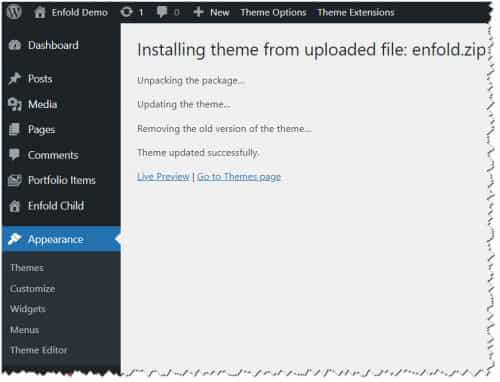
Try installing the theme update like this:
To update your version of Enfold you will need to download the latest installable WP version from your Theme Forest account and upload it to your WordPress ▸ Appearance ▸ Themes ▸ Add Themes ▸ Add New

after you choose the zip file and click install, you will see a This theme is already installed message because you are updating, you can continue

then you will see the Theme updated successfully message.
Best regards,
Mike
Hi,
It looks like you have already found a solution, is this true?

Best regards,
Mike
Hey James,
It looks like you have already found a solution, is this true?

Best regards,
Mike
Hey Nancy,
Your theme version is quite old, v5.4.1 please update to v6.0.9
To update your version of Enfold you will need to download the latest installable WP version from your Theme Forest account and upload it to your WordPress ▸ Appearance ▸ Themes ▸ Add Themes ▸ Add New
after you choose the zip file and click install, you will see a This theme is already installed message because you are updating, you can continue
then you will see the Theme updated successfully message.
Best regards,
Mike
Hey AlonaGreenHouse,
Your theme is very old v4.8.6.5 you must update to v6.0.9
To update your version of Enfold you will need to download the latest installable WP version from your Theme Forest account and upload it to your WordPress ▸ Appearance ▸ Themes ▸ Add Themes ▸ Add New
after you choose the zip file and click install, you will see a This theme is already installed message because you are updating, you can continue
then you will see the Theme updated successfully message.
Best regards,
Mike
Hey MysticMimi,
I’m not sure what you mean, to add a screenshot please try using an Screenshot service and pasting the image URL in your post, so we can understand.
Best regards,
Mike
Hey MysticMimi,
Try using the blog element “filters”

Best regards,
Mike
Hey MysticMimi,
On your blog page the categories show at the bottom because you are using a full width color section and a grid row, these full width elements push the sidebar down below, so you would need to change your layout.
To add categories to your footer you can use the categories widget.

I don’t know what you mean by: “thumbnail photo strip underneath the section” perhaps this?

I don’t see a “white shadow thing at the edge of the page on the blog page”
Best regards,
Mike
Hey MysticMimi,
Thanks for the login, I tested a few elements on different pages, but the “space” key always works for me.
Please create a test page with the element that you can not use the “space” key so we can examine.
Typically this is due to a plugin.
Please note that you don’t need the “Classic Editor” plugin, it is built into the theme at Enfold Theme Options ▸ Select Your Editor

Best regards,
Mike
Hi,
Go to your menu item and hover over the “remove” link, then at the bottom of the page the link URL will show, look for the ID number, like:
/wp-admin/nav-menus.php?action=delete-menu-item&menu-item=3638&_wpnonce=265b3adf4c
note the text: menu-item=3638, 3638 is the ID, use it in the css like this: #menu-item-3638

If you have trouble, link to your page so we can examine.
Best regards,
Mike
Hi guys,
in another thread i already asked for that:
The gallery on smartphone looks strange.
When i want a large image and thumbnails under the large image theres too much space between image and thumbnails.
Guenni wrote a code for me:
#top div .avia-gallery .avia-gallery-big,
#top div .avia-gallery img {
padding: 2px;
}
Where do i have to add this? Or do i need another code.
Here is an example:
Remember. On PC everything is OK. Just on smartphone it looks weird.
Hey northorie,
Try this CSS in your Enfold Theme Options ▸ General Styling ▸ Quick CSS field:
@media only screen and (max-width: 500px) {
	.responsive #top #wrap_all .flex_column {
	margin-bottom: 0;
  padding-bottom: 0;
}
#av_section_1 .av-special-heading-h1 .special-heading-border {
    height: 0;
}
#av_section_1 {
	min-height: 75px;
}
}
Please ensure to copy the code from the forum and not an email notification so the symbols are not converted.
After applying the css, please clear your browser cache and check.

Best regards,
Mike



