I understand that Gemini is likely to get me into trouble but as long as I’m on this ACF journey, triggered by Enfold :), I thought I’d run this by you. Your video tutorial link in the documentation is based on the free version of ACF. I understand that. I asked Gemini:
“I am now doing an ACF tutorial by the author of the Enfold theme. I am at this place in the tutorial. (If that link doesn’t take you to the relevant part of the video, it is at the 8 minute mark). The tutorial is for the free version of ACF. As I have the Pro version which gives me Gallery privileges I would like to know how I can use that at this point in the video where I need to select WP Custom Fields.”
This is the reply by Gemini. I don’t know if you prefer longer responses like this to be entered into the chat itself or via a link. In this case I have created a PDF.
What do you think?
Thank you
John
-
This reply was modified 8 months, 2 weeks ago by
 mediaapps.
-
This reply was modified 8 months, 2 weeks ago by mediaapps.
-
This reply was modified 8 months, 2 weeks ago by mediaapps.
Hello,
I would like to have a nice masonry gallery like in the “Enfold one page portfolio demo”. By this I mean a nice and beautiful masonry gallery with only the images and not titles or texts.
I don’t find in the masonry parameters a way to do it, can you help me ?
Thank you
Hi,
we have an Instagram feed on our website and clicking on those images also opens the Enfold lightbox (URL added in the private content section).
While we still need the lightbox for other pages, we’d like to disable it specifically for these elements.
We tried this code, as it was suggested on other threads here:
jQuery(document).ready(function() {
	jQuery('.sbi_link_area').addClass('noLightbox');
});
But even though the class is added properly, it does not remove the lightbox (maybe because it is initiated before we add the class).
What else could we try?
Hi,
Try to include this css code to disable the external link overlay.
#top .image-overlay.overlay-type-extern {
    display: none !important;
}
Let us know the result.
Best regards,
Ismael
Hi Mike,
As you suggested, I changed the block editor to the default one and replaced the duplicate featured images. Everything seemed to be fixed, but when I went back to edit the same portfolio items, I couldn’t save the changes because the same error occurred: Updating failed. Could not update the meta value of footnotes in database.
Interestingly, the same error appears in all the modified portfolio items, while everything works normally for the old portfolio items where I didn’t make the featured images replacement. Evidently, saving the featured images with the standard editor created a write to the DB that now interferes with the normal functioning of the block editor on those items or something like that.
I’ve never had problems like this on a website built with Enfold…. having to deal with problems one after another is not pleasant at all!
Best regards
Andrea
This almost works, but the flip sides are not square, even at full size. When the screen is like 1100px wide, the flip sides are really tall, even though the front images are still square. As soon as it switches to two columns, everything looks perfect now. It’s only with four columns that there’s an issue.
Hey plc_ratm,
Thank you for the inquiry.
Are you hosted on OVH? This is a known issue with demo imports on that specific provider. We have manually imported the content of the 2017 demo, including the theme options. Unfortunately, the images and the layer slider failed to import. You can now start editing the pages and replace the missing images with your own.
Let us know how it goes.
Best regards,
Ismael
Hi,
On smaller screens, you could adjust the width of the grid items to make sure they don’t split into four columns and become unnecessarily tall compared to the aspect ratio of the images.
@media only screen and (max-width: 1024px) {

  /* Add your Mobile Styles here */
  .avia-icon-grid-container.av-mb13nabo-2b6695789b3fe0e5c148dc94e76998ee li.av-icon-cell-item {
    flex-basis: calc(50% - 18.75px) !important;
  }
}
Result:
Try toggling the previous css from “contain” to “cover” and see which one works best for your layout.
Best regards,
Ismael
have you set the custom class on the element?
the element (Icon/Flipbox Grid) itself got that custom class: gridded-flipbox
and if aspect-ratio does not exist, why does it work on my site? (Enfold 7.1.1)
there is a porperty : aspect-ratio – see:
https://developer.mozilla.org/en-US/docs/Web/CSS/aspect-ratio
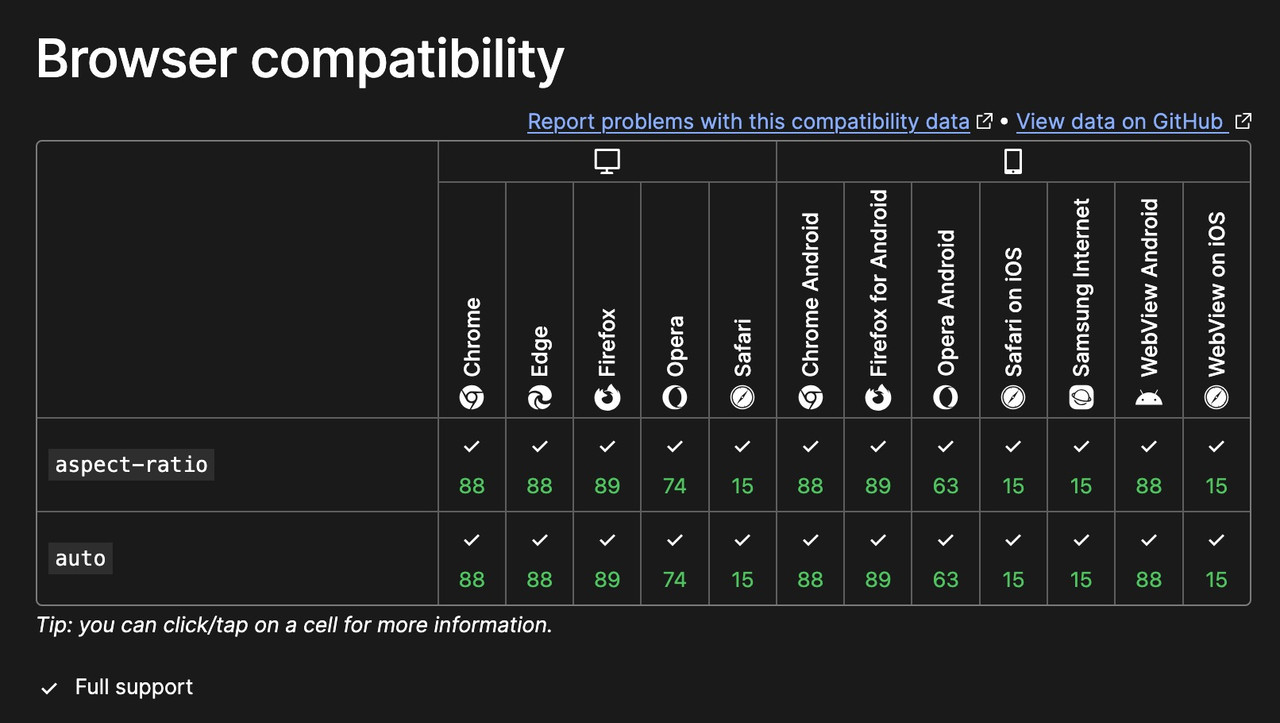
btw: the declaration is :
aspect-ratio: width/height;
but there is a shortform – that if there is no height value – height is 1
so :
aspect-ratio: 1/1 can be written as aspect-ratio: 1
All is based on the square source images – grid layout and – background-size: contain.
because i do not see any cover on your page- do you solve it?
#top .wp-playlist-current-item img {
  display: none;
}
___________
or do you mean : how to show them?
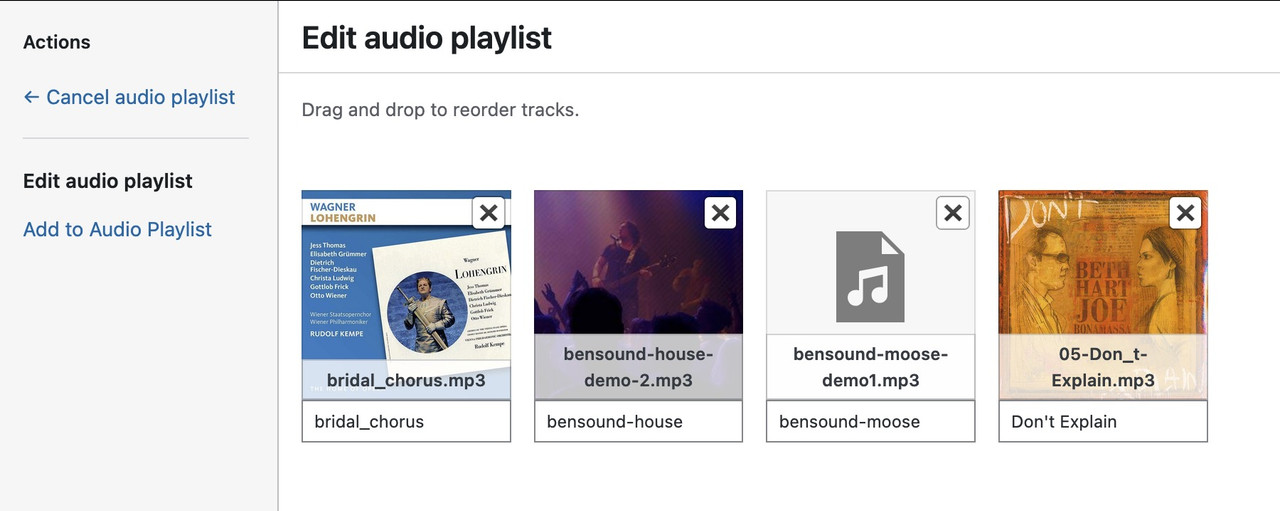
if you like to have cover:
on element (audio player) – player tab: do not enter a cover image ( only if you like to have for all items in the playlist the same cover)
on “Media Icon/Album Cover”
now your audio files must have an embedded cover. – you can see if the file got an embedded cover on media-library popup – when you choose your files:
i embed a cover to your file and uploaded it to my text page – :
Short Version
If you place an URL to an existing page on the same WordPress in the autorespond text, it changes the contact form title and kills the autorespond feature.
Long Version
In Enfold, there is a contact form title:

which is shown in the frontend:

BUT there is the option to add an autoresponder text / email. You can add images and PDF files, but NOT an actual page URL:

(URL marked, on same WordPress).
As soon as you do that, in the fontend the “title” is not shown from the contact form, but from the page linked to:

Additionally, the “autoresponder” is never send. If you remove the page URL, the autoresponder gets send again.
I did remove all Plugins and deactivated the child theme. The issue was still there.
-
This topic was modified 8 months, 3 weeks ago by
 BlutVampir.
-
This topic was modified 8 months, 3 weeks ago by BlutVampir. Reason: tipo and bb to img tags
Thanks very much Ismael for your list. I will now use
wp --user="admin.user" eval "do_action('avia_ajax_after_save_options_page');"
and see how it goes.
As far as I see, in the context of wpcli execution, not all possible callbacks for
‘avia_ajax_after_save_options_page’ are present, only these are executed:
Function: avia_generate_stylesheet
Method: av_responsive_images->handler_ava_reset_db_options
Function: avia_reset_merged_assets
Method: aviaPostCssManagement->handler_ava_reset_css_files
Due to lacking context, the handler_* calls do nothing in this case, but I will see how it goes with this workaround.
Regards Ulrich
Hello everyone,
I have found out where the problem lies. Yes, it is the loading times of the images. But the main problem is the Mac. It executes the scripts in the browser instead of in the Java Console as on the PC. Is it possible to influence this?
Thank you very much… unfortunately it has taken a little longer now.
Matthias
Still a great theme!
Hi,
Looks like you’re now displaying a Fullwidth Slider on smaller screens, and the images in the slide are now displayed at 1100x1100px. Is this what you were expecting?
Best regards,
Ismael
Hi,
Thank you for the update.
Looks like you’ve already detached the title from the image as suggested — it does look better now. Have you tried adding the css we recommended earlier? It will force the image to display fully but the layout might look slightly off if the flipback content is taller than the image.
#top .avia-icon-grid-container .avia-icongrid-flipbox .avia-icongrid-wrapper .avia-icongrid-front.bg-img:before {
    background-size: contain;
}
Best regards,
Ismael
Yes that’s the one.
I dont have a caching plug-in installed on the site, there is server caching but that is turned off. This is what I see….. IMAGE
Regards
Colin
-
This reply was modified 8 months, 3 weeks ago by
 waveseven.
Hi,
This one, right?

The animation seems a little slow, do you have a caching plugin or a object-oriented server cache such as Memcached, Redis, Varnish, Litespeed, etc?
Best regards,
Mi
Hey waveseven,
I see a masonry under Corners, Nooks & Crannies Theme Photos and under Image of the Month Photos both are loading.
Best regards,
Mike
Hi,
Thanks for the login details. Please try the following in Quick CSS under Enfold->General Styling:
.av-masonry-image-container {
  opacity: 1;
}
Best regards,
Rikard
Hello
On one of my websites with enfold, I have used the mason gallery. I can’t find how to remove the color overlay feature that is default until you hover on the image and click on the image then it shows in full color.
I need to remove this overlay feature and just have the gallery images show in full color at all times. In the advanced settings, I did select overlay disable however this did not turn if off on the mason gallery. I have linked the information to the site below
Hello Mike,
how are you? It’s been a while since we’ve been here.
As I initially wrote in the posts and portfolio items, the box for inserting the featured image that is then displayed in the portfolio galleries no longer exists; it’s vanished. In the following link, you’ll see a couple of examples of normal behavior and a couple of missing image boxes examples. I hope the problem is clearer now.
https://app.box.com/s/9b7kaej7d29der7vp67tbc3zvoivbi63
I hope the problem is clearer now. In the current situation, I’m unable to change the featured images associated with posts and portfolio items, with the result that the portfolio gallery still contains the image from the initial portfolio item, from which I copied the images to design the other portfolio items.
https://www.romacittaperta.com/sponsor/
I’d like to insert the correct images in every portfolio items, but I can’t!
Thanks in advance for your help; so far, you’ve always solved everything!
Andrea
Hi,
Perhaps I don’t understand your issue, but when I check your site I see the “Featured Image” option:

Best regards,
Mike
Hey waterwalk,
Thanks for the link to your site, below please see the screenshot of your page, I’m not seeing your issue or perhaps I don’t understand. I see six logos in a row.

Best regards,
Mike
Hi, I have an Enfold gallery for logos on a page and I have it set to 6 columns. I had opened the gallery to look to see if there were any color overlay settings I could adjust and when I found nothing, I closed the gallery without making any changes. Now, on the page the logos have gotten much bigger and are showing in 5 columns instead of 6. Again, I made no changes to the gallery and the gallery is still set to “6” columns. I tried setting it to “4” just to see if it would adjust itself but that does nothing either. The gallery is stuck at “5” across and the images are too big. Any ideas on what could have gone wrong? I’ll put the url in the private content so you can see it. Thx.
Hey jdonelan,
It looks you have hidden this element from mobile view in Advanced ▸ Responsive ▸ Element Visibility, please check.

Best regards,
Mike
This is what happens when the page shrinks. All these images are square images. But when I shrink the page, they are no longer squares.

see here an example page with different scenarios.
on the centered flipbox there is backside first ! so you can see what the height of the flipbox determines ( if you have not choosen a min-height on the options).
See on the last flipbox – what happens if you have a big original image inserted – but with no-repeat – no stretch.
https://webers-testseite.de/gridflip/
Now, please could you explain how this is supposed to work with a responsive layout, where the width of the grid cells changes according to the width of the screen?
The size of the Flipbox depends on your content, not the images (as these are defined as background images).
Firstly, please explain where the images are located. Are they on the front or back? It is also important to specify which element should be displayed first. You also have the option of displaying the back first and then the front on hover.
What options did you choose on background-image
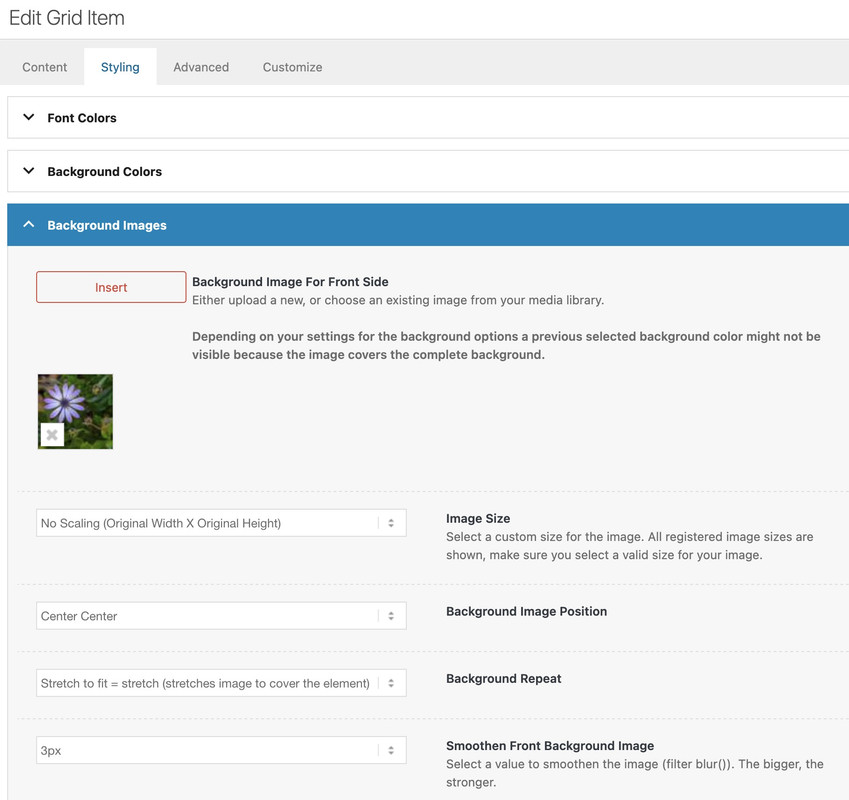
maybe you can make the link public – that even me and other participants can inspect the problem.



