
-
AuthorSearch Results
-
August 12, 2025 at 8:46 am #1487879
In reply to: Blue ? Icon and big space on iPhone only
I think this symbol appears when an image or file cannot be found.
Edit : now i have inspected your page with dev tools – my pages with full-width easyslider and video inside as list item – looks totaly different to your DOM.
I got this
<div id="mep_0" …container inside<div data-rel="slideshow-1" class="avia-slide-wrap " ….with all the video instructions insideAh ok : this seems to be a matter if the inserted url is a relative url and not an absolute url.
by the way it seem to be the only way to show the video on iPhones by relative urls – but than a message is shown : av-fallback-message if there is no fallback image.so try: let there be the relative url to your video – do not enter a fallback image and:
#top .av-fallback-message,
#top .av-fallback-message + img {
  display: none !important;
}
or if you do not like to use the Sibling Combinator :
#top .av-fallback-message {
  display: none !important;
}
.avia-slideshow li img[src*="undefined"] {
  display: none !important;
}
August 11, 2025 at 11:55 pm #1487863In reply to: Iconbox Icon Smaller
August 11, 2025 at 7:09 pm #1487853In reply to: Blue ? Icon and big space on iPhone only
Here is a screenshot from my iphone.
https://img.savvyify.com/image/IMG-4818.yyiLL
Thanks!
ChrisAugust 11, 2025 at 12:44 pm #1487842In reply to: Flux checkout styling problem
Hi,
I dont see any changes in checkout. It must looks like sk domain: https://img.savvyify.com/image/2025-07-30-07-55-14-SSK.yy4aO
Beside this, homepage on test.stoporex.cz is broken.
Regards
August 11, 2025 at 11:50 am #1487835In reply to: No preview images in the Masonry Gallery
Hey Rikard,
thank you for the quick reply.
But:
The “Flexible Masonry” works, but the “Perfect Grid” and “Perfect Automatic Masonry” options don’t display any images. What could be wrong?Best regards,
AndreasAugust 11, 2025 at 9:46 am #1487834In reply to: Text around images
But you know that you do not have to do that by inserting code to text-block element?
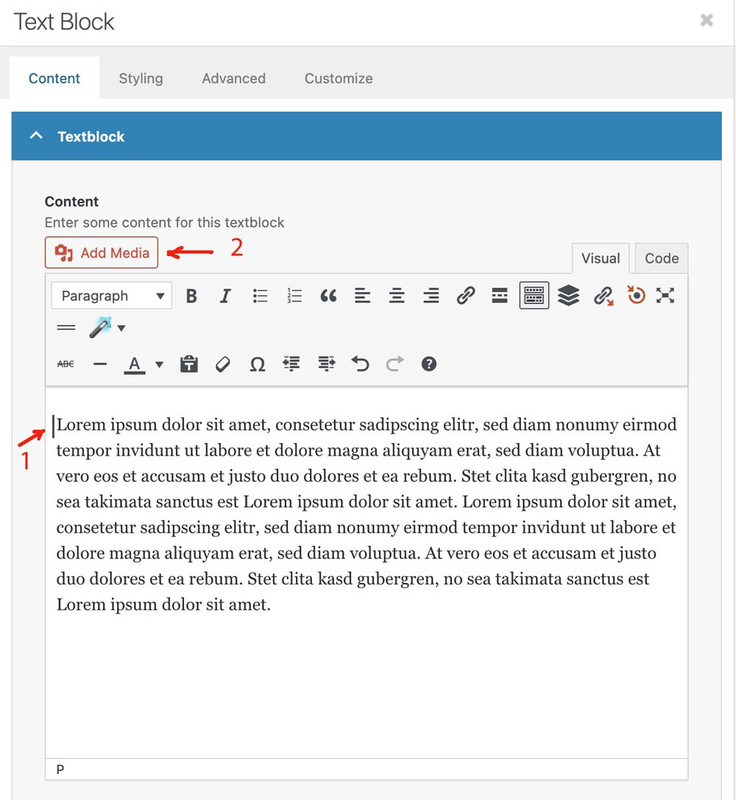
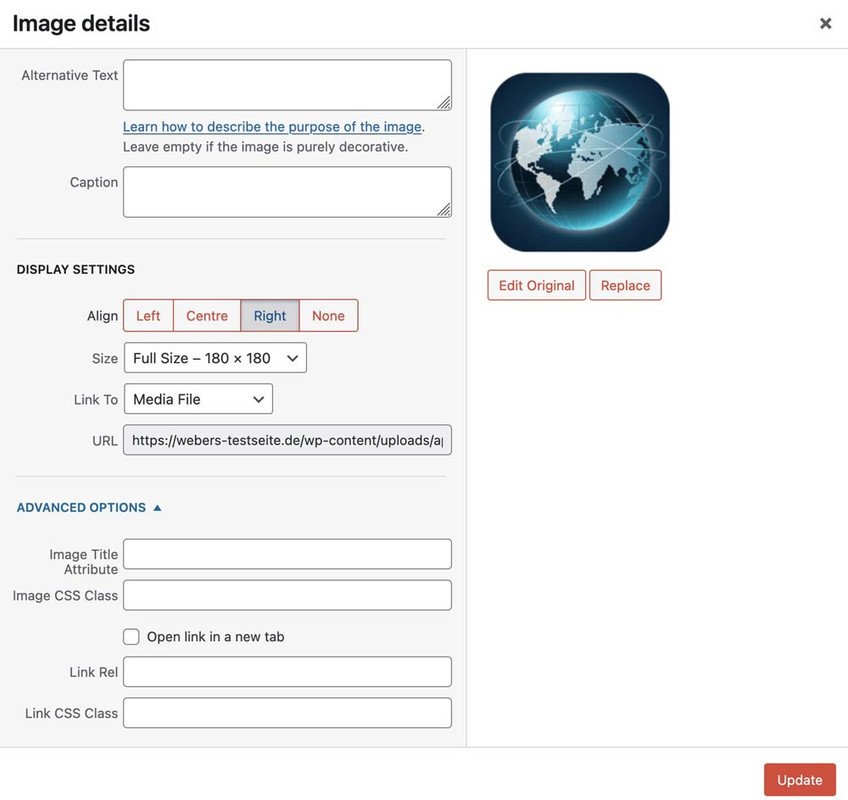
Place your text-block element – and open it. – Insert your text. After that put the cursor (1) to that place where you like to insert the image.
Click (2) on “Add Media”.
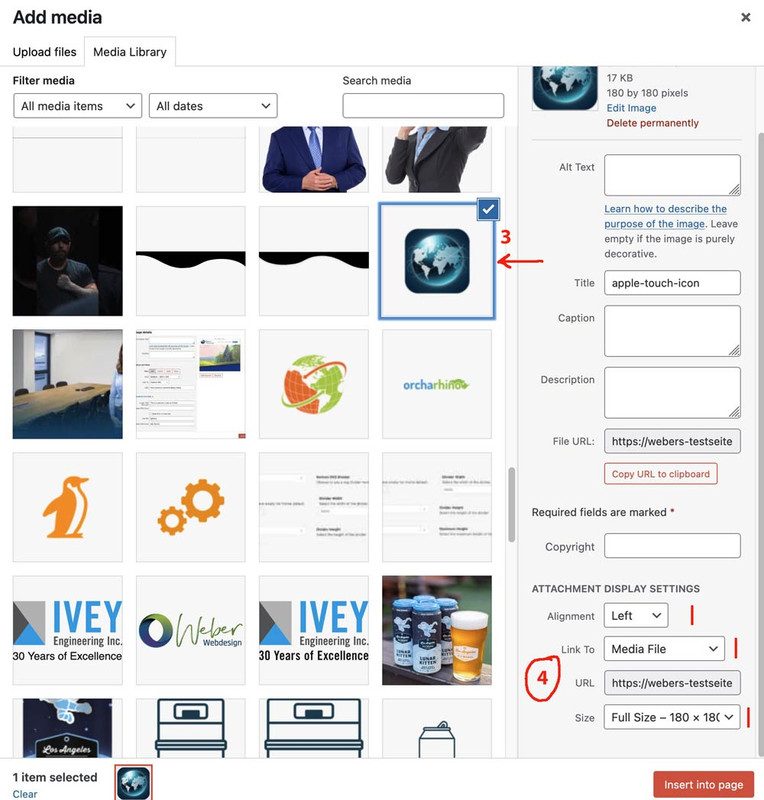
Now it opens the media-library in a popup. Choose your image (3) and set the properties on the right (4). You see here the already the alignment and the lightbox option (link to media file).
Now press “insert into page” button.
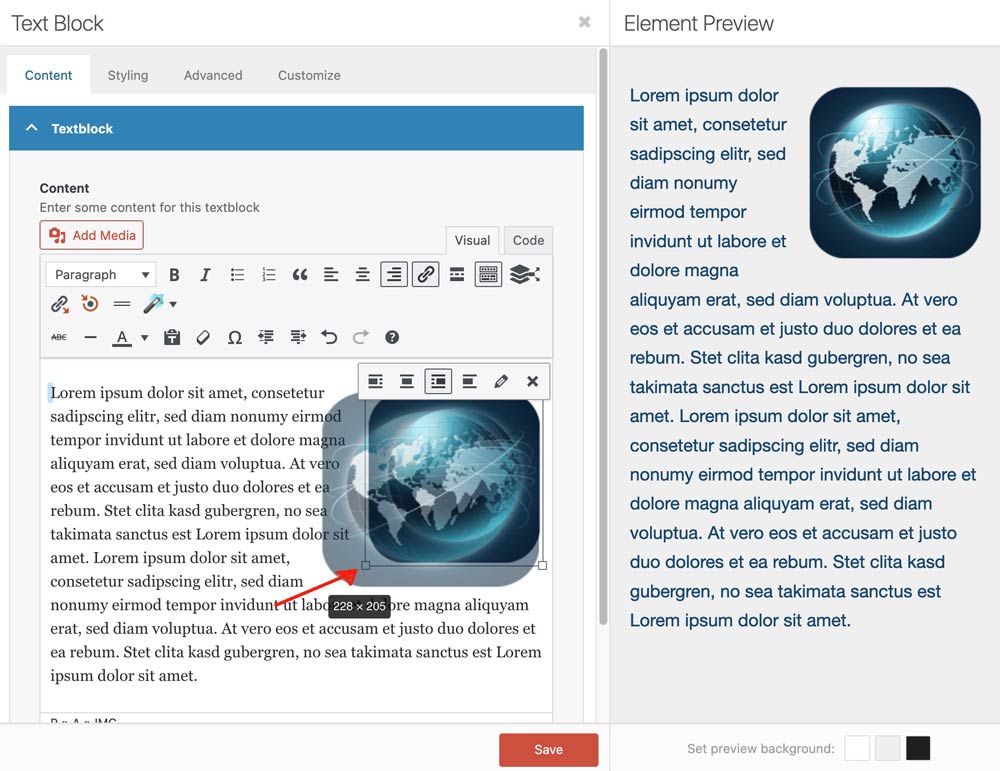
You will see now a preview. You can pull now one edge of the image to make it bigger.
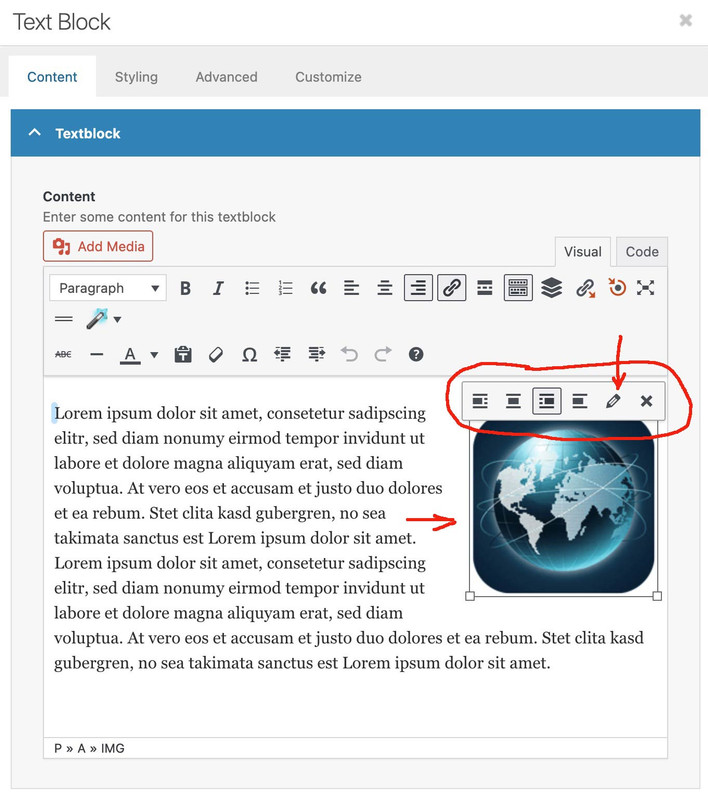
if you like to change some settings on that image – click on the image – you can see now an icon bar on top. Click that pencil button to have another popup.
and
 August 11, 2025 at 5:12 am #1487824
In reply to: CLS issue color section
Hi,
Yes, both the background image and the overlay image contribute to the LCP. While the report flags the background image as the main culprit, any unoptimized images or content on the page can affect loading speed and directly impact the LCP.
Currently, home_backround-keil-mobile.svg is still quite large for mobile view at 96 KB. We recommend either removing it completely from the #av_section_7 section or removing the duplicates of this section completely, keeping only one version for both mobile and desktop views.
Please note that images in these sections still affect the page’s performance, even if they are hidden on mobile view. The minified resources generated by the plugin WPFC also affect the page rendering. Try temporarily disabling the plugin and make sure the Enfold > Performance > File Compression settings are disabled as well.
Let us know if this makes any difference.
Best regards,
IsmaelAugust 10, 2025 at 8:36 pm #1487816In reply to: Not able to Link to Menu
Hi,
Are you using a sticky header?
If it is showing it will not scroll more. Try disabling this:

If you want to use the sticky header, then once the menu shows the link has done it’s job.Best regards,
MikeAugust 10, 2025 at 2:59 pm #1487802In reply to: Text around images
Hi,
Is there a way to enlarge the image to its original size by clicking on it?
Do you mean to open the image in a lightbox?
Try this:<a class="av-float-right" href="/test.jpg" data-rel="lightbox"> <img class="av-float-right lightbox-added" src="/test.jpg" alt="Description" /> </a> Lorem ipsum dolor sit amet, consectetur adipiscing elit. Aliquam eget pulvinar libero. Aliquam fringilla, sapien ut viverra pharetra, augue mauris tincidunt mauris, et semper ipsum quam sit amet leo. Cras commodo non nisl eget eleifend. In hac habitasse platea dictumst. Nullam bibendum diam eu venenatis iaculis. Integer at mi libero. Ut quis purus non urna pharetra consequat semper vitae purus. Morbi ultrices interdum mauris, quis posuere dolor aliquam ut. Duis turpis erat, suscipit et ex vel, commodo volutpat risus. Suspendisse sit amet laoreet lectus. Orci varius natoque penatibus et magnis dis parturient montes, nascetur ridiculus mus.Change the test.jpg to suit and use the same css:
.av-float-right {
   float: right;
   margin: 10px;
   max-width: 242px;
}
result:

and after click of the image it opens in a lightbox:

Best regards,
MikeAugust 10, 2025 at 1:13 pm #1487801In reply to: Easy slider description box
Hey mnydish,
It looks like you have already:
set the box to RGB 27 45 102
Round the corners on the box
And add an icon above the heading

I find no Mega Menu on your site.Best regards,
MikeAugust 9, 2025 at 2:05 pm #1487782In reply to: Problems with Gravity Forms and Enfold
Hey jenscasper,
I’m not sure how to want the button changed:

but the font, color, and background color are from the plugin:color: var(--gf-local-color); font-family: var(--gf-local-font-family); background-color: var(--gf-local-bg-color);at: /wp-content/plugins/gravityforms/assets/css/dist/gravity-forms-theme-framework.min.css
note the “gf” in the css var, this is from Gravity Forms and not Enfold.
Perhaps Gravity Forms is only using the theme standerd colors and not appling their own colors, so to match whatever theme is active?
If you explain how you want it changed we can help override this with css.Best regards,
MikeAugust 8, 2025 at 9:18 pm #1487765In reply to: Featured Image Style width
Hi Ismael.
It works perfectly for me.
I apologize for the mistake: as you guessed, I was referring to the Featured Image Slider.
I was sure I’d already done what you suggested, but I probably got confused or hadn’t saved the changes.
Thanks for your time.August 8, 2025 at 9:06 pm #1487764In reply to: Text around images
Hi Ismael.
It works perfectly for me.
Is there a way to enlarge the image to its original size by clicking on it?
Thanks for your time.August 8, 2025 at 8:47 pm #1487761In reply to: No preview images in the Masonry Gallery
Hey a-l-p,
Try checking if the image URLs look like they should, or pick the images from the gallery again. If that should not help, then please try to temporarily deactivate all plugins to see if that changes anything.
Best regards,
RikardAugust 8, 2025 at 8:46 pm #1487760In reply to: The pages don’t have title
Hi everyone.
Guenni007’s support was invaluable, as is often the case.
I was still surprised, however, because I use the Enfold theme in other projects with other starting demos, and in some cases the title is already present.
I therefore thought there was some sort of on/off switch to activate, or a preference that I had overlooked.
In any case, the solution proposed is efficient and effective.
Is there a way to also remove the horizontal gray line highlighted in the image, which is missing without the title?

Thank you for your time.
August 8, 2025 at 7:59 pm #1487752In reply to: navigation tool
Hi Ismael and thanks for your time.
probably didn’t explain myself clearly.
The settings shown in your image are the same ones I use in other Enfold-themed projects, but they’re only used to manage the menu.
My question was related to what I highlighted in the previous image, which I’ve better indicated in yellow in this image: “You are here: Home / Forums / Enfold / Portfolio Grid Settings”
-
This reply was modified 8 months ago by
icarogioiosi.
August 8, 2025 at 2:49 pm #1487737Topic: No preview images in the Masonry Gallery
in forum Enfolda-l-p
ParticipantDear Support Team,
unfortunately, no images are displayed in the Masonry Gallery anymore. What could be wrong?
Thank you for your help.
AndreasAugust 8, 2025 at 12:51 pm #1487736Topic: Edit templetes
in forum Enfold95mc
ParticipantHi,
I have create different templates (image attack)
There is the possibility of modifying one of them and having it appear on all the pages where it is included.
Thanks advance,BR,
Antonio
August 7, 2025 at 10:45 pm #1487725In reply to: Update für Version 4.5.5
Hey Matthias Gruhn,
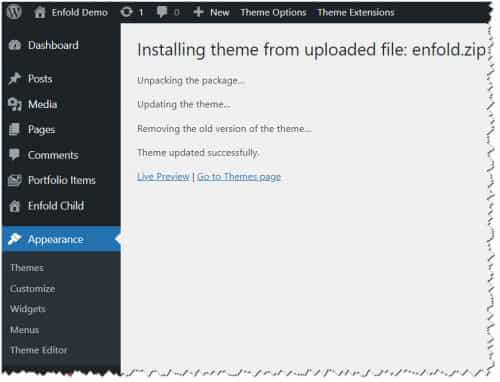
Your version is quite old, so you are getting this error. Please update. To update your version of Enfold you will need to download the latest installable WP version from your Theme Forest account and upload it to your WordPress ▸ Appearance ▸ Themes ▸ Add Themes ▸ Add New

after you choose the zip file and click install, you will see a This theme is already installed message because you are updating, you can continue

then you will see the Theme updated successfully message.
If you don’t have a Theme Forest account to download the latest version because someone else bought a license in their account for you and you can not contact them now, then you will need to purchase a new license from Theme Forest. Theme Forest (Envato) will not allow a transfer of license and due to our contract with Envato, we can not issue licenses.
The good news is that if you purchase a new license you can also upgrade to a one year support contract for a low fee, which will allow us to help you will any issues after you update. I don’t expect any issues, but I’m sure it would be nice to have a support team to help you for peace of mind.

Best regards,
MikeAugust 7, 2025 at 4:28 am #1487680In reply to: Background color form payment step
Hi,
Thank you for the link.
You can use this css code to adjust the style of the checkout form fields.
.main_color div.product .woocommerce-tabs ul.tabs li.active a, .main_color .cart_dropdown .dropdown_widget .widget_shopping_cart_content, .main_color .cart_dropdown_link, .main_color .inner_product_header, .main_color .avia-arrow, #top .main_color .variations select, #top .main_color .variations input, #top .main_color #reviews input[type='text'], #top .main_color #reviews input[type='email'], .main_color #reviews .comment-text, .main_color #reviews #comment, .main_color .single-product-main-image .images a, #top .main_color .shop_table.cart .input-text, #top .main_color form.login .input-text, #top .main_color form.register .input-text, .main_color .chosen-container-single .chosen-search, .main_color .products .product-category h3:before, #top .main_color .quantity input.qty {
    background-color: #4f79e3;
}

#top div.woocommerce-message {
    border-color: #acb6ce;
    background-color: #4f79e3;
    color: #ffffff;
}

#top label span, #top legend span {
    font-weight: 400;
    font-size: 13px;
    color: #ffffff;
}
Best regards,
IsmaelAugust 6, 2025 at 7:16 pm #1487661Topic: Certain Page Builder Element Not Loading
in forum Enfoldteamcohlab
ParticipantHi, I’m running into an issue where certain page builder elements aren’t loading when clicked. Some fields like Text, Images, and Blog Posts function as normal, but others such as Special Headings, and Animated Numbers fail to load and get stuck on the loading circle or display a plain white screen instead of options. I’ve tried disabling all plugins and enabling parent Enfold, upping the memory limit, etc.
August 6, 2025 at 12:59 pm #1487641In reply to: Accordion Slider tool image dimensions
Hey icarogioiosi,
Thank you for the inquiry.
There might be a css rule or custom modification in your installation that is distorting the image. This is how the images should normally resize in an accordion slider.
Please create a test page so we can inspect the elements.
Best regards,
IsmaelAugust 6, 2025 at 12:36 pm #1487638In reply to: Featured Image Style width
Hi,
Thank you for the inquiry.
Unfortunately, an image is not the same as a Featured Image Style.
Are you referring to the Featured Image Slider? You can use this element to display the featured images of your posts in a slider. To make sure it doesn’t occupy the full width, place the slider inside a 1/1 Column element.
Best regards,
IsmaelAugust 6, 2025 at 12:26 pm #1487637In reply to: Text around images
Hey icarogioiosi,
Thank you for the inquiry.
You have to set the float property of the image to right or left. This will allow the surrounding text to flow around the image.
Example:
HTML:
<img src="test.jpg" class="av-float-right" />Long text here..CSS:
.av-float-right {
   float: right;
   margin: 10px;
   max-width: 242px;
}
Let us know the result.
Best regards,
IsmaelAugust 6, 2025 at 12:15 pm #1487635In reply to: Columns Not Stacking on iPad in Color Section
Hi,
Thank you for the update.
Did you try the second set of css rules without the UID av-4hiz9z-633b1e0ab579d3c11a88073322c9de8f?
You can also apply a unique css class name to the Grid Row element where the modification is needed, for example “av-custom-grid-eq-height”, and then use the following css code.
.responsive #top #wrap_all .av-layout-grid-container.av-custom-grid-eq-height {
    display: flex;
}

.responsive #top #wrap_all .av-custom-grid-eq-height .flex_cell.av_one_half .flex_cell_inner,
.responsive #top #wrap_all .av-custom-grid-eq-height .flex_cell.av_one_half .flex_cell_inner .avia-image-container,
.responsive #top #wrap_all .av-custom-grid-eq-height .flex_cell.av_one_half .flex_cell_inner .avia-image-container div,
.responsive #top #wrap_all .av-custom-grid-eq-height .flex_cell.av_one_half .flex_cell_inner .avia-image-container div div,
.responsive #top #wrap_all .av-custom-grid-eq-height .flex_cell.av_one_half .flex_cell_inner .avia-image-container div div img {
    width: 100%;
    height: 100%;
    display: block;
    object-fit: cover;
}
— https://kriesi.at/documentation/enfold/add-custom-css/#enable-custom-css-class-name-support
Best regards,
IsmaelAugust 6, 2025 at 12:07 pm #1487634In reply to: I don’t know how to make a design
Hey fiorettipau,
Thank you for the inquiry.
You can use the Column element, but you’ll need to apply some css modifications to control the height of each row. Set the images as the background of the columns, then insert a Text or Code Block element inside each.
Please create a test page so we can inspect the elements and provide the appropriate modifications.
Best regards,
IsmaelAugust 6, 2025 at 10:42 am #1487622Topic: Text around images
in forum Enfoldicarogioiosi
ParticipantHi everyone.
Is there a tool or way to insert images into text so that it flows around it?August 6, 2025 at 10:29 am #1487621In reply to: Featured Image Style width
Hi Mike.
Thanks for your reply.
Unfortunately, an image is not the same as a Featured Image Style.
The purpose of the Featured Image Style in your demo is to display the latest articles, not a single image.
Is there an alternative tool I can use that has adjustable width?August 5, 2025 at 10:31 pm #1487612In reply to: Featured Image Style width
Hey icarogioiosi,
Unfortunately not as it is currently created, however you can create a new page with a sidebar and add your image and blog element.
Your image will need to be a image element so it is not full width, otherwise it will push the sidebar down.
Once you create your new page, go to the theme settings and choose it as your blog.Best regards,
MikeAugust 5, 2025 at 7:31 pm #1487610Topic: Accordion Slider tool image dimensions
in forum EnfoldParticipantIn the Accordion Slider tool, you can only choose non-standard dimensions (https://img.savvyify.com/image/Accordion-01.yyKCU), which also distorts the images in the preview (https://img.savvyify.com/image/Accordion-02.yyb5e).
Standard aspect ratios like 16:9 or 4:3 are not available, nor are the original image dimensions.
Is it possible to prevent image distortion?
Thanks for your time. -
This reply was modified 8 months ago by
-
AuthorSearch Results
-
Search Results
-
Dear Support Team,
unfortunately, no images are displayed in the Masonry Gallery anymore. What could be wrong?
Thank you for your help.
AndreasTopic: Edit templetes
Hi,
I have create different templates (image attack)
There is the possibility of modifying one of them and having it appear on all the pages where it is included.
Thanks advance,BR,
Antonio
Hi, I’m running into an issue where certain page builder elements aren’t loading when clicked. Some fields like Text, Images, and Blog Posts function as normal, but others such as Special Headings, and Animated Numbers fail to load and get stuck on the loading circle or display a plain white screen instead of options. I’ve tried disabling all plugins and enabling parent Enfold, upping the memory limit, etc.
Topic: Text around images
Hi everyone.
Is there a tool or way to insert images into text so that it flows around it?In the Accordion Slider tool, you can only choose non-standard dimensions (https://img.savvyify.com/image/Accordion-01.yyKCU), which also distorts the images in the preview (https://img.savvyify.com/image/Accordion-02.yyb5e).
Standard aspect ratios like 16:9 or 4:3 are not available, nor are the original image dimensions.
Is it possible to prevent image distortion?
Thanks for your time.


