Hey Alexandre,
Thank you for the inquiry.
Would you mind providing a screenshot of the issue and a link to the page containing the Calendly widget? You can use platforms like Savvyify, Imgur, or Dropbox to upload and share the screenshot. Here are the steps to follow:
1.) Visit the website of your chosen platform, such as Savvyify, Imgur or Dropbox.
2.) Locate the option to upload a file or an image.
3.) Select the screenshot file from your computer or device and upload it to the platform.
4.) After the upload is complete, you will be provided with a shareable link or an embed code.
5.) Copy the link or code and include it in your message or response to provide us with the screenshot.
Thank you for taking the time to share the screenshot. It will help us better understand the issue you’re facing and provide appropriate assistance.
Best regards,
Ismael
Hi,
Thank you for the update.
To apply the same modification on mobile and tablet view, you can remove the css media query or replace the previous css rule with the following code:
.av-inner-tab-title, .av-tab-arrow-container, .av-tab-section-icon, .av-tab-section-image {
      width: 200px;
}
Let us know the result.
Best regards,
Ismael
Hey envisageiam,
Thank you for the inquiry.
You can add another menu item in the Appearance > Menus panel and in the Navigation Label field of the menu item, insert an <img> tag containing the logo image. Then, add the class name “only_mobile” to display the logo only on mobile view.
View post on imgur.com
Add this code in the Quick CSS field:
.only_mobile { display: none; }

@media only screen and (max-width: 989px) {

  /* Add your Mobile Styles here */
  .only_mobile { display: block; }
}
Best regards,
Ismael
Hi Rikard,
Works perfect, many thanks.
Could you help me with the space between table lines on mobile? I achtatted images in the first post.
Thanks,
BR,
Antonio.
Hi Rikard, thanks for your time.
I had considered using Blog Posts, but this requires you to specify the post’s category each time you create it.

Currently, this is done automatically for posts added to the demo (therefore, without Advanced Layout).
see the image below – the top is where the anchor link lands now due to sticky and transparent header.
I’d like it to land like the 2nd image, with the top of the color section at the top of the page (under the header).
Is that possible?
thanks
Nancy
Hey lauragale2020,
Thank you for the inquiry.
You can use this css code to adjust the width of the tab section title:
@media only screen and (min-width: 768px) {
  /* Add your Desktop Styles here */
  .av-inner-tab-title, .av-tab-arrow-container, .av-tab-section-icon, .av-tab-section-image {
      width: 200px;
  }
}
Please make sure to toggle or temporarily disable the Enfold > Performance > File Compression settings afterward. Let us know the result.
Best regards,
Ismael
Hi Rickard –
It seems when I try to update a photo. For instance, on the home I am trying to update one of the images. When I click the blue “update” most of my layout goes away.
Can you try that and see if you are able to replicate the problem.
Hey annameis,
Thank you for the inquiry.
Unfortunately, this option is not available in the Horizontal Gallery element. You can use the Fullwidth Easy Slider or the Fullscreen Slider if you need to add a text overlay above the images.
Best regards,
Ismael
Hey John,
Thank you for the inquiry.
You can insert an Image element and add captions to it using the shortcode wand in the classic editor toolbar. Please check the screenshot below.
View post on imgur.com
Best regards,
Ismael
Hi,
Thank you for the inquiry.
Are you trying to remove the fallback link or text? Please create a test page so we can inspect your setup. If you want to apply the modification to a specific hotspot element only, you can add a custom css class to it (e.g., av-custom-hotspot-class-name).
For more info on how to enable custom css class name support, please refer to this documentation: https://kriesi.at/documentation/enfold/add-custom-css/#enable-custom-css-class-name-support
@media only screen and (max-width: 768px) {
  .responsive .av-custom-hotspot-class-name .av-image-hotspot_inner {
    display: none;
  }

  .responsive .av-custom-hotspot-class-name .av-hotspot-fallback-tooltip-count {
    display: none !important;
  }

  .responsive .av-custom-hotspot-class-name .av-hotspot-fallback-tooltip-inner {
    margin-left: 0 !important;
  }
}
Best regards,
Ismael
Hey Claude Michaud,
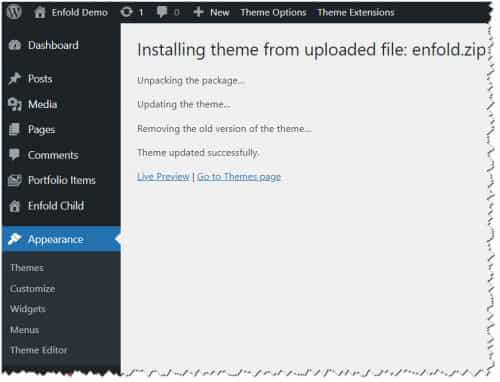
To update your version of Enfold, first you need to remove your custom header.php and footer.php from your child theme, then you will need to download the latest installable WP version from your Theme Forest account and upload it to your WordPress ▸ Appearance ▸ Themes ▸ Add Themes ▸ Add New

after you choose the zip file and click install, you will see a This theme is already installed message because you are updating, you can continue

then you will see the Theme updated successfully message.
Best regards,
Mike
Hi,
To update your version of Enfold you will need to download the latest installable WP version from your Theme Forest account and upload it to your WordPress ▸ Appearance ▸ Themes ▸ Add Themes ▸ Add New
after you choose the zip file and click install, you will see a This theme is already installed message because you are updating, you can continue
then you will see the Theme updated successfully message.
Best regards,
Mike
BUT: Not on all Hotspot-Images if that is posible ;-)
Hi @enfold!
I would like to have a different view for hotspot-images on mobile devices. For my mobil-view I would like to hide the text complet and use the link only.
Thanks for your help!
Regards
Michael F
I found a css (from 2015) but that does not seem to work anymore.
Here it is:
@media only screen and (max-width: 768px) {
.responsive .av-hotspot-image-container.av-hotspot-blank.av-mobile-fallback-active .av-image-hotspot_inner {
display: none;
}}
@media only screen and (max-width: 768px) {
.av-hotspot-fallback-tooltip-count {
display: none !important;
}
.av-hotspot-fallback-tooltip-inner {
margin-left: 0 !important;
}}
Hi Rikard.
Following your instructions, I found the tools to use the Advanced Editor to create posts similar to the basic ones provided with the demo.
However, I can’t find the one needed to get a list of suggested articles in the same category (you might be interested in…).

Could you please tell me where to find it?
Great Rikard, it works for me.
Is there a way to move the image above the title and have the text fit the width of the screen? The text space is very limited.

Is it possible to remove the dotted line that “connects” the images?

Thanks for your time.
Hi,
Thanks for that. Please try this in Quick CSS to display the featured image on mobile:
@media only screen and (max-width: 767px) {
  .responsive #top #main .sidebar, .responsive .post_author_timeline, .responsive .template-blog .blog-meta {
    display: block;
  }
}
Best regards,
Rikard
Hi!
Hi, I’d like the space between table lines on desktop and mobile to be the same. Attached is an image of the desktop and tablet. I added this, and it’s reduced, but I can’t get it to match.
@media only screen and (max-width: 767px) {
.avia-data-table.avia_pricing_minimal td, .avia-data-table.avia_pricing_minimal th {
padding: 0px;
}
On some screen sizes, the table gets messed up, even leaving out the image. I’ve attached images.
Could you help me?
Sorry about the SSL I´m checking.
BR,
Antonio.
I am trying to display text over an image in the Classic mode. Is it possible to use CSS in the “Image CSS Class” section in order to accomplish this? Otherwise, I guess I will need to use the Advanced Layout Editor.
Thank you
Hi,
Please unblock us & everyone:

Best regards,
Mike
Is it possible to do a text overlay on an image using the “Image CSS Class” field in the Classic Editor? Currently, I am using the Caption below feature.
Hi Rikard.
Thanks for your time.
My English is probably terrible and I can’t explain myself.
I create a new post with the Advanced Layout Editor.
I add the title, some text, the featured image, and save.
The preview looks like this, without image, author, date, etc.:

If I do the same thing with the normal editor, the preview looks like this:

Do you mean I have to insert, for example, the author and date using elements from the Layout Builder?
Shouldn’t it get this data automatically and regardless of the editor used?
And I don’t understand why if I create the post with the Advanced Layout Editor (without entering the author and date) and then change the editor the result is correct.
Hi,
Yes that is correct. So if you want the image and meta data to show when you are using the Layout Builder, then you would have to add them using elements from the Layout Builder.
Best regards,
Rikard
Hi,
PS: your SSL is now not valid:

Please try to fix.
Best regards,
Mike
Hey icarogioiosi,
Thank you for the inquiry.
The featured images of the posts in the demo are still visible on mobile view when we checked. Please create a test page and provide the page URL in the private field so we can review it.
Best regards,
Ismael
Hi Mike,
Sorry if I didn’t explain myself well, my English isn’t very good. The button in the footer already works, as I explained in the previous email. Sorry, the Spanish page wasn’t created because it gave an error. Now you can test it. The only thing I’m missing is creating the footers for desktop, tablet, and mobile. But the button on mobile is separate from the world image, and I’d like it to be on the same line and centered like the rest of the text. If you narrow the screen you will be able to see it. I’m sending you an image of how it is and how I would like it.
Many thanks,
BR,
Antonio.
Hi,
It looks like that is the font used now:

Can you screenshot an example of the font correctly displayed?
Best regards,
Mike
Hi,
I’m trying to understand, you say that you are using “Polylang” but on the link below, both show:

The problem is that both show an error:

So if the header language switcher is not working, the footer also will not.
Please try to get a working language switcher in at least the header, please note that we are not “Polylang” experts and may not be sure of the settings that you need to change. We know that in the past “Polylang” worked well, but are unsure of the settings.
Best regards,
Mike



