Viewing 30 results - 721 through 750 (of 106,440 total)
  • Author
    Search Results
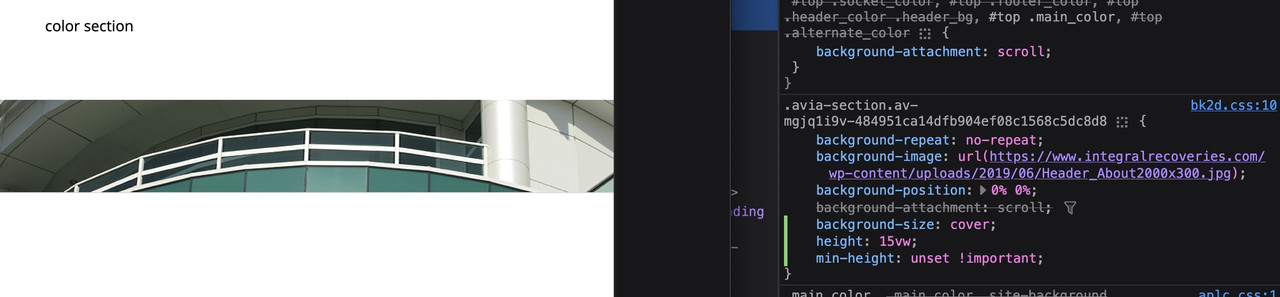
  • choose your color-section and set for minimum height option your aspect-ratio in percent.
    F.e. your image with 300/2000 means min-height 15%.
    As long as your content inside your color-section does not grow bigger than the 15% height. The bg-image will react responsive, If you have set the bg-image is set to cover the background.

    PS: for small screen you have to get rid of min-height option for color-sections (100px on default)

    hostworks
    Participant

    My problem is that the full width easy slider is not seen as accessible by our Accessibility vendor, as it presents as a list item.

    https://www.integralrecoveries.com/leadership-copy/

    Per the team:

    Lists: Remove List HTML
    Content that does not function as a list should not be coded as such.
    The header thumbnail image is coded as being a part of a list when it should not be.

    Remediation Recommendation
    Ensure this content is not coded as a list. Generally, this will mean removing <ol>, <ul>, <dl>, <dt>, <dd>, or <li> elements that are holding this content.

    Here is a snippet of the code displaying the Full width easy slider:

    Here is the code snippet I'm referring to '''<li class="avia-slideshow-slide av-juo9jzkl-8700c68c0f38de355eb6ad66836a0d85__0 av-single-slide slide-1 slide-odd next-active-slide active-slide" style="visibility: visible; opacity: 1; transition: none; transform: translateZ(0px);"><div data-rel="slideshow-1" class="avia-slide-wrap "><img decoding="async" fetchpriority="high" class="wp-image-621 avia-img-lazy-loading-not-621" src="https://www.integralrecoveries.com/wp-content/uploads/2019/06/Header_About2000x300.jpg" width="2000" height="300" title="Header_About2000x300" alt="" itemprop="thumbnailUrl" srcset="https://www.integralrecoveries.com/wp-content/uploads/2019/06/Header_About2000x300.jpg 2000w, https://www.integralrecoveries.com/wp-content/uploads/2019/06/Header_About2000x300-300x45.jpg 300w, https://www.integralrecoveries.com/wp-content/uploads/2019/06/Header_About2000x300-768x115.jpg 768w, https://www.integralrecoveries.com/wp-content/uploads/2019/06/Header_About2000x300-1030x155.jpg 1030w, https://www.integralrecoveries.com/wp-content/uploads/2019/06/Header_About2000x300-1500x225.jpg 1500w, https://www.integralrecoveries.com/wp-content/uploads/2019/06/Header_About2000x300-705x106.jpg 705w, https://www.integralrecoveries.com/wp-content/uploads/2019/06/Header_About2000x300-450x68.jpg 450w" sizes="(max-width: 2000px) 100vw, 2000px" style="left: 0px;"></div></li>'''

    I’ve tried several options:

    The image is set as 2000px x 300px btw.

    1) Displaying as an image (no scaling, original width & height) – why doesn’t this work, it would solve many problems.

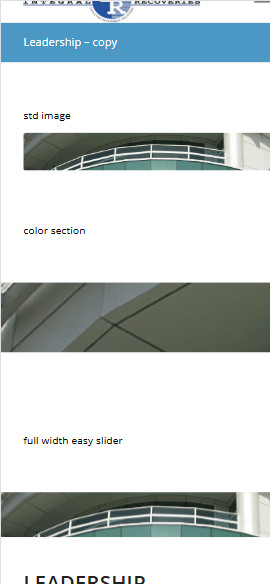
    2) Color section – I’ve tried all options under Section Height including – Minimum Custom height in % based on browser windows width (responsive). However, it is not responsive (using 15% custom height for example). When you minimize for phone, it just blows up the left portion of the image height and does not adjust horizontally.

    3) full width easy slider – This is what I’ve been using on all pages, which is responsive and is being rejected by the accessibility team as it uses a list element to display.

    I’ve setup the following test page to show the differences of the three approaches with text headers

    https://www.integralrecoveries.com/leadership-copy/

    Inspect the page and display as an iphone 14 Max and you will see what happens. See attachment below

    Three options in mobile

    How can I fix this? I’m just trying to display a page header that is not coded as a list.

    Thank you very much in advance!

    • This topic was modified 5 months, 3 weeks ago by hostworks. Reason: Forgot to present code per your editing window requirements
    #1489982

    Topic: Button

    in forum Enfold
    limedrop
    Participant

    Can you please look at this page.

    Because of the orange symbol I have above the image. – The button lays underneath.
    How to make the bottom come to the top?

    I thought I was smart when I wrote this in the css, but no…

    #top a:where(:not(.wp-element-button)) {
    z-index: 999;
    text-decoration: none;
    }

    #1489975

    Hey GWS,

    Thank you for the inquiry.

    We are not really sure why the items are not sorting correctly, but we do know that there’s a known quirk with the masonry or isotope script where sorting may fail at times, often due to differences in content or image sizes between items.

    Please try this script in the functions.php file and let us know the result:

    add_action('wp_footer', function () {
        ?>
        <script>
        document.addEventListener('DOMContentLoaded', function () {
            const masonryContainer = document.querySelector('.av-masonry-container');
            if (!masonryContainer) return;
    
            const masonryItems = Array.from(masonryContainer.querySelectorAll('.av-masonry-entry'));
    
            const masonryWithDates = masonryItems.map(item => {
                const dateElement = item.querySelector('.av-masonry-date');
                const dateText = dateElement ? dateElement.textContent.trim() : '';
                const parsedDate = new Date(dateText);
                return { element: item, date: parsedDate };
            });
    
            masonryWithDates.sort((a, b) => b.date - a.date);
    
            masonryWithDates.forEach(({ element }) => {
                masonryContainer.appendChild(element);
            });
        });
        </script>
        <?php
    }, 9999);


    Best regards,
    Ismael

    #1489972

    In reply to: Transparent background

    Hey Brugmedia,

    Thank you for the inquiry.

    The “cloudy sky” background seems to be displaying correctly on our end. Would you mind providing a screenshot of the changes you’d like to make? You can upload and share it using platforms such as Savvyify, ImgBB, PostImages, or Dropbox.

    Best regards,
    Ismael

    Hi,

    Glad to know that switching to another image editor or image extension resolved the issue. Please feel free to open a new thread if you have any further questions.

    Have a nice day.

    Best regards,
    Ismael

    Hi Ismael

    I’ve disabled all plug-ins. I tested the upload time with and without WP Media Folder enabled and there wasn’t any diffrence. However changing from WP_Image_Editor_Imagick to WP_Image_Editor_GD has mad a massive difference. The upload speed has risen by 146%, so now only takes a few seconds to upload an image.

    Thanks for your help on this.

    Regards
    Colin

    #1489944
    DianaLoola73
    Participant

    Hi Enfold Team,
    I’d like to reproduce the attached layout: on the left one large image, and on the right a 2×2 image grid (four tiles), each with a small text overlay (title + meta line) — please see the screenshot: http://neu2025.dc-gmbh.com/support/template.png
    Using the ALB I can create a Grid Row 1/2 + 1/2 (large image on the left), but on the right I can’t nest additional columns to get two columns and two rows. Masonry or Portfolio elements come close, but I need a fixed 2×2 arrangement (no reflow), very small gaps, and always-visible text overlays (not only on hover).
    Is there a native way to achieve something like this within ALB?
    Or would you recommend a combination of existing elements or a small custom shortcode to get that layout?
    Thanks a lot for your advice and best practices!
    Best,
    Diana

    atx_m
    Participant

    Hi all,
    i already added

    .single-post .small-preview {
      display: none; 
    }

    to remove the featured image from a blog post. It worked on the main language of the post but the image still appears on the translation (created by wpml). T added the Quick CSS for both languages in the Enfold settings. What can I do to also remove the image from the translated page?

    #1489924

    Hi,

    Thanks for the update. So you want the images next to each other on mobile?

    Best regards,
    Rikard

    #1489915

    Hey condonp,

    Thank you for the inquiry.

    Adding this css code should center-align the images in the footer widgets on smaller screens.

    @media only screen and (max-width: 768px) {
    
      /* Add your Mobile Styles here */
      #footer .widget.widget_text {
        margin: 0 auto;
      }
    }

    Please make sure toggle or temporarily disable the Enfold > Performance > File Compression settings, then purge the cache before checking the page.

    Best regards,
    Ismael

    #1489913
    condonp
    Participant

    Dear Sirs,

    We have a development site at http://www.peter-test1.co.uk. The footer is set to “two columns” and has an image in each column of the footer. However on responsive each image goes on top of each other. see screenshot 1. I am trying to get this central as in screenshot 2 can someone please help. Many thanks.

    Hi,

    The configuration looks typical for WordPress installations — almost the same as our local installation. What configuration did you add to your .htaccess file?

    Another thing you can try is to switch the default image editor from WP_Image_Editor_Imagick to WP_Image_Editor_GD to see if that helps.

    https://developer.wordpress.org/reference/hooks/wp_image_editors/

    We tried uploading six files to the media library, around 6MB, and it took about 10 seconds or less. It’s not particularly fast, but not terribly slow either. We also noticed that you’re using a custom media library plugin (WP Media Folder), which could be contributing to the slowdown. Have you tried disabling this plugin to see if it makes a difference?

    Best regards,
    Ismael

    #1489907

    Hi,

    Thank you for the update.

    You can add this css code to adjust the width of the featured images in mobile view, make sure they don’t overflow outside the screen.

    @media only screen and (max-width: 989px) {
    
      /* Add your Mobile Styles here */
      #top.single-post .fullsize .template-blog .big-preview img {
        width: 100%;
        min-height: auto;
        object-fit: contain;
      }
    }

    Result:

    Screenshot-2025-10-07-at-12-31-30-PM

    Best regards,
    Ismael

    #1489904

    Before the latest update, the image that goes with the blog posts was responsive and now it’s not. I’ve attached images of how it looks full screen, narrow screen, and on a phone. As you can see, we lose most of the photo on a phone, and thus lose any info the image provides. So we’re getting the correct image size (1200 x 630), but then it sticks there. How do we make it responsive?

    atx_m
    Participant

    Hi all,
    I already did some research for this topic but all the solutions (CSS, Enfold settings etc.) I found didn’t work.
    I was able to remove the title from the page, but not the featured image. Here’s what I want to do:
    I want to create all our blog posts with Gutenberg. On the blog posts I want to remove the featured images and the title. I want to define both with Gutenberg. I want to use the featured images only on archive pages (categories etc.). How can I completely remove the feature image from the post page?

    Hi Ismael

    I have already tried all if the above suggestions. The execution time is set to 2048M for memory limit, execution time upload file size and the above thumbnails are already removed. And only the minimum file sizes are being created

    ;+StackCP
    asp_tags = 1
    auto_append_file = 
    auto_prepend_file = 
    display_errors = 0
    error_reporting = E_ALL & ~E_DEPRECATED & ~E_STRICT
    file_uploads = 1
    max_execution_time = 300
    max_file_uploads = 16
    max_input_time = 60
    max_input_vars = 2500
    memory_limit = 2048M
    output_buffering = 0
    post_max_size = 2048M
    short_open_tag = 1
    upload_max_filesize = 2048M
    zlib.output_compression = 1
    ;-StackCP
    #EOF

    The site is with 20i. Would there be something in the server setup that needs turning off/on that is clashing with the enfold theme?

    SERVER
    Server architecture	Linux 5.14.0-570.25.1.el9_6.x86_64 x86_64
    Web server	Apache
    PHP version	8.3.26 (Supports 64bit values)
    PHP SAPI	fpm-fcgi
    PHP max input variables	2500
    PHP time limit	300
    PHP memory limit	2048M
    Max input time	60
    Upload max filesize	2048M
    PHP post max size	2048M
    cURL version	8.1.2 OpenSSL/1.1.1t-fips
    Is SUHOSIN installed?	No
    Is the Imagick library available?	Yes
    Are pretty permalinks supported?	Yes
    .htaccess rules	Custom rules have been added to your .htaccess file.
    robots.txt	Your site is using the dynamic robots.txt file which is generated by WordPress.
    Current time	2025-10-06T07:39:04+00:00
    Current UTC time	Monday, 06-Oct-25 07:39:04 UTC
    Current Server time	2025-10-06T08:38:59+01:00
    
    DATABASE
    Database Extension	mysqli
    Server version	10.6.18-MariaDB-log
    Client version	mysqlnd 8.3.26
    Database username	W7-RUgbyB0aTs-1724-353037373107
    Database host	wpdb-32.hosting.stackcp.net
    Database name	W7-RUgbyB0aTs-1724-353037373107
    Table prefix	gko86fse9kn6r_
    Database charset	latin1
    Database collation	
    Maximum allowed packet size	134217728
    Maximum connections number	1024
    
    IMAGE HANDLING
    Active editor	WP_Image_Editor_Imagick
    ImageMagick version number	1809
    ImageMagick version string	ImageMagick 7.1.1-43 Q16-HDRI x86_64 22550 https://imagemagick.org
    Imagick version	3.7.0
    File uploads	Enabled
    Maximum size of post data allowed	2048M
    Maximum size of an uploaded file	2048M
    Maximum effective file size	2 GB
    Max simultaneous file uploads	16
    Imagick Resource Limits	
    area: 502 GB
    disk: 9.2233720368548E+18
    file: 768
    map: 251 GB
    memory: 126 GB
    thread: 1
    time: 0
    ImageMagick-supported file formats	3FR, 3G2, 3GP, AAI, AI, APNG, ART, ARW, ASHLAR, AVCI, AVI, AVIF, AVS, BAYER, BAYERA, BGR, BGRA, BGRO, BIE, BMP, BMP2, BMP3, BRF, CAL, CALS, CANVAS, CAPTION, CIN, CIP, CLIP, CMYK, CMYKA, CR2, CR3, CRW, CUBE, CUR, CUT, DATA, DCM, DCR, DCRAW, DCX, DDS, DFONT, DJVU, DNG, DOT, DPX, DXT1, DXT5, EPDF, EPI, EPS, EPS2, EPS3, EPSF, EPSI, EPT, EPT2, EPT3, ERF, EXR, FARBFELD, FAX, FF, FFF, FILE, FITS, FL32, FLV, FRACTAL, FTP, FTS, FTXT, G3, G4, GIF, GIF87, GRADIENT, GRAY, GRAYA, GROUP4, GV, HALD, HDR, HEIC, HEIF, HISTOGRAM, HRZ, HTM, HTML, HTTP, HTTPS, ICB, ICO, ICON, IIQ, INFO, INLINE, IPL, ISOBRL, ISOBRL6, J2C, J2K, JBG, JBIG, JNG, JNX, JP2, JPC, JPE, JPEG, JPG, JPM, JPS, JPT, JSON, JXL, K25, KDC, KERNEL, LABEL, M2V, M4V, MAC, MAP, MASK, MAT, MATTE, MDC, MEF, MIFF, MKV, MNG, MONO, MOS, MOV, MP4, MPC, MPEG, MPG, MPO, MRW, MSL, MSVG, MTV, MVG, NEF, NRW, NULL, ORA, ORF, OTB, OTF, PAL, PALM, PAM, PANGO, PATTERN, PBM, PCD, PCDS, PCL, PCT, PCX, PDB, PDF, PDFA, PEF, PES, PFA, PFB, PFM, PGM, PGX, PHM, PICON, PICT, PIX, PJPEG, PLASMA, PNG, PNG00, PNG24, PNG32, PNG48, PNG64, PNG8, PNM, POCKETMOD, PPM, PS, PS2, PS3, PSB, PSD, PTIF, PWP, QOI, RADIAL-GRADIENT, RAF, RAS, RAW, RGB, RGB565, RGBA, RGBO, RGF, RLA, RLE, RMF, RSVG, RW2, RWL, SCR, SCT, SFW, SGI, SHTML, SIX, SIXEL, SPARSE-COLOR, SR2, SRF, SRW, STEGANO, STI, STRIMG, SUN, SVG, SVGZ, TEXT, TGA, THUMBNAIL, TIFF, TIFF64, TILE, TIM, TM2, TTC, TTF, TXT, UBRL, UBRL6, UIL, UYVY, VDA, VICAR, VID, VIFF, VIPS, VST, WBMP, WEBM, WEBP, WMF, WMV, WMZ, WPG, X, X3F, XBM, XC, XCF, XPM, XPS, XV, XWD, YAML, YCBCR, YCBCRA, YUV
    GD version	2.3.3
    GD supported file formats	GIF, JPEG, PNG, WebP, BMP, AVIF, XPM
    Ghostscript version	9.54.0

    Regards
    Colin

    Hi,

    We are not encountering this issue on our end, and there have been no similar reports from other users, so this is probably related to your server configuration or specifications. Where is the site hosted, and what are the server specs?

    If you have access to your PHP configuration or php.ini, try to add the following options:

    max_execution_time = 300
    memory_limit = 512M
    upload_max_filesize = 20M
    

    You can also add it in the .htaccess file in the root directory of your WordPress installation.

    php_value max_execution_time 300
    php_value memory_limit 512M
    php_value upload_max_filesize 20M
    

    Another thing you could try is disabling the thumbnails generated by the theme using this filter in the functions.php file:

    
    add_action('init', 'ava_remove_enfold_image_thumbnails');
    function ava_remove_enfold_image_thumbnails() {
      remove_image_size('square');
      remove_image_size('featured');
      remove_image_size('featured_large');
      remove_image_size('portfolio');
      remove_image_size('portfolio_small');
      remove_image_size('gallery');
      remove_image_size('magazine');
      remove_image_size('masonry');
      remove_image_size('entry_without_sidebar');
      remove_image_size('entry_with_sidebar');
      remove_image_size('shop_thumbnail');
      remove_image_size('shop_catalog');
      remove_image_size('shop_single'); 
      remove_image_size('shop_gallery_thumbnail');
    }
    add_filter( 'intermediate_image_sizes_advanced', 'ava_intermediate_image_sizes_advanced_mod' );
    function ava_intermediate_image_sizes_advanced_mod( $sizes ) {
     unset( $sizes['large']);
     unset( $sizes['medium_large']);
     return $sizes;
    }
    

    We recommend reaching out to your hosting provider for additional assistance.

    Best regards,
    Ismael

    #1489876

    Hi,

    It’s actually good to disable lazy loading for elements that affect LCP because lazy loading can delay their appearance. In this case, it’s already handled correctly, so there’s nothing you need to do for this part.

    For the fetchpriority issue, if you’re using Image layers in the Layer Slider, go to Layer Settings > Attributes > Custom Attributes tab of the layer, then add fetchpriority as the attribute and set its value to high. The following article should explain what this attribute does.

    https://addyosmani.com/blog/fetch-priority/

    Best regards,
    Ismael

    #1489873

    Hey Valerie,

    Thank you for the inquiry.

    Where can check the issue? Please provide a screenshot using platforms like Savvyify, ImgBB, PostImages or Dropbox, then create a test page so we can inspect the elements.

    Best regards,
    Ismael

    Hi,
    When I check your test page the “opening frame” is relly the background image so use this css to hide:

    #top.page-id-11644 #av_section_1 {
            background-image: none;
    }

    note the page ID in the css, remove or adjust for your working page.
    Then leave Ismael’s script to stop the loop and add this script to end on the last frame/second, your video is 29s so the script ends on 28s. Adjust for future videos and adjust the page ID.
    Add this to your child theme functions.php:

    function pause_video_on_last_sec() { ?>
      <script>
    if (document.body.classList.contains('page-id-11644')) {
        var x = document.getElementsByClassName("avia_video");
        var i;
        for (i = 0; i < x.length; i++) {
            x[i].addEventListener("timeupdate", function(){
                if(this.currentTime >= 28) {
                    this.pause();
                }
            });
        }
    }
    </script>
      <?php
    }
    add_action( 'wp_footer', 'pause_video_on_last_sec', 99 );

    Best regards,
    Mike

    #1489853

    Hi,
    This looks like a caching issue, when logged in the homepage hero image shows, and the theme css is served, when logged out the cache css is served: /wp-content/cache/wpfc-minified/q6rb0fb4/hwyv4.css without the css for the hero image.
    Your test page is not cached by the plugin and serves the theme css when logged out, thus the image shows.
    Your cache plugin is probably set to not show a cache to mobile devices, because the theme css is also showing, along with the image.

    Best regards,
    Mike

    #1489840
    bemodesign
    Participant

    Please help!
    On my home page only, and only the top Color Section, is a blank space at the top, where the image and headline should be. I works and shows right when I am in Edit mode, but when its live, It shows a huge white space. I tried to Purge all cache, but ti still isn’t showing. and only on the home page top. other page all work. I even tried to copy the color section to other pages, and it work. Just wont work on home page.

    Admin is below. Please let me know if you can fix.

    Thanks!

    I Ismael

    I just installed a completely clean copy of WordPress onto a different server and uploaded 2MB of webp images. This took 18 seconds. I then installed Enfold, and uploaded the same 2MB of images and it took 2 minutes 37 seconds. Please see the video https://youtu.be/ApIV-BoMuhk

    I think this is a fairly serious issue and is causing my clients major problems, particularly the cleint that has brought this to my attention.

    Are you able to look into this as a matter of urgency.

    Many Thanks
    Kind Regards
    Colin

    #1489810

    or a little more elegant:

    #top #header:not(.header-scrolled-full) #header_main {
      box-shadow: none;
    }
    
    #header_main:before {
      content: "";
      position: absolute;
      left: 0;
      top: calc(var(--enfold-header-height) - 150px);
      width: 100%;
      height: 200px; 
      background-image:url("data:image/svg+xml;base64,PHN2ZyBpZD0iRHJlaS1MaW5pZW4iIHhtbG5zPSJodHRwOi8vd3d3LnczLm9yZy8yMDAwL3N2ZyIgdmVyc2lvbj0iMS4xIiB2aWV3Qm94PSIwIDAgODAwIDE4MCIgcHJlc2VydmVBc3BlY3RSYXRpbz0ibm9uZSI+CgogICAgPHN0eWxlPgogICAgICAuc3QwIHsKICAgICAgICBmaWxsOiAjOTQxMDA5OwogICAgICB9CgogICAgICAuc3QxIHsKICAgICAgICBmaWxsOiAjZWZhNDBiOwogICAgICB9CgogICAgICAuc3QyIHsKICAgICAgICBmaWxsOiAjMDA4MGEyOwogICAgICB9CiAgICA8L3N0eWxlPgoKICA8cGF0aCBjbGFzcz0ic3QyIiBkPSJNNjE0Ljg4NSw2My44MzVjLTEwNS4xNzksMjUuNTMxLTI2NC44MDQsNTUuOTY1LTQyNy45NTQsNTUuOTY1LTEwMi4xMjcsMC0xNjAuOTctMTcuODkxLTE4Ni45MzEtMjguNTI5djE0Ljk5MWMyNS45NiwxMC42MzcsODQuODA0LDI4LjUyOSwxODYuOTMxLDI4LjUyOSwxNjMuMTUsMCwzMjIuNzc1LTMwLjQzNCw0MjcuOTU0LTU1Ljk2NSw5NS42MjYtMjMuMjEyLDE2NC43ODItNDYuNjc5LDE4NS4xMTUtNTMuODM1di0xNC45OTFjLTIwLjMzMyw3LjE1NS04OS40ODksMzAuNjIyLTE4NS4xMTUsNTMuODM1WiIvPgogIDxwYXRoIGNsYXNzPSJzdDEiIGQ9Ik02MTQuODg1LDc4LjgyNWMtMTA1LjE3OSwyNS41MzEtMjY0LjgwNCw1NS45NjUtNDI3Ljk1NCw1NS45NjUtMTAyLjEyNywwLTE2MC45Ny0xNy44OTEtMTg2LjkzMS0yOC41Mjl2MTQuOTljMjUuOTYsMTAuNjM3LDg0LjgwNCwyOC41MjksMTg2LjkzMSwyOC41MjksMTYzLjE1LDAsMzIyLjc3NS0zMC40MzQsNDI3Ljk1NC01NS45NjUsOTUuNjI2LTIzLjIxMiwxNjQuNzgyLTQ2LjY3OSwxODUuMTE1LTUzLjgzNXYtMTQuOTljLTIwLjMzMyw3LjE1NS04OS40ODksMzAuNjIyLTE4NS4xMTUsNTMuODM1WiIvPgogIDxwYXRoIGNsYXNzPSJzdDAiIGQ9Ik04MDAsMzkuOTgxYy0yMC4zMzMsNy4xNTUtODkuNDg5LDMwLjYyMi0xODUuMTE1LDUzLjgzNS0xMDUuMTc5LDI1LjUzMS0yNjQuODA0LDU1Ljk2NS00MjcuOTU0LDU1Ljk2NS0xMDIuMTI3LDAtMTYwLjk3LTE3Ljg5MS0xODYuOTMxLTI4LjUyOXYxNy4zMjZjMzAuMDc1LDExLjQ0Miw4OS4yMjgsMjcuMjAyLDE4Ni45MzEsMjcuMjAyLDE2NC44MjUsMCwzMjUuODg0LTMwLjcxMiw0MzEuOTcyLTU2LjQ3Niw4OS4wNC0yMS42MjQsMTU1LjM3LTQzLjQ5MiwxODEuMDk4LTUyLjM4MXYtMTYuOTQzWiIvPgo8L3N2Zz4=");
      background-size: 100% 100%;
      transition: opacity 1s ease-in-out;
    }
    
    #top #header.header-scrolled #header_main:before {
      opacity: 0;
    }
    

    svg with more convex look.

    #1489808

    Thanks!

    Okay, I understand the difference in the animations of the plugin in this mentioned websites.

    If I understood the report correctly, lazy loading shouldn’t be used, at least with the Revolution Slider plugin, so that the LCP resources are loaded immediately. (I always thought that would be good for optimization.) In the plugin with the new SR7 engine, which should actually be faster, you only have the following options:

    SR7 Data Load Method: Preload / Smart Loading / on demand
    SR7 Feed load Method: Preload / on demand

    Otherwise, I still don’t fully understand the report:
    lazy load not applied => ?
    fetchpriority=high should be applied => how??

    In the WP Rocket caching plugin, I’ve disabled lazy loading for images and background images for testing purposes.

    Best Regards Sven

    Also just to point out we wouldnt normally upload as many files, its just that we are trying to change some of the images from larger jpegs to small webp. Our client would typically upload 30 images per listing totalling maybe 2MB

    #1489799

    Hi,

    Thank you for the update.

    The featured image seems to be displaying correctly on our end. Would you mind explaining the issue further? If possible, please open another thread so we can close this old one.

    Screenshot-2025-10-03-at-1-31-11-PM

    Best regards,
    Ismael

    #1489794

    Hi,

    Thank you for the update.

    The page speed reports clearly point to the Revolution Slider as the cause of the LCP issue, so it’s definitely the reason for the decreased score. On the second site, you’ll notice there is no LCP issue because the Revolution Slider only contains static images, without moving parts or animations, unlike the first site, which uses complex slides and effects.

    This is the LCP report — note the element sr7-module#SR7_31_1.

    LCP request discovery
    Optimize LCP by making the LCP image discoverable from the HTML immediately, and avoiding lazy-loadingLCP
    lazy load not applied
    fetchpriority=high should be applied
    Request is discoverable in initial document
    sr7-module#SR7_31_1 > sr7-content > sr7-slide#SR7_31_1-130 > sr7-img#SR7_31_1-130-23

    Fixing this LCP issue should significantly increase the overall score. We recommend reaching out to the plugin developers for additional information about the issue.

    Best regards,
    Ismael

    #1489783

    Here we are again. We updated the theme and now the blog images aren’t working correctly. I added the code you gave me last time to the custom css, but it’s still not working. Here’s what I added:

    #top.single-post .fullsize .template-blog .big-preview img {
    width: 1200px;
    min-height: 630px;
    }

    I tried regenerating thumbnails, but no change.

    Why isn’t this working?

Viewing 30 results - 721 through 750 (of 106,440 total)