Hi,
When I check I see this:
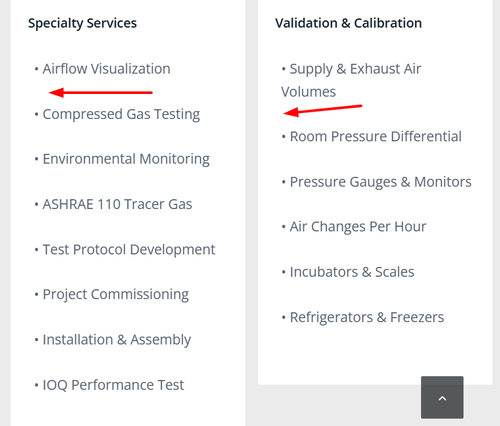
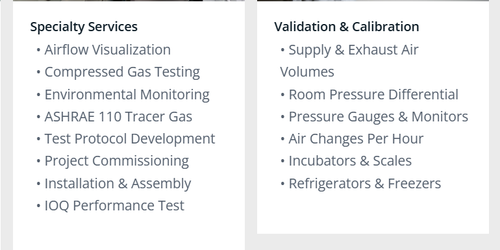
Try this css in your Quick CSS field:
.portfolio .av-masonry-entry-content br {
	display: none;
}
The result:
Best regards,
Mike
Hey milkrow,
Thanks for your patience, if I understand correctly you are adding images in the text element in the ALB (advanced layout builder):
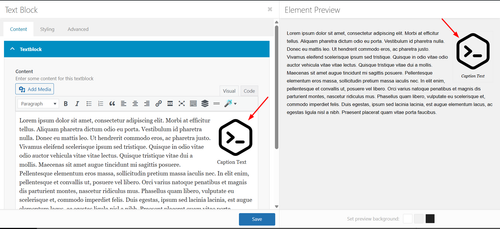
and instead of just the caption showing below the image, you want caption, description, copyright, and title to show like this:
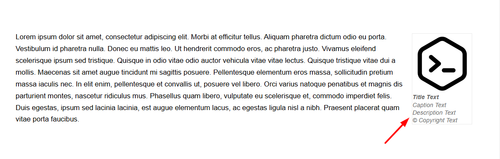
In my tests this snippet in your child theme functions.php works:
add_filter('the_content', 'enfold_add_image_metadata');

function enfold_add_image_metadata($content) {
    // Only process on frontend
    if (is_admin()) {
        return $content;
    }

    // Pattern to match images with WordPress attachment IDs
    $pattern = '/<img[^>]+wp-image-(\d+)[^>]*>/i';

    preg_match_all($pattern, $content, $matches);

    if (!empty($matches[0])) {
        foreach ($matches[0] as $index => $img_tag) {
            $attachment_id = $matches[1][$index];

            // Get image metadata
            $title = get_the_title($attachment_id);
            $caption = wp_get_attachment_caption($attachment_id);
            $description = get_post_field('post_content', $attachment_id);
            $copyright = get_post_meta($attachment_id, '_avia_attachment_copyright', true);

            // Build metadata HTML
            $metadata_html = '';

            if ($title || $caption || $description || $copyright) {
                $metadata_html .= '<div class="image-metadata" style="line-height: 14px; color: #666;">';

                if ($title) {
                    $metadata_html .= '<div class="image-title" style="font-weight: bold;">' . esc_html($title) . '</div>';
                }

                if ($caption) {
                    $metadata_html .= '<div class="image-caption" style="font-style: italic;">' . esc_html($caption) . '</div>';
                }

                if ($description) {
                    $metadata_html .= '<div class="image-description">' . wp_kses_post($description) . '</div>';
                }

                if ($copyright) {
                    $metadata_html .= '<div class="image-copyright">© ' . esc_html($copyright) . '</div>';
                }

                $metadata_html .= '</div>';
            }

            // Replace the image with image + metadata
            if ($metadata_html) {
                $replacement = $img_tag . $metadata_html;
                $content = str_replace($img_tag, $replacement, $content);
            }
        }
    }

    return $content;
}

/**
 * Add CSS to hide default WordPress caption text
 * while keeping the caption container styling
 */
add_action('wp_head', 'enfold_hide_default_caption_text');

function enfold_hide_default_caption_text() {
    ?>
    <style>
        /* Hide the default WordPress caption text inside caption shortcode */
        .wp-caption p {
            display: none !important;
        }
    </style>
    <?php
}
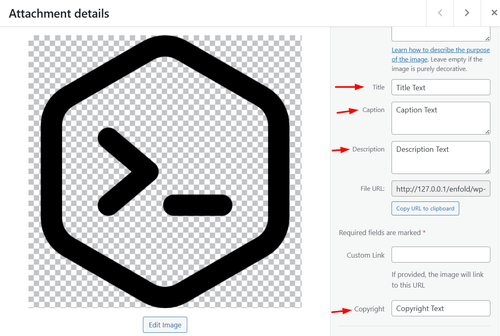
In your media library add the text to your image:
Best regards,
Mike
Hey ebenanders,
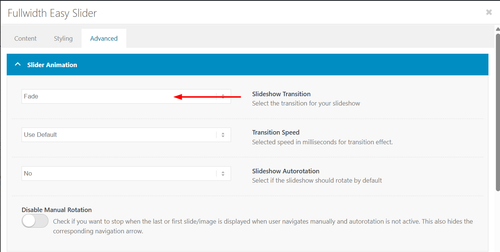
Try going to your Full With Easy Slider settings Advanced > Slideshow Transition and choose Fade:
Best regards,
Mike
Dear Support,
I am using a masonry element on the page.
The title is put on the bottom of the image.
Is it possible to put it below the image?
Regards
Stefan
Hi,
Thank you for the screenshot.
The lightbox is not working on our end. The images in the gallery redirect to the actual resource page instead of opening in the lightbox. Please provide the login details in the private field so we can check the issue.
Best regards,
Ismael
Hi,
Thank you for the update.
Image captions are associated with featured images or other media attachments, which are stored as a separate post type (attachment). This is different from regular posts or portfolio items, which do not have a built-in caption field — only an excerpt if supported. It is definitely possible to retrieve the caption of the featured image attached to a post but this will require modifications to the templates, which is beyond the scope of support.
If you want to try it yourself, you can find the Masonry template in the enfold/config-templatebuilder/avia-shortcode-helpers/class-avia-masonry.php file.
Thank you for your understanding.
Best regards,
Ismael
Hi Ismael,
I see your point, you’re calling it “Captions” because that is the display characteristic. However, the masonry grid content element doesn’t/can’t pull image captions. It’s not displaying a caption for an image, it’s supposed to display a post excerpt. Therefore, I humbly submit that the accordion should be called “Excerpts”. :)
But I’m still confused about the differences between the Masonry Gallery, and a Masonry Content element. BOTH pull images (not a custom field). BOTH show the ability to display Image Copyright.
In fact, when I try to use that feature in the Masonry Content element, it doesn’t work–the image copyright does not display. Shouldn’t it? See the private link below. On that page, both show images, both are set to display the image copyright, both are set to show the “excerpt”. In truth, the Masonry Gallery is showing the image “caption” and the Masonry Content element is showing…er…well NOTHING since it is neither accessing the excerpt nor the image caption.
What I believe you’re saying is that the Masonry Content element cannot display the image caption…but it can (er…should) display the image copyright? Aren’t those pieces of information coming from the image?
Can the “excerpt” source be modified?
Or is there another way to access the caption dynamically?
Any guidance and assistance here so I can effectively display the content with the elements provided in the theme would be greatly appreciated.
KC
Hey milkrow,
Thank you for the inquiry.
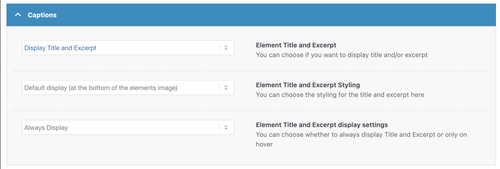
In the Caption panel of the masonry element, it says “Element Title and Excerpt” so it refers to the post title and excerpt, not the image caption.
Unfortunately, it’s not possible to pull in the featured image caption without significant modifications to the theme and the masonry templates. You can either contact a freelance developer or use the link below for more customization options.
— https://kriesi.at/contact/customization
Thank you for your understanding.
Best regards,
Ismael
Hi,
Thank you for the update.
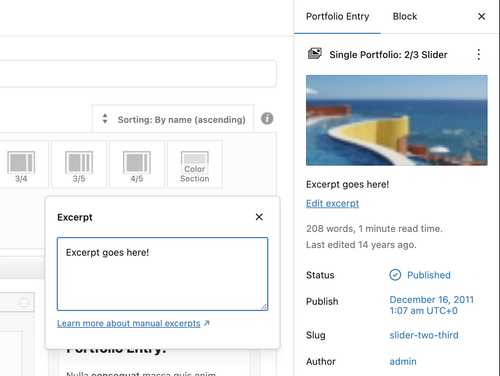
Did you enable the classic editor? In the new block editor, the excerpt can be edited using the “Edit excerpt” button located just below the featured image preview. Please see the screenshot below.
Best regards,
Ismael
Hi,
Thank you for the link.
You might be referring to the portfolio category sort buttons. Please try this css code:
.main_color .sort_width_container #js_sort_items {
    display: flex;
    justify-content: center;
}

Best regards,
Ismael
Hey tlscaliti,
Thank you for the inquiry.
Would you mind providing a screenshot of the issue? You can use platforms like FreeImage, ImgBB, PostImages or Dropbox to upload and share the screenshot.
Have you tried adjusting or completely disabling the padding of the column element containing the slider in mobile view? Please check this screenshot.
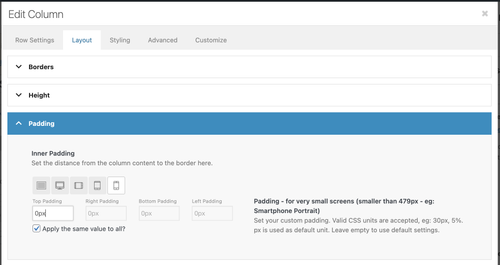
Best regards,
Ismael
Hey sjahan,
Thank you for the inquiry.
Looks like you’re now using the Masonry element instead of the Portfolio Grid. Where can we find the Portfolio element? Please create a test page and provide screenshots so we can check this further.

Best regards,
Ismael
Hi,
Thank you for the inquiry.
The lightbox is not opening or working. Did you enable the Lightbox Modal Window option in the Enfold > Theme Options panel? Please check the screenshot below.
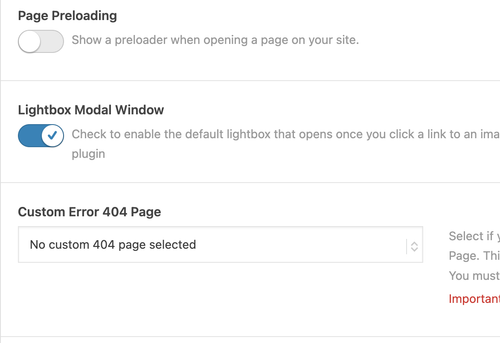
Let us know the result.
Best regards,
Ismael
Hi,
Thank you for the update.
We hid the original content slider, added a new one with the updated layout and set it to two columns because it doesn’t look good with three. We also made additional adjustment to the style.css file. Make sure to edit the images, remove the gray background around them and resize them accordingly.
Best regards,
Ismael
The easy slider images are distorted on the mobile site. You can see this by going to any of the services (aka, Remodeling) then scrolling to any of the featured sections (aka, Featured Remodel #1). What you will see is an image that looks “scrunched” into the mobile’s screen width. I would appreciate your help fixing this.
Hello:
Demo import: Import: Small Business – Flat Demo
The Enfold Logo will not stop displaying. Have cleared all cache. Have deactivated all plugins. Upon inspection, it says my logo should be showing, but the enfold logo displays. Enfold logo image has been deleted.
I have changed nothing on the demo except for the logo and some color in the general styling. My logo displayed perfectly in another demo import. Have no clue, but would appreciate help. Thank you.
Tim
I was looking for a way to display the image copyright information (in addition to the original image’s caption) when I place media in a text element. (Sadly, neither are available, only a custom caption.) Please add these options when placing media in a text element.
I considered that using the image element (though this would create lots of work for me), might be a work around. I was happy to see that the image copyright was available, but strangely not the image caption.
The dynamic field capability (thank you, very nice) does not allow me to choose the image caption.
I was attempting to add this field in a custom layout. I tried in a regular page, same issue.
Any way to make this consistent across the board so anywhere you place an image, you can use the values in the fields that are already associated with the image (caption, description, copyright, title)???
The Mason Grid for content (in this case, Portfolio items) refers to this content as a “caption”, but then specifies that I choose an “excerpt” as the displayed content. I understand why you’d do this, you want the user to get a concise “preview” of the content they will see if they click the item.
I think this is confusing. If you’re not going to display the “caption” (for the featured image associated with the portfolio item), then the display accordion should be called “Excerpt” (as shown in Portfolio Grid element) if it is ONLY able to pull the excerpt value for that post.
Masonry grids by design display images…it would be helpful if I could choose the featured image’s caption OR the portfolio item’s “excerpt” of the portfolio content entry. Can this be done?
Could you provide the option to display the image copyright below the image (as you do on nearly every other image copyright display setting)? Right now, I only have left or right. Yes, I know I can use css to do this, but that is also true of left or right placement. Right? :)
Thank you for any assistance or guidance!
-
This topic was modified 3 months, 3 weeks ago by
 milkrow.
Hi,
Thank you for the update.
We moved the screenshot to the private field. Unfortunately, your screenshot is not accessible. Please try to use freeimage.host or postimages.org and share the screenshot in the private field if you want it to remain private.
Best regards,
Ismael
Hi,
Thank you for the update.
Please create a test page and provide the page URL — screenshots will also help. You can use platforms like Freeimage, ImgBB, PostImages or Dropbox to upload and share the screenshot.
Best regards,
Ismael
Hi,
Thank you for the screenshot.
To adjust the color of the active language menu item and the hover state of the default menu items, add this css code.
.header_color .main_menu ul:first-child > li a:hover {
    color: #ffffff;
}

.menu-item-language-current a:after {
    color: #ffffff;
}

.header-scrolled .menu-item-language-current a:after {
    color: #0e3c63;
}
For the Kontakt menu item, go to Appearance > Menus and set the Menu Style to Button Style (colored).
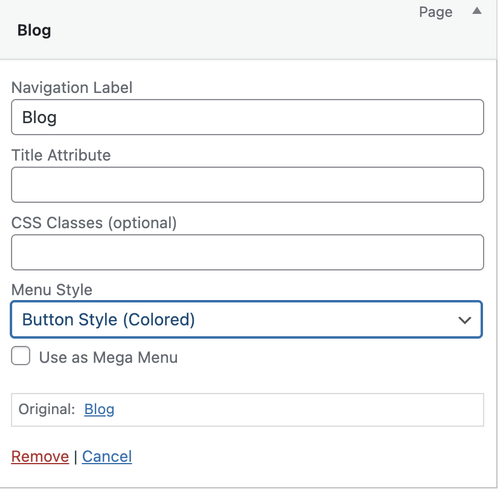
Let us know the result.
Best regards,
Ismael
Hi,
Thank you for the inquiry.
You can set them as follows:
Background Attachment: Fixed ( this won’t matter on mobile view because it will default to scroll )
Background Image Position: Center Center ( adjust depending on which part of the image you want to focus on )
Background Repeat: Stretch to fit ( set to Stretch to fit (cover) to make sure the image fills the entire container, or Scale to fit (contain) if you want the entire image to remain fully visible )
Hope this helps.
Best regards,
Ismael
Hey Tanja,
Thank you for the inquiry.
The image in the first section seems to be displaying correctly in full on mobile view — screenshot below.
We tried checking your screenshot above, but it’s private. Please make the screenshot accessible or use other platforms like FreeImage, PostImages or Imgur.
Best regards,
Ismael
On mobile, the top image on webpages load the full width of the image, but not the full height. The photo is set to take up 50% of the view height, but that only kicks in after the user does something. The height loads after some action is taken on the screen, such as a scroll or click on the burger menu. The result is that the first impression of the webpage is bad with a cut off image that is too small/short in height.
Is it possible to have this corrected for the first image on pages on mobile?
I looked at it and one column had a height set of 95%, I’ve removed that.
I’ve been playing with that to try and get the background image set and the content placed properly.
Thats what I did, how do I set :
Background Attachment: Fixed ?
Background Image Position: ?
Background repeat: ?
It looks good on my desktop, but awful on mobile.
Hey rixi,
Thank you for the inquiry.
The Text Block element has an option called Fold/Unfold, which can be enabled in the Content > Fold/Unfold panel, just below the text editor. You can use this to hide part of the text, display only a portion and add a “read more” link. Let us know if this works for you.
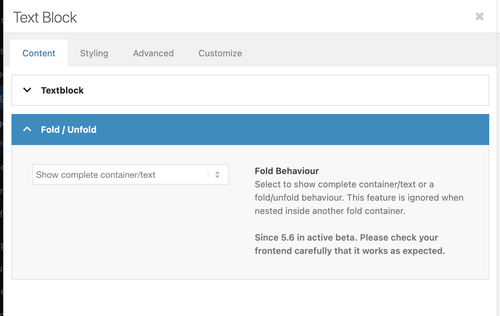
Best regards,
Ismael
Hi,
Thank you for the info.
We get the following error when we try to access the wp-admin or wp-login page. Did you change the login URL? Please include it in the private field.
Du bist leider nicht berechtigt, auf diese Seite zuzugreifen.
Would you mind posting the screenshot again using freeimage.host? The one above is not loading on our end.
Best regards,
Ismael
Hey schweg33,
Thank you for the inquiry.
Please add this css code to reduce the height of the submenu and apply a border to it.
#top .sticky_placeholder {
    height: 30px !important;
    max-height: 30px !important;
}

#top .av-submenu-container {
    min-height: 30px;
    line-height: 1em;
    border-color: #b1b1b1;
}

#top .av-subnav-menu > li {
    padding: 8px 0;
    display: inline-block;
}
Best regards,
Ismael
Hi,
Thank you for the inquiry.
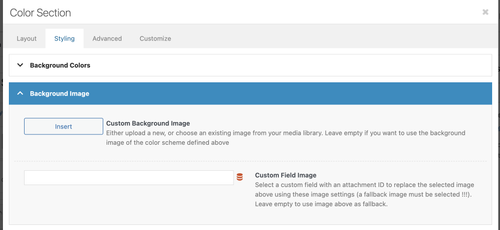
Yes, you can use the Color Section element instead of the slider if you need to include additional content inside. The image can be applied as a background in the Styling > Background Image panel.
Hope this helps.
Best regards,
Ismael



