Hi,
The color link no works in the header because the color is inherit (see images)
¿How we can remove it?
Many thanks,
BR,
Antonio
Hey daninap,
Thank you for the inquiry.
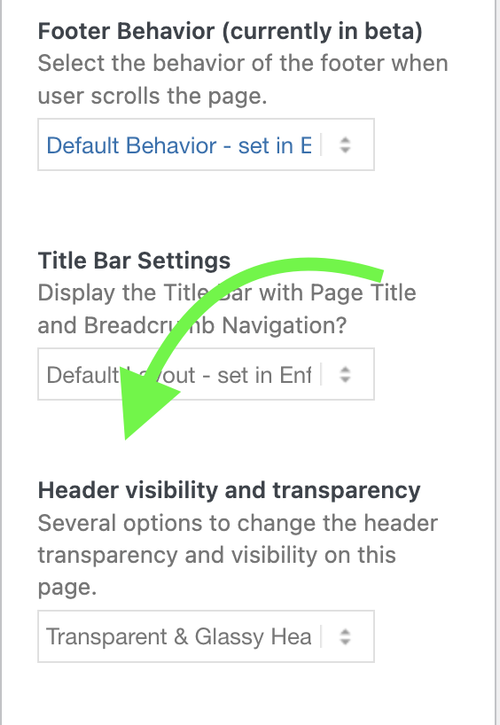
To enable the transparent header for a specific page, go edit the page, look for Layout > Header Visibility and Transparency settings in the editor sidebar, and set it to Transparent & Glassy Header. Please check the screenshot below.
Best regards,
Ismael
Hi,
Thank you for the update.
You can start with this css code to make the header sticky on mobile view.
@media only screen and (max-width: 767px) {

  /* Add your Mobile Styles here */
  .responsive #top #wrap_all #header {
    position: fixed;
  }

  .responsive #top .av-logo-container .inner-container {
    padding: 0 20px;
  }

  .responsive #top #wrap_all .main_menu {
    top: 0;
    height: 80px;
    right: 25px;
  }
}

Best regards,
Ismael
Hi,
Thank you for the login info.
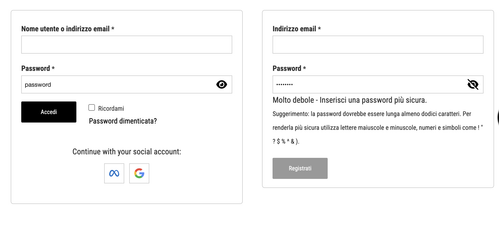
We commented out the password modification in the Quick CSS field and adjusted it a bit.
.woocommerce .password-input {
    position: relative;
}

.woocommerce .show-password-input {
  width: 24px;
  height: 24px;
  border: 0;
  background-color: transparent;
  background-repeat: no-repeat;
  background-position: center;
  cursor: pointer;
  position: absolute;
  top: 30px;
  right: 9px;
  background-image: url("https://www.morsoworld.com/wp-content/uploads/2026/01/eye-slash-solid-full.svg");
}

.woocommerce .show-password-input.display-password {
  background-image: url("https://www.morsoworld.com/wp-content/uploads/2026/01/eye-solid-full.svg");
}
Result:
Best regards,
Ismael
Hey daninap,
Thank you for the inquiry.
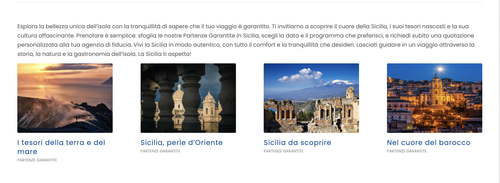
The image sizes look the same when we checked. Did you manage to identify the issue?
Best regards,
Ismael
Well, I am not sure. There are still no images on this page, and the h2 titles are still tiny. Thoughts? Thank you!
Justine
Hi,
The images are appearing on my end now. I’m guessing that the cache finally cleared.
Best regards,
Rikard
Hi,
I am not sure what page you are looking at, but I can see all the images in the backend. For example, on this page: https://townleypoolandspa.com/service/.
The top left image is missing on both desktop and mobile, but i can see it in the backend. Likewise, there is an image background behind the area toward the bottom of the page that says “Ready to Schedule Service?” and it’s not showing up. In addition, those words are usually much larger, and now they are small.
Please help – i have tried everything!
Thank you,
justine
Is there are way to have the Masonry Gallery image title visible at the bottom then when you hover over the image more text appears. Like the portrait feature boxes on this page
If not possible in Enfold is there a plug-in that with achieve this? I have tried Image Hover Effects Ultimate but could get it like the example above.
Regards
Colin
Hi, Rikard,
Actually, that doesn’t seem to be the problem at all. I was mistaken, too, and I can’t see some of the images either way. Could you please take a look and see if you notice anything? Thanks so very much!!
Justine
Hey Mike,
sorry there was a spelling mistake with the user, with the one below it should work !
Here ist the mockup image https://freeimage.host/i/fPFK4gs
I hope this helps! It even would be better (different to the mockup), if the year would be in the same line with the first line of the text.
The text should be responsive, that means in one line on lager screens.
Thx Johannes
Hi,
Try adding & clearing your browser cache, currently I see it like this:

with the css it is like this:

Best regards,
Mike
Hey Johannes,
The login is not working so we can’t see your “About Me” (Über mich) page. Once you correct the login can you also include a mockup image so we can have a better idea of what you want to do?
Best regards,
Mike
Hi,
Also, I can see all the images when I am editing and previewing a page. I just can’t see them on the live site if that helps.
Thanks!
Hey Antonio,
Thanks for your patience, try this css:
.header_color .header_bg {
	background-color: transparent;
}
.html_header_top.html_header_sticky #top #wrap_all #main {
    padding-top: 0;
}
.av-logo-container .inner-container {
	  border: 1px solid #e6e6e6;
    border-radius: 100px;
    box-sizing: border-box;
    background-color: #fff;
    margin-top: 20px;
}
.logo.avia-standard-logo {
	padding-left: 20px;
}
.template-page.content {
	padding-top: 150px;
}
This is how it should look:

Best regards,
Mike
or even better – just use the team-member element as it is and parse a popup by your own.
see with snippet on that example page: https://webers-testseite.de/teammember-vitae-2/
PS: It is always best to examine each individual case closely, as this is the only way to offer a customized solution. Otherwise, one indulges in speculation.
The last solution has the advantage that you only use the pure Enfold element for team members and then create your own lightbox with it. Disadvantage: you would have to rebuild your page and discard our previous design. In the window on the right side of the page, you can see that only plain text is entered in the Description Input Fiele — the Lightbox retrieves the image, name, and position from the existing DOM elements.
To change the aria-label – just edit these lines:
tPrev: 'Previous Biography',
tNext: 'Next Biography',
i remember we made for your “leadership” members an own popup script f.e.
if you only want to change that aria-labels of that popup script – then the solutions above are not neccessary. Only change that inline popup script
so try to replace that script inside the functions.php snippet by (remove temporarly the observer script above)
window.addEventListener("DOMContentLoaded", function () {
	(function($) {
		$('#people').each(function(){
		var that = this;
			$('.flex_column', this).each(function(i){
				if($(this).find('.mfp-hide').length){
					$(this).find('.bio-link').attr('href','#bio-'+(i+1)).addClass('no-scroll');
					$(this).find('.avia_image').attr('href','#bio-'+(i+1)).addClass('no-scroll');
					$(this).find('.mfp-hide').attr('id','bio-'+(i+1)).addClass('white-popup');
				}
			});
		});

		$('#people .flex_column').find('a[href^="#bio-"]').magnificPopup({
			type:'inline',
			midClick: true,
			removalDelay: 500,
			mainClass: 'avia-popup mfp-fade people',
			gallery: {
				enabled:true,
				arrowMarkup: '<button title="%title%" type="button" class="mfp-arrow mfp-arrow-%dir%" aria-label="%title%"></button>',
				tPrev: 'Previous Biography',
				tNext: 'Next Biography',
			},
		});

		$('#people .flex_column').find('.avia_image[href^="#bio-"]').magnificPopup({
			type:'inline',
			midClick: true,
			removalDelay: 500,
			mainClass: 'avia-popup mfp-fade people',
			gallery: {
				enabled:true,
				arrowMarkup: '<button title="%title%" type="button" class="mfp-arrow mfp-arrow-%dir%" aria-label="%title%"></button>',
				tPrev: 'Previous Biography',
				tNext: 'Next Biography',
			},
		});

	})(jQuery);
});
better see next solution
PS you can get rid of style part – and place the css inside quick css.
Hi,
I believe Ismael’s solution is for the masonry items (posts) were a custom field can be added, but you want to use masonry gallery images where the custom field is not an option.
Instead try this function in your child theme functions.php:
/**
 * Add SOLD overlay to specific masonry gallery items based on the data-av-masonry-item attribute
 */
function add_sold_overlay_to_masonry_gallery() {
    // Define which masonry items should show as SOLD
    $sold_items = array(973, 866, 865);

    // Convert to JavaScript array
    $sold_items_js = json_encode($sold_items);
    ?>
    <script>
    jQuery(document).ready(function($) {
        // Items to mark as sold
        var soldItems = <?php echo $sold_items_js; ?>;

        // Add sold-item class to each specified masonry item
        soldItems.forEach(function(itemId) {
            $('.av-masonry-gallery .av-masonry-entry[data-av-masonry-item="' + itemId + '"]').addClass('sold-item');
        });
    });
    </script>

    <style>
    /* SOLD overlay styles */
    .av-masonry-entry.sold-item {
        position: relative;
    }

    .av-masonry-entry.sold-item::before {
        content: "SOLD";
        position: absolute;
        top: 50%;
        left: 50%;
        transform: translate(-50%, -50%);
        background: rgba(255, 0, 0, 0.85);
        color: white;
        font-size: 24px;
        font-weight: bold;
        padding: 10px 30px;
        z-index: 10;
        letter-spacing: 2px;
        border: 3px solid white;
    }

    .av-masonry-entry.sold-item::after {
        content: "";
        position: absolute;
        top: 0;
        left: 0;
        width: 100%;
        height: 100%;
        background: rgba(0, 0, 0, 0);
        z-index: 9;
    }
    </style>
    <?php
}
add_action('wp_footer', 'add_sold_overlay_to_masonry_gallery');
At the top of the function define which masonry items should show as SOLD in this line:
$sold_items = array(973, 866, 865);
these are the media library attachment IDs
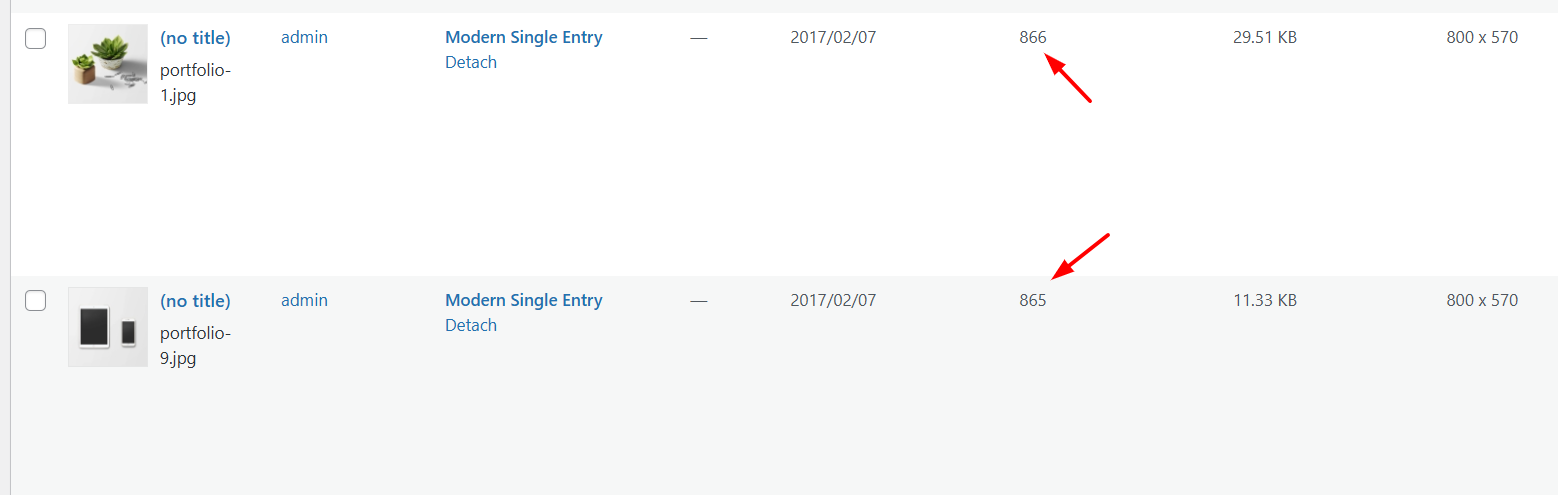
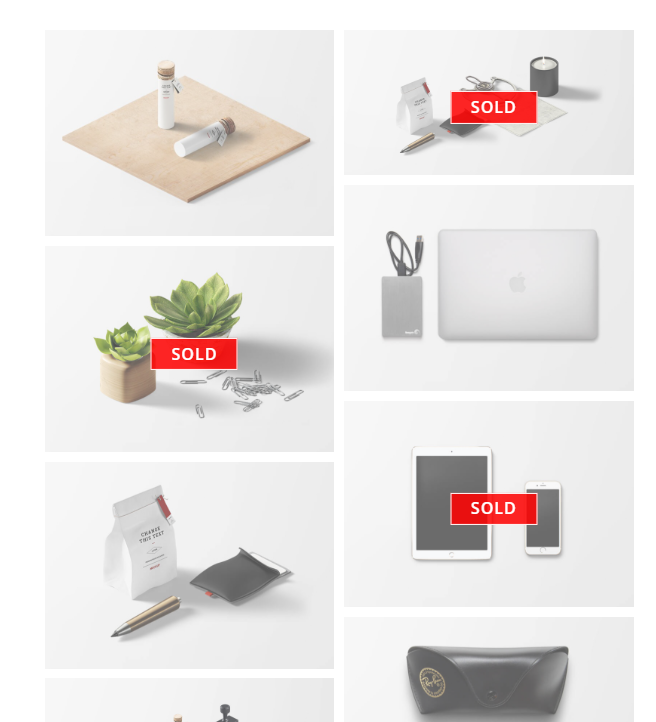
this is the result:
Best regards,
Mike
Hey Alex,
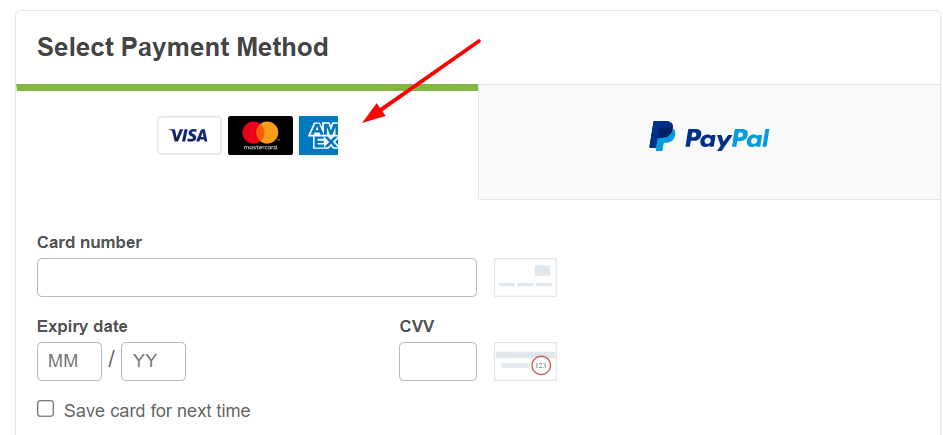
The theme can only be purchased here: https://themeforest.net/item/enfold-responsive-multipurpose-theme/4519990
When I check Envato offers credit cards:
Best regards,
Mike
It depends a little on how you want to use it. If you only want to change this to “next bio” and “previous bio” for certain custom classes, we would need to rewrite this code a little.
f.e. if you have a gallery – then you can give a custom class to that gallery element (f.e. team-member)
function add_magnific_popup_aria_labels() {
    ?>
    <script type="text/javascript">
    (function($) {
        'use strict';

        if (typeof $.avia_utilities !== 'undefined' && typeof $.avia_utilities.av_popup !== 'undefined') {

            var originalOpenCallback = $.avia_utilities.av_popup.callbacks.open;

            $.avia_utilities.av_popup.callbacks.open = function() {

                if (typeof originalOpenCallback === 'function') {
                    originalOpenCallback.call(this);
                }

                var self = this;

                setTimeout(function() {
                    // Determine labels based on the gallery container
                    var prevLabel = 'Previous image';
                    var nextLabel = 'Next image';
                    var closeLabel = 'Close lightbox';

                    // Check if the clicked element (currItem.el) is inside a container with a custom class
                    if (self.currItem && self.currItem.el) {
                        var $link = $(self.currItem.el);

                        // Find the parent lightbox container element
                        var $lightboxContainer = $link.closest('.avia-gallery, .av-masonry, .av-horizontal-gallery');

                        if ($lightboxContainer.hasClass('team-member')) {
                            prevLabel = 'Previous person';
                            nextLabel = 'Next person';
                            closeLabel = 'Close biography';
                        } else if ($lightboxContainer.hasClass('products-gallery')) {
                            prevLabel = 'Previous product';
                            nextLabel = 'Next product';
                            closeLabel = 'Close product gallery';
                        } else if ($lightboxContainer.hasClass('projects-gallery')) {
                            prevLabel = 'Previous project';
                            nextLabel = 'Next project';
                            closeLabel = 'Close project gallery';
                        }
                        // Add more conditions as needed
                    }

                    $('.mfp-arrow-left').attr('aria-label', prevLabel);
                    $('.mfp-arrow-right').attr('aria-label', nextLabel);
                    $('.mfp-close').attr('aria-label', closeLabel);
                }, 50);
            };

            var originalChangeCallback = $.avia_utilities.av_popup.callbacks.change;

            $.avia_utilities.av_popup.callbacks.change = function() {

                if (typeof originalChangeCallback === 'function') {
                    originalChangeCallback.call(this);
                }

                var self = this;

                // Update labels when changing images
                var prevLabel = 'Previous image';
                var nextLabel = 'Next image';

                if (self.currItem && self.currItem.el) {
                    var $link = $(self.currItem.el);
                    var $lightboxContainer = $link.closest('.avia-gallery, .av-masonry, .isotope, .av-horizontal-gallery');

                    if ($lightboxContainer.hasClass('team-member')) {
                        prevLabel = 'Previous person';
                        nextLabel = 'Next person';
                    } else if ($lightboxContainer.hasClass('products-gallery')) {
                        prevLabel = 'Previous product';
                        nextLabel = 'Next product';
                    } else if ($lightboxContainer.hasClass('projects-gallery')) {
                        prevLabel = 'Previous project';
                        nextLabel = 'Next project';
                    }
                }

                $('.mfp-arrow-left').attr('aria-label', prevLabel);
                $('.mfp-arrow-right').attr('aria-label', nextLabel);
            };
        }

    })(jQuery);
    </script>
    <?php
}
add_action('wp_footer', 'add_magnific_popup_aria_labels', 999);
you see this line includes masonry etc. if you like:
// Find the parent lightbox container element
var $lightboxContainer = $link.closest('.avia-gallery, .av-masonry, .av-horizontal-gallery');
I remember the team members very well. Didn’t we write an extra pop-up script for that? Maybe it would be better to add a call-back there.
You could also try hooking into the magnificPopup script and using the callback function to insert the aria labels.
function add_magnific_popup_aria_labels() {
?>
<script type="text/javascript">
(function($) {
'use strict';

        // Extend the existing MagnificPopup callbacks
        if (typeof $.avia_utilities !== 'undefined' && typeof $.avia_utilities.av_popup !== 'undefined') {

            // Save the original open callback function
            var originalOpenCallback = $.avia_utilities.av_popup.callbacks.open;

            // Overwrite the open callback function
            $.avia_utilities.av_popup.callbacks.open = function() {

                // Execute the original function
                if (typeof originalOpenCallback === 'function') {
                    originalOpenCallback.call(this);
                }

                // Add aria-labels to the navigation arrows
                setTimeout(function() {
                    $('.mfp-arrow-left').attr('aria-label', 'Previous Bio');
                    $('.mfp-arrow-right').attr('aria-label', 'Next Bio');
                    $('.mfp-close').attr('aria-label', 'Close Lightbox');
                }, 50);
            };

			// Also add a change callback to ensure
			// that the labels are still present when the images change.
            var originalChangeCallback = $.avia_utilities.av_popup.callbacks.change;

            $.avia_utilities.av_popup.callbacks.change = function() {

                // Execute the original function
                if (typeof originalChangeCallback === 'function') {
                    originalChangeCallback.call(this);
                }

                // Ensure that aria-labels are present
                $('.mfp-arrow-left').attr('aria-label', 'Previous Bio');
                $('.mfp-arrow-right').attr('aria-label', 'Next Bio');
            };
        }
})(jQuery);
</script>
<?php
}
add_action('wp_footer', 'add_magnific_popup_aria_labels', 999);
Hi,
Everything was fine on my website, and then suddenly today, there are images missing in certain places. Can you please take a look and let me know what’s going on? Thank you so much! Here are a couple of pages as examples where you see a ton of white space. Images have been there for years and are now gone.
Also, some of my H2 headers are now not showing at the right size. I am assuming these issues are related maybe?
Thank you,
Justine
https://townleypoolandspa.com/tylo-traditional-saunas/ (images missing, plus at the bottom where it says “request a quote,” the background image disappeared and the headline “request a quote” got really little.
My client’s accessibility consultants said we need to add aria labels to the lightbox arrows/controls (for example for the image popups on https://abodecommunities.org/communities/231-grant/) and for the bio popups on https://abodedev.wpengine.com/about/people/#leadership-team (those are coming from code provided by @guenni007). I worked with Claude to implement the code below (added via my custom css/javascript plugin), which seems to do the trick. Do you think this is a decent solution or do you think I should handle it some other way? Thanks so much and lmk if you have any questions!
jQuery(document).ready(function($) {
  $.extend(true, $.magnificPopup.defaults, {
    closeMarkup: '<button title="Close (Esc)" type="button" class="mfp-close" aria-label="Close popup">×</button>',
    gallery: {
      arrowMarkup: '<button title="%title%" type="button" class="mfp-arrow mfp-arrow-%dir%" aria-label="%title%"></button>',
      tPrev: 'Previous bio',
      tNext: 'Next bio'
    }
  });

  // Watch for when Magnific Popup adds arrows to the DOM
  var observer = new MutationObserver(function(mutations) {
    mutations.forEach(function(mutation) {
      mutation.addedNodes.forEach(function(node) {
        if (node.nodeType === 1) { // Element node
          var $node = $(node);

          // Check if this node or its children contain arrows
          if ($node.hasClass('mfp-arrow') || $node.find('.mfp-arrow').length) {
            // Determine if it's an image gallery by checking for mfp-figure
            var isImage = $('.mfp-figure').length > 0;
            var prevLabel = isImage ? 'Previous image' : 'Previous bio';
            var nextLabel = isImage ? 'Next image' : 'Next bio';

            $('.mfp-arrow-left').attr('aria-label', prevLabel);
            $('.mfp-arrow-right').attr('aria-label', nextLabel);
          }
        }
      });
    });
  });

  // Start observing the body for child additions
  observer.observe(document.body, {
    childList: true,
    subtree: true
  });
});
Hey Sonno,
Thank you for the inquiry.
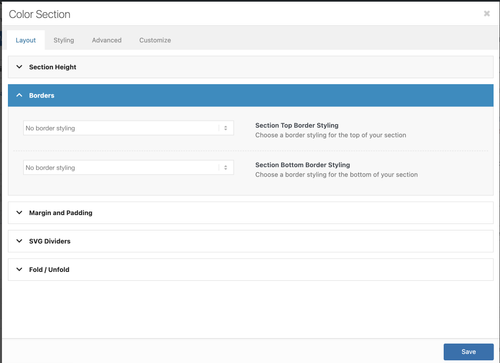
Did you place another element outside a Color Section element? The theme will create a section for this element with default styling, including a border. Try to move the element inside a Color Section so you can control the style, such as the border, in Layout > Borders options.
Let us know if the issue persists.
Best regards,
Ismael
Hey Munford,
Thank you for the inquiry.
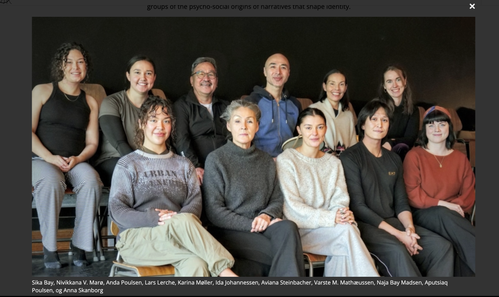
The title is not displaying because of this css code.
.mfp-title { display: none; }
You can override it with this code:
.mfp-title { display: block; }
Best regards,
Ismael
Hey bemodesign,
Thank you for the inquiry.
This css code should help — make sure to add it at the very bottom of the previous modifications.
@media only screen and (max-width: 767px) {

  /* Add your Mobile Styles here */
  .responsive #top #wrap_all .main_menu {
    display: flex;
    position: absolute;
    flex-direction: row-reverse;
    justify-items: center;
    align-items: center;
  }
}

Best regards,
Ismael
Hi,
There is no color picker in the text editor by default. If you need to change the color of specific text, you’ll either have to switch to the Code editor and use inline styling, or configure the Styling > Colors options.
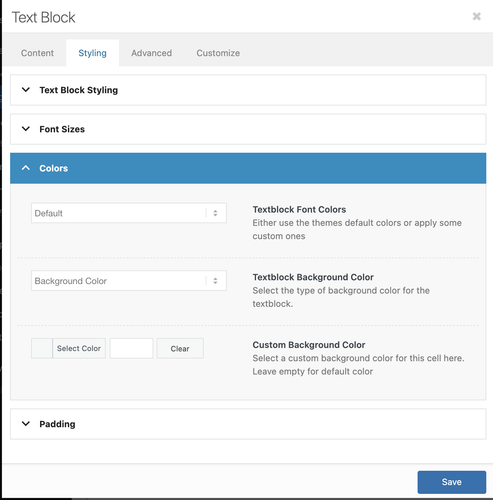
Best regards,
Ismael
Is there a way to put a “SOLD” image or bold text over some of my masonry gallery images? I did try playing around with the caption settings. The closest I came to what I want was to Display Excerpt/Display as centered overlay/Always display. Is there a way to make that then display larger, bolder, and in red color? I also did not want the overlay itself to have any color (tint) on all the images in the gallery which happens when you use those caption settings in masonry gallery. It made all the images darker and I couldn’t find a way to control that.
Thank you for this information. We will stick with the Advanced Editor. Still not resolved: why can we no longer change text color in a text box? Link to image in Private Content.