Hi sarthakchoudhary,
Please try to add this CSS code in Enfold > General Styling > Quick CSS: (just replace the url with the image you want to use)
.home #footer {
    background-image: url(https://website.com/themes/wp-content/uploads/2023/03/footer_bg.jpg);
    background-size: cover;
}
Hope it helps.
Best regards,
Nikko
Hi Ian,
Can you try adding this CSS code in Enfold > General Styling > Quick CSS:
@media only screen and (max-width:1180px) {
  .page-id-734 #after_layer_slider_1 .container {
    width: 100%;
    max-width: 100%;
  }
}
Best regards,
Nikko
Hi Erin,
I’m glad that Ismael could help you :)
Thanks for using Enfold and have a great day!
Best regards,
Nikko
Hi Monika,
Please make sure you have the correct permission:
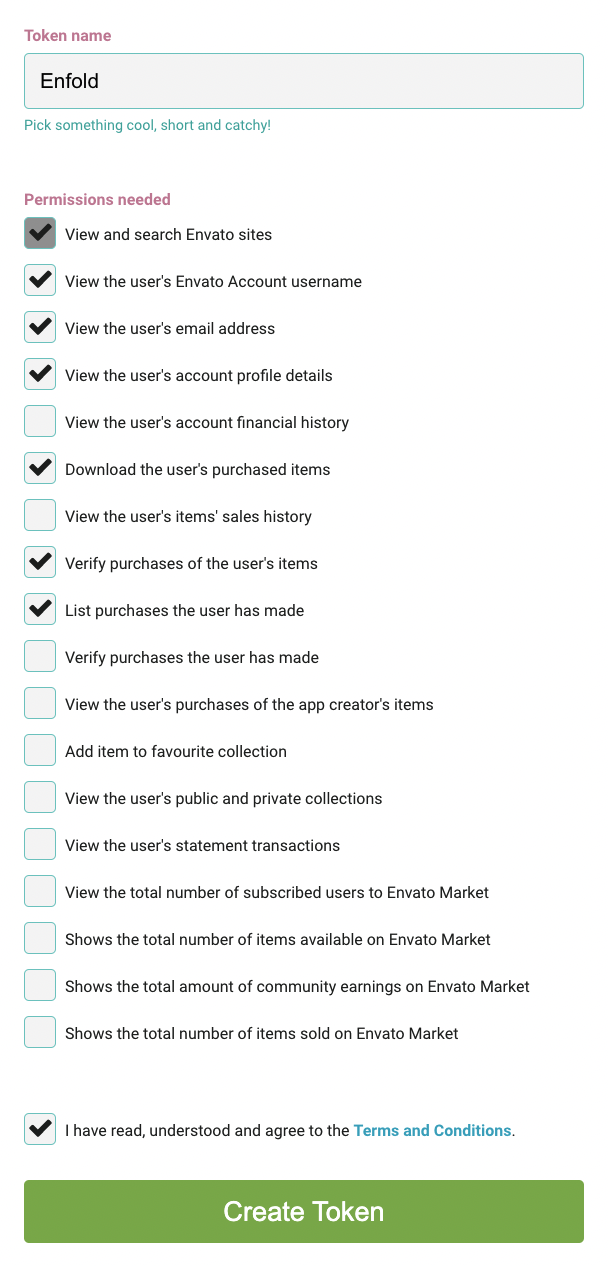
For further information please follow the instructions in our documentation: https://kriesi.at/documentation/enfold/theme-registration/#how-to-generate-a-envato-personal-token
Best regards,
Nikko
We are working on setting up this product: https://feldenkrais-method.org/materials/item/physical-products-remaining-stock/
When you check a checkbox to select an item, a quantity selector appears on the right side. This selector does not work. If you scroll down to the bottom of the list of products, you’ll see another quantity selector for the entire product that does work fine.
On our staging website, with the Twenty Twenty-Three theme active, the quantity selector works fine: https://iffstaging.wpengine.com/materials/item/physical-products-remaining-stock/. It’s a different type of selector so it looks like the Enfold theme is replacing the default selector somehow.
The problem happens when I select the default Enfold theme, as well as when I select the Enfold child theme. I found something that looked similar here: https://kriesi.at/support/topic/woo-commerce-product-bundles-quantity-not-working/ but there is not a clear answer and does not seem to have been resolved. I tried commenting out avia_apply_quant_btn(); as suggested but it didn’t change anything.
Would love any help you could provide! :)
Hi,
I am trying to download the child theme through this link in the documentation: http://bit.ly/enfold-child but the link does not go anywhere. the child theme is also missing from the files downloaded from Themeforest.
Could you please provide me a with a valid link to download the child theme.
Thanks,
Barnett
Hi Martina,
I’m glad that we could help you :)
Thanks for using Enfold and have a great day!
Best regards,
Nikko
Hi Lene,
You’re welcome :)
Thanks for using Enfold and have a great day!
Best regards,
Nikko
Hi tonyiatridis,
You’re welcome :)
Thanks for using Enfold and have a great day!
Best regards,
Nikko
Hi Franz,
Thanks as well for using Enfold and have a great day!
Best regards,
Nikko
Hi Franz,
You’re welcome :)
It’s a pleasure to help you.
Thanks as well for using Enfold and have a great day!
Best regards,
Nikko
Hi everyone,
I’m working on 2 Enfold sites and with both I created portfolios with categories.
The first page shows the ‘portfolio grid’: https://snipboard.io/jdMkyW.jpg
The second one doesn’t: https://snipboard.io/SceP6O.jpg
It’s probably a one click solution, but simply I can’t find it. And searched up and down the forum…
Any ideas? Thanks in advance!!
Best regards,
Stefan
 Sandra Dalziel
Guest
I currently have my website with Enfold Child theme purchased in 2018 I think and wish to update this to the latest version. Can you please advise where and how I get the update? I do not want to loose my current theme/layout, so how do I do this?
I also I want to use this theme on another website I am building. What WordPress version and PHP do I need. thank you.
Hi,
Thanks for the clarification. Please try the following in Quick CSS under Enfold->General Styling:
.v-1qcp8-68565ec2f18f6a37b715c354cfe0384e {
    display: table;
    margin: 0 auto;
    width: 100%;
}
Best regards,
Rikard
Hey Grzesiek,
Please try the following in Quick CSS under Enfold->General Styling:
.avia-content-slider .av_one_fourth {
    margin-left: 4%;
    width: 22%;
}
Best regards,
Rikard
Hey likeitsmart,
You can see all Enfold demos here: https://kriesi.at/themes/enfold-overview/
Best regards,
Rikard
Hi,
Thanks for that. Please try the following in Quick CSS under Enfold->General Styling:
.content a {
  color: blue;
  text-decoration: underline;
}
Best regards,
Rikard
Hey Tom,
You have set that font as your heading font under Enfold->General Styling, and under Enfold->Advanced Styling for the H4 element. Which font do you want to use instead?
Best regards,
Rikard
Hi,
Thanks for the update. Did you activate the option to delete all CSS and JS files under Enfold->Performance? If not, then please try that out, the activate file compression again. If that shouldn’t work, then we would have to see the actual problem on your site in order to help you out further.
Best regards,
Rikard
Hey Iraklis,
You can see all the Enfold demos here: https://kriesi.at/themes/enfold-overview/
Best regards,
Rikard
Thanks for the quick reply Rikard! At the end of the day I updated Enfold and that actually seemed to have fixed the problem for some reason. I hadn’t actually checked afterwards :)
Thanks again for your help!
Hi Monika,
To position the picture to the right (using a color section) assuming the layout you’re using is the same as the one in private content, please do the following:
1. Edit the Color Section, then go to Advanced > Developer Settings > Custom CSS Class and put move-right and save.
2. Go to Enfold > General Styling > Quick CSS and add this CSS code
#top .move-right .container {
    margin-right: 0;
}
You can use this again on other sections by repeating only step 1.
To position the picture to the left:
1. Edit the Color Section, then go to Advanced > Developer Settings > Custom CSS Class and put move-left and save.
2. Go to Enfold > General Styling > Quick CSS and add this CSS code
#top .move-left .container {
    margin-left: 0;
}
You can use this again on other sections by repeating only step 1.
Hope this helps.
Best regards,
Nikko
Hi Ismael,
creation of products from the scratch works and the ALB works too.
I did deactivate all relevant plugins, but my imported producs won´t use the ALB.
Our first successful imports uses ENFOLD 4.9. Does anything changes in the ALB code after the upgrade to 5.4?
Hi Rikard,
the Webside with the enfold theme is the only side which does not work, so i guess it’s a problem of the theme and not the plugin. We use the plugin for all sides and don’t want to switch.
Best ragards,
Isabelle
-
This reply was modified 3 years, 1 month ago by
 ZeMAgGmbH.
Hi,
Thank you for the update.
Did you ppurge the cache before checking the page? Please try to temporarily disable the Enfold > Performance > File Compression settings, then check the page again on incognito mode.
If you want to hide the background completely, please use this css code.
@media only screen and (max-width: 1024px) {
  /* Add your Mobile Styles here */
  .avia_mobile .avia-full-stretch {
      background: none !important;
  }

  .avia-bg-style-fixed {
      background: none !important;
  }
}
Best regards,
Ismael
Hi tonyiatridis,
We’re happy to hear that :)
Thanks for using Enfold and have a great day!
Best regards,
Nikko
Hi sarthakchoudhary,
Please try to add this CSS code in Enfold > General Styling > Quick CSS:
#top #header .container {
    width: 100%;
}
If you want to move it a bit further to the left then use this CSS code instead:
#top #header .container {
    width: 100%;
    padding-left: 10px;
}
just change the padding-left value as you see fit (you can set it to 0, the default value is 50px).
Hope this helps.
Best regards,
Nikko
Hi tonyiatridis,
Please try to add this CSS code in Enfold > General Styling > Quick CSS:
.single-product .sidebar {
    display: none !important;
}
Best regards,
Nikko
Hey mescalytequila,
Thank you for the inquiry.
You can add this css code to adjust the font size of the price and the strike-through.
#top .price, #top .price span, #top del, #top ins {
    display: inline;
    text-decoration: none;
    font-size: 32px;
    line-height: 32px;
    font-weight: 600;
}
You should remove this css code to vertically align the strike-through with the price.
.price span {
    font-size: 32px!important;
    color: #89b82b!important;
}
After doing the modifications above, you may need to toggle or temporarily disable the Enfold > Performance > File Compression settings.
Best regards,
Ismael
Hi Sean,
The function I shared in that link won’t help.
However, I have found a workaround to imitate the layout in https://kriesi.at/themes/enfold-minimal-photography/
1. Edit the Masonry Gallery, go to Advanced > Developer Settings > Custom CSS Class and add this value big-first-item then save.
2. Add this code in functions.php using a child theme or if you don’t have a child theme, you can use WPCode plugin to insert this php snippet:
function masonry_gallery_first_item(){
?>
	<script>
		(function() {
			const images = document.querySelectorAll('#top .big-first-item .av-masonry-container > a:nth-child(2)');

			images.forEach(image => {
				image.classList.add("av-landscape-img", "av-portrait-img");
			});
		})();

	</script>
<?php
}

add_action('wp_footer', 'masonry_gallery_first_item');
The purpose of the code is just to set the first item to occupy two spaces in both column and row.
If you need to do this on another page, then just repeat Step #1 (only).
I have tested this on my end and it worked.
These are the order and sizes of the images (in px):
1. 1600 x 1600
2. 800 x 800
3. 900 x 1600
4. 800 x 800
5. 1600 x 600
6. 900 x 1600
7. 800 x 800
8. 800 x 800
9. 800 x 800
10. 800 x 800
I hope this helps.
Best regards,
Nikko



