
-
AuthorSearch Results
-
June 3, 2022 at 2:12 pm #1354029
In reply to: Customize Hospot-Tooltip
I also would like to change the width of the tooltip
June 3, 2022 at 1:59 pm #1354025In reply to: Customize Hospot-Tooltip
the setting on default is:
.avia-tooltip .inner_tooltip {
  font-size: 0.925em;
  line-height: 1.65em;
}
June 3, 2022 at 1:44 pm #1354024Topic: Customize Hospot-Tooltip
in forum Enfoldbopartkunsttransporte
ParticipantHi!
I would like to change the text format of mit Hotspot-Tooltip. How can I do it?
Thanks in advance
ArantzaMay 27, 2022 at 6:23 pm #1353196In reply to: Adding TikTok for social profiles the correct way
first the existing embedded icon-font on Enfold is named: entypo-fontello
Then – if you place f.e. an icon alb element to your layout and open to edit it you can see :
(click to enlarge:)
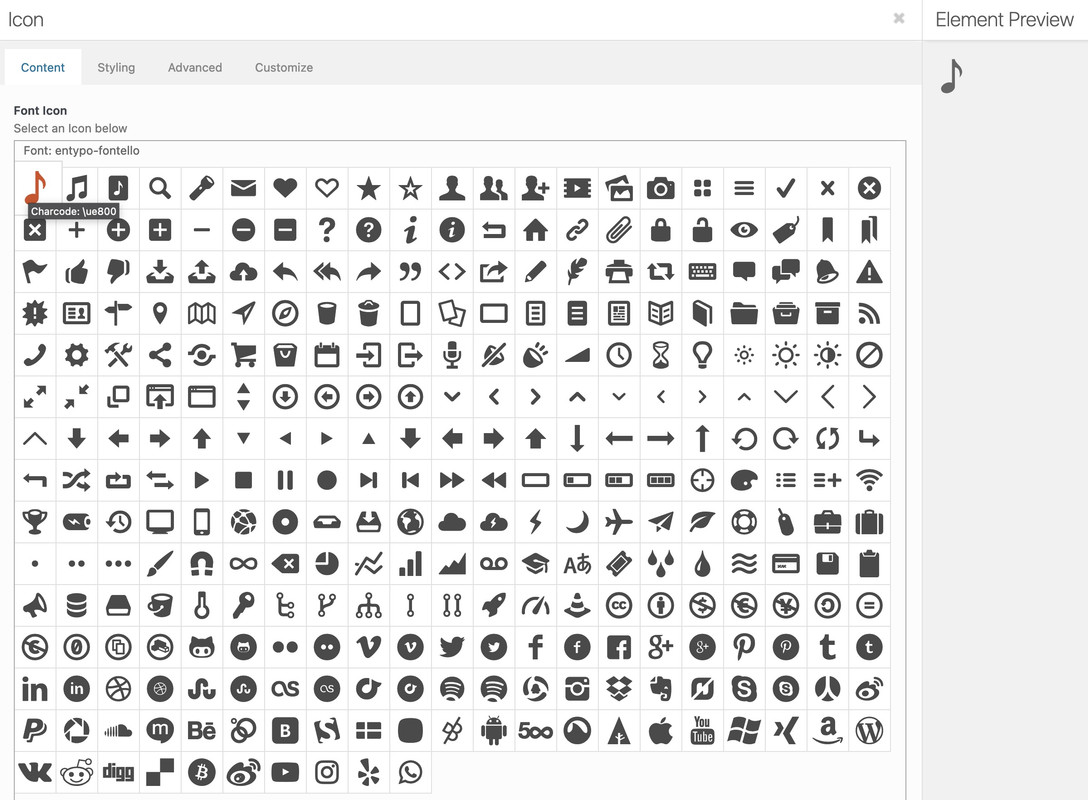
If you hover the icons and stay on that icon a while – you can see as tooltip the hexcode.the t from trumblr is on ue8fa and ue8fb
maybe the ue904 is an older icon of tiktokMay 15, 2022 at 8:34 pm #1351873In reply to: Enfold-Image bigger than original
Looked deeper:
This is what i added:
This is what i get and this is definitely not what it supposed to be
One image added, got 4 different in my HTML that bloats my pageload<a href="http://127.0.0.1/wp-content/uploads/testimage-97-1.jpg" data-rel='gallery-1' data-prev-img='http://127.0.0.1/wp-content/uploads/testimage-97-1.jpg' class='lightbox ' data-onclick='4' title='' itemprop="thumbnailUrl" ><img loading="lazy" class="wp-testimage-27902 avia-img-lazy-loading-27902" data-avia-tooltip='' src="https://127.0.0.1/wp-content/uploads/testimage-97-1-260x185.jpg" width="260" height="185" title='' alt='' /><div class='big-prev-fake'><img loading="lazy" class="wp-testimage-27902 avia-img-lazy-loading-27902" width="1583" height="800" src="https://127.0.0.1/wp-content/uploads/testimage-97-1.jpg" title='' alt='' srcset="http://127.0.0.1/wp-content/uploads/testimage-97-1.jpg 1583w, http://127.0.0.1/wp-content/uploads/testimage-97-1-1030x521.jpg 1030w, http://127.0.0.1/wp-content/uploads/testimage-97-1-80x40.jpg 80w, http://127.0.0.1/wp-content/uploads/testimage-97-1-768x388.jpg 768w, http://127.0.0.1/wp-content/uploads/testimage-97-1-1536x776.jpg 1536w, http://127.0.0.1/wp-content/uploads/testimage-97-1-1500x758.jpg 1500w, http://127.0.0.1/wp-content/uploads/testimage-97-1-705x356.jpg 705w" sizes="(max-width: 1583px) 100vw, 1583px" /></div></a>1: When i add a masonry gallery with “portfolio smalll 260 x 185” i see a gallery with thumbnails.
Every thumb should be 260 x 185. Right?2: When the thumbnail is linked via lightbox with the big image, the image should be loaded when a user clicks on it (because this is what a link does)
Not before, Right?Weird:
– About 50% of all images do not show the original image like i defined in my functions.php
They are like image-1500×710.jpg” or 1500×550″ or “1500×786″ or 1500×758”This is absolutely not understandable
This is the code i found in some other thread where the user wanted to see the images in the lightbox in original size and so i want too:
// Bilder in Galerie in Lightbox in Originalgröße anzeigen
function avia_change_gallery_thumbnail_link($link, $attachment, $atts, $meta){
    $link = wp_get_attachment_image_src($attachment->ID, "full");
    return $link;
}
add_filter('avf_avia_builder_gallery_image_link', 'avia_change_gallery_thumbnail_link', 10, 4);

function avia_change_masonry_thumbnail_link($size) {
  return "full";
}
add_filter('avf_avia_builder_masonry_lightbox_img_size', 'avia_change_masonry_thumbnail_link', 10, 1);
May 12, 2022 at 8:36 am #1351494Topic: COnflict with WPDATATABLES PLUGIN
in forum Enfoldpremiumpsu
ParticipantHello!
I have a problem with the plugin wpdatatables, the plugin developer said that problem it’s with template, nad its correct, when I change the theme whe plugins work perfectly.
I attach the screenshoot of the error that can see.
bootstrap.min.js?ver=4.2.1:6 Uncaught Error: Bootstrap’s JavaScript requires jQuery version 1.9.1 or higher, but lower than version 4
at bootstrap.min.js?ver=4.2.1:6:221
at bootstrap.min.js?ver=4.2.1:6:323
(anonymous) @ bootstrap.min.js?ver=4.2.1:6
(anonymous) @ bootstrap.min.js?ver=4.2.1:6common.js?ver=4.2.1:147 Uncaught TypeError: $(…).tooltip is not a function
at HTMLDocument.<anonymous> (common.js?ver=4.2.1:147:38)
at l (jquery.min.js?ver=1.8.3:2:16996)
at Object.fireWith [as resolveWith] (jquery.min.js?ver=1.8.3:2:17783)
at Function.ready (jquery.min.js?ver=1.8.3:2:12504)
at HTMLDocument.A (jquery.min.js?ver=1.8.3:2:9909)May 12, 2022 at 6:28 am #1351466In reply to: Gallery captions not visible
Hi,
Thank you for the inquiry.
The tooltip text are not visible because the font color is the same as the background. Adding this css code should help.
.avia-tooltip {
    color: orangered;
}
Please make sure to toggle or temporarily disable the Enfold > Performance > File Compression settings after adding the css.
Best regards,
IsmaelMay 11, 2022 at 8:31 am #1351303In reply to: Gallery captions not visible
i’m participant as you are – so if there are links in private content i do not see them.
if it is an image Gallery – what are your settings for it? especially on the advance tab : link settings?
do you open them in a lightbox? etc. pp.
because you only have the possibility to set the content for that lightbox bottom bar on this.if you mean that tooltip like showing above the thumnails – it would be better to have a link to see whats happening.
have you set on your quick css some rules about : avia-tooltip or inner_tooltip
April 28, 2022 at 6:38 am #1349750In reply to: Ajax Search Styling
Hi,
Thank you for the clarification.
Try to use this css code to remove the box shadow and borders of the AJAX search container.
#top .avia-search-tooltip {
    box-shadow: none;
    border: none;
}
Again, toggling the file compression settings and purging the cache might be necessary.
Best regards,
IsmaelApril 23, 2022 at 9:39 pm #1349242Hi,
Thanks for the screenshot, to align the images to the bottom try this css:#top #wrap_all .avia-gallery .avia-gallery-thumb a { display: flex; flex-direction: column; } #top #wrap_all .avia-gallery .avia-gallery-thumb a img { margin-top: auto; }To have the tooltips show below the items edit
\enfold\js\avia.json line 1243 you will findposition: 'top', //top or bottomchange it to:position: 'bottom', //top or bottomand add this css:.avia-tooltip .avia-arrow-wrap { bottom: 45px !important; } .avia-tooltip .avia-arrow { top: 15px !important; }Then clear your browser cache and any cache plugin, and check.
Best regards,
MikeApril 15, 2022 at 5:30 am #1348477In reply to: Ajax Search Styling
Hey fkm,
Thank you for the inquiry.
To adjust the portfolio post type title or label, try to add this code in the functions.php file.
add_filter('avf_ajax_search_label_names','avf_ajax_search_label_names_mod', 10, 1);
function avf_ajax_search_label_names_mod($label)
{
     if($label == 'Portfolio Items') $label = 'New Label Here';
     return $label;
}
You can then use this css code to adjust the styles of the ajax search based on your specifications. Please make sure to toggle or temporarily disable the Enfold > Performance > File Compression settings after adding the css.
.av_ajax_search_image {
    border-radius: 0;
}

.av_ajax_search_content {
    top: 10px;
    position: relative;
}

#top div .av_ajax_search_entry:hover {
    background-color: inherit;
}

.avia-search-tooltip .avia-arrow-wrap {
    display: none;
}
Best regards,
IsmaelApril 6, 2022 at 1:03 pm #1347426In reply to: Change responsive behavoir footer widgets?
Hello Guenni007,
Thank you for your help; I now have this code added to my custom css:/* grid responsive behavior */ .av-share-box .avia-related-tooltip { display: none !important; } .av-layout-grid-container.grid421 { display: flex; flex-flow: row wrap; justify-content: space-between; } .av-layout-grid-container.grid421 .flex_cell { flex: 0 1 25%; width: unset !important } @media only screen and (min-width: 620px) and (max-width: 1025px) { .av-layout-grid-container.grid421 .flex_cell { flex: 0 1 50%; } } @media only screen and (max-width: 620px) { .av-layout-grid-container.grid421 .flex_cell { flex: 1 1 100%; } } /* end grid responsive behavior */As you can see I played a bit with the pixel settings, so that even on small phone screens in landscape view I see 2 columns side by side, and also on a landscape iPad (1024px so set to 1025px). Also, I aligned it with the breakpoint for the footer (also 620px)
It is working fine now but I do have some questions.
At first, the code didn’t work until I made the following adjustments:
– In Grid Row>Settings I changed the Mobile Breaking Point from 989px or lower to 767px or lower.
– Also, in Developer Settings I had to set Custom CSS Class is grid421 in all 4 individual columns.Both adjustments were necessary for the code to work.
Is this expected behavior?Last question:
I want to use this responsive behavior of the grid rows throughout the website. Is it possible to just use one piece of css code for this instead of using css code per grid. So without the Custom CSS Class settings?Again, thank you very much for your help!! :)
AlwinMarch 22, 2022 at 7:58 pm #1345579In reply to: Hide image title, etc. on hover
it is a wordpress – no it is a browser related question – if there are titles – browsers will show tooltip after some time.
to simply remove all titles from images :function custom_remove_title_script() { ?> <script> (function($){ $("img").hover(function(){ $(this).removeAttr("title"); }); })(jQuery); </script> <?php } add_action('wp_footer', 'custom_remove_title_script');but even this you had to know how to insert it.
if content is missing after activating a child-theme – then there is something wrong with the installation from you.
i tried to explain it even for noobs how to. And linked the description to the docu with even a film to explain.
Maybe you let a mod do this for you.Otherwise you can insert it to parent-theme functions.php ( it is in enfold folder ) and on that file there is a comment at the bottom of that file:
/*
 *  register custom functions that are not related to the framework but necessary for the theme to run
 */
after that – and before the last command (
require_once( 'functions-enfold.php' );) i would place that code.March 22, 2022 at 6:41 pm #1345565Topic: Hiding tooltip also hides lightbox text (under image)
in forum Enfoldlzevon
ParticipantIf I add to functions.php…
function remove_title_attr(){
?>
<script>
(function($) {
	$(window).on('load', function(){
		$('#wrap_all a').removeAttr('title');
		$('#wrap_all img').removeAttr('title');
	});
})(jQuery);
</script>
<?php
}
add_action('wp_footer', 'remove_title_attr');
… it works great at hiding the tooltip, but it also hides the text under an image in the lightbox which is a Caption in the Gallery element. So it would seem that Gallery element captions share the same attribute as a tooltip? Anyway I can differentiate? I don’t want to show tooltips over gallery images, but I do want to show the Gallery image caption when the lightbox is being used.
March 22, 2022 at 7:46 am #1345478In reply to: Hide image title, etc. on hover
Personally, I was only bothered by the galleries with previews.
https://kriesi.at/themes/enfold-2017/elements/gallery/
If you hover a little bit over the thumbnails, an Enfold Tooltip and the WordPress Tooltip will be shown at the same time. Therefore my solution to hover the Titles in a Substitute Title ( org_title ) to cache.

there is a simpler method to remove all titles – but then as mentioned above – the seo aspect will be ignored – and if you decide to show on an image a lightbox – the title is missing in the bottom-bar of the lightbox.
March 22, 2022 at 5:08 am #1345438In reply to: Hide image title, etc. on hover
Hi,
Are you referring to the title popup encircled in the screenshot below? That is a default browser title tooltip which displays if an element has the title attribute and it doesn’t display immediately on hover, only when the user decided to keep the mouse pointer over the image for a few seconds, which probably means that they really like to see the title or the image description. Search engines also like title attributes, so we wouldn’t recommend removing them. But if you still want to proceed, just add the code that @guenni007 provided in the functions.php file.
Screenshot: https://1drv.ms/u/s!AjjTfXSRbKTvwEkjNiYfIuFRtd9M?e=g8tUu6
Where do you see the title popup in your site? Please provide a screenshot.
Best regards,
IsmaelMarch 5, 2022 at 9:20 pm #1343291In reply to: Hotspots stay open
Hi,
Thank you for your patience, this was due to this css in your Quick CSS:.page-id-195 .avia-tooltip.avia-tt { display: block!important; opacity: 1!important; }I commented it out for you, please clear your browser cache and check.
Best regards,
MikeMarch 3, 2022 at 6:45 pm #1343039In reply to: Hotspots stay open
This reply has been marked as private.March 3, 2022 at 4:04 am #1342939In reply to: Hotspots stay open
Hey BrendaSarg,
Thank you for the inquiry.
The hotspot tooltip is supposed to display on hover and automatically hide on mouse leave. Please make sure that the Advanced > Animation > Show Tooltips settings of the hotspot element is set to the first option. And please make sure to upgrade the theme to version 4.9.1.
Best regards,
IsmaelFebruary 23, 2022 at 1:01 pm #1341987In reply to: Page content with symbolraster
Hey dondela,
Please try the following in Quick CSS under Enfold->General Styling:
@media only screen and (max-width: 767px) {
.avia-icongrid-tooltip li article {
    padding: 0 !important;
}
}
Best regards,
RikardFebruary 9, 2022 at 6:41 pm #1339857After a closer look, I found this in our source code even though search from is not visible.
Our CSS:/* --- hide search icon in the main menu --- */ #menu-item-search { display: none; } #top #menu-item-search.menu-item-search-dropdown>a { display: none; }HTML generated:
<li id="menu-item-search" class="noMobile menu-item menu-item-search-dropdown menu-item-avia-special" role="menuitem">
<a aria-label="Search" href="?s=" rel="nofollow" data-avia-search-tooltip="
This code https://kriesi.at/support/topic/remove-nofollow-from-search-item-of-main-menu/ did not resolve it.
How do we remedy it?
Thank you.
February 9, 2022 at 11:54 am #1339775In reply to: Adding social icons to footer (not socket)
Hi Ryan,
I edited your element and gave it “custom-social” ID in Advanced > Developer Settings and then added following cdoe to bottom of Quick CSS field in Enfold theme options > General Styling tab
/* Social widget */
#custom-social .avia-related-tooltip {
  display: none !important;
}
#custom-social .av-share-box ul li a {
   font-size: 18px;
   width: 35px;
}
#custom-social .av-share-box ul li {
   display: inline-block;
}
#top #custom-social .av-share-box ul {
    display: flex;
}
#custom-social .av-share-box ul li.av-social-link-pinterest {
   order: 4;
}
#custom-social .av-share-box ul li.av-social-link-linkedin {
   order: 3;
}
Best regards,
YigitJanuary 31, 2022 at 6:07 pm #1338071togetherconcept
ParticipantI want to show titles next to the hotspots in addition to the normal tooltip. The titles should always be visible. The regular mouseover tooltip should be retained.
The planned application is a map (image) with marked cities (hotspots). The city names (titels) should be visible next to the hotspots. The regular tooltip (on mouse-over) is already used for additional information about the city.January 19, 2022 at 6:31 pm #1336253In reply to: Hide image file names in Gallery / Portfolio
this here is a temporarly remove of the title tag
you must adopt your selector to what you need ! ( var links )function temporary_removal_title_tags(){ ?> <script> window.onload = function() { //var links = document.querySelectorAll('a,img,div[title]'); var links = document.getElementsByTagName("img"); for (var i = 0; i < links.length; i++) { var link = links[i]; link.onmouseover = function() { this.setAttribute("org_title", this.title); this.title = ""; }; link.onmouseout = function() { this.title = this.getAttribute("org_title"); }; link.onclick = function() { this.title = this.getAttribute("org_title"); }; } }; </script> <?php } add_action('wp_footer', 'temporary_removal_title_tags');you see what the code does: it saves the original title to another attribute : org_title
now if the mouse hovers – the title is empty but the original title is saved to another attribute.
if you leave it ( mouseout ) the title is there again.
And on click the title will be there for lightbox captions.
the code above is only for images – but you see the commented line – you can have more selctors here.
you can use the selectors Nikko mentioned above.See in action here with the enfold tooltip on the images: https://webers-testseite.de/gallery-with-8-images/
normal behavior is here on Gallery with preview ( hove the thumbnails ): https://kriesi.at/themes/enfold-2017/elements/gallery/there will be both : enfold tooltip and browser tooltip by titles

-
This reply was modified 4 years, 2 months ago by
Guenni007.
January 13, 2022 at 12:15 pm #1335384In reply to: Privacy policy multilingual
Hi Ismael,
Thanks for your help.
It works for text messages very well, but for buttons and tooltip it doesn’t. Screenshot.
January 12, 2022 at 5:21 pm #1335278In reply to: Logo-element 3 columns on mobile
Hey!
Could you please replace the previous code with following one?
@media only screen and (max-width: 767px) {
.responsive #top #wrap_all .avia-content-slider-odd .slide-entry.slide-parity-even {
  margin-left: 4%;
}
.responsive #top #wrap_all .avia-content-slider-odd .slide-entry.first,
.responsive #top #wrap_all .slide-entry {
  width: 33%;
}
#top .avia-logo-grid .slide-entry-wrap {
  display: flex;
}
}

@media only screen and (max-width: 480px) {
#avia-icongrid-61def0d63b5fe.avia-icongrid-tooltip li article {
  padding: 4em 0;
}}
That should fix social media links on mobile as well :)
Regards,
YigitJanuary 7, 2022 at 3:28 am #1334609In reply to: Portfolio with Ajax
Hi,
Thank you for that info. Yes, you can fill in the title attribute of the image to show the default browser tooltip. If there is anything else we can help you with, please feel free to open a different thread. We will close this one for now.
Have a nice day.
Best regards,
IsmaelJanuary 6, 2022 at 1:38 pm #1334542In reply to: Portfolio with Ajax
Hi Ismael,
The tooltip is just the caption of the image, so that works!
Thanks!January 6, 2022 at 5:02 am #1334465In reply to: Portfolio with Ajax
Hi,
Thank you for the update.
The video is displaying correctly on our end as shown in the screenshot below (see private field). Out of the box, there is no option to set a text or tooltip for the portfolio grid items.
To adjust the image size, edit the portfolio grid element, go to the Styling > Grid Settings tab and adjust the Portfolio Grid Image Size to the second option. You will then be able to select a specific thumbnail size. And as much as possible, you should also upload images with the same size and aspect ratio.
Best regards,
IsmaelDecember 20, 2021 at 1:38 am #1333478In reply to: Woocommerce 3.0 Product galley
Hey Ramon,
Thank you for the link to your site, the closest I could come to your request is this script and css that shows the gallery image thumbnail alt tag on mouse-over:

which works ok if the alt tag doesn’t contain too much text, since the image needs to be clickable to view the larger image above if there is too much text you can’t click the image.
If you want to try this, add this code to the end of your functions.php file in Appearance ▸ Editor:function custom_gallery_tooltip_script() { ?> <script> (function($) { setTimeout(function(){ $("#top.single-product .flex-control-thumbs>li>img").wrap('<div class="alt-wrap"/>'); $(".alt-wrap>img").each(function() { $(this).after('<span class="tooltip">' + $(this).attr('alt') + '</span>'); }); },300); })(jQuery); </script> <?php } add_action('wp_footer', 'custom_gallery_tooltip_script');and this code in the General Styling ▸ Quick CSS field:
.alt-wrap {
  display: block;
  position: relative;
  margin: 0px;
}
.alt-wrap span.tooltip {
  opacity: 0;
  position: absolute;
  left: 0; right: 0; bottom: 0;
  margin: 0;
  color: #fff;
  padding: 5px;
  font-size: 10px;
  line-height: 12px;
  background-color: rgba(0,0,0,0.8);
  transition: all 300ms ease;
  transition-delay: 300ms;
}
.alt-wrap:hover > span.tooltip {
  opacity: 1;
  transition-delay: 0s;
}
Then clear your browser cache and any cache plugin, and check.
Best regards,
Mike -
This reply was modified 4 years, 2 months ago by
-
AuthorSearch Results
-
Search Results
-
Topic: Customize Hospot-Tooltip
Hi!
I would like to change the text format of mit Hotspot-Tooltip. How can I do it?
Thanks in advance
ArantzaHello!
I have a problem with the plugin wpdatatables, the plugin developer said that problem it’s with template, nad its correct, when I change the theme whe plugins work perfectly.
I attach the screenshoot of the error that can see.
bootstrap.min.js?ver=4.2.1:6 Uncaught Error: Bootstrap’s JavaScript requires jQuery version 1.9.1 or higher, but lower than version 4
at bootstrap.min.js?ver=4.2.1:6:221
at bootstrap.min.js?ver=4.2.1:6:323
(anonymous) @ bootstrap.min.js?ver=4.2.1:6
(anonymous) @ bootstrap.min.js?ver=4.2.1:6common.js?ver=4.2.1:147 Uncaught TypeError: $(…).tooltip is not a function
at HTMLDocument.<anonymous> (common.js?ver=4.2.1:147:38)
at l (jquery.min.js?ver=1.8.3:2:16996)
at Object.fireWith [as resolveWith] (jquery.min.js?ver=1.8.3:2:17783)
at Function.ready (jquery.min.js?ver=1.8.3:2:12504)
at HTMLDocument.A (jquery.min.js?ver=1.8.3:2:9909)If I add to functions.php…
function remove_title_attr(){ ?> <script> (function($) { $(window).on('load', function(){ $('#wrap_all a').removeAttr('title'); $('#wrap_all img').removeAttr('title'); }); })(jQuery); </script> <?php } add_action('wp_footer', 'remove_title_attr');… it works great at hiding the tooltip, but it also hides the text under an image in the lightbox which is a Caption in the Gallery element. So it would seem that Gallery element captions share the same attribute as a tooltip? Anyway I can differentiate? I don’t want to show tooltips over gallery images, but I do want to show the Gallery image caption when the lightbox is being used.
I want to show titles next to the hotspots in addition to the normal tooltip. The titles should always be visible. The regular mouseover tooltip should be retained.
The planned application is a map (image) with marked cities (hotspots). The city names (titels) should be visible next to the hotspots. The regular tooltip (on mouse-over) is already used for additional information about the city.


