
-
AuthorSearch Results
-
December 17, 2018 at 12:31 pm #1046276
Are you are correct, my mistake there when retyping it.
Now that I’ve inserted the both search items vanished.add_filter( 'avf_execute_avia_meta_header', '__return_true', 10, 1); add_filter( 'avia_meta_header', 'avia_append_search_nav_mod'); function avia_append_search_nav_mod(){ global $avia_config; ob_start(); get_search_form(); $form = htmlspecialchars(ob_get_clean()); $items .= '<li id="menu-item-search" class="noMobile menu-item menu-item-search-dropdown menu-item-avia-special"> <a href="?s=" data-avia-search-tooltip="'.$form.'" '.av_icon_string('search').'> <span class="avia_hidden_link_text">'.__('Search','avia_framework').'</span> </a> </li>'; echo $items; } function custom_shift(){ ?> <script> (function($){ // $('#header_meta #menu-item-search').prependTo('#avia2-menu'); $('#header_meta #menu-item-search').prependTo('#header_meta .sub_menu'); })(jQuery); </script> <?php } add_action('wp_footer', 'custom_shift');December 17, 2018 at 12:23 pm #1046272I just did in the last post, but here it is again.
<?php /* * Add your own functions here. You can also copy some of the theme functions into this file. * WordPress will use those functions instead of the original functions then. */ add_action( 'ava_main_header', 'enfold_customization_header_widget_area' ); function enfold_customization_header_widget_area() { dynamic_sidebar( 'header' ); } add_filter("kriesi_backlink","new_link"); function new_link(){ $kriesi_at_backlink = ""; return $kriesi_at_backlink; } add_filter( 'avf_execute_avia_meta_header', '__return_true', 10, 1); add_filter( 'avia_meta_header', 'avia_append_search_nav_mod'); function avia_append_search_nav_mod(){ global $avia_config; ob_start(); get_search_form(); $form = htmlspecialchars(ob_get_clean()); $items .= '<li id="menu-item-search" class="noMobile menu-item menu-item-search-dropdown menu-item-avia-special"> <a href="?s=" data-avia-search-tooltip="'.$form.'" '.av_icon_string('search').'> <span class="avia_hidden_link_text">'.__('Search','avia_framework').'</span> </li> '; echo $items; } function custom_shift(){ ?> <script> (function($){ // $('#header_meta #menu-item-search').prependTo('#avia2-menu'); $('#header_meta #menu-item-search').prependTo('#header_meta .sub_menu'); })(jQuery); </script> <?php } add_action('wp_footer', 'custom_shift'); /* Create shortcode for parent page. */ function list_parent_page() { global $post; $parent_id = $post->post_parent; $parent = $post->post_parent; $parent_title = get_the_title($parent); $link = get_permalink($parent_id); $parent_title = "<a href='$link' title='$parent_title'>$parent_title</a>"; if($parent) { return $parent_title; } } function list_current_page() { get_the_title(); } add_shortcode('parentpage','list_parent_page'); add_filter( 'widget_title', 'do_shortcode' ); // fix for PHP shortcode function do_php_shortcode_fix($content) { global $shortcode_tags; // save current shortcodes $old_shortcode_tags = $shortcode_tags; // remove all shortcodes, then re-add just our php and echo shortcodes remove_all_shortcodes(); add_shortcode('php', $old_shortcode_tags['php']); add_shortcode('echo', $old_shortcode_tags['echo']); $content = do_shortcode($content); // and now put back the original shortcodes $shortcode_tags = $old_shortcode_tags; return $content; } function fix_php_shortcode_init() { global $shortcode_tags; if (isset($shortcode_tags['php'])) { // Move do_shortcode back to default of priority 11 if(remove_filter('the_content','do_shortcode', 9)) add_filter('the_content','do_shortcode', 11); // filter the content to deal with just the php and echo shortcodes // early on as priority 8 (before any WP formatting) add_filter('the_content', 'do_php_shortcode_fix', 8); } } // add fix for PHP shortcode, with priority 12 so it // comes after the PHP shortcode has been initialised add_action('init','fix_php_shortcode_init', 12);December 17, 2018 at 12:16 pm #1046267yeah, thats using your ‘method #2’
and the second search icon is displayed only when I insert
in your $items variable blockHere is the current functions.php
<?php /* * Add your own functions here. You can also copy some of the theme functions into this file. * WordPress will use those functions instead of the original functions then. */ add_action( 'ava_main_header', 'enfold_customization_header_widget_area' ); function enfold_customization_header_widget_area() { dynamic_sidebar( 'header' ); } add_filter("kriesi_backlink","new_link"); function new_link(){ $kriesi_at_backlink = ""; return $kriesi_at_backlink; } add_filter( 'avf_execute_avia_meta_header', '__return_true', 10, 1); add_filter( 'avia_meta_header', 'avia_append_search_nav_mod'); function avia_append_search_nav_mod(){ global $avia_config; ob_start(); get_search_form(); $form = htmlspecialchars(ob_get_clean()); $items .= '<li id="menu-item-search" class="noMobile menu-item menu-item-search-dropdown menu-item-avia-special"> <a href="?s=" data-avia-search-tooltip="'.$form.'" '.av_icon_string('search').'> <span class="avia_hidden_link_text">'.__('Search','avia_framework').'</span> </li> '; echo $items; } function custom_shift(){ ?> <script> (function($){ // $('#header_meta #menu-item-search').prependTo('#avia2-menu'); $('#header_meta #menu-item-search').prependTo('#header_meta .sub_menu'); })(jQuery); </script> <?php } add_action('wp_footer', 'custom_shift'); /* Create shortcode for parent page. */ function list_parent_page() { global $post; $parent_id = $post->post_parent; $parent = $post->post_parent; $parent_title = get_the_title($parent); $link = get_permalink($parent_id); $parent_title = "<a href='$link' title='$parent_title'>$parent_title</a>"; if($parent) { return $parent_title; } } function list_current_page() { get_the_title(); } add_shortcode('parentpage','list_parent_page'); add_filter( 'widget_title', 'do_shortcode' ); // fix for PHP shortcode function do_php_shortcode_fix($content) { global $shortcode_tags; // save current shortcodes $old_shortcode_tags = $shortcode_tags; // remove all shortcodes, then re-add just our php and echo shortcodes remove_all_shortcodes(); add_shortcode('php', $old_shortcode_tags['php']); add_shortcode('echo', $old_shortcode_tags['echo']); $content = do_shortcode($content); // and now put back the original shortcodes $shortcode_tags = $old_shortcode_tags; return $content; } function fix_php_shortcode_init() { global $shortcode_tags; if (isset($shortcode_tags['php'])) { // Move do_shortcode back to default of priority 11 if(remove_filter('the_content','do_shortcode', 9)) add_filter('the_content','do_shortcode', 11); // filter the content to deal with just the php and echo shortcodes // early on as priority 8 (before any WP formatting) add_filter('the_content', 'do_php_shortcode_fix', 8); } } // add fix for PHP shortcode, with priority 12 so it // comes after the PHP shortcode has been initialised add_action('init','fix_php_shortcode_init', 12);December 17, 2018 at 11:34 am #1046245The one from the screenshot is using the method where the phone number wasn’t included and without the [search].
The only time that second search icon appeared, was when I tried to put a space between the search icon in front of the phone number, i put 2 x nbsp and then it suddenly appeared.add_filter( 'avf_execute_avia_meta_header', '__return_true', 10, 1); add_filter( 'avia_meta_header', 'avia_append_search_nav_mod'); function avia_append_search_nav_mod(){ global $avia_config; ob_start(); get_search_form(); $form = htmlspecialchars(ob_get_clean()); $items .= '<li id="menu-item-search" class="noMobile menu-item menu-item-search-dropdown menu-item-avia-special"> <a href="?s=" data-avia-search-tooltip="'.$form.'" '.av_icon_string('search').'> <span class="avia_hidden_link_text">'.__('Search','avia_framework').'</span> </li> '; echo $items; } function custom_shift(){ ?> <script> (function($){ $('#header_meta #menu-item-search').prependTo('#avia2-menu'); })(jQuery); </script> <?php } add_action('wp_footer', 'custom_shift');December 17, 2018 at 11:18 am #1046239you only have to use one of the methods. if you use the code above get rid of the shortcode function and remove from phonenumber input field the
[search]add_filter( 'avf_execute_avia_meta_header', '__return_true', 10, 1); add_filter( 'avia_meta_header', 'avia_append_search_nav_mod'); function avia_append_search_nav_mod(){ global $avia_config; ob_start(); get_search_form(); $form = htmlspecialchars(ob_get_clean()) ; $items .= '<li id="menu-item-search" class="noMobile menu-item menu-item-search-dropdown menu-item-avia-special"> <a href="?s=" data-avia-search-tooltip="'.$form.'" '.av_icon_string('search').'> <span class="avia_hidden_link_text">'.__('Search','avia_framework').'</span> </a> </li> <li class="phone-info"> <a href="tel:+6123278777">07 3237 8777</a> </li>'; echo $items; } function custom_shift(){ ?> <script> (function($){ $('#header_meta .phone-info').prependTo('#avia2-menu'); $('#header_meta #menu-item-search').prependTo('#avia2-menu'); })(jQuery); </script> <?php } add_action('wp_footer', 'custom_shift');And it is hard to say from a screenshot where it could come from. A life link – which you do not have now – will be more informative.
PS : for me it looks like the small one is from the code above and the other one from the shortcode.
You have to style the little one via css.
The code from me above with the phone number inserted this way is for having your search icon infront of the phonenumber. Then the phonenumber is part of the top menu. And you have to leave the phone info field empty on Enfold.-
This reply was modified 7 years, 3 months ago by
Guenni007.
December 17, 2018 at 9:37 am #1046203Here is something interesting, I think I can work with just the search symbol there possibly (depending on the client request)
However I tried to put a space between the search icon and the phone icon.Then another search icon appeared in the header, you can see it in this screenshot , its small and orange, it behaves exactly the same as well, but seems to have been hidden.

code used
add_filter( 'avf_execute_avia_meta_header', '__return_true', 10, 1); add_filter( 'avia_meta_header', 'avia_append_search_nav_mod'); function avia_append_search_nav_mod(){ global $avia_config; ob_start(); get_search_form(); $form = htmlspecialchars(ob_get_clean()); $items .= '<li id="menu-item-search" class="noMobile menu-item menu-item-search-dropdown menu-item-avia-special"> <a href="?s=" data-avia-search-tooltip="'.$form.'" '.av_icon_string('search').'> <span class="avia_hidden_link_text">'.__('Search','avia_framework').'</span> </li> '; echo $items; } function custom_shift(){ ?> <script> (function($){ $('#header_meta #menu-item-search').prependTo('#avia2-menu'); })(jQuery); </script> <?php } add_action('wp_footer', 'custom_shift');Any idea where that other search icon came from? should we be using that one somehow?
December 16, 2018 at 1:39 pm #1045891Here is my child functions.php modification for your first method, just to see if we can get something working.
<?php /* * Add your own functions here. You can also copy some of the theme functions into this file. * WordPress will use those functions instead of the original functions then. */ #add_action( 'ava_main_header', 'enfold_customization_header_widget_area' ); function search() { global $avia_config; ob_start(); get_search_form(); $form = htmlspecialchars(ob_get_clean()) ; return '<a href="?s=" data-avia-search-tooltip="'.$form.'" '.av_icon_string('search').'><span class="avia_hidden_link_text">'.__('Search','avia_framework').'</span></a> '; } add_shortcode('search', 'search'); function enfold_customization_header_widget_area() { dynamic_sidebar( 'header' ); } add_filter("kriesi_backlink","new_link"); function new_link(){ $kriesi_at_backlink = ""; return $kriesi_at_backlink; } function custom_shift(){ ?> <script> (function($){ $('#header_meta #menu-item-search').prependTo('#avia2-menu'); })(jQuery); </script> <?php } add_action('wp_footer', 'custom_shift'); /* Create shortcode for parent page. */ function list_parent_page() { global $post; $parent_id = $post->post_parent; $parent = $post->post_parent; $parent_title = get_the_title($parent); $link = get_permalink($parent_id); $parent_title = "<a href='$link' title='$parent_title'>$parent_title</a>"; if($parent) { return $parent_title; } } function list_current_page() { get_the_title(); } add_shortcode('parentpage','list_parent_page'); add_filter( 'widget_title', 'do_shortcode' ); // fix for PHP shortcode function do_php_shortcode_fix($content) { global $shortcode_tags; // save current shortcodes $old_shortcode_tags = $shortcode_tags; // remove all shortcodes, then re-add just our php and echo shortcodes remove_all_shortcodes(); add_shortcode('php', $old_shortcode_tags['php']); add_shortcode('echo', $old_shortcode_tags['echo']); $content = do_shortcode($content); // and now put back the original shortcodes $shortcode_tags = $old_shortcode_tags; return $content; } function fix_php_shortcode_init() { global $shortcode_tags; if (isset($shortcode_tags['php'])) { // Move do_shortcode back to default of priority 11 if(remove_filter('the_content','do_shortcode', 9)) add_filter('the_content','do_shortcode', 11); // filter the content to deal with just the php and echo shortcodes // early on as priority 8 (before any WP formatting) add_filter('the_content', 'do_php_shortcode_fix', 8); } } // add fix for PHP shortcode, with priority 12 so it // comes after the PHP shortcode has been initialised add_action('init','fix_php_shortcode_init', 12);December 15, 2018 at 11:15 am #1045619In reply to: Enfold und the events calendar plugin
Hi,
1.) The calendar is already full width. Is this fixed?
2.) And the tooltip displays below the “day” cell or the event title.
Best regards,
IsmaelDecember 15, 2018 at 9:53 am #1045607well you can try this
Either you put the phone link in the top menu and don’t use the Phone-Number option. Then you take the above code, because it places the search function in front of the complete menu.Or – also don’t use the Phonenumber option, add both things via Functions.php with the following code:
add_filter( 'avf_execute_avia_meta_header', '__return_true', 10, 1);
add_filter( 'avia_meta_header', 'avia_append_search_nav_mod');
function avia_append_search_nav_mod(){
          global $avia_config;
          ob_start();
          get_search_form();
          $form =  htmlspecialchars(ob_get_clean()) ;

          $items .= '<li id="menu-item-search" class="noMobile menu-item menu-item-search-dropdown menu-item-avia-special">
                        <a href="?s=" data-avia-search-tooltip="'.$form.'" '.av_icon_string('search').'>
                          <span class="avia_hidden_link_text">'.__('Search','avia_framework').'</span>
                        </a>
                    </li>
					<li class="phone-info">
					   <a href="tel:+49123456">+49123456</a>
					</li>';

    echo $items;
}

function custom_shift(){
?>
<script>
(function($){
	$('#header_meta .phone-info').prependTo('#avia2-menu');
	$('#header_meta #menu-item-search').prependTo('#avia2-menu');
})(jQuery);
</script>
<?php
}
add_action('wp_footer', 'custom_shift');
see result here: https://webers-testseite.de/ostler/
outside the top-menu the ajax menu doesn’t work the way it should – guess there are too many css rules missing to style the results dropdown.
December 14, 2018 at 2:14 pm #1045266if you can live with this position
see example-page: https://webers-testseite.de/ostler/
this to child-theme functions.phpadd_filter( 'avf_execute_avia_meta_header', '__return_true', 10, 1); add_filter( 'avia_meta_header', 'avia_append_search_nav_mod'); function avia_append_search_nav_mod(){ global $avia_config; ob_start(); get_search_form(); $form = htmlspecialchars(ob_get_clean()) ; $items .= '<li id="menu-item-search" class="noMobile menu-item menu-item-search-dropdown menu-item-avia-special"> <a href="?s=" data-avia-search-tooltip="'.$form.'" '.av_icon_string('search').'> <span class="avia_hidden_link_text">'.__('Search','avia_framework').'</span> </a> </li>'; echo $items; } function custom_shift(){ ?> <script> (function($){ $('#header_meta #menu-item-search').prependTo('#avia2-menu'); })(jQuery); </script> <?php } add_action('wp_footer', 'custom_shift');December 14, 2018 at 1:28 pm #1045236a quick and dirty way would be to create a shortcode for that search item in child-theme functions.php:
function search() { global $avia_config; ob_start(); get_search_form(); $form = htmlspecialchars(ob_get_clean()) ; return '<a href="?s=" data-avia-search-tooltip="'.$form.'" '.av_icon_string('search').'><span class="avia_hidden_link_text">'.__('Search','avia_framework').'</span></a> '; } add_shortcode('search', 'search');and then you can place
[search]for that search item.
for example in the enfold – header – extra-elements – phonenumber field f.e.:
[search] <a href="tel:+49123456">+49123456</a>December 11, 2018 at 10:03 pm #1043997Topic: Image Hotspots with clickable link inside
in forum Enfoldfinchkelsey
ParticipantWe are looking for a solution that open a tooltip, but that we can then include links inside. A window that we can move the cursor in and it remains open rather than just open on rollover.
Does the theme include an option like this as opposed to the image hotspot which we are currently trying.
If the image hotspot window was able to move the cursor into, this would be ideal for what we are looking for.
Thank you
December 10, 2018 at 3:44 pm #1043124In reply to: Enfold und the events calendar plugin
Hi Yigit,
there are another two problem…
1. I’d like the Calendar at 100%. Now the content is smaler than the “normal” sides.
2. and if the tooltip for example “VORTRAG von Philipp Funck” is in the first row, it is partly hidden by the menu.
Regards,
SabineNovember 30, 2018 at 6:48 pm #1039401Topic: Regarding Flip Box
in forum Enfoldasinger777
ParticipantJust a point to keep in mind — there can only be 2 lines of text in the flip box. More will mess up the layout. Tooltips work fine with more text. At least that’s what I found.
November 30, 2018 at 2:57 pm #1039324In reply to: stop image titles popping up on hover
Hi samdive,
This cannot be done with css, as the little tooltips are a built-in browser mechanism.
It can be that the hosting provider or some plugin on your end does not allow you to edit files from the WordPress interface, please check.
Best regards,
Victoria-
This reply was modified 7 years, 3 months ago by
Victoria.
November 26, 2018 at 2:50 pm #1037658In reply to: Icon Tooltip not showing up on Mobile Devices
Hey Mike,
i’m using iOS Devices (iPhone / iPad) and the tooltip doesn’t show up in the safari nor in the chrome browser.
Best regards!
November 25, 2018 at 3:59 pm #1037363In reply to: Icon Tooltip not showing up on Mobile Devices
Hey Bewohnerfrei,
Do you mean the icon tooltip on this page
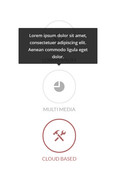
For mobile the on-hover effect is emulated by a tap, the above demo works for me with Android Chrome, which device and browser are you using?Best regards,
MikeNovember 25, 2018 at 12:58 pm #1037350Topic: Icon Tooltip not showing up on Mobile Devices
in forum EnfoldBewohnerfrei
ParticipantHey Team,
the Icon Tooltip is not showing up on mobile devices..
How can i fix this?Thank you very much!
November 21, 2018 at 7:44 pm #1036281In reply to: Strange image on mouseover social sharing buttons
Hey!
You are welcome! Let us know if you have any other questions or issues :)
Please use following code.av-share-box .avia-related-tooltip { width: 220px; }Regards,
Yigit-
This reply was modified 7 years, 4 months ago by
Yigit.
November 21, 2018 at 7:44 pm #1036280In reply to: Strange image on mouseover social sharing buttons
I thaught that css-code would be for the width of the tootips on images. How can i address the tooltip width without affecting the social mouseovers? On the top Image on this page.
November 21, 2018 at 5:31 pm #1036193In reply to: Transparent white tooltips?
Gotcha, clearing the CLOUDFARE cache work, i still see the tooltip underneath with a black background though, how do i make it white background with black text?
as pictured
November 19, 2018 at 12:32 pm #1035151Topic: Hide Tooltip (Title) from Portfolio Items
in forum EnfoldDavidNassler
ParticipantDear support,
on a customers page I’ve implemented a Portfolio Masonry and to be able to show it as I wanted, I had to write a little html as the title of the portfolio item:

When I now go to the page and move the mouse over an item, the title with the html is shown, which is not that beautiful:

Do you have an idea how to hide the title / tooltip for a website user?
Best Regards
DavidNovember 17, 2018 at 10:50 am #1034704Topic: Transparent white tooltips?
in forum Enfoldyingyang
ParticipantI see there is an option to make the image tooltip transparent dark but none for transparent white or just white
Can you provide me with the two codes to make those tooltip wither transparent white or plain white?
this is the look i want to achieve on with a dark image behind

-
This topic was modified 7 years, 4 months ago by
yingyang.
November 15, 2018 at 9:27 pm #1034146In reply to: Search Tooltip Background Color
Hi zykasthenia,
Here is the code you can put in Enfold > General Styling > Quick Css, if it does not work, put into themes/enfold/css/custom.css
.header_color .avia-tt.avia-search-tooltip {
        background-color: #ccc;
}
If you need further assistance please let us know.
Best regards,
VictoriaNovember 15, 2018 at 1:54 pm #1033956In reply to: get body text bigger than 40pt
i guess the enfold options goes to : ID = color-default_font_size
line 2541 in register-admin-options.php
but this will only end up in css concerning to body tag like:
body, body .avia-tooltip {
    font-size: 70px;
}
perhaps an !important is neccessary
November 14, 2018 at 3:12 pm #1033518Topic: Search Tooltip Background Color
in forum Enfoldzykasthenia
ParticipantHi, I can’t change the background color for the Search Tooltip. Always shows in transparent.
See my tooltip –>https://zykasthenia.com/xxx/enfold-search.jpgCan you help me?
Thanks.Claudio
November 13, 2018 at 9:57 am #1032911Topic: add text after quantity field hook (from Yigit)
in forum Enfoldjb84
Participanthi
reffearing this post : https://kriesi.at/support/topic/add-text-between-quantity-and-add-to-cart-button-product-page/
I need a hook on the code from Yigit, this code is perfect but i need it to display ONLY for 2 products ;function add_custom_tooltip(){
?>
<script>
jQuery(window).load(function(){
jQuery(‘.single .quantity’).append(‘<span class=”custom-attr”> Meter</span>’);
});
</script>
<?php
}
add_action(‘wp_footer’, ‘add_custom_tooltip’);Thanks for your help!
November 13, 2018 at 1:16 am #1032818In reply to: problem with Google Maps
Hi,
I can still see the same error in the console.
CMMRM_Tooltip is not defined
    at index.php?hm_custom_js_draft=1&ver=1542064505:38 index.php?hm_custom_js_draft=1&ver=1542064505:38 Uncaught ReferenceError:
I’m not really sure what CMMRM is. Please disable the plugins and third party scripts temporarily.
Best regards,
IsmaelNovember 12, 2018 at 1:38 am #1032384HI blafoley,
Thanks for sharing your solution.I disabled all my customisations for this and implemented your code in functions.php – Set Hotspots to ‘always show’, However the widow ready function did not hide the tooltips on the page load. I had to click each hotspot to closed the open tooltip. Once closed the click function worked well. I also tried loading this via ‘wp_header` with out effect.
Overriding the functionality via jQuery has given me some ideas though. Thanks ; )
I have my PHP Guy looking into options and will report back once we have a solution.November 11, 2018 at 2:46 am #1032125For those that want to copy and paste into functions.php file and don’t have a separate enqueued JS file.
function hide_show_tooltips (){ ?> <script> (function( $ ) { $(window).ready(function() { jQuery('.avia-tooltip').hide(); $('.av-image-hotspot_inner').on( "click", function(e) { jQuery(this).siblings('.avia-tooltip').toggle('slow'); }); }); })(jQuery); </script> <?php } add_action('wp_footer', 'hide_show_tooltips'); -
This reply was modified 7 years, 3 months ago by
-
AuthorSearch Results
-
Search Results
-
We are looking for a solution that open a tooltip, but that we can then include links inside. A window that we can move the cursor in and it remains open rather than just open on rollover.
Does the theme include an option like this as opposed to the image hotspot which we are currently trying.
If the image hotspot window was able to move the cursor into, this would be ideal for what we are looking for.
Thank you
Topic: Regarding Flip Box
Just a point to keep in mind — there can only be 2 lines of text in the flip box. More will mess up the layout. Tooltips work fine with more text. At least that’s what I found.
Hey Team,
the Icon Tooltip is not showing up on mobile devices..
How can i fix this?Thank you very much!
Dear support,
on a customers page I’ve implemented a Portfolio Masonry and to be able to show it as I wanted, I had to write a little html as the title of the portfolio item:
When I now go to the page and move the mouse over an item, the title with the html is shown, which is not that beautiful:
Do you have an idea how to hide the title / tooltip for a website user?
Best Regards
DavidTopic: Transparent white tooltips?
I see there is an option to make the image tooltip transparent dark but none for transparent white or just white
Can you provide me with the two codes to make those tooltip wither transparent white or plain white?
this is the look i want to achieve on with a dark image behind
Hi, I can’t change the background color for the Search Tooltip. Always shows in transparent.
See my tooltip –>https://zykasthenia.com/xxx/enfold-search.jpgCan you help me?
Thanks.Claudio
hi
reffearing this post : https://kriesi.at/support/topic/add-text-between-quantity-and-add-to-cart-button-product-page/
I need a hook on the code from Yigit, this code is perfect but i need it to display ONLY for 2 products ;function add_custom_tooltip(){
?>
<script>
jQuery(window).load(function(){
jQuery(‘.single .quantity’).append(‘<span class=”custom-attr”> Meter</span>’);
});
</script>
<?php
}
add_action(‘wp_footer’, ‘add_custom_tooltip’);Thanks for your help!


