but i think if you show the gallery – you see that there is on top the last added video and beneath the thumbnails of the older videolinks in that playlist.
All these thumbs are in a unique container ( class: epyt-gallery-list ) if you set this to display none – you will have on top the newest video link.
@Guenni007 THANK YOU so much for your CONTINUED SUPPORT and WILLINGNESS to HELP ME!!!
I have Embed Plus setup with a YouTube API v3. I’m not sure I totally follow “you see that there is on top the last added video and beneath the thumbnails of the older videolinks in that playlist” and “All these thumbs are in a unique container ( class: epyt-gallery-list ) if you set this to display none – you will have on top the newest video link.”
Can you show me in the plug-in with a screenshot and explain a little further – please. This is new to me and I’m trying to follow along. THANK YOU!!!
I’ve created a test page: https://kingdomlearners.com/youtube-embed-plus-test-page/ and it plays, but the problem is that once the latest video plays, it continues into the next Daily Word video from the Playlist, etc. etc. I’m pretty sure it’s because I didn’t fully understand your generous instructions.
Any and all assistance is GREATLY APPRECIATED!
Best Regards,
Julio
but i think if you show the gallery – you see that there is on top the last added video and beneath the thumbnails of the older videolinks in that playlist.
All these thumbs are in a unique container ( class: epyt-gallery-list ) if you set this to display none – you will have on top the newest video link.
I haven’t tried that. but should it only work with the parent theme? :-)
you can see the set up here: https://snipboard.io/KJFz92.jpg
We don’t use a thumbnail and we styled the video background transparent. Maybe that creates the problem
Hi,
What is the original size of the product images that you are using? Try to set the Thumbnail width value to 705 to display the “masonry” thumbnail, which has a maximum dimension of 705x705px.
You can find the list of available thumbnails or image sizes in the functions.php file around line 211.
$avia_config['imgSize']['widget'] 			 	= array('width'=>36,  'height'=>36);						// small preview pics eg sidebar news
$avia_config['imgSize']['square'] 		 	    = array('width'=>180, 'height'=>180);		                 // small image for blogs
$avia_config['imgSize']['featured'] 		 	= array('width'=>1500, 'height'=>430 );						// images for fullsize pages and fullsize slider
$avia_config['imgSize']['featured_large'] 		= array('width'=>1500, 'height'=>630 );						// images for fullsize pages and fullsize slider
$avia_config['imgSize']['extra_large'] 		 	= array('width'=>1500, 'height'=>1500 , 'crop' => false);	// images for fullscrren slider
$avia_config['imgSize']['portfolio'] 		 	= array('width'=>495, 'height'=>400 );						// images for portfolio entries (2,3 column)
$avia_config['imgSize']['portfolio_small'] 		= array('width'=>260, 'height'=>185 );						// images for portfolio 4 columns
$avia_config['imgSize']['gallery'] 		 		= array('width'=>845, 'height'=>684 );						// images for portfolio entries (2,3 column)
$avia_config['imgSize']['magazine'] 		 	= array('width'=>710, 'height'=>375 );						// images for magazines
$avia_config['imgSize']['masonry'] 		 		= array('width'=>705, 'height'=>705 , 'crop' => false);		// images for fullscreen masonry
$avia_config['imgSize']['entry_with_sidebar'] 	= array('width'=>845, 'height'=>321);		            	// big images for blog and page entries
$avia_config['imgSize']['entry_without_sidebar']= array('width'=>1210, 'height'=>423 );						// images for fullsize pages and fullsize slider
As you can see, the $avia_config[‘imgSize’][‘masonry’] or the masonry thumbnail is set to have a maximum width of 705px and height of 705px.
Best regards,
Ismael
Curious if there is a way to make the thumbnails scroll below the featured image, rather than in a large grid for an Ajax Portfolio item? Like a FilmStrip View. I can’t find any settings other than how many columns. Would love to not use another plugin. Any Thoughts?
This reply has been marked as private.
Hi,
Thank you for the update.
You may need to adjust the size further to display a larger image. Please note that the catalogue images will not exactly display in the specified size. It will only display a thumbnail or image size that is closest to the specified width value. Unfortunately, there is no registered thumbnail with the size 512x512px.
Best regards,
Ismael
Hey luiseheine,
Thank you for the inquiry.
You can actually select a specific thumbnail or image size in Blog Posts element. Set the Styling > Appearance > Preview Image Size settings to the second option, then select a thumbnail from the next dropdown. Let us know if that helps.
Best regards,
Ismael
Hi Marco,
You can adjust the size of the catalogue images in the Customize > Woocommerce > Product Images panel. Look for the Thumbnail width field and adjust its value. Default image width is set to 300px.
Best regards,
Ismael
Hey marcusss,
Thank you for your patience and the links, when I look at your category image above description example and compare it to the direct 512×512 image file the quality looks the same,
but when I compare the 512×512 to the original there does seem to be a difference.
I also see that your images in your media library are jpg but are webp on the frontend, perhaps this is related to your EWWW Image Optimizer plugin or perhaps some quality is lost when WordPress generates thumbnails from webp?
Try disabling your image plugin and upload a new different image to test with, in a good quality jpg format and check again.
Best regards,
Mike
Hi,
1.) i added a video to my site.
If you click on the 3rd video in a row, it opens with popup. The video is in a 1:1 ratio, but it opens with dark borders. Please see screenshot.
2.) in responsive view the same video will be opened in thumbnail size. Please see screenshot 2.
How can i fix that?
kind regards
Jak
-
This topic was modified 4 years ago by
 Jak73.
hm Nikko – and if she does not want to specify a context – ( for masonry or slideshow etc.) – her code seems to be ok.
But my test only influences image lightbox. Even if i try to change it for slideshow by:
add_filter("avf_alb_lightbox_image_size", function($size, $context) {
    if($context = "avia_slideshow") {
        $size = "full";
    }
    return $size;
}, 10, 2);
And also even if i switch off the lightbox responsive option. No change
it has no effect.
the old snippet still works for it:
function change_lightbox_size() {
    return "full";
}
add_filter('avf_avia_builder_helper_lightbox_size','change_lightbox_size', 10);
for masonry i still take:
function avia_change_masonry_thumbnail_lightbox_image($size){
  return "full";
}
add_filter('avf_avia_builder_masonry_lightbox_img_size', 'avia_change_masonry_thumbnail_lightbox_image', 10, 1);
yes – it is because the portfolio_small is a cropped size
try instead f.e.: medium_large ( that is a wordpress file-size ) or
masonry ( you see on functions.php line 220 that crop is set to false.
or if you like – generate a new file-size that is not croped
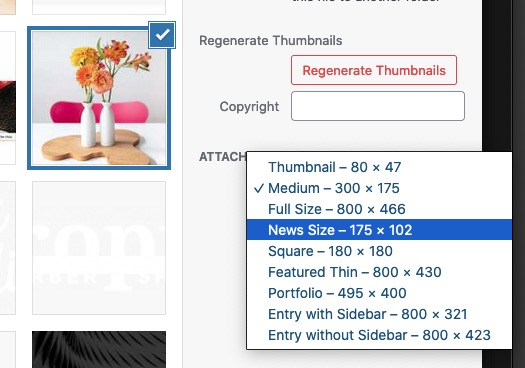
add_image_size( 'news_size', 175, 260, false );

function my_custom_sizes( $sizes ) {
    return array_merge( $sizes, array(
        'news_size' => __( 'News Size' ),
    ));
}
add_filter( 'image_size_names_choose', 'my_custom_sizes' );
in combination then with the code above:
function my_avf_newsbox_image_size( $image_size, array $args, array $instance ){
  if( $args['widget_id'] == ( 'portfoliobox-3' || 'newsbox-2' || 'newsbox-5' ) ){
    $image_size = 'news_size';
  }
  return $image_size;
}
add_filter( 'avf_newsbox_image_size', 'my_avf_newsbox_image_size', 10, 3 );
but in this case you had to regenerate the thumbnails on existing images.
f.e.: with https://en-gb.wordpress.org/plugins/regenerate-thumbnails-advanced/
See results with news_size on: https://webers-testseite.de/#footer
Reset your css settings in this case first and see what happens.
_________________________
the last part ( my_custom_sizes ) is only to have that image size as a choice in media-library insertion :
Hi,
I have a similar question to the thread #1334473. I would like to have the lightbox always open with the thumbnail size “full”. It worked fine with this code but not anymore. `add_filter(“avf_alb_lightbox_image_size”, function($size) {
$size = “full”;
return $size;
}, 10, 2);`
Do I have to adjust this somehow?
Thank you.
Best regards,
Vera
@Yigit and @Guenni007, Thank you very much for the input!
I placed the code provided by Guenni007 in my functions.php of the child theme.
After that, I changed the previous css code to:
.news-thumb {
    padding: 0px;
    float: none;
    margin-top: 0px;
	  margin-bottom: 8px;
	  border-width: 0px;
	  height: 116px;
    display: block;
}

#top .news-thumb img {
    float: none;
    padding: 0px;
    height: 116px;
	  display: inline;
	  width: 100%;
}
The thumbnail image is now in a good resolution, but my first 2 points are not yet resolved:
1. The complete image has to be visible
2. The proportions have to be right. I would like the height to be around 116 px and the width to scale automatically
Unfortunately, I don’t have any PHP skill except for placing/deleting some code.
Hey eduardodelat,
Thank you for the inquiry.
The theme automatically generates different thumbnails or sizes for each image, which is why there are multiple versions of the image in your server. These thumbnails are used on different areas or elements in the site instead of loading the original image, which could improve the loading speed.
We do not recommend removing or disabling those thumbnails but it is possible. Please check this thread for more info.
// https://kriesi.at/support/topic/media-upload-and-enfolds-thumbnail-sizes/#post-1271808
Best regards,
Ismael
you can influence the source of the thumbnail used for the widget by this snippet in your child-theme functions.php:
function my_avf_newsbox_image_size( $image_size, array $args, array $instance ){
  if( $args['widget_id'] == ( 'portfoliobox-3' || 'newsbox-2' || 'newsbox-5' ) ){
    $image_size = 'portfolio_small';
  }
  return $image_size;
}
add_filter( 'avf_newsbox_image_size', 'my_avf_newsbox_image_size', 10, 3 );
( the two “pipes” : || means “or” as logical operator )
Looking to your page i see that this widget in your footer is in newsbox-5
now choose an image-size ( above it is portfolio_small ) which fits to your needs ( see parent functions.php on lines : 211ff )
you see on the example code that the filter avf_newsbox_image_size is not only for newsbox images – but for the portfolioboxes too.
PS: you had to style it with that new image source again – a bit different to that from your code above
Hey,
Thanks for contacting us!
Please use this plugin – https://wordpress.org/plugins/simple-image-sizes/ and increase the image size of “widget” which is 36x36px by default. Please do not forget to regenerate thumbnails after changing them.
Best regards,
Yigit
Dear members of the support forum,
My website is:
https://hendrickhamelmuseum.nl/
In the 4th column of the footer, I have placed the widget called “Latest News”, so the latest exhibition is showing up here.
I have tried to style the thumbnail of the featured image, using this CSS code:
.news-thumb {
    margin-right: 0px;
    padding: 0px;
    float: none;
    margin-top: 0px;
    border-width: 0px;
    height: 116px;
    width: 175px;
    display: block;
}

#top .news-thumb img {
    display: block;
    float: left;
    border: none;
    padding: 0;
    margin: 0;
    width: 175px;
    height: inherit;
}
There are 3 things I still want to accomplish, but I don’t know how:
1. The complete image has to be visible
2. The proportions have to be right. I would like the height to be around 116 px and the width to scale automatically
3. I would like the image to be in a proper resolution, In Chrome the image is showing up all blurry.
Any help will be much appreciated!
Hey orianos,
Thank you for the inquiry.
You have to modify or override the woocommerce/templates/content-widget-product.php file and define a custom thumbnail for the get_image function in this code around line 32.
<?php echo $product->get_image(); // PHPCS:Ignore WordPress.Security.EscapeOutput.OutputNotEscaped ?>
Please check this documentation for more info on how to override a Woocommerce template file.
// https://woocommerce.com/document/template-structure/
Best regards,
Ismael
In the “Product list” widget the thumbnails are cropped :(
How can I prevent the thumbnails from being cropped?
Also, how can I get the thumbnails of the “Product list” widget larger?
Please see link in Private content.
Best regards
Oriano
Hi,
Thanks for the login, it seems like the Regenerate Thumbnails was not working correctly, because when I used the Regenerate Thumbnails option in the Simple Image Sizes plugin the thumbnails were resized. Then I noticed that while the image sizes were correct they were show at full width on the blog page, so I added this css to your child theme stylesheet:
#top.blog .big-preview.single-big {
	max-height: 580px;
	max-width: 845px;
	margin: auto;
}
now the featured images on your blog page /news/ are showing correctly.
Please clear your browser cache and check.
Best regards,
Mike
Mike,
many thanks for this I have tried adding the new code and removing the one you think could conflict in child theme functions.php but still does not work after using the regenerate thumbnails plugin…
Can you help
Many thanks
Pete
Mike,
many thanks for this I have tried adding the new code and removing the one you think could conflict in child theme functions.php but still does not work after using the regenerate thumbnails plugin…
Can you help
Many thanks
Pete
Hey condonpb,
Thanks for the FTP access, but I couldn’t login to WP with the admin login, nonetheless I tested your function on my demo site and regenerated my thumbnails and it worked correctly
add_filter( 'avf_modify_thumb_size', 'enfold_customization_modify_thumb_size', 10, 1 );
function enfold_customization_modify_thumb_size( $size ) {
$size['entry_with_sidebar'] = array('width'=>845, 'height'=>580);
$size['portfolio'] = array('width'=>845, 'height'=>580);
return $size;
}
Perhaps this code near the top of your child theme functions.php is causing a conflict:
$avia_config[ 'imgSize' ][ 'featured' ] = array( 'width' => 1500, 'height' => 555 ); // images for fullsize pages and fullsize slider
try removing this and adding it to your enfold_customization_modify_thumb_size function like this:
add_filter( 'avf_modify_thumb_size', 'enfold_customization_modify_thumb_size', 10, 1 );
function enfold_customization_modify_thumb_size( $size ) {
$size['entry_with_sidebar'] = array('width'=>845, 'height'=>580);
$size['portfolio'] = array('width'=>845, 'height'=>580);
$size['featured'] = array( 'width' => 1500, 'height' => 555 );
return $size;
}
and regenerated your thumbnails again, and check.
Best regards,
Mike
I have altered the featured image dimensions as suggested in your support documentation and run the regenerate thumbnails plugin. I am on 4.9 the lates release and this does not work see https://www.wardlawfineart.co.uk/news/ I have used the following code as I need the featured image to be 845 by 580 px
add_filter( ‘avf_modify_thumb_size’, ‘enfold_customization_modify_thumb_size’, 10, 1 );
function enfold_customization_modify_thumb_size( $size ) {
$size[‘entry_with_sidebar’] = array(‘width’=>845, ‘height’=>580);
$size[‘portfolio’] = array(‘width’=>845, ‘height’=>580);
return $size;
}
Can you please help
Hi,
Regarding the old thread, the user actually doubled the size of every thumbnails in the theme because he wanted the images to look sharper on retina screens. You don’t really need to do that because the default thumbnails are large enough to cover retina displays.
Best regards,
Ismael
it doesnot work! Image still remain thumbnails
$avia_config[‘size’] = avia_layout_class( ‘main’ , false) == ‘full’ ? ” : ‘full’;
get_template_part( ‘includes/loop’, ‘portfolio-single’ );
Hi,
I see. Sorry about that. I missed the “on mobile” part in the topic title. We are not yet sure why it resizes like that but it might be due to the srcset attribute which allows the browser to serve a different thumbnail or a different version of the original image based on the current screen size. The served thumbnail might have a different aspect ratio compare to the original image. You can prevent this behavior by temporarily disabling the Responsive Images option in the Enfold > Performance > Responsive Images And Lazy Loading option.
Best regards,
Ismael
Hi,
Thank you for the update.
Some of the images are actually smaller than the designated thumbnail, so they were not resized the same as the larger ones. The images should have the same aspect ratio and they should be of the same size.
You can use this css code to adjust the style of the post title.
.avia-content-slider .slide-entry-title {
    font-size: 0.9em;
    line-height: 1.4em;
    margin: 0;
    font-weight: 400;
}
Best regards,
Ismael