Hi,
Perhaps I read your question too quickly, I was looking for the css in the June 28 2023 post and this css in not in your Quick CSS.
But this code that is in your Quick CSS doesn’t belong there:
 add_filter( 'avf_modify_thumb_size', 'enfold_customization_modify_thumb_size', 10, 1 );
    function enfold_customization_modify_thumb_size( $size ) {
    $size['entry_without_sidebar'] = array('width'=>1200, 'height'=>630, 'crop' => true);
    return $size;
    }
It belongs in your child theme functions.php file, but you are not using a child theme so it was probably in your Enfold functions.php and when you updated it was lost along with any other customizations.
If you are not going to use a child theme you could use the WP Code plugin then add a new snippet, in the top right corner use the PHP snippet as the code type:

then add the code and save and you won’t lose it on updates.
Remember that for any new images that you added you will need to Regenerate the Thumbnails for the change to show.
Best regards,
Mike
Right now the thumbnails are a bit dimmed (not full opacity), and when your mouse rolls over the image, it becomes full opacity.
Hello, right now the portfolio category thumbnails and portfolio item thumbnails are a bit dim on the page, then go to 100% opacity on rollover/mouseover. I’m wondering if this functionality can be swapped, so the images are 100% opacity to start, then get a bit dimmer on rollover/mouseover.
Hello,
I’m wondering if, from a sub-menu item, it can go directly to the contents of the Portfolio Item, instead of displaying the thumbnail of the Portfolio Item? I’m wondering if I can eliminate the step of having to click on the thumbnail in order to get to the contents of the Portfolio Item.
Hello, I have a couple questions regarding portfolio categories.
1. I am wondering if the Portfolio categories can be sub-menu items. Right now I only see Pages as a possibility for menu and sub-menu items when I go to Appearance > Menu.
2. [UPDATE: I FIGURED THIS OUT] When I am on the main Portfolio page, it shows thumbnails of the various portfolio categories, but the thumbnails are not in the order I want them in, and the order of the thumbnails do not align to the order of the Portfolio categories text (All / Category 1 / Category 2 / Category 3 / Category 4). In this instance, the order of the thumbnails is Category 1, Category 4, Category 3, Category 2. Can I get the order of the thumbnails to be Category 1, 2, 3, 4?
-
This topic was modified 2 years, 1 month ago by
 joschro.
Hi,
Thank you for the update.
1-3) Did you create Portfolio items? You can apply featured images to the Portfolio items, then use the Portfolio Grid element to display the items in the page. You’ll find the sorting options and other settings that we mentioned above by editing the options in the Portfolio Grid element.
4.) How many columns do you intend to display in the grid? The default thumbnail used in the Portfolio Grid element is 450x450px, but you can adjust it by editing the Portfolio Grid element’s Styling > Grid Settings > Portfolio Grid Image Size settings. Select the second option, then pick the thumbnail that you’d like to display.
If you have any additional questions at this time we kindly ask that you open them up in a separate thread. The longer threads get in the forum, they become more difficult to support as they tend to drift off topic and they also make it troublesome for users trying to search for solutions. Keeping threads relevant to their original inquiry ensures that we can keep better track of what has been resolved and that users can more effectively find answers to similar issues they might be experiencing.
Thanks!
Best regards,
Ismael
Hi Ismail,
For the first page, I was able to configure Color Section + background image size to an acceptable combo.
But for the 2nd test page (I’ve since renamed it – see link below) , I need the background image here to be smaller (Color section minimum size~ 300px) – close in size to the Law Firm demo images for all pages excluding Home page. The background image truncates at the top for every Attachment Display Setting – thumbnail to Full size image. Is there css code to truncate only from the bottom rather than the top? As a workaround to this problem I uploaded smaller images but upon uploading the small images resized and the top also truncated. If top truncation can’t be controlled is there a setting to override automatic re-sizing of uploaded images? Thanks!
Image size – 1800 by 750 pixels
Color Section minimum size 300px
How can I create a Box with Background Picture and above a Slider (not fullscreen) but it should be perfect in die middle.
Every time when I create Colorsection with BG and then I put a slider inside, the slider is not in the middle.
https://www.lucasct.de/test-2/?preview_id=10219&preview_nonce=2f6665f24a&_thumbnail_id=-1&preview=true


Hi Ishmael,
Thanks for the info, the word thumbnail is nowhere when I edit the category.
Ask:
Editing is deactivated for categories and products
1.) How can I still add an extra heading to the products? …I deactivated the category image with your help (thanks)
2.) How can I still add an extra heading for the respective products in the category? …I deactivated the category image with your help (thanks)
3.)
Enfold’s advanced layout editor is deactivated on the SHOP page. Can this be activated (how?) or is this critical for the shop to function properly?
Greetings Holger
Hello, I have a few questions. I am using the Minimal Portfolio theme. I am first developing the site locally, and when it’s in a good place, I will bring it live.
– How can I manually change the order of portfolio categories?
– What size should the thumbnails be?
– After I add portfolio items, they do not show up on the site as an image list, or gallery, or slideshow. Instead, it is just a cropped image of the thumbnail. How can I fix this?
– Do I need to use the Advanced Layout Builder to display portfolio items?
Hi,
Thank you for the update.
You can upload the image for the banner in the Products > Categories panel. Edit a category, then look for the Thumbnail section.
Best regards,
Ismael
Hey holstchristoph,
Thank you for the inquiry.
You can add this css code to hide the sorting buttons.
.product-sorting {
    display: none;
}
And to remove the category thumbnails, add this code.
.tax-product_cat .page-thumb {
    display: none;
}
Best regards,
Ismael
I have a site I’m working on for a client at https://socialmediathumbnails.com. The home page looks fine on firefox, but the fonts on the headers and body text are all way smaller on Chrome. However, I made a clone of the home page at https://socialmediathumbnails.com/blue and the font’s are all fine on both chrome and firefox.
Any suggestions? I included admin access below.
Thank you,
Mike Cowles.
Hi Ismael,
Thanks for your reply.
Yes, I already tried column adjustment as you suggested but the problem is when I set 3 columns setting for desktop breakpoint ( 990px+ ). It looks nice on my pc but it doesn’t on iPad. As you can see the iPad screen in the link I attached. It’s much better with 1 column setting on iPad screen but gallery thumbnail for 1 column setting is way too large for pc screen.
I think to resolve this. I need to set another breakpoint for 1920px+ so I can set 3 columns for 1920px+ and 1 column for 990px – 1920px but I don’t know how to do it.
Regards,
Chatawat L.
Dear members of the support forum,
On my website I am displaying a gallery with 6 columns.
On mobile, I would like this to switch to 2 or 3 column. Right now, the thumbnails are getting tiny on mobile, because the gallery is still 6 columns.
See gallery at bottom of page at:
How do I achieve this?
Thanks in advance!
Hey Thomas,
Thank you for the inquiry.
You may also need to remove this action in order to override the default product thumbnails on the archive pages.
add_action( 'woocommerce_before_shop_loop_item_title', 'avia_woocommerce_thumbnail', 10 );
Best regards,
Ismael
Hi I have a snippet that is supposed to replace the default archive thumbnails with a new one.
remove_action( 'woocommerce_before_shop_loop_item_title', 'woocommerce_template_loop_product_thumbnail', 10 );
add_action( 'woocommerce_before_shop_loop_item_title', 'vista_replace_product_thumbnail', 10 );

function vista_replace_product_thumbnail() {
        global $product;
        $attachment_id = $product->get_gallery_attachment_ids(
		array(
        'orderby'       => 'rand', //random order
    )
		)[0];
        echo "<img src='" . wp_get_attachment_url( $attachment_id ) . "'>";
}
The following line is failing to remove the existing thumbnails. But the rest of the code is working.
remove_action( 'woocommerce_before_shop_loop_item_title', 'woocommerce_template_loop_product_thumbnail', 10 );
Does the enfold product archive page replace woocommerce_template_loop_product_thumbnail with a different action name?
I cannot think of another reason why this would fail to remove the thumb.
Hi,
Thank you for the update.
Did you enable the “Delete Unselected Thumbnail” option? Again, please make sure to create a site backup before proceeding.
Best regards,
Ismael
for some reason no files are deleted by Regenerate Thumbnails Advanced
used the same plugin options

-
This reply was modified 2 years, 2 months ago by
 Yory.
Yory.
Dear Support,
would it be possible to make some images bigger than others in an image gallery? I am using the thumbnails-setting -i think that would look interesting, like an image collage with different image-sizes.
Hi,
Please review the functions.php file around line 296 it shows the 12 image sizes that the theme creates and the description for each:
$avia_config['imgSize']['widget'] 			 	= array( 'width' => 36,  'height' => 36 );						// small preview pics eg sidebar news
$avia_config['imgSize']['square'] 		 	    = array( 'width' => 180, 'height' => 180 );		                // small image for blogs
$avia_config['imgSize']['featured'] 		 	= array( 'width' => 1500, 'height' => 430 );					// images for fullsize pages and fullsize slider
$avia_config['imgSize']['featured_large'] 		= array( 'width' => 1500, 'height' => 630 );					// images for fullsize pages and fullsize slider
$avia_config['imgSize']['extra_large'] 		 	= array( 'width' => 1500, 'height' => 1500 , 'crop' => false );	// images for fullscrren slider
$avia_config['imgSize']['portfolio'] 		 	= array( 'width' => 495, 'height' => 400 );						// images for portfolio entries (2,3 column)
$avia_config['imgSize']['portfolio_small'] 		= array( 'width' => 260, 'height' => 185 );						// images for portfolio 4 columns
$avia_config['imgSize']['gallery'] 		 		= array( 'width' => 845, 'height' => 684 );						// images for portfolio entries (2,3 column)
$avia_config['imgSize']['magazine'] 		 	= array( 'width' => 710, 'height' => 375 );						// images for magazines
$avia_config['imgSize']['masonry'] 		 		= array( 'width' => 705, 'height' => 705 , 'crop' => false );	// images for fullscreen masonry
$avia_config['imgSize']['entry_with_sidebar'] 	= array( 'width' => 845, 'height' => 321 );		            	// big images for blog and page entries
$avia_config['imgSize']['entry_without_sidebar']= array( 'width' => 1210, 'height' => 423 );					// images for fullsize pages and fullsize slider
so depending on the elements that you are using you can decide to remove some of these, if you which.
WordPress adds 4 other sizes, small, medium, medium_large, large, and other plugins may add other sizes, such as woocommerce.
Removing these sizes will depend on your site layout and the devices that people use, you will need to test and decide if you need these sizes. Removing some sizes will make your site use larger images than needed which could slow down your loading time, or on very large screens some of your images may seem to be blurry because a smaller image is used. So there is no quick answer, you will just need to test.
You may also note that the thumbnails that WordPress creates may be larger than the original, so 30k of images might be over 9 gigs, here is a easy way to compress 30k of images down to under 900 mb without a plugin and save a lot of space.
Best regards,
Mike
or as mentioned above the plugin: https://en-gb.wordpress.org/plugins/regenerate-thumbnails-advanced/
First: install the plugin. Start by deleting all calculated Image-sizes by:
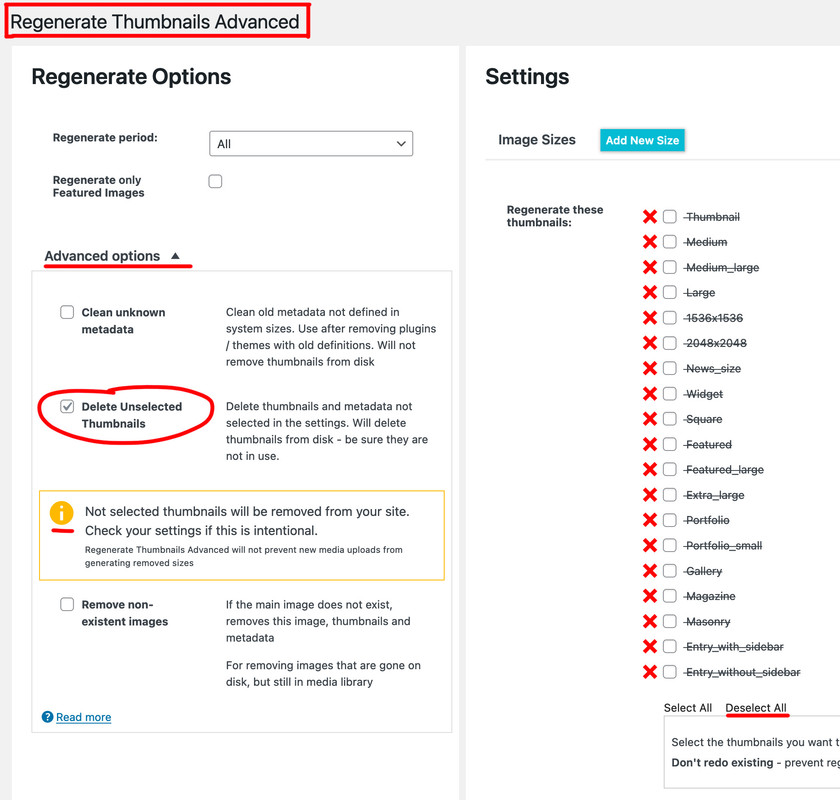
Second: enter the snippet to your child-theme functions.php and
Third: go to that plugin again and recalculate the preserved image-sizes:
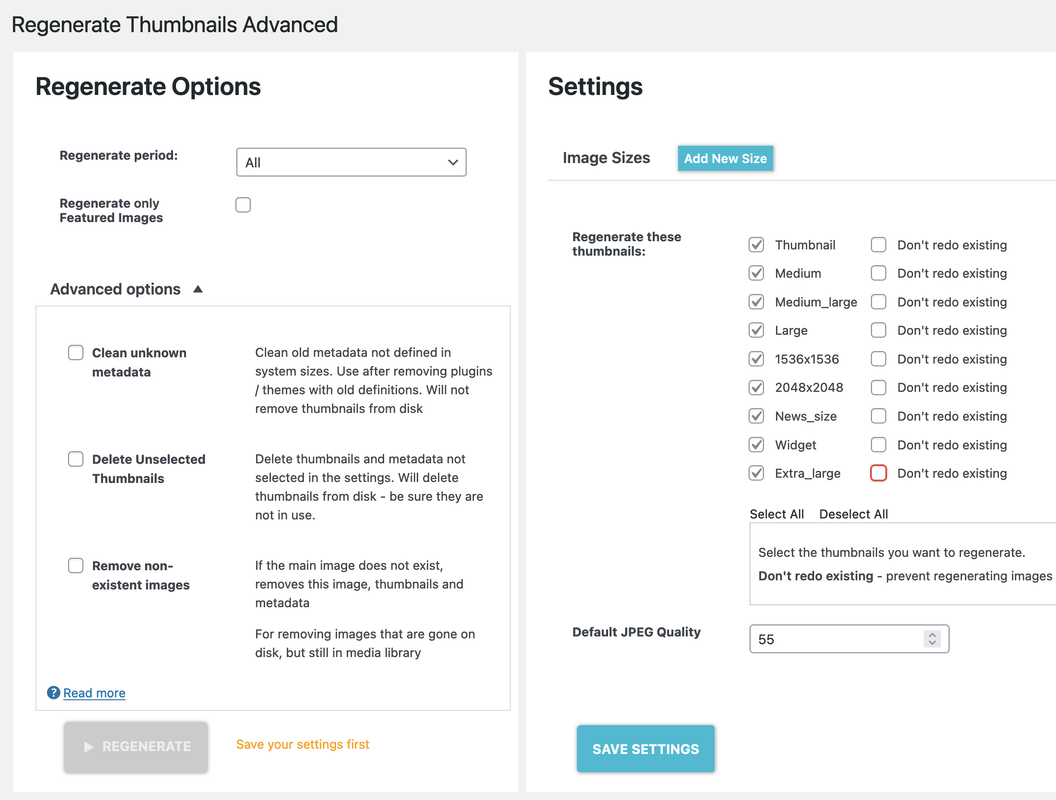
please try : https://wordpress.org/plugins/force-regenerate-thumbnails/ as mentioned above – i guess this is the tool to recalculate all files by erasing the existing ones.
But be carefull – if you have inserted on your content an image with an image-size that will be deleted – you then have no image in the frontend.
Of course the snippet will not delete the 1000s of files already created and the regenerate-thumbnails-advanced does not delete anything it seems although the Advanced options for Delete Unselected Thumbnails and Remove non-existent images.
what does recalculate mean? Selecting the desired file dimensions to regenerate by the plugin?
WIll this potentially contradict the snippet code that restricts regeneration of many image sizes?
The snippet above ensures that during the upload of new files, when creating the various file formats, some of the intended formats are no longer created.
This does not affect existing file formats.
For this you need these regenerate thumbnails plugins once to recalculate here and to remove file formats that no longer exist.
After recalculating you can deinstall those plugins.
Hey sarawh,
Thank you for the inquiry.
Which image element are you using? If you’re using the default Image element from the builder, the element should include the srcset attribute which is added by WordPress automatically, and the browser should automatically select or serve the appropriate thumbnail size for different screen sizes. This should also work for sliders if you select the original or full-size thumbnail. If you want to learn more about the srcset attribute, please check the link below.
// https://developer.wordpress.org/apis/responsive-images/
Best regards,
Ismael
i guess i took the plugin above because some of those tools do not remove the already existing thumbnails.
one plugin that is more clear in this is: https://en-gb.wordpress.org/plugins/regenerate-thumbnails-advanced/
it has a clean-up function “Delete unused Thumbnails”
Hi,
Thank you for the inquiry.
Have you tried regenerating the thumbnails? You can use the plugin suggested by @Guenni007 above or the plugin linked below.
// https://wordpress.org/plugins/regenerate-thumbnails/
Please make sure to create a site backup or restore point before regenerating the thumbnails just in case.
Best regards,
Ismael



