
-
AuthorSearch Results
-
May 15, 2024 at 4:46 pm #1443700
In reply to: How to get a different blog format ?
Hi,
The error that you see from adding the code to your functions.php file is typical for copying the code from a email notification from this thread, please ensure to copy the code from the forum and not an email notification so the symbols are not converted.
It looks like you are not using a child theme, so in this case you could use the WP Code plugin then add a new snippet, in the top right corner use the PHP snippet as the code type:

then add this code and save.function custom_larger_thumbnails_script() { ?> <script> (function($){ $('.av-magazine.larger-thumbnails .av-magazine-entry img').attr('width', '180px'); $('.av-magazine.larger-thumbnails .av-magazine-entry img').attr('height', '180px'); $('.av-magazine.larger-thumbnails .av-magazine-entry img').attr('sizes', '(max-width: 180px) 100vw, 180px'); $('.av-magazine.larger-thumbnails .av-magazine-entry .av-magazine-thumbnail').css({'height': '180px','width': '180px'}); })(jQuery); </script> <?php } add_action( 'wp_footer', 'custom_larger_thumbnails_script', 99 );If you still have trouble after you install the plugin, include a admin login in the Private Content area so we can assist.
Best regards,
MikeMay 15, 2024 at 4:36 pm #1443699In reply to: How to get a different blog format ?
Hi, sorry but I am not a developer, and I am not sure where I should add these 2 pieces of code …
I have added them in the functions.php file (see below), but it seems that there is an error … Could you help me please ?The error message says : syntax error, unexpected ‘add_filter’ (T_STRING) … ?
Thank you !_________________________________________________
add_filter(‘avf_magazine_excerpt_length’,’avf_magazine_excerpt_length_mod’, 10, 1);
function avf_magazine_excerpt_length_mod($excerpt) {
$excerpt = 100;
return $excerpt;
}__________________________________________________
function custom_larger_thumbnails_script() { ?>
<script>
(function($){
$(‘.av-magazine.larger-thumbnails .av-magazine-entry img’).attr(‘width’, ‘180px’);
$(‘.av-magazine.larger-thumbnails .av-magazine-entry img’).attr(‘height’, ‘180px’);
$(‘.av-magazine.larger-thumbnails .av-magazine-entry img’).attr(‘sizes’, ‘(max-width: 180px) 100vw, 180px’);
$(‘.av-magazine.larger-thumbnails .av-magazine-entry .av-magazine-thumbnail’).css({‘height’: ‘180px’,’width’: ‘180px’});
})(jQuery);
</script>
<?php
}
add_action( ‘wp_footer’, ‘custom_larger_thumbnails_script’, 99 );
_____________________________________________________May 15, 2024 at 9:50 am #1443616### WordPress Environment ### WordPress address (URL): https://www.seemann-henschel.de Site address (URL): https://www.seemann-henschel.de WC Version: 8.9.0 REST API Version: ✔ 8.9.0 Action Scheduler Version: ✔ 3.7.4 Log Directory Writable: ✔ WP Version: 6.5.3 WP Multisite: – WP Memory Limit: 512 MB WP Debug Mode: – WP Cron: ✔ Language: de_DE_formal External object cache: – ### Server Environment ### Server Info: Apache PHP Version: 8.1.19 PHP Post Max Size: 96 MB PHP Time Limit: 300 PHP Max Input Vars: 10000 cURL Version: 7.38.0 OpenSSL/1.0.2l SUHOSIN Installed: – MySQL Version: 5.7.25 Max Upload Size: 96 MB Default Timezone is UTC: ✔ fsockopen/cURL: ✔ SoapClient: ✔ DOMDocument: ✔ GZip: ✔ Multibyte String: ✔ Remote Post: ✔ Remote Get: ✔ ### Database ### WC Database Version: 8.9.0 WC Database Prefix: wp_ Datenbank-Gesamtgröße: 200.84MB Datenbank-Datengröße: 161.84MB Datenbank-Indexgröße: 39.00MB wp_woocommerce_sessions: Daten: 0.06MB + Index: 0.02MB + Engine InnoDB wp_woocommerce_api_keys: Daten: 0.02MB + Index: 0.03MB + Engine InnoDB wp_woocommerce_attribute_taxonomies: Daten: 0.02MB + Index: 0.02MB + Engine InnoDB wp_woocommerce_downloadable_product_permissions: Daten: 0.02MB + Index: 0.06MB + Engine InnoDB wp_woocommerce_order_items: Daten: 0.02MB + Index: 0.02MB + Engine InnoDB wp_woocommerce_order_itemmeta: Daten: 1.52MB + Index: 0.67MB + Engine InnoDB wp_woocommerce_tax_rates: Daten: 0.02MB + Index: 0.06MB + Engine InnoDB wp_woocommerce_tax_rate_locations: Daten: 0.02MB + Index: 0.03MB + Engine InnoDB wp_woocommerce_shipping_zones: Daten: 0.02MB + Index: 0.00MB + Engine InnoDB wp_woocommerce_shipping_zone_locations: Daten: 0.02MB + Index: 0.05MB + Engine InnoDB wp_woocommerce_shipping_zone_methods: Daten: 0.02MB + Index: 0.00MB + Engine InnoDB wp_woocommerce_payment_tokens: Daten: 0.02MB + Index: 0.02MB + Engine InnoDB wp_woocommerce_payment_tokenmeta: Daten: 0.02MB + Index: 0.03MB + Engine InnoDB wp_woocommerce_log: Daten: 0.02MB + Index: 0.02MB + Engine InnoDB matomo_access: Daten: 0.02MB + Index: 0.02MB + Engine InnoDB matomo_archive_blob_2022_01: Daten: 1.52MB + Index: 0.02MB + Engine InnoDB matomo_archive_blob_2022_02: Daten: 0.02MB + Index: 0.02MB + Engine InnoDB matomo_archive_blob_2022_03: Daten: 0.02MB + Index: 0.02MB + Engine InnoDB matomo_archive_blob_2022_04: Daten: 0.02MB + Index: 0.02MB + Engine InnoDB matomo_archive_blob_2022_05: Daten: 0.02MB + Index: 0.02MB + Engine InnoDB matomo_archive_blob_2022_06: Daten: 0.02MB + Index: 0.02MB + Engine InnoDB matomo_archive_blob_2022_07: Daten: 0.02MB + Index: 0.02MB + Engine InnoDB matomo_archive_blob_2022_08: Daten: 3.17MB + Index: 0.14MB + Engine InnoDB matomo_archive_blob_2022_09: Daten: 2.52MB + Index: 0.16MB + Engine InnoDB matomo_archive_blob_2022_10: Daten: 3.52MB + Index: 0.17MB + Engine InnoDB matomo_archive_blob_2022_11: Daten: 3.52MB + Index: 0.14MB + Engine InnoDB matomo_archive_blob_2022_12: Daten: 3.52MB + Index: 0.17MB + Engine InnoDB matomo_archive_blob_2023_01: Daten: 3.52MB + Index: 0.17MB + Engine InnoDB matomo_archive_blob_2023_02: Daten: 3.41MB + Index: 0.14MB + Engine InnoDB matomo_archive_blob_2023_03: Daten: 3.52MB + Index: 0.13MB + Engine InnoDB matomo_archive_blob_2023_04: Daten: 0.02MB + Index: 0.02MB + Engine InnoDB matomo_archive_blob_2023_05: Daten: 0.02MB + Index: 0.02MB + Engine InnoDB matomo_archive_blob_2023_06: Daten: 0.02MB + Index: 0.02MB + Engine InnoDB matomo_archive_blob_2023_07: Daten: 0.02MB + Index: 0.02MB + Engine InnoDB matomo_archive_blob_2023_08: Daten: 0.02MB + Index: 0.02MB + Engine InnoDB matomo_archive_blob_2023_09: Daten: 0.02MB + Index: 0.02MB + Engine InnoDB matomo_archive_blob_2023_10: Daten: 0.02MB + Index: 0.02MB + Engine InnoDB matomo_archive_blob_2023_11: Daten: 0.02MB + Index: 0.02MB + Engine InnoDB matomo_archive_blob_2023_12: Daten: 0.33MB + Index: 0.05MB + Engine InnoDB matomo_archive_blob_2024_01: Daten: 3.52MB + Index: 0.16MB + Engine InnoDB matomo_archive_blob_2024_02: Daten: 0.31MB + Index: 0.05MB + Engine InnoDB matomo_archive_blob_2024_03: Daten: 0.02MB + Index: 0.02MB + Engine InnoDB matomo_archive_blob_2024_04: Daten: 0.02MB + Index: 0.02MB + Engine InnoDB matomo_archive_blob_2024_05: Daten: 0.02MB + Index: 0.02MB + Engine InnoDB matomo_archive_invalidations: Daten: 0.02MB + Index: 0.02MB + Engine InnoDB matomo_archive_numeric_2022_01: Daten: 0.02MB + Index: 0.03MB + Engine InnoDB matomo_archive_numeric_2022_02: Daten: 0.02MB + Index: 0.03MB + Engine InnoDB matomo_archive_numeric_2022_03: Daten: 0.02MB + Index: 0.03MB + Engine InnoDB matomo_archive_numeric_2022_04: Daten: 0.02MB + Index: 0.03MB + Engine InnoDB matomo_archive_numeric_2022_05: Daten: 0.02MB + Index: 0.03MB + Engine InnoDB matomo_archive_numeric_2022_06: Daten: 0.02MB + Index: 0.03MB + Engine InnoDB matomo_archive_numeric_2022_07: Daten: 0.02MB + Index: 0.03MB + Engine InnoDB matomo_archive_numeric_2022_08: Daten: 0.20MB + Index: 0.22MB + Engine InnoDB matomo_archive_numeric_2022_09: Daten: 0.20MB + Index: 0.27MB + Engine InnoDB matomo_archive_numeric_2022_10: Daten: 0.27MB + Index: 0.30MB + Engine InnoDB matomo_archive_numeric_2022_11: Daten: 0.31MB + Index: 0.31MB + Engine InnoDB matomo_archive_numeric_2022_12: Daten: 0.25MB + Index: 0.33MB + Engine InnoDB matomo_archive_numeric_2023_01: Daten: 0.25MB + Index: 0.27MB + Engine InnoDB matomo_archive_numeric_2023_02: Daten: 0.20MB + Index: 0.23MB + Engine InnoDB matomo_archive_numeric_2023_03: Daten: 0.16MB + Index: 0.22MB + Engine InnoDB matomo_archive_numeric_2023_04: Daten: 0.02MB + Index: 0.03MB + Engine InnoDB matomo_archive_numeric_2023_05: Daten: 0.02MB + Index: 0.03MB + Engine InnoDB matomo_archive_numeric_2023_06: Daten: 0.02MB + Index: 0.03MB + Engine InnoDB matomo_archive_numeric_2023_07: Daten: 0.02MB + Index: 0.03MB + Engine InnoDB matomo_archive_numeric_2023_08: Daten: 0.02MB + Index: 0.03MB + Engine InnoDB matomo_archive_numeric_2023_09: Daten: 0.02MB + Index: 0.03MB + Engine InnoDB matomo_archive_numeric_2023_10: Daten: 0.02MB + Index: 0.03MB + Engine InnoDB matomo_archive_numeric_2023_11: Daten: 0.02MB + Index: 0.03MB + Engine InnoDB matomo_archive_numeric_2023_12: Daten: 0.08MB + Index: 0.06MB + Engine InnoDB matomo_archive_numeric_2024_01: Daten: 0.31MB + Index: 0.30MB + Engine InnoDB matomo_archive_numeric_2024_02: Daten: 0.05MB + Index: 0.06MB + Engine InnoDB matomo_archive_numeric_2024_03: Daten: 0.02MB + Index: 0.03MB + Engine InnoDB matomo_archive_numeric_2024_04: Daten: 0.02MB + Index: 0.03MB + Engine InnoDB matomo_archive_numeric_2024_05: Daten: 0.02MB + Index: 0.03MB + Engine InnoDB matomo_brute_force_log: Daten: 0.02MB + Index: 0.02MB + Engine InnoDB matomo_changes: Daten: 0.02MB + Index: 0.02MB + Engine InnoDB matomo_custom_dimensions: Daten: 0.02MB + Index: 0.02MB + Engine InnoDB matomo_goal: Daten: 0.02MB + Index: 0.00MB + Engine InnoDB matomo_locks: Daten: 0.02MB + Index: 0.00MB + Engine InnoDB matomo_logger_message: Daten: 0.02MB + Index: 0.00MB + Engine InnoDB matomo_log_action: Daten: 0.36MB + Index: 0.09MB + Engine InnoDB matomo_log_conversion: Daten: 0.02MB + Index: 0.03MB + Engine InnoDB matomo_log_conversion_item: Daten: 0.02MB + Index: 0.02MB + Engine InnoDB matomo_log_link_visit_action: Daten: 0.20MB + Index: 0.16MB + Engine InnoDB matomo_log_profiling: Daten: 0.02MB + Index: 0.02MB + Engine InnoDB matomo_log_visit: Daten: 1.52MB + Index: 0.45MB + Engine InnoDB matomo_option: Daten: 0.02MB + Index: 0.02MB + Engine InnoDB matomo_plugin_setting: Daten: 0.02MB + Index: 0.02MB + Engine InnoDB matomo_privacy_logdata_anonymizations: Daten: 0.02MB + Index: 0.02MB + Engine InnoDB matomo_report: Daten: 0.02MB + Index: 0.00MB + Engine InnoDB matomo_report_subscriptions: Daten: 0.02MB + Index: 0.02MB + Engine InnoDB matomo_segment: Daten: 0.02MB + Index: 0.00MB + Engine InnoDB matomo_sequence: Daten: 0.02MB + Index: 0.00MB + Engine InnoDB matomo_session: Daten: 0.02MB + Index: 0.00MB + Engine InnoDB matomo_site: Daten: 0.02MB + Index: 0.00MB + Engine InnoDB matomo_site_setting: Daten: 0.02MB + Index: 0.02MB + Engine InnoDB matomo_site_url: Daten: 0.02MB + Index: 0.00MB + Engine InnoDB matomo_tracking_failure: Daten: 0.02MB + Index: 0.00MB + Engine InnoDB matomo_twofactor_recovery_code: Daten: 0.02MB + Index: 0.00MB + Engine InnoDB matomo_user: Daten: 0.02MB + Index: 0.02MB + Engine InnoDB matomo_user_dashboard: Daten: 0.02MB + Index: 0.00MB + Engine InnoDB matomo_user_language: Daten: 0.02MB + Index: 0.00MB + Engine InnoDB matomo_user_token_auth: Daten: 0.02MB + Index: 0.02MB + Engine InnoDB wp_actionscheduler_actions: Daten: 11.54MB + Index: 4.39MB + Engine MyISAM wp_actionscheduler_claims: Daten: 0.00MB + Index: 0.00MB + Engine MyISAM wp_actionscheduler_groups: Daten: 0.00MB + Index: 0.01MB + Engine MyISAM wp_actionscheduler_logs: Daten: 11.51MB + Index: 7.18MB + Engine MyISAM wp_borlabs_cookie_consent_log: Daten: 1.64MB + Index: 0.46MB + Engine MyISAM wp_borlabs_cookie_content_blocker: Daten: 0.01MB + Index: 0.00MB + Engine MyISAM wp_borlabs_cookie_cookies: Daten: 0.01MB + Index: 0.00MB + Engine MyISAM wp_borlabs_cookie_groups: Daten: 0.00MB + Index: 0.00MB + Engine MyISAM wp_borlabs_cookie_script_blocker: Daten: 0.00MB + Index: 0.00MB + Engine MyISAM wp_borlabs_cookie_statistics: Daten: 0.46MB + Index: 0.46MB + Engine MyISAM wp_commentmeta: Daten: 0.02MB + Index: 0.03MB + Engine InnoDB wp_comments: Daten: 0.02MB + Index: 0.09MB + Engine InnoDB wp_duplicator_pro_entities: Daten: 0.01MB + Index: 0.00MB + Engine MyISAM wp_duplicator_pro_packages: Daten: 0.17MB + Index: 0.00MB + Engine MyISAM wp_easywpsmtp_debug_events: Daten: 0.02MB + Index: 0.00MB + Engine InnoDB wp_easywpsmtp_tasks_meta: Daten: 0.00MB + Index: 0.00MB + Engine MyISAM wp_layerslider: Daten: 0.02MB + Index: 0.00MB + Engine InnoDB wp_layerslider_drafts: Daten: 0.00MB + Index: 0.00MB + Engine MyISAM wp_layerslider_revisions: Daten: 0.02MB + Index: 0.00MB + Engine InnoDB wp_links: Daten: 0.02MB + Index: 0.02MB + Engine InnoDB wp_novalnet_aff_account_detail: Daten: 0.02MB + Index: 0.02MB + Engine InnoDB wp_novalnet_aff_user_detail: Daten: 0.02MB + Index: 0.02MB + Engine InnoDB wp_novalnet_callback_history: Daten: 0.02MB + Index: 0.00MB + Engine InnoDB wp_novalnet_subscription_details: Daten: 0.02MB + Index: 0.03MB + Engine InnoDB wp_novalnet_transaction_detail: Daten: 0.02MB + Index: 0.09MB + Engine InnoDB wp_options: Daten: 7.23MB + Index: 1.20MB + Engine InnoDB wp_pmxi_files: Daten: 0.02MB + Index: 0.00MB + Engine InnoDB wp_pmxi_hash: Daten: 0.01MB + Index: 0.01MB + Engine MyISAM wp_pmxi_history: Daten: 0.02MB + Index: 0.00MB + Engine InnoDB wp_pmxi_images: Daten: 0.44MB + Index: 0.00MB + Engine InnoDB wp_pmxi_imports: Daten: 0.14MB + Index: 0.00MB + Engine InnoDB wp_pmxi_posts: Daten: 0.05MB + Index: 0.00MB + Engine InnoDB wp_pmxi_templates: Daten: 0.05MB + Index: 0.00MB + Engine InnoDB wp_postmeta: Daten: 51.14MB + Index: 12.36MB + Engine InnoDB wp_posts: Daten: 31.06MB + Index: 1.31MB + Engine InnoDB wp_redirection_404: Daten: 2.02MB + Index: 0.31MB + Engine InnoDB wp_redirection_groups: Daten: 0.02MB + Index: 0.03MB + Engine InnoDB wp_redirection_items: Daten: 0.05MB + Index: 0.09MB + Engine InnoDB wp_redirection_logs: Daten: 0.14MB + Index: 0.05MB + Engine InnoDB wp_snippets: Daten: 0.00MB + Index: 0.00MB + Engine MyISAM wp_storeabill_documentmeta: Daten: 0.00MB + Index: 0.00MB + Engine MyISAM wp_storeabill_documents: Daten: 0.00MB + Index: 0.01MB + Engine MyISAM wp_storeabill_document_itemmeta: Daten: 0.00MB + Index: 0.00MB + Engine MyISAM wp_storeabill_document_items: Daten: 0.00MB + Index: 0.00MB + Engine MyISAM wp_storeabill_document_noticemeta: Daten: 0.00MB + Index: 0.00MB + Engine MyISAM wp_storeabill_document_notices: Daten: 0.00MB + Index: 0.00MB + Engine MyISAM wp_storeabill_journals: Daten: 0.00MB + Index: 0.00MB + Engine MyISAM wp_termmeta: Daten: 0.05MB + Index: 0.03MB + Engine InnoDB wp_terms: Daten: 0.02MB + Index: 0.03MB + Engine InnoDB wp_term_relationships: Daten: 0.09MB + Index: 0.06MB + Engine InnoDB wp_term_taxonomy: Daten: 0.02MB + Index: 0.03MB + Engine InnoDB wp_usermeta: Daten: 0.08MB + Index: 0.03MB + Engine InnoDB wp_users: Daten: 0.02MB + Index: 0.05MB + Engine InnoDB wp_wc_admin_notes: Daten: 0.02MB + Index: 0.00MB + Engine InnoDB wp_wc_admin_note_actions: Daten: 0.02MB + Index: 0.02MB + Engine InnoDB wp_wc_category_lookup: Daten: 0.02MB + Index: 0.00MB + Engine InnoDB wp_wc_customer_lookup: Daten: 0.02MB + Index: 0.03MB + Engine InnoDB wp_wc_download_log: Daten: 0.02MB + Index: 0.03MB + Engine InnoDB wp_wc_orders: Daten: 0.00MB + Index: 0.00MB + Engine MyISAM wp_wc_orders_meta: Daten: 0.00MB + Index: 0.00MB + Engine MyISAM wp_wc_order_addresses: Daten: 0.00MB + Index: 0.00MB + Engine MyISAM wp_wc_order_coupon_lookup: Daten: 0.02MB + Index: 0.03MB + Engine InnoDB wp_wc_order_operational_data: Daten: 0.00MB + Index: 0.00MB + Engine MyISAM wp_wc_order_product_lookup: Daten: 0.09MB + Index: 0.06MB + Engine InnoDB wp_wc_order_stats: Daten: 0.16MB + Index: 0.14MB + Engine InnoDB wp_wc_order_tax_lookup: Daten: 0.02MB + Index: 0.03MB + Engine InnoDB wp_wc_product_attributes_lookup: Daten: 0.01MB + Index: 0.03MB + Engine MyISAM wp_wc_product_download_directories: Daten: 0.00MB + Index: 0.01MB + Engine MyISAM wp_wc_product_meta_lookup: Daten: 0.06MB + Index: 0.09MB + Engine InnoDB wp_wc_rate_limits: Daten: 0.00MB + Index: 0.00MB + Engine MyISAM wp_wc_reserved_stock: Daten: 0.00MB + Index: 0.00MB + Engine MyISAM wp_wc_tax_rate_classes: Daten: 0.02MB + Index: 0.02MB + Engine InnoDB wp_wc_webhooks: Daten: 0.02MB + Index: 0.02MB + Engine InnoDB wp_woocommerce_gzd_dhl_im_products: Daten: 0.00MB + Index: 0.00MB + Engine MyISAM wp_woocommerce_gzd_dhl_im_product_services: Daten: 0.00MB + Index: 0.00MB + Engine MyISAM wp_woocommerce_gzd_dhl_labelmeta: Daten: 0.02MB + Index: 0.03MB + Engine InnoDB wp_woocommerce_gzd_dhl_labels: Daten: 0.02MB + Index: 0.03MB + Engine InnoDB wp_woocommerce_gzd_packaging: Daten: 0.00MB + Index: 0.00MB + Engine MyISAM wp_woocommerce_gzd_packagingmeta: Daten: 0.00MB + Index: 0.00MB + Engine MyISAM wp_woocommerce_gzd_shipmentmeta: Daten: 0.06MB + Index: 0.03MB + Engine InnoDB wp_woocommerce_gzd_shipments: Daten: 0.22MB + Index: 0.14MB + Engine InnoDB wp_woocommerce_gzd_shipment_itemmeta: Daten: 0.28MB + Index: 0.38MB + Engine InnoDB wp_woocommerce_gzd_shipment_items: Daten: 0.22MB + Index: 0.31MB + Engine InnoDB wp_woocommerce_gzd_shipment_labelmeta: Daten: 0.00MB + Index: 0.00MB + Engine MyISAM wp_woocommerce_gzd_shipment_labels: Daten: 0.00MB + Index: 0.00MB + Engine MyISAM wp_woocommerce_gzd_shipping_provider: Daten: 0.02MB + Index: 0.02MB + Engine InnoDB wp_woocommerce_gzd_shipping_providermeta: Daten: 0.06MB + Index: 0.03MB + Engine InnoDB wp_woof_query_cache: Daten: 0.02MB + Index: 0.02MB + Engine InnoDB wp_woof_sd: Daten: 0.00MB + Index: 0.00MB + Engine MyISAM wp_yoast_indexable: Daten: 0.39MB + Index: 0.11MB + Engine MyISAM wp_yoast_indexable_hierarchy: Daten: 0.02MB + Index: 0.07MB + Engine MyISAM wp_yoast_migrations: Daten: 0.00MB + Index: 0.01MB + Engine MyISAM wp_yoast_primary_term: Daten: 0.00MB + Index: 0.01MB + Engine MyISAM wp_yoast_seo_links: Daten: 0.23MB + Index: 0.07MB + Engine MyISAM wp_yoast_seo_meta: Daten: 1.72MB + Index: 1.84MB + Engine MyISAM ### Post Type Counts ### acf-field: 29 acf-field-group: 2 attachment: 3114 avia_framework_post: 37 customize_changeset: 3 cwginstocknotifier: 500 document_template: 5 invoice: 4 itsec-dash-card: 8 itsec-dashboard: 1 nav_menu_item: 72 oembed_cache: 7 page: 55 post: 53 product: 317 revision: 1836 sh_event: 55 shop_order: 1443 shop_order_refund: 1 wp_global_styles: 1 wpcf7_contact_form: 3 ### Security ### Secure connection (HTTPS): ✔ Hide errors from visitors: ✔ ### Active Plugins (30) ### Advanced Custom Fields: von WP Engine – 6.2.9 Autoptimize: von Frank Goossens (futtta) – 3.1.11 Back In Stock Notifier for WooCommerce | WooCommerce Waitlist Pro: von codewoogeek – 5.3.2 BackWPup: von WP MEDIA SAS – 4.0.4 Borlabs Cookie - Cookie Opt-in: von Borlabs GmbH – 2.2.67 Contact Form 7 to NEWSTROLL api: von NEWSTROLL.de – 1.0.0 Classic Editor: von WordPress-Mitwirkende – 1.6.3 Classic Widgets: von WordPress-Mitwirkende – 0.3 Contact Form 7: von Takayuki Miyoshi – 5.9.4 Disable Comments: von WPDeveloper – 2.4.6 Easy WP SMTP: von Easy WP SMTP – 2.3.0 Enable Media Replace: von ShortPixel – 4.1.5 Limit Login Attempts Reloaded: von Limit Login Attempts Reloaded – 2.26.9 Loco Translate: von Tim Whitlock – 2.6.9 One Stop Shop für WooCommerce: von vendidero – 1.6.2 Redirection: von John Godley – 5.4.2 Regenerate Thumbnails: von Alex Mills (Viper007Bond) – 3.1.6 Seemann Henschel Import Cron: von clickstorm GmbH – 1.0 SVG Support: von Benbodhi – 2.5.5 Germanized für WooCommerce Pro: von vendidero – 3.10.2 Germanized für WooCommerce: von vendidero – 3.16.5 Google Analytics for WooCommerce: von WooCommerce – 2.0.7 heidelpay WooCommerce: von heidelpay – 1.6.0 HUSKY - Products Filter Professional for WooCommerce: von realmag777 – 1.3.5.3 WooCommerce: von Automattic – 8.9.0 Yoast SEO: von Team Yoast – 22.7 WP All Import Pro: von Soflyy – 4.8.5 WP Crontrol: von John Blackbourn – 1.16.3 WP All Import - ACF Add-On: von Soflyy – 3.3.8 WP All Import - WooCommerce Import Add-On Pro: von Soflyy – 4.0.0 ### Inactive Plugins (0) ### ### Must Use Plugins (1) ### WP Migrate DB Compatibility: von Delicious Brains – 1.2 ### Settings ### API Enabled: – Force SSL: – Currency: EUR (€) Currency Position: right_space Thousand Separator: . Decimal Separator: , Number of Decimals: 2 Taxonomies: Product Types: external (external) grouped (grouped) simple (simple) variable (variable) Taxonomies: Product Visibility: exclude-from-catalog (exclude-from-catalog) exclude-from-search (exclude-from-search) featured (featured) outofstock (outofstock) rated-1 (rated-1) rated-2 (rated-2) rated-3 (rated-3) rated-4 (rated-4) rated-5 (rated-5) Connected to WooCommerce.com: – Enforce Approved Product Download Directories: – HPOS feature enabled: – Order datastore: WC_Order_Data_Store_CPT HPOS data sync enabled: – ### Logging ### Enabled: ✔ Handler: Automattic\WooCommerce\Internal\Admin\Logging\LogHandlerFileV2 Retention period: 30 Tage Level threshold: – Log directory size: 793 kB ### WC Pages ### Shop-Basis: #506 - /shop/ Warenkorb: #507 - /warenkorb-2/ Kasse: #28 - /checkout/ Ihr Konto: #14 - /mein-konto/ Allgemeine Geschäftsbedingungen: #697 - /agb/ ### Theme ### Name: Enfold Child Version: 1.0 Author URL: http://kriesi.at Child Theme: ✔ Parent Theme Name: Enfold Parent Theme Version: 5.7.1 Parent Theme Author URL: https://kriesi.at WooCommerce Support: ✔ ### Templates ### Overrides: enfold-child/woocommerce/checkout/thankyou.php Version 3.7.0 ist veraltet. Die Hauptversion ist 8.1.0 enfold-child/woocommerce/single-product/meta.php enfold-child/woocommerce/single-product/product-image.php Version 3.5.1 ist veraltet. Die Hauptversion ist 7.8.0 enfold-child/woocommerce/single-product/short-description.php enfold-child/woocommerce/single-product/title.php Outdated Templates: ❌ Erfahren Sie wie Sie aktualisieren können ### Admin ### Enabled Features: activity-panels analytics product-block-editor coupons core-profiler customize-store customer-effort-score-tracks import-products-task experimental-fashion-sample-products shipping-smart-defaults shipping-setting-tour homescreen marketing mobile-app-banner navigation onboarding onboarding-tasks product-variation-management product-virtual-downloadable product-external-affiliate product-grouped product-linked product-pre-publish-modal product-custom-fields remote-inbox-notifications remote-free-extensions payment-gateway-suggestions shipping-label-banner subscriptions store-alerts transient-notices woo-mobile-welcome wc-pay-promotion wc-pay-welcome-page Disabled Features: minified-js new-product-management-experience settings async-product-editor-category-field launch-your-store Daily Cron: ✔ Next scheduled: 2024-05-15 09:25:07 +02:00 Options: ✔ Notes: 19 Onboarding: completed ### Action Scheduler ### Abgeschlossen: 30.144 Oldest: 2024-04-14 09:49:19 +0200 Newest: 2024-05-15 09:45:13 +0200 Fehlgeschlagen: 2.204 Oldest: 2020-11-09 15:53:52 +0100 Newest: 2024-05-13 14:47:24 +0200 Ausstehend: 10 Oldest: 2024-05-15 09:50:05 +0200 Newest: 2024-05-16 05:01:00 +0200 ### Status report information ### Generated at: 2024-05-15 09:49:53 +02:00May 15, 2024 at 2:06 am #1443527I have completely gotten rid of Jetpack and Jetpack Boost. That seems to help on the homepage mobile numbers…but…
I am noticing that on subpages, however, there are still issues with images being too big. I am still trying to figure out how I am supposed to know what size image any particular slider or image box is looking for…apparently this is only on mobile devices though. All of my images seem to work fine for the desktop performance numbers with respect LCP etc. . . but for mobile, I am not understanding why those elements are not picking the correct thumbnails to use when served up to mobile devices?
I can see that I can hide them in the Responsive tab, but I don’t want to hide every image, slider and video.
Am I missing a checkbox that tells the elements to choose the proper thumbnail image for mobile devices?
May 11, 2024 at 7:41 pm #1442998In reply to: adding captions to featured image in single post
Hi,
Thanks for the feedback, remove the css above and keep the caption in your featured image in the media library, and then try adding this code to the end of your child theme functions.php file in Appearance ▸ Editor:function custom_post_featured_image_link( $image_link ) { if(is_single() && has_post_thumbnail()) { $image_link = get_the_post_thumbnail(); $thumbnail_id = get_post_thumbnail_id(); $thumbnail_caption = wp_get_attachment_caption($thumbnail_id); $caption_div = '<div class="featured-image-caption" style="text-align: center;">' . esc_html($thumbnail_caption) . '</div>'; $image_link = $image_link . $caption_div; } return $image_link; } add_filter( 'avf_post_featured_image_link', 'custom_post_featured_image_link', 10, 3 );the caption should show like this:

I’m not sure how it will show for your different layouts as the WordPress login above didn’t work for me so I couldn’t test, so give it a try.Best regards,
MikeMay 10, 2024 at 5:44 pm #1442895In reply to: How to get a different blog format ?
Hi,
Try adding the custom class larger-thumbnails to the magazine element that you are using on the page and then add this code to the end of your child theme functions.php file in Appearance ▸ Editor:function custom_larger_thumbnails_script() { ?> <script> (function($){ $('.av-magazine.larger-thumbnails .av-magazine-entry img').attr('width', '180px'); $('.av-magazine.larger-thumbnails .av-magazine-entry img').attr('height', '180px'); $('.av-magazine.larger-thumbnails .av-magazine-entry img').attr('sizes', '(max-width: 180px) 100vw, 180px'); $('.av-magazine.larger-thumbnails .av-magazine-entry .av-magazine-thumbnail').css({'height': '180px','width': '180px'}); })(jQuery); </script> <?php } add_action( 'wp_footer', 'custom_larger_thumbnails_script', 99 );Please ensure to copy the code from the forum and not an email notification so the symbols are not converted.
Best regards,
MikeMay 10, 2024 at 11:05 am #1442874In reply to: How to get a different blog format ?
Thank you !
And last question, sorry : how can I modify the size of the thumbnail size of the magazine element, when I use the above configuration ?
THanks in advance, best regardsMay 9, 2024 at 5:47 pm #1442822In reply to: How to add images under the product main image
Hey robertbwc,
The thumbnails under the product image is added via the metabox in the edit page:

To add a video under the product image, this space is the product sidebar, so you can add a sidebar widget with a video, if you want this for only one product or a different video for each product the Widget Options plugin will allow you to select which product pages will show which widget elementsBest regards,
MikeMay 3, 2024 at 5:20 pm #1442209lokita
ParticipantHello,
When I share a blog post for example on Facebook the Featured Image I have included in the blog post does not show. Instead, my Logo shows. I investigated this and was told by Facebook’s Debug Tool that –Warnings That Should Be Fixed: Inferred Property
The ‘og:image’ property should be explicitly provided, even if a value can be inferred from other tags.I then investigated further and was told by AI to add the following code to the theme’s functions.php file:
function add_open_graph_tags() {
if (is_single()) {
global $post;
$thumbnail = wp_get_attachment_image_src(get_post_thumbnail_id($post->ID), ‘large’);
if ($thumbnail) {
echo ‘<meta property=”og:image” content=”‘ . esc_url($thumbnail[0]) . ‘” />’ . “\n”;
}
} elseif (is_home() || is_front_page()) {
// You can set a default og:image for your homepage here
echo ‘<meta property=”og:image” content=”URL_OF_YOUR_DEFAULT_IMAGE” />’ . “\n”;
}
}The thing is that I don’t know what the URL_OF_YOUR_DEFAULT_IMAGE is. I tried with a random image url from my WordPress Media folder but the FB Debugger did not like that, either.
Can you please help? Many thanks and greetings, Lokita
May 1, 2024 at 2:15 am #1441524In reply to: Blog index page as list of blog posts (title + date)
Hey dancedojo,
Please see the “list layout” option in the blog post element.

You can also hide the thumbnails in the magazine element and only show the title & date:

Best regards,
MikeApril 30, 2024 at 9:42 am #1441409Hi,
@Guenni007: Thanks for the info.
@xfacta: You can also try the filter provided by @Guenni007 above to change the post thumbnail.Best regards,
IsmaelApril 30, 2024 at 8:25 am #1441394masonry image size is a non-cropped size too. ( or use full images )
so – if you use that snippet in child-theme functions.php it will use that image-size format:function av_remove_featured_image_link($image) { if (is_single()) { $image = get_the_post_thumbnail( $current_post['the_id'], 'masonry' ); } return $image; } add_filter('avf_post_featured_image_link','av_remove_featured_image_link', 10, 1);April 30, 2024 at 6:44 am #1441388Hi,
Thank you for the update.
so that will just keep the featured image its actual size and not change/crop it to a fixed size?
Yes, we set the maximum size of the post thumbnails (entry_with_sidebar and entry_without_sidebar) to 9999px, so uploading any images smaller than that size should remain or display as they are. After adding the code, please make sure to regenerate the thumbnails or upload the featured images again.
Best regards,
IsmaelApril 30, 2024 at 5:37 am #1441371Hey xfacta,
Thank you for the inquiry.
You can adjust the default width and height of the thumbnails used in the blog posts by adding this code to the functions.php file:
function avf_customization_modify_thumb_size( $size ) {
      $size['entry_without_sidebar'] = array( 'width' => 9999, 'height' => 9999 );
      $size['entry_with_sidebar'] = array( 'width' => 9999, 'height' => 9999 );
      return $size;
}

add_filter( 'avf_modify_thumb_size', 'avf_customization_modify_thumb_size', 10, 1 );
After adding the code, you have to regenerate the thumbnails or upload the images again:
// https://wordpress.org/plugins/regenerate-thumbnails/
Please make sure to create a site backup before proceeding.
Best regards,
IsmaelApril 30, 2024 at 2:14 am #1441364(First, can I add to this thread by replying to the emails? I’m not getting a bounce back, but I’m not sure if I can do that or not)
When I try to pick smaller sizes, the images are blurry. I figured it was because it was stretching the image to fit a window . . . I thought that the theme element would pick the correct thumbnail size to match the size that I was defining in the dropdowns, but I think that must be me picking the actual image . . . I don’t know how to know how big the image area is for each area, so it’s tough to know what size thumbnail to assign to it.
Am I missing something that shows me the size of the window that is designed for the image window?
April 29, 2024 at 12:14 pm #1441294In reply to: Blog posts section heading style
Hi,
To change the h1 font size on single posts try this css:#top.single-post #wrap_all .all_colors .post-entry h1.post-title.entry-title { font-size: 20px; }I’m not sure what you mean by changing your image size, when you upload an image WordPress creates thumbnails of it to be used in different situations, often cropping your image, but for best results you should resize you image before you upload it, here is a free online resizer. If you need further help with this please open a new thread and explain in more detail including the sie you want the image to show and what size you are uploading.
Please note that we ask that you create a new thread for each issue, this helps other users find solutions based on the opening subject line quicker and helps keep the thread length manageable and on topic for multiple mods to assist. Thank you for your understanding.Best regards,
MikeApril 29, 2024 at 11:55 am #1441292Hi,
Another thing that might help with the LCP issue is to resize the image further. I know you already did this, but the current width of the original image is still 1200px, while the maximum size of the video container on desktop view is only 700px. This will be a lot smaller on mobile devices, so it will require a smaller image. Resizing the image to 700px or 600px (smaller is better) before uploading it should improve LCP.
This should also be done for the images in the columns (Couples Counseling, Individual Counseling, etc.) below the video. The rendered size of the image is only 355px, but the actual image is 845px in width. You should upload a smaller image or make sure to pick a smaller thumbnail size (portfolio, masonry, medium, etc.). The same thing should be done with the images below the “Schedule an appointment” button if you really want to optimize the loading speed of the page.
Best regards,
IsmaelApril 27, 2024 at 6:24 pm #1441079In reply to: Remove featured image expand in posts
Hi,
Also use Guenni007 code for full size image.function custom_post_featured_image_link( $image_link, array $current_post, $size ){ if(is_single()){ $image_link = get_the_post_thumbnail( $current_post['the_id'], 'full' ); /**** or medium, square etc. ***/ } echo $image_link; } add_filter( 'avf_post_featured_image_link', 'custom_post_featured_image_link', 10, 3 );Best regards,
MikeApril 26, 2024 at 2:47 pm #1440967Topic: delete links to archive
in forum Enfoldrixi
ParticipantIs ait possible to leave the little categorie names just right over the titles and right beside the thumbnailphotos in the magazine style without having the links to the archive?
I don`t need the links but it is queiet nice when people can see, that some programms are in a few categories.
That would be perfect :)Many greetings rixi
April 25, 2024 at 8:29 pm #1440876In reply to: Remove featured image expand in posts
Well – i think there is no filter to do the job.
The lines in source code of loop-index.php are on elegant blog and big preview image from line 386ffif you comment these line out :
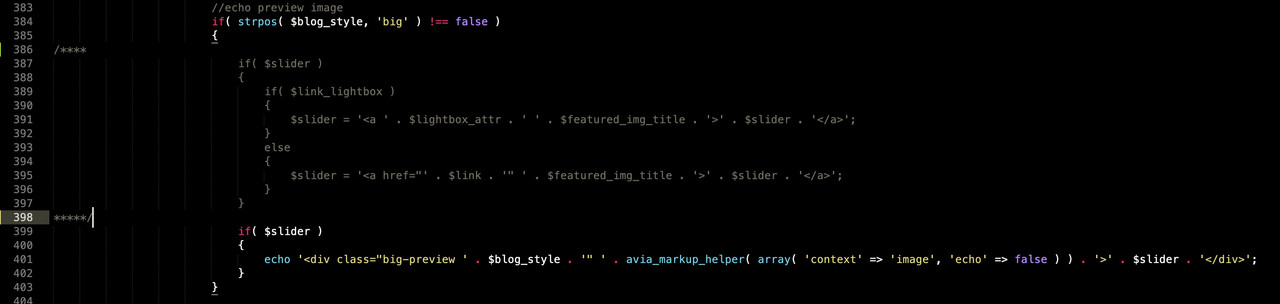
and then use instead of echo a return in the snippet:
function av_remove_featured_image_link($image) { if (is_single()) { $image = get_the_post_thumbnail( $current_post['the_id'], 'full' ); } return $image; } add_filter('avf_post_featured_image_link','av_remove_featured_image_link', 10, 1);then it will come to your result:
https://webers-testseite.de/standard-post/April 24, 2024 at 7:30 pm #1440713In reply to: Remove featured image expand in posts
can you try this in your child-theme functions.php:
just a moment – i think there will be snippet to have both solutions in one. …
function custom_post_featured_image_link( $image_link, array $current_post, $size ){ if(is_single()){ $image_link = get_the_post_thumbnail( $current_post['the_id'], 'full' ); /**** or medium, square etc. ***/ } echo $image_link; } add_filter( 'avf_post_featured_image_link', 'custom_post_featured_image_link', 10, 3 );April 24, 2024 at 12:15 pm #1440681In reply to: Tip: responsive Mega-Div
PS :
repeat(5, 1fr) – is a short form of 1fr 1fr 1fr 1fr 1fr
if you need for one column a bit more place you can do that: 1fr 1fr 1fr 1.3fr 1fr ;)_______
i used on that installation the nice snippet from Ismael ( link ) to place the post-thumbnails besides the menu-items.function avf_wp_nav_menu_objects($sorted_menu_objects, $args) { // check menu name if ($args->menu->name != 'hauptmenue') return $sorted_menu_objects; foreach ($sorted_menu_objects as $menu_object) { if ( in_array($menu_object->object, array('post', 'page', 'portfolio')) ) { $menu_object->title = has_post_thumbnail($menu_object->object_id) ? $menu_object->title . get_the_post_thumbnail($menu_object->object_id, 'thumbnail') : $menu_object->title; } } return $sorted_menu_objects; } add_filter('wp_nav_menu_objects', 'avf_wp_nav_menu_objects', 10, 2);a bit of css is needed then for dimension and placement.
April 16, 2024 at 4:31 pm #1440118@mike you can now close this issue.
For any other users of Enfold who use scalability Pro by Super Speedy Plugins / WP Intense:
To ensure that Enfold thumbnail sizes arent removed please go to Settings > Scalability Pro > Imports > Global Image sizes > Click Enable and then tick all of the boxes to exclude the image sizes from the optimisation settings. Obviously you can tweak this list if you want to disable some of the items.
You can also use other plugins like Shortpixel Regenerate Thumbnails plugin. We use this because you can quickly add new sizes as well.
April 13, 2024 at 12:28 pm #1439880thinkjarvis
ParticipantSince upgrading to the latest WordPress and Enfold version
Enfold Thumbnails are suddenly not being recognised by the system.This includes the widget size thumbnail required for display in the back end of the website. So Posts > all posts or Pages > All Pages now shows stupendously large images.
Can you try installing this plugin and see if it correctly displays all enfold image sizes in the list of sizes available?
I can no longer see any of Enfolds image sizes in the list.April 10, 2024 at 5:38 pm #1439668In reply to: portfolio category page style changed
Hi,
When I test this function on my test shop site:add_filter( 'avf_wc_before_shop_loop_item_title_img_size', 'avf_wc_before_shop_loop_item_title_img_size_mod', 10, 1 ); function avf_wc_before_shop_loop_item_title_img_size_mod( $thumbnail_size ) { return 'fullsize'; }The category and tag archive page show the full size product images.
Best regards,
MikeApril 10, 2024 at 4:22 pm #1439663Topic: LCP issue with Lazy Load images
in forum EnfoldSwarez
ParticipantHi
No matter what I do I cannot get PageSpeed Insights to prevent a Largest Contentful Paint error on images above the fold in grids.
I have WP Rocket installed and all lazy loading is switched off but activated through WP Rocket. I get that Lazy Loading will essentially cause an LCP issue as it is delaying the image from loading.
However, I have added an exception to the WP Rocket optioons to exclude a test image – theoretically telling the Enfold Theme to NOT lazy load and serve the image normally. This is not the case as PSI still reports an error.
Any ideas?
It appears on all Portfolio pages see this example: https://swarezart.com/modern-art-paintings-for-sale/vanishing-point/ this URL does have the first image excluded from lazy loading but it still apears to lazy load and that must be why I have the error yes?PSI reports back this code for the element:
<img decoding="async" fetchpriority="high" class="wp-image-61006 avia-img-lazy-loading-not-61006 avia_image entered lazyload…" src="https://cdn.swarezart.com/wp-content/uploads/2024/03/black-and-gold-and-bl…" alt="black and gold and blue art hanging on a wall" height="684" width="703" itemprop="thumbnailUrl" data-lazy-srcset="https://cdn.swarezart.com/wp-content/uploads/2024/03/black-and-gold-and-bl…" data-lazy-sizes="(max-width: 703px) 100vw, 703px" data-lazy-src="https://cdn.swarezart.com/wp-content/uploads/2024/03/black-and-gold-and-bl…" data-ll-status="loaded" …>
The test can be run live here: https://pagespeed.web.dev/analysis/https-swarezart-com-modern-art-paintings-for-sale-vanishing-point/loisuour9h?form_factor=mobileAny help wpuld be greatky appreciated.
Thanks in advance
EdApril 10, 2024 at 8:47 am #1439634Hi,
You don’t really need to compress the images prior to uploading, but it will help a lot if you could resize the image to an optimal size before uploading them, for example, 1920x1080px. Resizing the images before uploading will result in smaller thumbnails in terms of file size. If you want to manually compress the images after resizing, please check the online tools that we linked above. You can test it first with the video thumbnail to see if you get a better result.
Best regards,
IsmaelApril 9, 2024 at 6:14 am #1439553Hi,
We just logged in to the site and noticed that the size of the fallback image (see private field) is overly large (4032x3024px), around 3MB. Even after compression, the size is still 551.97 KB, which is still large for an image of that size and aspect ratio. Please resize the image to around 1920x1080px, then upload it again. If you can run the image through an image compression tool before uploading, you should expect a much better result. Uploading a pre-compressed and resized image will result in thumbnails with much smaller file sizes.
The file was compressed from 3.08 MB to 551.97 KB, saving 82.52 percent, using WP-OptimizeOnline image compression tools:
// https://imagecompressor.com/
// https://compressjpeg.com/Best regards,
IsmaelApril 7, 2024 at 11:59 pm #1439449Hi,
ok, quite complicated for me…
in fact I do just want to remove one of the template I did by mistake (Meinung template) and my 2. question is more relevant:The template I built (Meinung_seite) is not showing the content (title / blog) it should:
See: https://jmbuettner.ch/meinung/?preview_id=101&preview_nonce=c38b70099c&preview=true&_thumbnail_id=559
the same content is visible if I to set the page on standart template.What do I have to change to use my own template for the blog?
regards
DominicApril 7, 2024 at 4:14 pm #1439412In reply to: portfolio category page style changed
-
AuthorSearch Results
-
Search Results
-
Hello,
When I share a blog post for example on Facebook the Featured Image I have included in the blog post does not show. Instead, my Logo shows. I investigated this and was told by Facebook’s Debug Tool that –Warnings That Should Be Fixed: Inferred Property
The ‘og:image’ property should be explicitly provided, even if a value can be inferred from other tags.I then investigated further and was told by AI to add the following code to the theme’s functions.php file:
function add_open_graph_tags() {
if (is_single()) {
global $post;
$thumbnail = wp_get_attachment_image_src(get_post_thumbnail_id($post->ID), ‘large’);
if ($thumbnail) {
echo ‘<meta property=”og:image” content=”‘ . esc_url($thumbnail[0]) . ‘” />’ . “\n”;
}
} elseif (is_home() || is_front_page()) {
// You can set a default og:image for your homepage here
echo ‘<meta property=”og:image” content=”URL_OF_YOUR_DEFAULT_IMAGE” />’ . “\n”;
}
}The thing is that I don’t know what the URL_OF_YOUR_DEFAULT_IMAGE is. I tried with a random image url from my WordPress Media folder but the FB Debugger did not like that, either.
Can you please help? Many thanks and greetings, Lokita
Topic: delete links to archive
Is ait possible to leave the little categorie names just right over the titles and right beside the thumbnailphotos in the magazine style without having the links to the archive?
I don`t need the links but it is queiet nice when people can see, that some programms are in a few categories.
That would be perfect :)Many greetings rixi
Since upgrading to the latest WordPress and Enfold version
Enfold Thumbnails are suddenly not being recognised by the system.This includes the widget size thumbnail required for display in the back end of the website. So Posts > all posts or Pages > All Pages now shows stupendously large images.
Can you try installing this plugin and see if it correctly displays all enfold image sizes in the list of sizes available?
I can no longer see any of Enfolds image sizes in the list.Hi
No matter what I do I cannot get PageSpeed Insights to prevent a Largest Contentful Paint error on images above the fold in grids.
I have WP Rocket installed and all lazy loading is switched off but activated through WP Rocket. I get that Lazy Loading will essentially cause an LCP issue as it is delaying the image from loading.
However, I have added an exception to the WP Rocket optioons to exclude a test image – theoretically telling the Enfold Theme to NOT lazy load and serve the image normally. This is not the case as PSI still reports an error.
Any ideas?
It appears on all Portfolio pages see this example: https://swarezart.com/modern-art-paintings-for-sale/vanishing-point/ this URL does have the first image excluded from lazy loading but it still apears to lazy load and that must be why I have the error yes?PSI reports back this code for the element:
<img decoding="async" fetchpriority="high" class="wp-image-61006 avia-img-lazy-loading-not-61006 avia_image entered lazyload…" src="https://cdn.swarezart.com/wp-content/uploads/2024/03/black-and-gold-and-bl…" alt="black and gold and blue art hanging on a wall" height="684" width="703" itemprop="thumbnailUrl" data-lazy-srcset="https://cdn.swarezart.com/wp-content/uploads/2024/03/black-and-gold-and-bl…" data-lazy-sizes="(max-width: 703px) 100vw, 703px" data-lazy-src="https://cdn.swarezart.com/wp-content/uploads/2024/03/black-and-gold-and-bl…" data-ll-status="loaded" …>
The test can be run live here: https://pagespeed.web.dev/analysis/https-swarezart-com-modern-art-paintings-for-sale-vanishing-point/loisuour9h?form_factor=mobileAny help wpuld be greatky appreciated.
Thanks in advance
Ed


