Hi Mike,
Thanks for your support. That works great for the fixed terms.
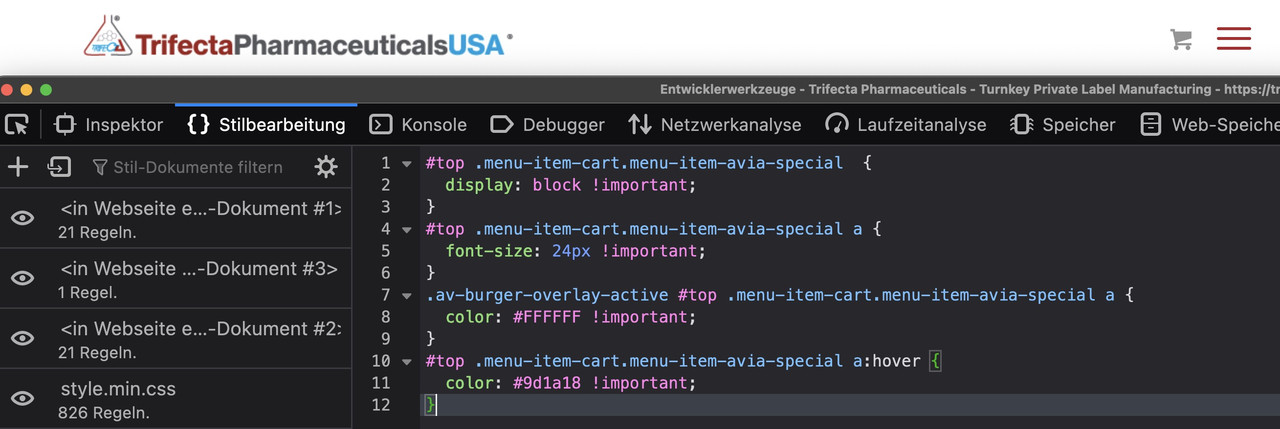
Ho can I apply it (font-size and color) also for the input text?
Kind Regards
Hi there,
I want to have adjust some in this page
1. I want to make the title font size smaller, where to set
2. Specification chart, I want make all the words in black color
3. Key feature, I want to make all in white color, including flip and make 2 line bigger space
4. Application, I want to make the list words font bigger
5. Make space bigger before “Contact Us For More Information”
6. Make space bigger before “You might Also like”
https://img.savvyify.com/image/9gk58
I want show the element from portfolio. But this time seems wrong, pls help.
Wang
Hi,
Try this CSS in your Enfold Theme Options ▸ General Styling ▸ Quick CSS field:
#commentform ::-webkit-input-placeholder {
color: #000;
font-size: .8em;
}
#commentform :-moz-placeholder {
color: #000;
font-size: .8em;
}
#commentform ::-moz-placeholder {
color: #000;
font-size: .8em;
}
#commentform :-ms-input-placeholder {
color: #000;
font-size: .8em;
}
After applying the css, please clear your browser cache and check.
Best regards,
Mike
Hey JantienM,
Please try using this code instead:
.iconbox_icon:before {
font-size: 30px;
}
Best regards,
Rikard
Hi Nikko
Great help, that works!
Just need the class to adjust font-size and color terms.
Thanks
Hi,
I want the icon (and the background rounding) to be bigger of my icon content boxes (see fourth content block) I tried using this code:
[data-av_icon]:before {
font-size: 50px!important;
}
.iconbox_icon {
margin-right:20px!important;
}
But then ALL my icons on the website are bigger.
Hope you can help me out, thx!
Thank You, Ricard,
And sorry about the snarkiness, I do very much appreciate the help.
I was able to remove the castegory name and tweaked the CSS a bit to make the grid titles work:
.page-id-2477 #after_section_1 .avia-content-slider h3 {
font-family: ‘Arial Narrow’ !important;
font-size: 18px !important;
letter-spacing: 0.03em; !important;
}
My last issue on that page is the grey line under the hero section – I tried so many things. It is only there if the next section has component boxes (none of them have borders). If I try to use a grid section or place it inside a color section instead the line is gone, but all Quick CSS formatting of the grid titles are null and void.
I can remove the diagonal border if I must but it looks nice with their triangle logo.
The issue is definitely related to the next section as the line moves down if I put things in between.
Hi,
Sorry for the late reply.
1. You might want to consider a different layout option, as the title text has to be really small in order to it to fit properly. If you still want to make the titles smaller, then please try CSS like this:
.page-id-2477 #after_section_1 .avia-content-slider h3 {
font-size: 14px;
}
2. Please try the following CSS to hide the categories:
.page-id-2477 #after_section_1 .avia-content-slider .blog-categories {
display: none;
}
3. You could add the latest post to a dedicated category, then select that category in the Blog Posts element. Once you write a new post, then you can remove the category from the second latest post and add it to the latest. There is unfortunately no option to only show the latest post at the moment.
Best regards,
Rikard
Hey Monika,
Thank you for the inquiry.
What is the actual model of the device where you have taken the screenshot? You should be able adjust the size of the heading elements with custom css.
@media only screen and (max-width: 489px) {
/* Add your Mobile Styles here */
section.av_textblock_section.av-lhystxxf-ab9a26b95349e3f8f25451c3d741af57 h3.p1 .s1 {
font-size: 1em;
word-break: break-word;
}
}
Best regards,
Ismael
Hey,
Where is the main link color on general setting?
It inherits the Enfold theme options > General Styling > Main Content > Primary Color option ( https://i.imgur.com/04nCGNN.png )
Again: how to set that text dimension?
I already provided you with a custom CSS code to change the font size in my previous response. If that’s not what you’d like to do, please send us a screenshot and show it.
Regards,
Yigit
Ok, done.
How to set the order of the works? For example, i would set like this: nautical, transportation, graphics, interior. Both the sections and the works.
How to set the font size of the works names? (Venticinque, TRENTATRE/7, etc…..)
Thanks
Hey,
how to change the dimensions of those text?
Please add the following code to the Quick CSS field in Enfold theme options > General Styling tab
#top #js_sort_items {
font-size: 22px;
}
Again, look at the titles: why the current section is not visible? How to change that color?
The active filter isn’t visible because it looks like you set the main link color to transparent ( https://i.imgur.com/dq2ivXL.png ). This is a very bad idea. Please go to Enfold theme options > General Styling and set it to a solid color.
Regards,
Yigit
Hi Kriesi,
On one specific portfolio element, I need Excerpt to show on hover, and title below.
Is it possible to show Title below and Except on Hover centered on the dark overlay, ONLY on the occasions of the portfolio-grid where I chose to show “Title and Excerpt”? Elsewhere I need except to stay below.
Tried to change alter your suggested code like follows, but I’m not sure of the content name for excerpts…
.grid-entry a:hover:before {
content: attr(Excerpt);
position: absolute;
width: 100%;
z-index: 1000;
text-align: center;
opacity: 1;
font-size: 18px;
color: #ffffff !important;
top: 50%;
transform: translateY(-50%);
animation: avia-fadein 0.60s 1 cubic-bezier(0.175, 0.885, 0.320, 1.275) !important;
}
Hi Loveronika,
Thanks for giving us admin access.
I have adjusted the font sizes on smaller devices (you can see this when you edit the slide element, and you go to Style > Font Sizes, then you select those icons and set the font sizes). Then I added this CSS in Enfold > General Styling > Quick CSS, to adjust the height of the slider:
@media only screen and (max-width:479px) {
.home #full_slider_1,
.home #full_slider_1 .avia-slideshow,
.home #full_slider_1 .avia-slideshow-inner,
.home #full_slider_1 .avia-slide-wrap {
min-height: 300px;
}
.home #full_slider_1 .avia-slide-wrap {
background-size: cover !important;
}
}
Please review your website.
Best regards,
Nikko
Hey team
I am designing a site at tara.meditationinhouston.org
I have layed out the header style I would like to achieve, but cannot get the right placement. As a result, I have two issues arising.
The text at the top is a header widget.
The menu is Logo Left, Menu Right with a large logo.
1) I am trying to make a responsively centered Header Widget for all screensizes. Here is the CSS I used
.header-title {
color:#000000;
display: block;
text-align: center;
font-size: 40px;
font-family: Lato;
}
.header-tagline {
color:#0397d6;
display: block;
text-align: center;
font-size: 24px;
font-family: Lato;
}
a.header-tagline:hover {
color: #146e9e;
}
#header .widget {
position: relative;
display: block;
width: 55vw;
margin-left:calc(33%);
text-align: center;
line-height: 30px;
}
2) I also need to get the menu to stop overlapping on all of the content at the top of the page. It is blocking the view. How can I do that?
Hi there,
I am using the Blog Posts Component in Grid view to show an archive of book titles (see link). I have created the posts with the advanced layout editor to make them look their best (rather than standard blog layouts).
1. How can I define the size and color of the titles to fit the space in the grid? Ideally without loosing the H3 formatting for other uses.
2. How can I prevent the category from showing?
3. Is there an easy way to feature the latest post on our home page? So the most current book recommendation is shown with full cover image and write-up. And once we add another post it features that?
Hi,
Thank you for the screenshot.
Are you trying to adjust the style of the text in the embedded code? Please try to start with this css code.
.osBox.osDetail * {
font-size: 1em !important;
line-height: 1.5em;
font-weight: 400 !important;
color: #636363 !important;
}
.osBox.osDetail * .osButton.osButton-inline {
text-shadow: none;
color: #ffffff !important;
}
Best regards,
Ismael
Hi,
Thank you for the update.
The position adjustment seems to be working as expected. If you want to adjust the vertical position of the social icons, try to set the “top” property.
.responsive #top #wrap_all #header .social_bookmarks, .responsive #top #wrap_all #main .av-logo-container .social_bookmarks {
display: block;
font-size: 20px !important;
left: 30px !important;
top: 40px;
}
Best regards,
Ismael
Hey vantagepointmg,
Thank you for the inquiry.
You can manually insert an image tag or an icon shortcode beside the text in the Navigation Label field of a menu item. The menu can be edited in the Appearance > Menus panel.
Here’s an example of an icon shortcode.
[av_font_icon icon='' style='' caption='' size='40px' position='left' color='' link='' linktarget='' title_attr='' sonar_effect_effect='' sonar_effect_color='' sonar_effect_duration='1' sonar_effect_scale='' sonar_effect_opac='0.5' animation='' av-desktop-hide='' av-medium-hide='' av-small-hide='' av-mini-hide='' id='' custom_class='' template_class='' av_uid='' sc_version='1.0'][/av_font_icon]
Best regards,
Ismael
I have to do this on 1500 enfold pages?
I followed your instructions
I just added an image to an old enfold built page. Still got the image Jumping.
again, got all this crap code.
[av_textblock fold_type='' fold_height='' fold_more='Read more' fold_less='Read less' fold_text_style='' fold_btn_align='' textblock_styling_align='' textblock_styling='' textblock_styling_gap='' textblock_styling_mobile='' size='' av-desktop-font-size='' av-medium-font-size='' av-small-font-size='' av-mini-font-size='' font_color='' color='' fold_overlay_color='' fold_text_color='' fold_btn_color='theme-color' fold_btn_bg_color='' fold_btn_font_color='' size-btn-text='' av-desktop-font-size-btn-text='' av-medium-font-size-btn-text='' av-small-font-size-btn-text='' av-mini-font-size-btn-text='' fold_timer='' z_index_fold='' id='' custom_class='' template_class='' element_template='' one_element_template='' av_uid='av-lmklw2w5' sc_version='1.0' admin_preview_bg='']
Hi Ismael,
Thank you, that works! I tried to add some code to adjust size and position to social bookmarks, but it does not work:
@media only screen and (max-width: 479px) {
/* Add your Mobile Styles here */
.responsive #top #wrap_all #header .social_bookmarks,
.responsive #top #wrap_all #main .av-logo-container .social_bookmarks {
display: block;
left: 30px !important;
font-size: 20px !important;
}
}
Also, I would like to adjust position of the burger icon. Also without luck. Could you point to info or specify for me where i need to put adjustment code? Heres relevant code:
/* Activate burger menu */
@media only screen and (max-width: 1100px) {
#top #header .av-main-nav > li.menu-item {
display: none !important;
}
#top #header .av-burger-menu-main {
cursor: pointer;
display: block!important;
}}
/* Burger menu thickness*/
.av-hamburger-inner,
.av-hamburger-inner:before,
.av-hamburger-inner:after {
height: 1px;
}
/* Burger menu icon color on transparent header */
@media only screen and (max-width: 479px) {
#header.av_header_transparency .av-burger-menu-main a .av-hamburger-inner,
#header.av_header_transparency .av-burger-menu-main a .av-hamburger-inner:before,
#header.av_header_transparency .av-burger-menu-main a .av-hamburger-inner:after {
background-color: #232323 !important;
}}
@media only screen and (min-width: 1100px) {
#top nav .social_bookmarks {
margin-right: 120px;
float: right;
left: 1px;
}}
@media only screen and (max-width: 479px) {
/* Add your Mobile Styles here */
.responsive #top #wrap_all #header .social_bookmarks,
.responsive #top #wrap_all #main .av-logo-container .social_bookmarks {
display: block;
left: 30px !important;
font-size: 20px !important;
}
}
Hi,
Thank you for the inquiry.
You can try to adjust the element style with css modification instead. Please try this code in the Enfold > General Styling > Quick CSS field.
.av-magazine .av-magazine-top-bar .av-magazine-top-heading {
font-size: 2em;
color: blue;
}
Best regards,
Ismael
All this code at top of my site page is making my image jump.
Why is it there? I never put it there.
[av_textblock fold_type='' fold_height='' fold_more='Read more' fold_less='Read less' fold_text_style='' fold_btn_align='' textblock_styling_align='' textblock_styling='' textblock_styling_gap='' textblock_styling_mobile='' size='' av-desktop-font-size='' av-medium-font-size='' av-small-font-size='' av-mini-font-size='' font_color='' color='' fold_overlay_color='' fold_text_color='' fold_btn_color='theme-color' fold_btn_bg_color='' fold_btn_font_color='' size-btn-text='' av-desktop-font-size-btn-text='' av-medium-font-size-btn-text='' av-small-font-size-btn-text='' av-mini-font-size-btn-text='' fold_timer='' z_index_fold='' id='' custom_class='' template_class='' element_template='' one_element_template='' av_uid='av-lmtkgn50' sc_version='1.0' admin_preview_bg='']
KarianneGuest
Hi Kriesi
You helped earlier this year with installing a social media icon/LinkedIn on the footer of my webpage. Now the time has come to install Instagram. I am running into the same problem – not finding the code for Instagram.
Here is the code that I am using for my Facebook icon:
[av_font_icon icon='ue8f5' font='entypo-fontello' style='' caption='' link='manually,https://www.instagram.com/care4burn/' linktarget='_blank' size='40px' position='left' color='#333333' av_uid='' admin_preview_bg=''][/av_font_icon]
I understand I need to replace this part “ue8f5” with another code – but which one? Can you please help?
Thank you and I look forward to hear from you.
Kind regards Karianne
Web-page: http://www.care4burn.org
Hi Gunter,
For those looking to add auto infinite scroll from WP Intense to their Enfold site:
Auto Infinite Scroll Settings:
Set the distance to 1000px
css wrapper: .products, .yourcustomclassfornewspage
Pagination wrapper: .pagination
Next Page Selector: next_page
Css for the load more button: (plus hide the pagination on the blog page)
#isw-load-more-button {
border: none;
padding: 20px 50px 20px 50px;
background-color: #007a74;
color: #ffffff;
font-size: 18px;
font-weight: bold;
transition-duration: 1s;
}
#isw-load-more-button:hover {
border: none;
background-color: #39a6a1;
color: #000000;
}
.yourcustomclassfornewspage .pagination {
display:none !important;
}
Snippet for functions.php to insert the new CSS class to just the blog page:
add_filter( 'avf_custom_main_classes', 'custom_avf_custom_main_classes', 10, 2 );
function custom_avf_custom_main_classes( $class_string = '', $context = 'index.php' )
{
// fallback check
if( ! is_string( $class_string ) )
{
$class_string = '';
}
// e.g. add custom class to index.php Make sure there is a space before the class!
if( 'index.php' == $context )
{
$class_string .= ' yourcustomclassfornewspage';
}
return $class_string;
}
-
This reply was modified 2 years, 3 months ago by
thinkjarvis.
-
This reply was modified 2 years, 3 months ago by
thinkjarvis.
-
This reply was modified 2 years, 2 months ago by
thinkjarvis.
Hi,
To correct this try changing the menu width from 14.25% to 13.25% and the padding from zero to 10px left and right. originally I set the padding to zero so you could have a larger font, so by adding the padding below 992px you will need to also reduce the font size so “Get Involved” will fit on one line. It looks like a font size of 14px will fit.
Please try making this adjustment, or adjusting slightly more. Otherwise feel free to include an admin login in the Private Content area below.


Best regards,
Mike
Dear all,
I tried to get the icons on arnoldvanouwerkerk.nl in the menu bar, which worked.
I enlarged them but somehow this size disappeared again.
I cleared the Quick CSS with: http://csslint.net/
I used in Quick CSS:
}
#top #header .social_bookmarks li a {
font-size: 30px;
}
}
Can you help me out?
Login is in the private.
Thanks !!!!
Henning
Hi Natacha,
Thanks, please try to add this CSS code:
#top #wrap_all .av-masonry-entry .av-masonry-entry-title {
line-height: 1.3em;
font-size: 15px;
}
Best regards,
Nikko
Hi,
To correct the mega menu items please change this part:
.avia-menu>ul.av-main-nav>li.menu-item .avia-menu-text,
.avia-menu>ul.av-main-nav>li.menu-item-search-dropdown {
display: flex;
justify-content: center;
}
to this:
.avia-menu>ul.av-main-nav>li.menu-item>a> .avia-menu-text,
.avia-menu>ul.av-main-nav>li.menu-item-search-dropdown {
display: flex;
justify-content: center;
}
Please ensure to copy the code from the forum and not an email notification so the symbols are not converted.
to correct the two words “Get Involved” please try to adjust the font size for the screen width, you will need to go a little smaller when that occurs, it looks like 17px instead of 18px works.
Best regards,
Mike
Hey Celeranttechnologycorp,
Thank you for the inquiry.
You can add this css code to adjust the style of the button. Make sure to replace the Youtube icon with the Play or Right Arrow icon.
#top .avia-button-wrap.av-lnizxc6d-66ff2ca80883e92473e33c8c2dbd9656-wrap .avia-button {
border-radius: 10px !important;
line-height: 1em !important;
}
#top .avia-button-wrap.av-lnizxc6d-66ff2ca80883e92473e33c8c2dbd9656-wrap .avia-button .avia_button_icon {
font-size: 1.5em;
left: 1em;
background: #ffffff;
border-radius: 200%;
color: red;
padding: 5px;
}
#top .avia-button-wrap.av-lnizxc6d-66ff2ca80883e92473e33c8c2dbd9656-wrap .avia-button .avia_iconbox_title {
top: -4px;
}
Unfortunately, you cannot add different css class names for the items in a button row element.
Best regards,
Ismael