-
AuthorSearch Results
-
August 9, 2023 at 9:24 am #1415897
In reply to: Font and logo size
Hi Ismael,
thanks for the fast reply..
i put it the css logo code in the General Settings/Logo Area / Quick css but nothing is changed
the same with the Font size adjust the isze but everything staying same
August 9, 2023 at 2:56 am #1415877In reply to: Font and logo size
Hey samis37,
Thank you for the inquiry.
You can use the following css code to adjust the size of the logo.
.logo img, .logo svg {
    zoom: 120%;
}

.header-scrolled .logo img, .header-scrolled .logo svg {
    zoom: 90%;
}
To adjust the font sizes of the body and heading text, please go to the Enfold > General Styling > Typography panel.
Best regards,
IsmaelAugust 8, 2023 at 3:57 pm #1415831Topic: Font and logo size
in forum Enfoldsamis37
ParticipantHey, how can I change the logo size to make them appear bigger?
Similarly, I’d like to adjust the font size from small to medium or something fixed like 15px.Thanks :)
August 5, 2023 at 8:30 pm #1415618In reply to: Mobile menu style
Hey enfold,
Try this CSS in your Enfold Theme Options ▸ General Styling ▸ Quick CSS field:#top #header #av-burger-menu-ul .av-active-burger-items > a > span.avia-menu-text { font-family: 'Arapey',serif !important; text-transform: uppercase !important; font-size: 18px; font-weight: 900; color: #0251CC; }Please ensure to copy the code from the forum and not an email notification so the symbols are not converted.
After applying the css, please clear your browser cache and check.Best regards,
MikeAugust 5, 2023 at 8:47 am #1415482In reply to: Special Heading on Mobile Not Centered
I decreased the font size to 55px and the word Accommodations fully shows up now, but it’s still not centered. It’s more to the right.
August 4, 2023 at 9:28 pm #1415465In reply to: Special Heading on Mobile Not Centered
I can decrease the font size for the element, but I’d prefer to keep the size as is. The issue is that the text isn’t centered because if the font size stays as is and is too big for the screen shouldn’t it be fully centered and then get cut off on both the left and right?
August 4, 2023 at 9:22 pm #1415464In reply to: Special Heading on Mobile Not Centered
Hi,
Thanks for the update. Did you try setting the font size for smaller screen sizes in the element itself? You can set that under Styling->Font Sizes.
Best regards,
RikardAugust 4, 2023 at 10:08 am #1415401In reply to: Special Heading on Mobile Not Centered
Hey sjahan,
Thanks for the login details. The front end looks to be password protected, but you can set the responsive font sizes under Enfold->General Styling->Typography. Please have a look there first of all.
Best regards,
RikardAugust 3, 2023 at 6:52 am #1415308Hey spitsdesign,
Thank you for the inquiry.
You may need to temporarily disable the Enfold > Performance > File Compression settings in order to ensure that the adjustments in the font sizes to take effect. Also, make sure to purge the cache before checking the page again.
Best regards,
IsmaelAugust 2, 2023 at 10:04 pm #1415287In reply to: No pages are imported after demo import
Hi,
Thanks for that. I’m not sure why the page is not importing, but you could try to activate debug mode under Enfold->Layout Builder->Show Advanced Options->Debug Mode (Backend Only). Then you can import this shortcode into a new page:
[av_layout_row min_height_percent='percent' min_height_pc='85' min_height='0' border='' color='main_color' mobile='av-flex-cells' mobile_breaking='' mobile_column_order='' id='' custom_class='' template_class='' aria_label='' av_element_hidden_in_editor='0' av_uid='av-l3szq1xv' sc_version='1.0']
[av_cell_one_half vertical_align='middle' padding='0' padding_sync='true' background='bg_color' background_color='' background_gradient_direction='vertical' background_gradient_color1='#000000' background_gradient_color2='#ffffff' background_gradient_color3='' src='' attachment='' attachment_size='' background_attachment='scroll' background_position='top left' background_repeat='no-repeat' link='' linktarget='' link_hover='' mobile_display='' mobile_col_pos='0' custom_class='' template_class='' av_uid='av-l3szpg70' sc_version='1.0']

[av_one_full first min_height='av-equal-height-column' vertical_alignment='av-align-middle' space='no_margin' row_boxshadow_width='10' row_boxshadow_color='' margin='0px' margin_sync='true' mobile_breaking='' mobile_column_order='' border='' border_style='solid' border_color='' radius='' radius_sync='true' min_col_height='100%' padding='30px' padding_sync='true' svg_div_top='' svg_div_top_color='#333333' svg_div_top_width='100' svg_div_top_height='50' svg_div_top_max_height='none' svg_div_top_opacity='' svg_div_bottom='' svg_div_bottom_color='#333333' svg_div_bottom_width='100' svg_div_bottom_height='50' svg_div_bottom_max_height='none' svg_div_bottom_opacity='' column_boxshadow_width='10' column_boxshadow_color='' background='bg_color' background_color='' background_gradient_direction='vertical' background_gradient_color1='#000000' background_gradient_color2='#ffffff' background_gradient_color3='' src='' attachment='' attachment_size='' background_position='top left' background_repeat='no-repeat' highlight_size='1.1' animation='curtain-reveal-ttb' animation_duration='' animation_custom_bg_color='#f8f8f8' animation_z_index_curtain='1' parallax_parallax='bottom_top' parallax_parallax_speed='' av-medium-parallax_parallax='' av-medium-parallax_parallax_speed='' av-small-parallax_parallax='' av-small-parallax_parallax_speed='' av-mini-parallax_parallax='' av-mini-parallax_parallax_speed='' css_position='' css_position_location=',,,' css_position_z_index='' av-medium-css_position='' av-medium-css_position_location=',,,' av-medium-css_position_z_index='' av-small-css_position='' av-small-css_position_location=',,,' av-small-css_position_z_index='' av-mini-css_position='' av-mini-css_position_location=',,,' av-mini-css_position_z_index='' link='' linktarget='' link_hover='' title_attr='' alt_attr='' mobile_display='' mobile_col_pos='0' id='' custom_class='' template_class='' aria_label='' av_uid='av-l3t6vrtm' sc_version='1.0']

[av_image src='https://kriesi.at/themes/enfold-parallax/wp-content/uploads/sites/87/2022/05/main-enfold.png' attachment='2047' attachment_size='full' copyright='' caption='' image_size='' styling='' box_shadow='none' box_shadow_width='10' box_shadow_color='' align='center' font_size='' overlay_opacity='0.4' overlay_color='#000000' overlay_text_color='#ffffff' animation='fade-in' animation_duration='' animation_custom_bg_color='' animation_z_index_curtain='100' parallax_parallax='right_left' parallax_parallax_speed='' av-medium-parallax_parallax='' av-medium-parallax_parallax_speed='' av-small-parallax_parallax='' av-small-parallax_parallax_speed='' av-mini-parallax_parallax='' av-mini-parallax_parallax_speed='' hover='' appearance='' css_position='' css_position_location=',,,' css_position_z_index='' av-medium-css_position='' av-medium-css_position_location=',,,' av-medium-css_position_z_index='' av-small-css_position='' av-small-css_position_location=',,,' av-small-css_position_z_index='' av-mini-css_position='' av-mini-css_position_location=',,,' av-mini-css_position_z_index='' transform_perspective='' transform_rotation=',,,' transform_scale=',,' transform_skew=',' transform_translate=',,' av-medium-transform_perspective='' av-medium-transform_rotation=',,,' av-medium-transform_scale=',,' av-medium-transform_skew=',' av-medium-transform_translate=',,' av-small-transform_perspective='' av-small-transform_rotation=',,,' av-small-transform_scale=',,' av-small-transform_skew=',' av-small-transform_translate=',,' av-mini-transform_perspective='' av-mini-transform_rotation=',,,' av-mini-transform_scale=',,' av-mini-transform_skew=',' av-mini-transform_translate=',,' link='' target='' title_attr='' alt_attr='' img_scrset='' lazy_loading='disabled' id='' custom_class='' template_class='' av_element_hidden_in_editor='0' av_uid='av-z26fk' sc_version='1.0' admin_preview_bg=''][/av_image]

[/av_one_full][/av_cell_one_half][av_cell_one_half vertical_align='middle' padding='0' padding_sync='true' background='bg_color' background_color='' background_gradient_direction='vertical' background_gradient_color1='#000000' background_gradient_color2='#ffffff' background_gradient_color3='' src='' attachment='' attachment_size='' background_attachment='scroll' background_position='top left' background_repeat='no-repeat' link='' linktarget='' link_hover='' mobile_display='' mobile_col_pos='0' custom_class='' template_class='' av_uid='av-l3szplqc' sc_version='1.0']

[av_one_full first min_height='av-equal-height-column' vertical_alignment='av-align-middle' space='' row_boxshadow_width='10' row_boxshadow_color='' margin='0px' margin_sync='true' mobile_breaking='' mobile_column_order='' border='' border_style='solid' border_color='' radius='' radius_sync='true' min_col_height='100%' padding='30px' padding_sync='true' svg_div_top='' svg_div_top_color='#333333' svg_div_top_width='100' svg_div_top_height='50' svg_div_top_max_height='none' svg_div_top_opacity='' svg_div_bottom='' svg_div_bottom_color='#333333' svg_div_bottom_width='100' svg_div_bottom_height='50' svg_div_bottom_max_height='none' svg_div_bottom_opacity='' column_boxshadow_width='10' column_boxshadow_color='' background='bg_color' background_color='' background_gradient_direction='vertical' background_gradient_color1='#000000' background_gradient_color2='#ffffff' background_gradient_color3='' src='https://kriesi.at/themes/enfold-parallax/wp-content/uploads/sites/87/2022/05/startup_dark.jpg' attachment='2030' attachment_size='full' background_position='center left' background_repeat='stretch' highlight_size='1.1' animation='curtain-reveal-btt' animation_duration='' animation_custom_bg_color='#ffffff' animation_z_index_curtain='1' parallax_parallax='' parallax_parallax_speed='' av-medium-parallax_parallax='' av-medium-parallax_parallax_speed='' av-small-parallax_parallax='' av-small-parallax_parallax_speed='' av-mini-parallax_parallax='' av-mini-parallax_parallax_speed='' css_position='' css_position_location=',,,' css_position_z_index='' av-medium-css_position='' av-medium-css_position_location=',,,' av-medium-css_position_z_index='' av-small-css_position='' av-small-css_position_location=',,,' av-small-css_position_z_index='' av-mini-css_position='' av-mini-css_position_location=',,,' av-mini-css_position_z_index='' link='' linktarget='' link_hover='' title_attr='' alt_attr='' mobile_display='' mobile_col_pos='0' id='' custom_class='' template_class='' aria_label='' av_uid='av-l3szqp26' sc_version='1.0']

[av_image src='https://kriesi.at/themes/enfold-parallax/wp-content/uploads/sites/87/2022/05/main-parallax.png' attachment='2048' attachment_size='full' copyright='' caption='' image_size='' styling='' box_shadow='none' box_shadow_width='10' box_shadow_color='' align='center' font_size='' overlay_opacity='0.4' overlay_color='#000000' overlay_text_color='#ffffff' animation='fade-in' animation_duration='' animation_custom_bg_color='' animation_z_index_curtain='100' parallax_parallax='left_right' parallax_parallax_speed='' av-medium-parallax_parallax='' av-medium-parallax_parallax_speed='' av-small-parallax_parallax='' av-small-parallax_parallax_speed='' av-mini-parallax_parallax='' av-mini-parallax_parallax_speed='' hover='' appearance='' css_position='' css_position_location=',,,' css_position_z_index='' av-medium-css_position='' av-medium-css_position_location=',,,' av-medium-css_position_z_index='' av-small-css_position='' av-small-css_position_location=',,,' av-small-css_position_z_index='' av-mini-css_position='' av-mini-css_position_location=',,,' av-mini-css_position_z_index='' transform_perspective='' transform_rotation=',,,' transform_scale=',,' transform_skew=',' transform_translate=',,' av-medium-transform_perspective='' av-medium-transform_rotation=',,,' av-medium-transform_scale=',,' av-medium-transform_skew=',' av-medium-transform_translate=',,' av-small-transform_perspective='' av-small-transform_rotation=',,,' av-small-transform_scale=',,' av-small-transform_skew=',' av-small-transform_translate=',,' av-mini-transform_perspective='' av-mini-transform_rotation=',,,' av-mini-transform_scale=',,' av-mini-transform_skew=',' av-mini-transform_translate=',,' link='' target='' title_attr='' alt_attr='' img_scrset='' lazy_loading='disabled' id='' custom_class='' template_class='' av_element_hidden_in_editor='0' av_uid='av-q2u00' sc_version='1.0' admin_preview_bg='rgb(34, 34, 34)'][/av_image]

[/av_one_full][/av_cell_one_half]
[/av_layout_row]

[av_section min_height='' min_height_pc='25' min_height_px='500px' shadow='no-border-styling' bottom_border='no-border-styling' bottom_border_diagonal_color='#333333' bottom_border_diagonal_direction='' bottom_border_style='' padding='default' margin='aviaTBmargin' custom_margin='0px,80px' svg_div_top='' svg_div_top_color='#333333' svg_div_top_width='100' svg_div_top_height='50' svg_div_top_max_height='none' svg_div_top_opacity='' svg_div_bottom='' svg_div_bottom_color='#333333' svg_div_bottom_width='100' svg_div_bottom_height='50' svg_div_bottom_max_height='none' svg_div_bottom_opacity='' color='main_color' background='bg_color' custom_bg='' background_gradient_direction='vertical' background_gradient_color1='#000000' background_gradient_color2='#ffffff' background_gradient_color3='' src='' attachment='' attachment_size='' attach='scroll' position='top left' repeat='no-repeat' video='' video_ratio='16:9' overlay_opacity='0.5' overlay_color='' overlay_pattern='' overlay_custom_pattern='' custom_arrow_bg='' css_position_z_index='10' av-medium-css_position_z_index='' av-small-css_position_z_index='' av-mini-css_position_z_index='' id='service' custom_class='' template_class='' aria_label='' av_element_hidden_in_editor='0' av_uid='av-kz5g1n7y' sc_version='1.0']

[av_one_third first min_height='av-equal-height-column' vertical_alignment='av-align-middle' space='no_margin' row_boxshadow_width='10' row_boxshadow_color='rgba(0,0,0,0.26)' custom_margin='aviaTBcustom_margin' margin='-80px,0px' av-desktop-margin='' av-desktop-margin_sync='true' av-medium-margin='' av-medium-margin_sync='true' av-small-margin='' av-small-margin_sync='true' av-mini-margin='' av-mini-margin_sync='true' mobile_breaking='av-break-at-tablet' mobile_column_order='' border='' border_style='solid' border_color='' radius='' radius_sync='true' min_col_height='' padding='50px' padding_sync='true' av-desktop-padding='' av-desktop-padding_sync='true' av-medium-padding='' av-medium-padding_sync='true' av-small-padding='' av-small-padding_sync='true' av-mini-padding='' av-mini-padding_sync='true' svg_div_top='' svg_div_top_color='#333333' svg_div_top_width='100' svg_div_top_height='50' svg_div_top_max_height='none' svg_div_top_opacity='' svg_div_bottom='' svg_div_bottom_color='#333333' svg_div_bottom_width='100' svg_div_bottom_height='50' svg_div_bottom_max_height='none' svg_div_bottom_opacity='' column_boxshadow='aviaTBcolumn_boxshadow' column_boxshadow_width='5' column_boxshadow_color='rgba(0,0,0,0.2)' background='bg_color' background_color='#ffffff' background_gradient_direction='vertical' background_gradient_color1='#000000' background_gradient_color2='#ffffff' background_gradient_color3='' src='' attachment='' attachment_size='' background_position='top left' background_repeat='no-repeat' highlight_size='1.1' animation='' animation_duration='' animation_custom_bg_color='' animation_z_index_curtain='100' parallax_parallax='' parallax_parallax_speed='0' av-desktop-parallax_parallax='bottom_top' av-desktop-parallax_parallax_speed='70' av-medium-parallax_parallax='' av-medium-parallax_parallax_speed='' av-small-parallax_parallax='' av-small-parallax_parallax_speed='' av-mini-parallax_parallax='' av-mini-parallax_parallax_speed='' css_position='relative' css_position_location=',,,' css_position_z_index='99' av-desktop-css_position='' av-desktop-css_position_location=',,,' av-desktop-css_position_z_index='' av-medium-css_position='' av-medium-css_position_location=',,,' av-medium-css_position_z_index='' av-small-css_position='' av-small-css_position_location=',,,' av-small-css_position_z_index='' av-mini-css_position='' av-mini-css_position_location=',,,' av-mini-css_position_z_index='' link='' linktarget='' link_hover='' title_attr='' alt_attr='' mobile_display='' mobile_col_pos='0' id='' custom_class='' template_class='' aria_label='' av_uid='av-kz5hamof' sc_version='1.0']

[av_heading heading='Planning & Consulting' tag='h2' style='blockquote modern-quote modern-centered' subheading_active='' show_icon='' icon='ue800' font='entypo-fontello' size='' av-medium-font-size-title='' av-small-font-size-title='' av-mini-font-size-title='' subheading_size='' av-medium-font-size='' av-small-font-size='' av-mini-font-size='' icon_size='' av-medium-font-size-1='' av-small-font-size-1='' av-mini-font-size-1='' color='' custom_font='' subheading_color='' seperator_color='' icon_color='' margin='' margin_sync='true' padding='10' icon_padding='10' headline_padding='' headline_padding_sync='true' link='' link_target='' id='' custom_class='' template_class='' av_uid='av-dj574' sc_version='1.0' admin_preview_bg=''][/av_heading]

[av_textblock textblock_styling_align='' textblock_styling='' textblock_styling_gap='' textblock_styling_mobile='' size='' av-medium-font-size='' av-small-font-size='' av-mini-font-size='' font_color='' color='' id='' custom_class='' template_class='' av_uid='av-anksw' sc_version='1.0' admin_preview_bg='']
Lorem ipsum dolor sit amet, consectetur adipiscing elit. Aliquam egestas a nulla a molestie. Duis a sapien ac orci dictum sodales. Vivamus vitae feugiat elit. Fusce a eros laoreet, bibendum lectus id, euismod nulla.
[/av_textblock]

[av_hr class='invisible' icon_select='yes' icon='ue808' font='entypo-fontello' position='center' shadow='no-shadow' height='30' custom_border='av-border-thin' custom_width='50px' custom_margin_top='30px' custom_margin_bottom='30px' custom_border_color='' custom_icon_color='' id='' custom_class='' template_class='' av_uid='av-15ly34' sc_version='1.0' admin_preview_bg='']

[av_button label='Learn more' icon_select='yes-right-icon' icon='ue875' font='entypo-fontello' icon_hover='aviaTBicon_hover' link='manually,http://' link_target='' size='large' position='center' label_display='' title_attr='' color_options='' color='theme-color' custom_bg='#40bfd5' custom_font='#ffffff' btn_color_bg='theme-color' btn_custom_grad_direction='vertical' btn_custom_grad_1='#000000' btn_custom_grad_2='#ffffff' btn_custom_grad_3='' btn_custom_grad_opacity='0.7' btn_custom_bg='#444444' btn_color_bg_hover='theme-color-highlight' btn_custom_bg_hover='#444444' btn_color_font='theme-color' btn_custom_font='#ffffff' btn_color_font_hover='white' btn_custom_font_hover='#ffffff' border='' border_width='' border_width_sync='true' border_color='' border_radius='4px' border_radius_sync='true' box_shadow='' box_shadow_style='0px,0px,0px,0px' box_shadow_color='' animation='' animation_duration='' animation_custom_bg_color='' animation_z_index_curtain='100' hover_opacity='' sonar_effect_effect='' sonar_effect_color='' sonar_effect_duration='1' sonar_effect_scale='' sonar_effect_opac='0.5' css_position='' css_position_location=',,,' css_position_z_index='' av-medium-css_position='' av-medium-css_position_location=',,,' av-medium-css_position_z_index='' av-small-css_position='' av-small-css_position_location=',,,' av-small-css_position_z_index='' av-mini-css_position='' av-mini-css_position_location=',,,' av-mini-css_position_z_index='' id='' custom_class='' template_class='' av_uid='av-wmepk' sc_version='1.0' admin_preview_bg='rgb(34, 34, 34)']

[/av_one_third][av_one_third min_height='av-equal-height-column' vertical_alignment='av-align-middle' space='no_margin' row_boxshadow_width='10' row_boxshadow_color='rgba(0,0,0,0.26)' margin='0px' margin_sync='true' av-desktop-margin='' av-desktop-margin_sync='true' av-medium-margin='' av-medium-margin_sync='true' av-small-margin='' av-small-margin_sync='true' av-mini-margin='' av-mini-margin_sync='true' mobile_breaking='' mobile_column_order='' border='' border_style='solid' border_color='' radius='' radius_sync='true' min_col_height='' padding='50px' padding_sync='true' av-desktop-padding='' av-desktop-padding_sync='true' av-medium-padding='' av-medium-padding_sync='true' av-small-padding='' av-small-padding_sync='true' av-mini-padding='' av-mini-padding_sync='true' svg_div_top='' svg_div_top_color='#333333' svg_div_top_width='100' svg_div_top_height='50' svg_div_top_max_height='none' svg_div_top_opacity='' svg_div_bottom='' svg_div_bottom_color='#333333' svg_div_bottom_width='100' svg_div_bottom_height='50' svg_div_bottom_max_height='none' svg_div_bottom_opacity='' column_boxshadow='aviaTBcolumn_boxshadow' column_boxshadow_width='5' column_boxshadow_color='rgba(0,0,0,0.2)' background='bg_gradient' background_color='#ffffff' background_gradient_direction='diagonal_tb' background_gradient_color1='#2d2d2d' background_gradient_color2='#383838' background_gradient_color3='' src='' attachment='' attachment_size='' background_position='top left' background_repeat='no-repeat' highlight='aviaTBhighlight' highlight_size='1.1' animation='' animation_duration='' animation_custom_bg_color='' animation_z_index_curtain='100' parallax_parallax='' parallax_parallax_speed='100' av-desktop-parallax_parallax='bottom_top' av-desktop-parallax_parallax_speed='100' av-medium-parallax_parallax='' av-medium-parallax_parallax_speed='' av-small-parallax_parallax='' av-small-parallax_parallax_speed='' av-mini-parallax_parallax='' av-mini-parallax_parallax_speed='' css_position='relative' css_position_location=',,,' css_position_z_index='110' av-desktop-css_position='' av-desktop-css_position_location=',,,' av-desktop-css_position_z_index='' av-medium-css_position='' av-medium-css_position_location=',,,' av-medium-css_position_z_index='' av-small-css_position='' av-small-css_position_location=',,,' av-small-css_position_z_index='' av-mini-css_position='' av-mini-css_position_location=',,,' av-mini-css_position_z_index='' link='' linktarget='' link_hover='' title_attr='' alt_attr='' mobile_display='' mobile_col_pos='0' id='' custom_class='' template_class='' aria_label='' av_uid='av-kz5gwrwj' sc_version='1.0']

[av_heading heading='Design & Production' tag='h2' style='blockquote modern-quote modern-centered' subheading_active='' show_icon='' icon='ue800' font='entypo-fontello' size='' av-medium-font-size-title='' av-small-font-size-title='' av-mini-font-size-title='' subheading_size='' av-medium-font-size='' av-small-font-size='' av-mini-font-size='' icon_size='' av-medium-font-size-1='' av-small-font-size-1='' av-mini-font-size-1='' color='custom-color-heading' custom_font='#ffffff' subheading_color='' seperator_color='' icon_color='' margin='' margin_sync='true' padding='10' icon_padding='10' headline_padding='' headline_padding_sync='true' link='' link_target='' id='' custom_class='' template_class='' av_uid='av-kz5h2s5l' sc_version='1.0' admin_preview_bg='rgb(34, 34, 34)'][/av_heading]

[av_textblock textblock_styling_align='' textblock_styling='' textblock_styling_gap='' textblock_styling_mobile='' size='' av-medium-font-size='' av-small-font-size='' av-mini-font-size='' font_color='custom' color='#ffffff' id='' custom_class='' template_class='' av_uid='av-kz5h37os' sc_version='1.0' admin_preview_bg='rgb(34, 34, 34)']
Lorem ipsum dolor sit amet, consectetur adipiscing elit. Aliquam egestas a nulla a molestie. Duis a sapien ac orci dictum sodales. Vivamus vitae feugiat elit. Fusce a eros laoreet, bibendum lectus id, euismod nulla.
[/av_textblock]

[av_hr class='invisible' icon_select='yes' icon='ue808' font='entypo-fontello' position='center' shadow='no-shadow' height='30' custom_border='av-border-thin' custom_width='50px' custom_margin_top='30px' custom_margin_bottom='30px' custom_border_color='' custom_icon_color='' id='' custom_class='' template_class='' av_uid='av-kz5k342g' sc_version='1.0' admin_preview_bg='']

[av_button label='Learn more' icon_select='yes-right-icon' icon='ue875' font='entypo-fontello' icon_hover='aviaTBicon_hover' link='manually,http://' link_target='' size='large' position='center' label_display='' title_attr='' color_options='' color='light' custom_bg='#40bfd5' custom_font='#ffffff' btn_color_bg='theme-color' btn_custom_grad_direction='vertical' btn_custom_grad_1='#000000' btn_custom_grad_2='#ffffff' btn_custom_grad_3='' btn_custom_grad_opacity='0.7' btn_custom_bg='#444444' btn_color_bg_hover='theme-color-highlight' btn_custom_bg_hover='#444444' btn_color_font='theme-color' btn_custom_font='#ffffff' btn_color_font_hover='white' btn_custom_font_hover='#ffffff' border='' border_width='' border_width_sync='true' border_color='' border_radius='4px' border_radius_sync='true' box_shadow='' box_shadow_style='0px,0px,0px,0px' box_shadow_color='' animation='' animation_duration='' animation_custom_bg_color='' animation_z_index_curtain='100' hover_opacity='' sonar_effect_effect='' sonar_effect_color='' sonar_effect_duration='1' sonar_effect_scale='' sonar_effect_opac='0.5' css_position='' css_position_location=',,,' css_position_z_index='' av-medium-css_position='' av-medium-css_position_location=',,,' av-medium-css_position_z_index='' av-small-css_position='' av-small-css_position_location=',,,' av-small-css_position_z_index='' av-mini-css_position='' av-mini-css_position_location=',,,' av-mini-css_position_z_index='' id='' custom_class='' template_class='' av_uid='av-kz5k24rj' sc_version='1.0' admin_preview_bg='rgb(34, 34, 34)']

[/av_one_third][av_one_third min_height='av-equal-height-column' vertical_alignment='av-align-middle' space='no_margin' row_boxshadow_width='10' row_boxshadow_color='rgba(0,0,0,0.26)' custom_margin='aviaTBcustom_margin' margin='-80px,0px' av-desktop-margin='' av-desktop-margin_sync='true' av-medium-margin='' av-medium-margin_sync='true' av-small-margin='' av-small-margin_sync='true' av-mini-margin='' av-mini-margin_sync='true' mobile_breaking='' mobile_column_order='' border='' border_style='solid' border_color='' radius='' radius_sync='true' min_col_height='' padding='50px' padding_sync='true' av-desktop-padding='' av-desktop-padding_sync='true' av-medium-padding='' av-medium-padding_sync='true' av-small-padding='' av-small-padding_sync='true' av-mini-padding='' av-mini-padding_sync='true' svg_div_top='' svg_div_top_color='#333333' svg_div_top_width='100' svg_div_top_height='50' svg_div_top_max_height='none' svg_div_top_opacity='' svg_div_bottom='' svg_div_bottom_color='#333333' svg_div_bottom_width='100' svg_div_bottom_height='50' svg_div_bottom_max_height='none' svg_div_bottom_opacity='' column_boxshadow='aviaTBcolumn_boxshadow' column_boxshadow_width='5' column_boxshadow_color='rgba(0,0,0,0.2)' background='bg_color' background_color='#ffffff' background_gradient_direction='vertical' background_gradient_color1='#000000' background_gradient_color2='#ffffff' background_gradient_color3='' src='' attachment='' attachment_size='' background_position='top left' background_repeat='no-repeat' highlight_size='1.1' animation='' animation_duration='' animation_custom_bg_color='' animation_z_index_curtain='100' parallax_parallax='' parallax_parallax_speed='70' av-desktop-parallax_parallax='bottom_top' av-desktop-parallax_parallax_speed='70' av-medium-parallax_parallax='' av-medium-parallax_parallax_speed='' av-small-parallax_parallax='' av-small-parallax_parallax_speed='' av-mini-parallax_parallax='' av-mini-parallax_parallax_speed='' css_position='relative' css_position_location=',,,' css_position_z_index='99' av-desktop-css_position='' av-desktop-css_position_location=',,,' av-desktop-css_position_z_index='' av-medium-css_position='' av-medium-css_position_location=',,,' av-medium-css_position_z_index='' av-small-css_position='' av-small-css_position_location=',,,' av-small-css_position_z_index='' av-mini-css_position='' av-mini-css_position_location=',,,' av-mini-css_position_z_index='' link='' linktarget='' link_hover='' title_attr='' alt_attr='' mobile_display='' mobile_col_pos='0' id='' custom_class='' template_class='' aria_label='' av_uid='av-kz5gvtyq' sc_version='1.0']

[av_heading heading='Shipping & Managing' tag='h2' style='blockquote modern-quote modern-centered' subheading_active='' show_icon='' icon='ue800' font='entypo-fontello' size='' av-medium-font-size-title='' av-small-font-size-title='' av-mini-font-size-title='' subheading_size='' av-medium-font-size='' av-small-font-size='' av-mini-font-size='' icon_size='' av-medium-font-size-1='' av-small-font-size-1='' av-mini-font-size-1='' color='' custom_font='' subheading_color='' seperator_color='' icon_color='' margin='' margin_sync='true' padding='10' icon_padding='10' headline_padding='' headline_padding_sync='true' link='' link_target='' id='' custom_class='' template_class='' av_uid='av-kz5gfgzs' sc_version='1.0' admin_preview_bg=''][/av_heading]

[av_textblock textblock_styling_align='' textblock_styling='' textblock_styling_gap='' textblock_styling_mobile='' size='' av-medium-font-size='' av-small-font-size='' av-mini-font-size='' font_color='' color='' id='' custom_class='' template_class='' av_uid='av-kz5gq51m' sc_version='1.0' admin_preview_bg='']
Lorem ipsum dolor sit amet, consectetur adipiscing elit. Aliquam egestas a nulla a molestie. Duis a sapien ac orci dictum sodales. Vivamus vitae feugiat elit. Fusce a eros laoreet, bibendum lectus id, euismod nulla.
[/av_textblock]

[av_hr class='invisible' icon_select='yes' icon='ue808' font='entypo-fontello' position='center' shadow='no-shadow' height='30' custom_border='av-border-thin' custom_width='50px' custom_margin_top='30px' custom_margin_bottom='30px' custom_border_color='' custom_icon_color='' id='' custom_class='' template_class='' av_uid='av-oqxgo' sc_version='1.0' admin_preview_bg='']

[av_button label='Learn more' icon_select='yes-right-icon' icon='ue875' font='entypo-fontello' icon_hover='aviaTBicon_hover' link='manually,http://' link_target='' size='large' position='center' label_display='' title_attr='' color_options='' color='theme-color' custom_bg='#40bfd5' custom_font='#ffffff' btn_color_bg='theme-color' btn_custom_grad_direction='vertical' btn_custom_grad_1='#000000' btn_custom_grad_2='#ffffff' btn_custom_grad_3='' btn_custom_grad_opacity='0.7' btn_custom_bg='#444444' btn_color_bg_hover='theme-color-highlight' btn_custom_bg_hover='#444444' btn_color_font='theme-color' btn_custom_font='#ffffff' btn_color_font_hover='white' btn_custom_font_hover='#ffffff' border='' border_width='' border_width_sync='true' border_color='' border_radius='4px' border_radius_sync='true' box_shadow='' box_shadow_style='0px,0px,0px,0px' box_shadow_color='' animation='' animation_duration='' animation_custom_bg_color='' animation_z_index_curtain='100' hover_opacity='' sonar_effect_effect='' sonar_effect_color='' sonar_effect_duration='1' sonar_effect_scale='' sonar_effect_opac='0.5' css_position='' css_position_location=',,,' css_position_z_index='' av-medium-css_position='' av-medium-css_position_location=',,,' av-medium-css_position_z_index='' av-small-css_position='' av-small-css_position_location=',,,' av-small-css_position_z_index='' av-mini-css_position='' av-mini-css_position_location=',,,' av-mini-css_position_z_index='' id='' custom_class='' template_class='' av_uid='av-kz5jzepf' sc_version='1.0' admin_preview_bg='rgb(34, 34, 34)']

[/av_one_third][av_one_full first min_height='' vertical_alignment='av-align-middle' space='no_margin' row_boxshadow_width='10' row_boxshadow_color='rgba(0,0,0,0.26)' custom_margin='aviaTBcustom_margin' margin='-80px,0px' mobile_breaking='' mobile_column_order='' border='' border_style='solid' border_color='' radius='' radius_sync='true' min_col_height='' padding='0px' padding_sync='true' svg_div_top='' svg_div_top_color='#333333' svg_div_top_width='100' svg_div_top_height='50' svg_div_top_max_height='none' svg_div_top_opacity='' svg_div_bottom='' svg_div_bottom_color='#333333' svg_div_bottom_width='100' svg_div_bottom_height='50' svg_div_bottom_max_height='none' svg_div_bottom_opacity='' column_boxshadow_width='5' column_boxshadow_color='rgba(0,0,0,0.2)' background='bg_color' background_color='' background_gradient_direction='vertical' background_gradient_color1='#000000' background_gradient_color2='#ffffff' background_gradient_color3='' src='' attachment='' attachment_size='' background_position='top left' background_repeat='no-repeat' highlight_size='1.1' animation='curtain-reveal-rtl' animation_duration='2' animation_custom_bg_color='#ffffff' animation_z_index_curtain='100' parallax_parallax='bottom_top' parallax_parallax_speed='-10' av-medium-parallax_parallax='' av-medium-parallax_parallax_speed='' av-small-parallax_parallax='' av-small-parallax_parallax_speed='' av-mini-parallax_parallax='' av-mini-parallax_parallax_speed='' css_position='relative' css_position_location=',,,' css_position_z_index='99' av-medium-css_position='' av-medium-css_position_location=',,,' av-medium-css_position_z_index='' av-small-css_position='' av-small-css_position_location=',,,' av-small-css_position_z_index='' av-mini-css_position='' av-mini-css_position_location=',,,' av-mini-css_position_z_index='' link='' linktarget='' link_hover='' title_attr='' alt_attr='' mobile_display='' mobile_col_pos='0' id='' custom_class='' template_class='' aria_label='' av_uid='av-l3hiswcr' sc_version='1.0']

[av_headline_rotator before_rotating='Say hello to a<br/>' after_rotating='Enfold!' margin='' margin_sync='true' align='center' custom_title='#000000' size='5vw' av-medium-font-size-title='' av-small-font-size-title='' av-mini-font-size-title='' tag='h2' interval='5' animation='typewriter' alb_description='' id='' custom_class='' template_class='' av_uid='av-kz5jge9h' sc_version='1.0' admin_preview_bg='']
[av_rotator_item title='recently upgraded' custom_title='' link='' linktarget='' av_uid='av-kcg7s' sc_version='1.0']
[av_rotator_item title='heavily improved' custom_title='' link='' linktarget='' av_uid='av-heiy0' sc_version='1.0']
[av_rotator_item title='simply better' custom_title='' link='' linktarget='' av_uid='av-au3dc' sc_version='1.0']
[/av_headline_rotator]

[/av_one_full][/av_section][av_layout_row min_height_percent='' min_height_pc='25' min_height='0' border='' color='main_color' mobile='av-flex-cells' mobile_breaking='' mobile_column_order='' id='about' custom_class='' template_class='' aria_label='' av_element_hidden_in_editor='0' av_uid='av-2ruoc8' sc_version='1.0']

[av_cell_one_half vertical_align='middle' padding='120px' padding_sync='true' av-desktop-padding='' av-desktop-padding_sync='true' av-medium-padding='' av-medium-padding_sync='true' av-small-padding='' av-small-padding_sync='true' av-mini-padding='60px' av-mini-padding_sync='true' background='bg_color' background_color='' background_gradient_direction='vertical' background_gradient_color1='#000000' background_gradient_color2='#ffffff' background_gradient_color3='' src='' attachment='' attachment_size='' background_attachment='scroll' background_position='top left' background_repeat='no-repeat' link='' linktarget='' link_hover='' mobile_display='' mobile_col_pos='0' custom_class='' template_class='' av_uid='av-l3sm2j2d' sc_version='1.0']

[av_heading heading='About Us...' tag='h2' style='blockquote modern-quote modern-centered' subheading_active='' show_icon='' icon='ue800' font='entypo-fontello' size='' av-medium-font-size-title='' av-small-font-size-title='' av-mini-font-size-title='' subheading_size='' av-medium-font-size='' av-small-font-size='' av-mini-font-size='' icon_size='' av-medium-font-size-1='' av-small-font-size-1='' av-mini-font-size-1='' color='' custom_font='' subheading_color='' seperator_color='' icon_color='' margin='' margin_sync='true' padding='10' icon_padding='10' headline_padding='' headline_padding_sync='true' link='' link_target='' id='' custom_class='' template_class='' av_uid='av-l3sm88y3' sc_version='1.0' admin_preview_bg=''][/av_heading]

[av_textblock textblock_styling_align='' textblock_styling='' textblock_styling_gap='' textblock_styling_mobile='' size='' av-medium-font-size='' av-small-font-size='' av-mini-font-size='' font_color='' color='' id='' custom_class='' template_class='' av_uid='av-2mr6mo' sc_version='1.0' admin_preview_bg='']
Lorem ipsum dolor sit amet, consectetur adipiscing elit. Aliquam egestas a nulla a molestie. Duis a sapien ac orci dictum sodales. Vivamus vitae feugiat elit. Fusce a eros laoreet, bibendum lectus id, euismod nulla.
[/av_textblock]

[av_one_half first min_height='' vertical_alignment='av-align-top' space='' row_boxshadow='' row_boxshadow_width='10' row_boxshadow_color='' custom_margin='' margin='0px' mobile_breaking='' mobile_column_order='' border='' border_style='solid' border_color='' radius='' min_col_height='' padding='' svg_div_top='' svg_div_top_color='#333333' svg_div_top_width='100' svg_div_top_height='50' svg_div_top_max_height='none' svg_div_top_flip='' svg_div_top_invert='' svg_div_top_front='' svg_div_top_opacity='' svg_div_top_preview='' svg_div_bottom='' svg_div_bottom_color='#333333' svg_div_bottom_width='100' svg_div_bottom_height='50' svg_div_bottom_max_height='none' svg_div_bottom_flip='' svg_div_bottom_invert='' svg_div_bottom_front='' svg_div_bottom_opacity='' svg_div_bottom_preview='' column_boxshadow='' column_boxshadow_width='10' column_boxshadow_color='' background='bg_color' background_color='' background_gradient_direction='vertical' background_gradient_color1='#000000' background_gradient_color2='#ffffff' background_gradient_color3='' src='' background_position='top left' background_repeat='no-repeat' highlight='' highlight_size='' animation='' animation_duration='' animation_custom_bg_color='' animation_z_index_curtain='100' parallax_parallax='' parallax_parallax_speed='' av-medium-parallax_parallax='' av-medium-parallax_parallax_speed='' av-small-parallax_parallax='' av-small-parallax_parallax_speed='' av-mini-parallax_parallax='' av-mini-parallax_parallax_speed='' css_position='' css_position_location='' css_position_z_index='' av-medium-css_position='' av-medium-css_position_location='' av-medium-css_position_z_index='' av-small-css_position='' av-small-css_position_location='' av-small-css_position_z_index='' av-mini-css_position='' av-mini-css_position_location='' av-mini-css_position_z_index='' link='' linktarget='' link_hover='' title_attr='' alt_attr='' mobile_display='' mobile_col_pos='0' id='' custom_class='' template_class='' aria_label='' av_uid='av-2cdbiw' sc_version='1.0']

[av_animated_numbers number='12' start_from='' icon_select='no' icon='ue800' font='entypo-fontello' number_format='' circle='' circle_custom='' circle_border_style='none' circle_border_color='' circle_bg_color='' circle_border_width='' circle_size='' box_shadow='none' box_shadow_style='0px,0px,0px,0px' box_shadow_color='' circle_mobile='' font_size='' av-medium-font-size-number='' av-small-font-size-number='' av-mini-font-size-number='' font_size_description='' av-medium-font-size-text='' av-small-font-size-text='' av-mini-font-size-text='' color='' custom_color='#444444' custom_color_desc='#444444' timer='15' link='' linktarget='' sonar_effect_effect='' sonar_effect_color='' sonar_effect_duration='1' sonar_effect_scale='' sonar_effect_opac='0.5' id='' custom_class='' template_class='' av_uid='av-l3slvfgg' sc_version='1.0' admin_preview_bg='']
Team Member
[/av_animated_numbers]

[/av_one_half][av_one_half min_height='' vertical_alignment='av-align-top' space='' row_boxshadow='' row_boxshadow_width='10' row_boxshadow_color='' custom_margin='' margin='0px' mobile_breaking='' mobile_column_order='' border='' border_style='solid' border_color='' radius='' min_col_height='' padding='' svg_div_top='' svg_div_top_color='#333333' svg_div_top_width='100' svg_div_top_height='50' svg_div_top_max_height='none' svg_div_top_flip='' svg_div_top_invert='' svg_div_top_front='' svg_div_top_opacity='' svg_div_top_preview='' svg_div_bottom='' svg_div_bottom_color='#333333' svg_div_bottom_width='100' svg_div_bottom_height='50' svg_div_bottom_max_height='none' svg_div_bottom_flip='' svg_div_bottom_invert='' svg_div_bottom_front='' svg_div_bottom_opacity='' svg_div_bottom_preview='' column_boxshadow='' column_boxshadow_width='10' column_boxshadow_color='' background='bg_color' background_color='' background_gradient_direction='vertical' background_gradient_color1='#000000' background_gradient_color2='#ffffff' background_gradient_color3='' src='' background_position='top left' background_repeat='no-repeat' highlight='' highlight_size='' animation='' animation_duration='' animation_custom_bg_color='' animation_z_index_curtain='100' parallax_parallax='' parallax_parallax_speed='' av-medium-parallax_parallax='' av-medium-parallax_parallax_speed='' av-small-parallax_parallax='' av-small-parallax_parallax_speed='' av-mini-parallax_parallax='' av-mini-parallax_parallax_speed='' css_position='' css_position_location='' css_position_z_index='' av-medium-css_position='' av-medium-css_position_location='' av-medium-css_position_z_index='' av-small-css_position='' av-small-css_position_location='' av-small-css_position_z_index='' av-mini-css_position='' av-mini-css_position_location='' av-mini-css_position_z_index='' link='' linktarget='' link_hover='' title_attr='' alt_attr='' mobile_display='' mobile_col_pos='0' id='' custom_class='' template_class='' aria_label='' av_uid='av-27016w' sc_version='1.0']

[av_animated_numbers number='73' start_from='' icon_select='no' icon='ue800' font='entypo-fontello' number_format='' circle='' circle_custom='' circle_border_style='none' circle_border_color='' circle_bg_color='' circle_border_width='' circle_size='' box_shadow='none' box_shadow_style='0px,0px,0px,0px' box_shadow_color='' circle_mobile='' font_size='' av-medium-font-size-number='' av-small-font-size-number='' av-mini-font-size-number='' font_size_description='' av-medium-font-size-text='' av-small-font-size-text='' av-mini-font-size-text='' color='' custom_color='#444444' custom_color_desc='#444444' timer='15' link='' linktarget='' sonar_effect_effect='' sonar_effect_color='' sonar_effect_duration='1' sonar_effect_scale='' sonar_effect_opac='0.5' id='' custom_class='' template_class='' av_uid='av-l3slvool' sc_version='1.0' admin_preview_bg='']
Happy Clients
[/av_animated_numbers]

[/av_one_half][av_hr class='invisible' icon_select='yes' icon='ue808' font='entypo-fontello' position='center' shadow='no-shadow' height='60' custom_border='av-border-thin' custom_width='50px' custom_margin_top='30px' custom_margin_bottom='30px' custom_border_color='' custom_icon_color='' id='' custom_class='' template_class='' av_uid='av-259qwo' sc_version='1.0' admin_preview_bg='']

[av_button label='Learn more' icon_select='yes-right-icon' icon='ue875' font='entypo-fontello' icon_hover='aviaTBicon_hover' link='manually,http://' link_target='' size='large' position='center' label_display='' title_attr='' color_options='' color='dark' custom_bg='#40bfd5' custom_font='#ffffff' btn_color_bg='theme-color' btn_custom_grad_direction='vertical' btn_custom_grad_1='#000000' btn_custom_grad_2='#ffffff' btn_custom_grad_3='' btn_custom_grad_opacity='0.7' btn_custom_bg='#444444' btn_color_bg_hover='theme-color-highlight' btn_custom_bg_hover='#444444' btn_color_font='theme-color' btn_custom_font='#ffffff' btn_color_font_hover='white' btn_custom_font_hover='#ffffff' border='' border_width='' border_width_sync='true' border_color='' border_radius='4px' border_radius_sync='true' box_shadow='' box_shadow_style='0px,0px,0px,0px' box_shadow_color='' animation='' animation_duration='' animation_custom_bg_color='' animation_z_index_curtain='100' hover_opacity='' sonar_effect_effect='' sonar_effect_color='' sonar_effect_duration='1' sonar_effect_scale='' sonar_effect_opac='0.5' css_position='' css_position_location=',,,' css_position_z_index='' av-medium-css_position='' av-medium-css_position_location=',,,' av-medium-css_position_z_index='' av-small-css_position='' av-small-css_position_location=',,,' av-small-css_position_z_index='' av-mini-css_position='' av-mini-css_position_location=',,,' av-mini-css_position_z_index='' id='' custom_class='' template_class='' av_uid='av-l3sn0oe2' sc_version='1.0' admin_preview_bg='rgb(255, 255, 255)']

[/av_cell_one_half][av_cell_one_half vertical_align='middle' padding='70px' padding_sync='true' background='bg_color' background_color='' background_gradient_direction='vertical' background_gradient_color1='#000000' background_gradient_color2='#ffffff' background_gradient_color3='' src='' attachment='' attachment_size='' background_attachment='scroll' background_position='top left' background_repeat='no-repeat' link='' linktarget='' link_hover='' mobile_display='' mobile_col_pos='0' custom_class='' template_class='' av_uid='av-l3sm2rrf' sc_version='1.0']

[av_image src='https://kriesi.at/themes/enfold-parallax/wp-content/uploads/sites/87/2022/05/ubiq-2Hq0WvL2Yc4-unsplash-845x684.jpg' attachment='2031' attachment_size='gallery' copyright='' caption='' image_size='' styling='no-styling' box_shadow='none' box_shadow_width='10' box_shadow_color='' align='center' font_size='' overlay_opacity='0.4' overlay_color='#000000' overlay_text_color='#ffffff' animation='curtain-reveal-ltr' animation_duration='' animation_custom_bg_color='#ffffff' animation_z_index_curtain='100' parallax_parallax='bottom_top' parallax_parallax_speed='20' av-medium-parallax_parallax='' av-medium-parallax_parallax_speed='' av-small-parallax_parallax='' av-small-parallax_parallax_speed='' av-mini-parallax_parallax='' av-mini-parallax_parallax_speed='' hover='' appearance='' css_position='' css_position_location=',,,' css_position_z_index='110' av-medium-css_position='' av-medium-css_position_location=',,,' av-medium-css_position_z_index='' av-small-css_position='' av-small-css_position_location=',,,' av-small-css_position_z_index='' av-mini-css_position='' av-mini-css_position_location=',,,' av-mini-css_position_z_index='' transform_perspective='' transform_rotation=',,,' transform_scale=',,' transform_skew=',' transform_translate=',,' av-medium-transform_perspective='' av-medium-transform_rotation=',,,' av-medium-transform_scale=',,' av-medium-transform_skew=',' av-medium-transform_translate=',,' av-small-transform_perspective='' av-small-transform_rotation=',,,' av-small-transform_scale=',,' av-small-transform_skew=',' av-small-transform_translate=',,' av-mini-transform_perspective='' av-mini-transform_rotation=',,,' av-mini-transform_scale=',,' av-mini-transform_skew=',' av-mini-transform_translate=',,' link='' target='' title_attr='' alt_attr='' img_scrset='' lazy_loading='disabled' id='' custom_class='' template_class='' av_element_hidden_in_editor='0' av_uid='av-l3sluu0i' sc_version='1.0' admin_preview_bg=''][/av_image]

[av_image src='https://kriesi.at/themes/enfold-parallax/wp-content/uploads/sites/87/2022/05/dusan-jovic-4JpCi9jWaOA-unsplash-200x300.jpg' attachment='2027' attachment_size='medium' copyright='' caption='' image_size='' styling='no-styling' box_shadow='outside' box_shadow_width='17' box_shadow_color='rgba(0,0,0,0.3)' align='center' font_size='' overlay_opacity='0.4' overlay_color='#000000' overlay_text_color='#ffffff' animation='curtain-reveal-rtl' animation_duration='' animation_custom_bg_color='#ffffff' animation_z_index_curtain='100' parallax_parallax='bottom_top' parallax_parallax_speed='10' av-medium-parallax_parallax='' av-medium-parallax_parallax_speed='' av-small-parallax_parallax='' av-small-parallax_parallax_speed='' av-mini-parallax_parallax='' av-mini-parallax_parallax_speed='' hover='' appearance='' css_position='absolute' css_position_location='40px,,,-50px' css_position_z_index='110' av-medium-css_position='' av-medium-css_position_location=',,,' av-medium-css_position_z_index='' av-small-css_position='' av-small-css_position_location=',,,' av-small-css_position_z_index='' av-mini-css_position='' av-mini-css_position_location=',,,' av-mini-css_position_z_index='' transform_perspective='' transform_rotation=',,,' transform_scale=',,' transform_skew=',' transform_translate=',,' av-medium-transform_perspective='' av-medium-transform_rotation=',,,' av-medium-transform_scale=',,' av-medium-transform_skew=',' av-medium-transform_translate=',,' av-small-transform_perspective='' av-small-transform_rotation=',,,' av-small-transform_scale=',,' av-small-transform_skew=',' av-small-transform_translate=',,' av-mini-transform_perspective='' av-mini-transform_rotation=',,,' av-mini-transform_scale=',,' av-mini-transform_skew=',' av-mini-transform_translate=',,' link='' target='' title_attr='' alt_attr='' img_scrset='' lazy_loading='disabled' id='' custom_class='' template_class='' av_element_hidden_in_editor='0' av_uid='av-l3slz2ga' sc_version='1.0' admin_preview_bg=''][/av_image]

[/av_cell_one_half][/av_layout_row][av_layout_row min_height_percent='' min_height_pc='25' min_height='0' border='' color='main_color' mobile='av-flex-cells' mobile_breaking='' mobile_column_order='' id='' custom_class='' template_class='' aria_label='' av_element_hidden_in_editor='0' av_uid='av-1y0avc' sc_version='1.0']

[av_cell_one_half vertical_align='middle' padding='70px' padding_sync='true' background='bg_color' background_color='' background_gradient_direction='vertical' background_gradient_color1='#000000' background_gradient_color2='#ffffff' background_gradient_color3='' src='' attachment='' attachment_size='' background_attachment='scroll' background_position='top left' background_repeat='no-repeat' link='' linktarget='' link_hover='' mobile_display='' mobile_col_pos='0' custom_class='' template_class='' av_uid='av-1oaef4' sc_version='1.0']

[av_image src='https://kriesi.at/themes/enfold-parallax/wp-content/uploads/sites/87/2022/05/amr-taha-UOMrO-JN-XQ-unsplash-845x684.jpg' attachment='2026' attachment_size='gallery' copyright='' caption='' image_size='' styling='no-styling' box_shadow='none' box_shadow_width='10' box_shadow_color='' align='center' font_size='' overlay_opacity='0.4' overlay_color='#000000' overlay_text_color='#ffffff' animation='curtain-reveal-rtl' animation_duration='' animation_custom_bg_color='#ffffff' animation_z_index_curtain='100' parallax_parallax='bottom_top' parallax_parallax_speed='20' av-medium-parallax_parallax='' av-medium-parallax_parallax_speed='' av-small-parallax_parallax='' av-small-parallax_parallax_speed='' av-mini-parallax_parallax='' av-mini-parallax_parallax_speed='' hover='' appearance='' css_position='' css_position_location=',,,' css_position_z_index='110' av-medium-css_position='' av-medium-css_position_location=',,,' av-medium-css_position_z_index='' av-small-css_position='' av-small-css_position_location=',,,' av-small-css_position_z_index='' av-mini-css_position='' av-mini-css_position_location=',,,' av-mini-css_position_z_index='' transform_perspective='' transform_rotation=',,,' transform_scale=',,' transform_skew=',' transform_translate=',,' av-medium-transform_perspective='' av-medium-transform_rotation=',,,' av-medium-transform_scale=',,' av-medium-transform_skew=',' av-medium-transform_translate=',,' av-small-transform_perspective='' av-small-transform_rotation=',,,' av-small-transform_scale=',,' av-small-transform_skew=',' av-small-transform_translate=',,' av-mini-transform_perspective='' av-mini-transform_rotation=',,,' av-mini-transform_scale=',,' av-mini-transform_skew=',' av-mini-transform_translate=',,' link='' target='' title_attr='' alt_attr='' img_scrset='' lazy_loading='disabled' id='' custom_class='' template_class='' av_element_hidden_in_editor='0' av_uid='av-l3smwbbb' sc_version='1.0' admin_preview_bg=''][/av_image]

[av_image src='https://kriesi.at/themes/enfold-parallax/wp-content/uploads/sites/87/2022/05/kevin-canlas-e_mbJ0T0mes-unsplash-200x300.jpg' attachment='2029' attachment_size='medium' copyright='' caption='' image_size='' styling='no-styling' box_shadow='outside' box_shadow_width='20' box_shadow_color='rgba(0,0,0,0.3)' align='center' font_size='' overlay_opacity='0.4' overlay_color='#000000' overlay_text_color='#ffffff' animation='curtain-reveal-ltr' animation_duration='' animation_custom_bg_color='#ffffff' animation_z_index_curtain='100' parallax_parallax='bottom_top' parallax_parallax_speed='10' av-medium-parallax_parallax='' av-medium-parallax_parallax_speed='' av-small-parallax_parallax='' av-small-parallax_parallax_speed='' av-mini-parallax_parallax='' av-mini-parallax_parallax_speed='' hover='' appearance='' css_position='absolute' css_position_location='40px,-50px,,' css_position_z_index='110' av-medium-css_position='' av-medium-css_position_location=',,,' av-medium-css_position_z_index='' av-small-css_position='' av-small-css_position_location=',,,' av-small-css_position_z_index='' av-mini-css_position='' av-mini-css_position_location=',,,' av-mini-css_position_z_index='' transform_perspective='' transform_rotation=',,,' transform_scale=',,' transform_skew=',' transform_translate=',,' av-medium-transform_perspective='' av-medium-transform_rotation=',,,' av-medium-transform_scale=',,' av-medium-transform_skew=',' av-medium-transform_translate=',,' av-small-transform_perspective='' av-small-transform_rotation=',,,' av-small-transform_scale=',,' av-small-transform_skew=',' av-small-transform_translate=',,' av-mini-transform_perspective='' av-mini-transform_rotation=',,,' av-mini-transform_scale=',,' av-mini-transform_skew=',' av-mini-transform_translate=',,' link='' target='' title_attr='' alt_attr='' img_scrset='' lazy_loading='disabled' id='' custom_class='' template_class='' av_element_hidden_in_editor='0' av_uid='av-l3smyzp5' sc_version='1.0' admin_preview_bg=''][/av_image]

[/av_cell_one_half][av_cell_one_half vertical_align='middle' padding='120px' padding_sync='true' av-desktop-padding='' av-desktop-padding_sync='true' av-medium-padding='' av-medium-padding_sync='true' av-small-padding='' av-small-padding_sync='true' av-mini-padding='60px' av-mini-padding_sync='true' background='bg_color' background_color='' background_gradient_direction='vertical' background_gradient_color1='#000000' background_gradient_color2='#ffffff' background_gradient_color3='' src='' attachment='' attachment_size='' background_attachment='scroll' background_position='top left' background_repeat='no-repeat' link='' linktarget='' link_hover='' mobile_display='' mobile_col_pos='0' custom_class='' template_class='' av_uid='av-l3sn2t3l' sc_version='1.0']

[av_heading heading='What we do...' tag='h2' style='blockquote modern-quote modern-centered' subheading_active='' show_icon='' icon='ue800' font='entypo-fontello' size='' av-medium-font-size-title='' av-small-font-size-title='' av-mini-font-size-title='' subheading_size='' av-medium-font-size='' av-small-font-size='' av-mini-font-size='' icon_size='' av-medium-font-size-1='' av-small-font-size-1='' av-mini-font-size-1='' color='' custom_font='' subheading_color='' seperator_color='' icon_color='' margin='' margin_sync='true' padding='10' icon_padding='10' headline_padding='' headline_padding_sync='true' link='' link_target='' id='' custom_class='' template_class='' av_uid='av-1jsd34' sc_version='1.0' admin_preview_bg=''][/av_heading]

[av_textblock textblock_styling_align='' textblock_styling='' textblock_styling_gap='' textblock_styling_mobile='' size='' av-medium-font-size='' av-small-font-size='' av-mini-font-size='' font_color='' color='' id='' custom_class='' template_class='' av_uid='av-1easfk' sc_version='1.0' admin_preview_bg='']
Lorem ipsum dolor sit amet, consectetur adipiscing elit. Aliquam egestas a nulla a molestie. Duis a sapien ac orci dictum sodales. Vivamus vitae feugiat elit. Fusce a eros laoreet, bibendum lectus id, euismod nulla.
[/av_textblock]

[av_one_half first min_height='' vertical_alignment='av-align-top' space='' row_boxshadow='' row_boxshadow_width='10' row_boxshadow_color='' custom_margin='' margin='0px' mobile_breaking='' mobile_column_order='' border='' border_style='solid' border_color='' radius='' min_col_height='' padding='' svg_div_top='' svg_div_top_color='#333333' svg_div_top_width='100' svg_div_top_height='50' svg_div_top_max_height='none' svg_div_top_flip='' svg_div_top_invert='' svg_div_top_front='' svg_div_top_opacity='' svg_div_top_preview='' svg_div_bottom='' svg_div_bottom_color='#333333' svg_div_bottom_width='100' svg_div_bottom_height='50' svg_div_bottom_max_height='none' svg_div_bottom_flip='' svg_div_bottom_invert='' svg_div_bottom_front='' svg_div_bottom_opacity='' svg_div_bottom_preview='' column_boxshadow='' column_boxshadow_width='10' column_boxshadow_color='' background='bg_color' background_color='' background_gradient_direction='vertical' background_gradient_color1='#000000' background_gradient_color2='#ffffff' background_gradient_color3='' src='' background_position='top left' background_repeat='no-repeat' highlight='' highlight_size='' animation='' animation_duration='' animation_custom_bg_color='' animation_z_index_curtain='100' parallax_parallax='' parallax_parallax_speed='' av-medium-parallax_parallax='' av-medium-parallax_parallax_speed='' av-small-parallax_parallax='' av-small-parallax_parallax_speed='' av-mini-parallax_parallax='' av-mini-parallax_parallax_speed='' css_position='' css_position_location='' css_position_z_index='' av-medium-css_position='' av-medium-css_position_location='' av-medium-css_position_z_index='' av-small-css_position='' av-small-css_position_location='' av-small-css_position_z_index='' av-mini-css_position='' av-mini-css_position_location='' av-mini-css_position_z_index='' link='' linktarget='' link_hover='' title_attr='' alt_attr='' mobile_display='' mobile_col_pos='0' id='' custom_class='' template_class='' aria_label='' av_uid='av-192lqo' sc_version='1.0']

[av_animated_numbers number='212' start_from='' icon_select='no' icon='ue800' font='entypo-fontello' number_format='' circle='' circle_custom='' circle_border_style='none' circle_border_color='' circle_bg_color='' circle_border_width='' circle_size='' box_shadow='none' box_shadow_style='0px,0px,0px,0px' box_shadow_color='' circle_mobile='' font_size='' av-medium-font-size-number='' av-small-font-size-number='' av-mini-font-size-number='' font_size_description='' av-medium-font-size-text='' av-small-font-size-text='' av-mini-font-size-text='' color='' custom_color='#444444' custom_color_desc='#444444' timer='15' link='' linktarget='' sonar_effect_effect='' sonar_effect_color='' sonar_effect_duration='1' sonar_effect_scale='' sonar_effect_opac='0.5' id='' custom_class='' template_class='' av_uid='av-159r1k' sc_version='1.0' admin_preview_bg='']
Finished Projects
[/av_animated_numbers]

[/av_one_half][av_one_half min_height='' vertical_alignment='av-align-top' space='' row_boxshadow='' row_boxshadow_width='10' row_boxshadow_color='' custom_margin='' margin='0px' mobile_breaking='' mobile_column_order='' border='' border_style='solid' border_color='' radius='' min_col_height='' padding='' svg_div_top='' svg_div_top_color='#333333' svg_div_top_width='100' svg_div_top_height='50' svg_div_top_max_height='none' svg_div_top_flip='' svg_div_top_invert='' svg_div_top_front='' svg_div_top_opacity='' svg_div_top_preview='' svg_div_bottom='' svg_div_bottom_color='#333333' svg_div_bottom_width='100' svg_div_bottom_height='50' svg_div_bottom_max_height='none' svg_div_bottom_flip='' svg_div_bottom_invert='' svg_div_bottom_front='' svg_div_bottom_opacity='' svg_div_bottom_preview='' column_boxshadow='' column_boxshadow_width='10' column_boxshadow_color='' background='bg_color' background_color='' background_gradient_direction='vertical' background_gradient_color1='#000000' background_gradient_color2='#ffffff' background_gradient_color3='' src='' background_position='top left' background_repeat='no-repeat' highlight='' highlight_size='' animation='' animation_duration='' animation_custom_bg_color='' animation_z_index_curtain='100' parallax_parallax='' parallax_parallax_speed='' av-medium-parallax_parallax='' av-medium-parallax_parallax_speed='' av-small-parallax_parallax='' av-small-parallax_parallax_speed='' av-mini-parallax_parallax='' av-mini-parallax_parallax_speed='' css_position='' css_position_location='' css_position_z_index='' av-medium-css_position='' av-medium-css_position_location='' av-medium-css_position_z_index='' av-small-css_position='' av-small-css_position_location='' av-small-css_position_z_index='' av-mini-css_position='' av-mini-css_position_location='' av-mini-css_position_z_index='' link='' linktarget='' link_hover='' title_attr='' alt_attr='' mobile_display='' mobile_col_pos='0' id='' custom_class='' template_class='' aria_label='' av_uid='av-wq820' sc_version='1.0']

[av_animated_numbers number='4144' start_from='' icon_select='no' icon='ue800' font='entypo-fontello' number_format='' circle='' circle_custom='' circle_border_style='none' circle_border_color='' circle_bg_color='' circle_border_width='' circle_size='' box_shadow='none' box_shadow_style='0px,0px,0px,0px' box_shadow_color='' circle_mobile='' font_size='' av-medium-font-size-number='' av-small-font-size-number='' av-mini-font-size-number='' font_size_description='' av-medium-font-size-text='' av-small-font-size-text='' av-mini-font-size-text='' color='' custom_color='#444444' custom_color_desc='#444444' timer='15' link='' linktarget='' sonar_effect_effect='' sonar_effect_color='' sonar_effect_duration='1' sonar_effect_scale='' sonar_effect_opac='0.5' id='' custom_class='' template_class='' av_uid='av-t1ia0' sc_version='1.0' admin_preview_bg='']
Hours of Work
[/av_animated_numbers]

[/av_one_half][av_hr class='invisible' icon_select='yes' icon='ue808' font='entypo-fontello' position='center' shadow='no-shadow' height='60' custom_border='av-border-thin' custom_width='50px' custom_margin_top='30px' custom_margin_bottom='30px' custom_border_color='' custom_icon_color='' id='' custom_class='' template_class='' av_uid='av-ipoh4' sc_version='1.0' admin_preview_bg='']

[av_button label='Learn more' icon_select='yes-right-icon' icon='ue875' font='entypo-fontello' icon_hover='aviaTBicon_hover' link='manually,http://' link_target='' size='large' position='center' label_display='' title_attr='' color_options='' color='dark' custom_bg='#40bfd5' custom_font='#ffffff' btn_color_bg='theme-color' btn_custom_grad_direction='vertical' btn_custom_grad_1='#000000' btn_custom_grad_2='#ffffff' btn_custom_grad_3='' btn_custom_grad_opacity='0.7' btn_custom_bg='#444444' btn_color_bg_hover='theme-color-highlight' btn_custom_bg_hover='#444444' btn_color_font='theme-color' btn_custom_font='#ffffff' btn_color_font_hover='white' btn_custom_font_hover='#ffffff' border='' border_width='' border_width_sync='true' border_color='' border_radius='4px' border_radius_sync='true' box_shadow='' box_shadow_style='0px,0px,0px,0px' box_shadow_color='' animation='' animation_duration='' animation_custom_bg_color='' animation_z_index_curtain='100' hover_opacity='' sonar_effect_effect='' sonar_effect_color='' sonar_effect_duration='1' sonar_effect_scale='' sonar_effect_opac='0.5' css_position='' css_position_location=',,,' css_position_z_index='' av-medium-css_position='' av-medium-css_position_location=',,,' av-medium-css_position_z_index='' av-small-css_position='' av-small-css_position_location=',,,' av-small-css_position_z_index='' av-mini-css_position='' av-mini-css_position_location=',,,' av-mini-css_position_z_index='' id='' custom_class='' template_class='' av_uid='av-l3sn1k2r' sc_version='1.0' admin_preview_bg='rgb(255, 255, 255)']

[/av_cell_one_half][/av_layout_row][av_layout_row min_height_percent='' min_height_pc='25' min_height='0' border='' color='main_color' mobile='av-flex-cells' mobile_breaking='av-break-at-tablet' mobile_column_order='' id='' custom_class='' template_class='' aria_label='' av_element_hidden_in_editor='0' av_uid='av-l3sz5uq1' sc_version='1.0']
[av_cell_one_third vertical_align='middle' padding='100px,0px,100px,0px' background='bg_color' background_color='#f8f8f8' background_gradient_direction='vertical' background_gradient_color1='#000000' background_gradient_color2='#ffffff' background_gradient_color3='' src='' attachment='' attachment_size='' background_attachment='scroll' background_position='top left' background_repeat='no-repeat' link='' linktarget='' link_hover='' mobile_display='' mobile_col_pos='0' custom_class='' template_class='' av_uid='av-l3syods3' sc_version='1.0']

[av_one_full first min_height='' vertical_alignment='av-align-top' space='no_margin' row_boxshadow_width='10' row_boxshadow_color='' margin='0px' margin_sync='true' mobile_breaking='' mobile_column_order='' border='' border_style='solid' border_color='' radius='' radius_sync='true' min_col_height='' padding='100px' padding_sync='true' svg_div_top='' svg_div_top_color='#333333' svg_div_top_width='100' svg_div_top_height='50' svg_div_top_max_height='none' svg_div_top_opacity='' svg_div_bottom='' svg_div_bottom_color='#333333' svg_div_bottom_width='100' svg_div_bottom_height='50' svg_div_bottom_max_height='none' svg_div_bottom_opacity='' column_boxshadow='aviaTBcolumn_boxshadow' column_boxshadow_width='15' column_boxshadow_color='rgba(0,0,0,0.3)' background='bg_color' background_color='#ffffff' background_gradient_direction='vertical' background_gradient_color1='#000000' background_gradient_color2='#ffffff' background_gradient_color3='' src='' attachment='' attachment_size='' background_position='top left' background_repeat='no-repeat' highlight_size='1.1' animation='' animation_duration='' animation_custom_bg_color='' animation_z_index_curtain='100' parallax_parallax='left_right' parallax_parallax_speed='10' av-medium-parallax_parallax='none' av-medium-parallax_parallax_speed='' av-small-parallax_parallax='none' av-small-parallax_parallax_speed='' av-mini-parallax_parallax='none' av-mini-parallax_parallax_speed='' css_position='relative' css_position_location=',,,200px' css_position_z_index='' av-medium-css_position='relative' av-medium-css_position_location=',,,0' av-medium-css_position_z_index='' av-small-css_position='relative' av-small-css_position_location=',,,0' av-small-css_position_z_index='' av-mini-css_position='relative' av-mini-css_position_location=',,,0' av-mini-css_position_z_index='' link='' linktarget='' link_hover='' title_attr='' alt_attr='' mobile_display='' mobile_col_pos='0' id='' custom_class='' template_class='' aria_label='' av_uid='av-l3sys9uw' sc_version='1.0']

[av_heading heading='Last but not least...' tag='h2' style='blockquote modern-quote modern-centered' subheading_active='' show_icon='' icon='ue800' font='entypo-fontello' size='' av-medium-font-size-title='' av-small-font-size-title='' av-mini-font-size-title='' subheading_size='' av-medium-font-size='' av-small-font-size='' av-mini-font-size='' icon_size='' av-medium-font-size-1='' av-small-font-size-1='' av-mini-font-size-1='' color='' custom_font='' subheading_color='' seperator_color='' icon_color='' margin='' margin_sync='true' padding='10' icon_padding='10' headline_padding='' headline_padding_sync='true' link='' link_target='' id='' custom_class='' template_class='' av_uid='av-1jn8w' sc_version='1.0' admin_preview_bg=''][/av_heading]

[av_textblock textblock_styling_align='' textblock_styling='' textblock_styling_gap='' textblock_styling_mobile='' size='' av-medium-font-size='' av-small-font-size='' av-mini-font-size='' font_color='' color='' id='' custom_class='' template_class='' av_uid='av-9rhpk' sc_version='1.0' admin_preview_bg='']
Lorem ipsum dolor sit amet, consectetur adipiscing elit. Aliquam egestas a nulla a molestie. Duis a sapien ac orci dictum sodales. Vivamus vitae feugiat elit. Fusce a eros laoreet, bibendum lectus id, euismod nulla.
[/av_textblock]

[/av_one_full][/av_cell_one_third][av_cell_two_third vertical_align='middle' padding='120px' padding_sync='true' background='bg_color' background_color='' background_gradient_direction='vertical' background_gradient_color1='#000000' background_gradient_color2='#ffffff' background_gradient_color3='' src='https://kriesi.at/themes/enfold-parallax/wp-content/uploads/sites/87/2022/05/ubiq-2Hq0WvL2Yc4-unsplash.jpg' attachment='2031' attachment_size='full' background_attachment='scroll' background_position='center center' background_repeat='stretch' link='' linktarget='' link_hover='' mobile_display='av-hide-on-mobile' mobile_col_pos='0' custom_class='' template_class='' av_uid='av-l3sypxl7' sc_version='1.0']

[/av_cell_two_third]
[/av_layout_row]

[av_masonry_gallery ids='2032,2033,2034,2035,2036,2037,2038,2039' caption_elements='title excerpt' caption_styling='' caption_display='always' size='fixed' orientation='av-orientation-portrait' image_size='masonry' gap='large' columns='4' av-medium-columns='' av-small-columns='2' av-mini-columns='' items='24' paginate='none' color='custom' custom_bg='#2d2d2d' animation='curtain-reveal-ttb' animation_duration='1' animation_custom_bg_color='#2d2d2d' animation_custom_bg_color_multi_list='' animation_z_index_curtain='100' overlay_fx='active' container_links='active' link_dest='' lightbox_text='' img_scrset='' lazy_loading='disabled' id='portfolio' custom_class='' template_class='' av_uid='av-l3t0hp54' sc_version='1.0']

[av_layout_row min_height_percent='' min_height_pc='25' min_height='0' border='' color='main_color' mobile='av-flex-cells' mobile_breaking='av-break-at-tablet' mobile_column_order='' id='contact' custom_class='' template_class='' aria_label='' av_element_hidden_in_editor='0' av_uid='av-mb4yw' sc_version='1.0']
[av_cell_three_fifth vertical_align='middle' padding='120px' padding_sync='true' background='bg_color' background_color='' background_gradient_direction='vertical' background_gradient_color1='#000000' background_gradient_color2='#ffffff' background_gradient_color3='' src='https://kriesi.at/themes/enfold-parallax/wp-content/uploads/sites/87/2022/05/amr-taha-UOMrO-JN-XQ-unsplash.jpg' attachment='2026' attachment_size='full' background_attachment='scroll' background_position='center center' background_repeat='stretch' link='' linktarget='' link_hover='' mobile_display='av-hide-on-mobile' mobile_col_pos='0' custom_class='' template_class='' av_uid='av-l3t0eyup' sc_version='1.0']

[/av_cell_three_fifth][av_cell_two_fifth vertical_align='middle' padding='100px,0,100px,0' background='bg_color' background_color='#2d2d2d' background_gradient_direction='vertical' background_gradient_color1='#000000' background_gradient_color2='#ffffff' background_gradient_color3='' src='https://kriesi.at/themes/enfold-parallax/wp-content/uploads/sites/87/2022/05/parallax_light.png' attachment='2024' attachment_size='full' background_attachment='scroll' background_position='center right' background_repeat='contain' link='' linktarget='' link_hover='' mobile_display='' mobile_col_pos='0' custom_class='' template_class='' av_uid='av-l3t075ls' sc_version='1.0']

[av_one_full first min_height='' vertical_alignment='av-align-top' space='no_margin' row_boxshadow_width='10' row_boxshadow_color='' margin='0px' margin_sync='true' mobile_breaking='' mobile_column_order='' border='' border_style='solid' border_color='' radius='' radius_sync='true' min_col_height='' padding='50px' padding_sync='true' svg_div_top='' svg_div_top_color='#333333' svg_div_top_width='100' svg_div_top_height='50' svg_div_top_max_height='none' svg_div_top_opacity='' svg_div_bottom='' svg_div_bottom_color='#333333' svg_div_bottom_width='100' svg_div_bottom_height='50' svg_div_bottom_max_height='none' svg_div_bottom_opacity='' column_boxshadow='aviaTBcolumn_boxshadow' column_boxshadow_width='15' column_boxshadow_color='rgba(0,0,0,0.3)' background='bg_color' background_color='#ffffff' background_gradient_direction='vertical' background_gradient_color1='#000000' background_gradient_color2='#ffffff' background_gradient_color3='' src='' attachment='' attachment_size='' background_position='top left' background_repeat='no-repeat' highlight_size='1.1' animation='' animation_duration='' animation_custom_bg_color='' animation_z_index_curtain='100' parallax_parallax='right_left' parallax_parallax_speed='20' av-medium-parallax_parallax='none' av-medium-parallax_parallax_speed='' av-small-parallax_parallax='none' av-small-parallax_parallax_speed='' av-mini-parallax_parallax='none' av-mini-parallax_parallax_speed='' css_position='' css_position_location=',,,' css_position_z_index='' av-medium-css_position='' av-medium-css_position_location=',0,,' av-medium-css_position_z_index='' av-small-css_position='' av-small-css_position_location=',0,,' av-small-css_position_z_index='' av-mini-css_position='' av-mini-css_position_location=',0,,' av-mini-css_position_z_index='' link='' linktarget='' link_hover='' title_attr='' alt_attr='' mobile_display='' mobile_col_pos='0' id='' custom_class='' template_class='' aria_label='' av_uid='av-l3t08rf8' sc_version='1.0']

[av_heading heading='Get in Touch' tag='h2' style='blockquote modern-quote modern-centered' subheading_active='' show_icon='' icon='ue800' font='entypo-fontello' size='' av-medium-font-size-title='' av-small-font-size-title='' av-mini-font-size-title='' subheading_size='' av-medium-font-size='' av-small-font-size='' av-mini-font-size='' icon_size='' av-medium-font-size-1='' av-small-font-size-1='' av-mini-font-size-1='' color='' custom_font='' subheading_color='' seperator_color='' icon_color='' margin='' margin_sync='true' padding='10' icon_padding='10' headline_padding='' headline_padding_sync='true' link='' link_target='' id='' custom_class='' template_class='' av_uid='av-l3t037w6' sc_version='1.0' admin_preview_bg=''][/av_heading]

[av_contact title='' button='Submit' on_send='' sent='Your message has been sent!' link='manually,http://' captcha='' captcha_theme='light' captcha_size='normal' captcha_score='0.5'  (Email address hidden if logged out) ' from_email='' subject=''  (Email address hidden if logged out) ' autoresponder_reply_to='' autoresponder_subject='' autorespond='' autorespond_after='' hide_labels='aviaTBhide_labels' form_align='' color='av-custom-form-color av-dark-form' heading_tag='' heading_class='' alb_description='' id='' custom_class='' template_class='' aria_label='' av_uid='av-l3t05k5j' sc_version='1.0' admin_preview_bg='']
[av_contact_field label='E-Mail' type='text' check='is_email' options='' multi_select='' av_contact_preselect='' element_display='' width='' headline_tag='h3' av_uid='av-flbq0' sc_version='1.0'][/av_contact_field]
[av_contact_field label='Message' type='textarea' check='is_empty' options='' multi_select='' av_contact_preselect='' element_display='' width='' headline_tag='h3' av_uid='av-9lrow' sc_version='1.0'][/av_contact_field]
[/av_contact]

[/av_one_full][/av_cell_two_fifth]
[/av_layout_row]
Best regards,
RikardAugust 2, 2023 at 3:46 pm #1415262Topic: problems with styling full screen slider and icons on homepage
in forum Enfoldspitsdesign
ParticipantI’m having problems with full screen slider caption font sizes. I changed it, but not effect.
Also the icons I’m using are showing up wrong. Should be 80 px high.Maybe it’s got something to do with PHPversion? It is set to PHP 8.1.
Please can you check what is going wrong?
Thank youAugust 2, 2023 at 11:29 am #1415229Topic: Mobile version is not working
in forum Enfoldsofiadadci
ParticipantHello,
My website looks very awful on mobile. The homepage for example (link in private content) has big white spaces, font is big, logo slider and other images are not displaying, the bar of the menu is overlapping the logo which also too big. Nearly all of the pages of my website are not responsive for mobile. (I tried on different mobile size and brand : samsung, Iphone etc still the same)
Same for my landing page : there is a big blank space, some elements are too close, some are to far away, titles are too big…There is a Google Ads campaign running at the moment. People will not click on a page like this.
Enfold is supposed to be mobile responsive. Maybe I am missing something ?
Thank you for your help.
Regards,
-
This topic was modified 2 years, 7 months ago by
sofiadadci.
-
This topic was modified 2 years, 7 months ago by
August 2, 2023 at 12:41 am #1415215In reply to: Hoe can I restore the red arrows?
Hey Emanon,
Thanks for the link to your site I’m not sure why your arrow font would change but it is now:
content: “\E803”;
font-family: ‘fontello’;
and the font-family: ‘friendly’; is a globe

so I fixed your css for you so on your blog your arrows show:

but on your homepage you have added html to your special heading title field, which is not recommend:

but since you already have this in place I added this css to override them and add the arrow:.red-arrow-title .av-icon-char:after { color: #EB5847; content: "\E803"; font-family: 'fontello'; font-size: 16px; position: absolute; margin-left: 5px; } .red-arrow-title .av-icon-char:before { display: none; }now now they show the arrows:

please clear your browser cache and check.Best regards,
MikeAugust 1, 2023 at 2:39 pm #1415151Topic: Hoe can I restore the red arrows?
in forum EnfoldEmanon
ParticipantHi guys,
I used to have red arrows on my homepage and in the Socket (Enfold Footer Menu). Yigit helped me with that a long time ago. Somehow, someway, I managed to remove the arrows. I was trying to add some new icons when they suddenly disappeared. I guess I deleted the arrows. I tried to upload new once. No result. Can you guys help me out?
This is how it looks now:
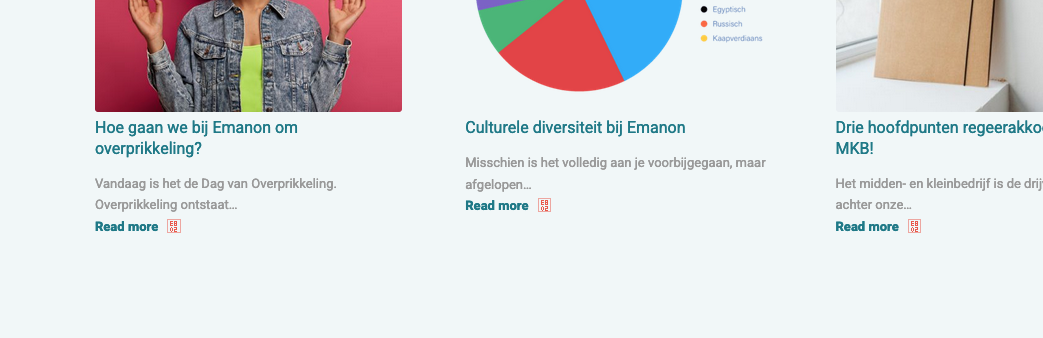
https://emanon.nl/wp-content/uploads/2023/08/1.png
https://emanon.nl/wp-content/uploads/2023/08/2.png
https://emanon.nl/wp-content/uploads/2023/08/3.png
https://emanon.nl/wp-content/uploads/2023/08/4.pngThis is how it look liked:
https://emanon.nl/wp-content/uploads/2023/08/Screenshot-2023-08-01-at-14.47.46.pngI used an arrow of Fontello. Not exactly the same, but it was almost like it.
The custom code of Yigit is in the custom css field.
.more-link-arrow::after {
content: “\E802”;
color: #EB5847;
font-size: 16px;
font-family: ‘friendly’;
}#avia3-menu a::after {
content: “\E802”;
color: #EB5847;
font-size: 16px;
font-family: ‘friendly’;
position: absolute;
margin-left: 5px;
}However, I don’t know if this is all of it.
Thanks in advance.
July 30, 2023 at 8:07 pm #1414960use your footer menu for that. If you do not like to show that menu – set it to display: none. via quick css.
it goes without saying that the hamburger menu must be set to full page overlay!this snippet goes to child-theme functions.php:
function footer_menu_to_hamburger_menu(){
?>
<script>
(function($){
  $('#header').one('click', '.av-main-nav-wrap', function() {
    var isMobile          = $('.av-burger-overlay').css('display'),
        footerMenu        = $('#avia3-menu'),
        mobileMenu        = $('#av-burger-menu-ul'),
        footerMenuClone   = $('#avia3-menu').clone(true).addClass('second-burger-menu').css('display', 'block');

    if( footerMenu.length ){
      (footerMenuClone).insertAfter(mobileMenu);
    }
  });
})(jQuery);
</script>
<?php
}
add_action('wp_footer', 'footer_menu_to_hamburger_menu');
this to your quick css:
#socket .sub_menu_socket { display: none } #top .av-burger-overlay-inner { display: inline-table; top: 0 !important; } .html_burger_menu_active #header .avia-menu .av-burger-overlay .menu-item { display: block !important; } #top .av-burger-overlay #av-burger-menu-ul { display: table-cell; vertical-align: middle !important; width: 50vw; padding: 0px 5vw !important; text-align: right !important; text-transform: uppercase; border-right: 1px dashed #999; /**** a separator if you like ***/ } #top .av-burger-overlay .second-burger-menu { display: table-cell !important; width: 50% !important; height: 100%; left: 50vw !important; padding: 0px 5vw; vertical-align: middle !important; text-align: left; text-transform: uppercase; z-index: 115; } .html_burger_menu_active #header .avia-menu .av-burger-overlay .second-burger-menu .menu-item { font-size: 24px; line-height: 2.7em; padding: 0.3em 0; } .html_burger_menu_active #header .avia-menu .av-burger-overlay .menu-item a { color: #FFF !important; } .html_burger_menu_active #header .avia-menu .av-burger-overlay .menu-item a:hover { opacity: 0.7; } .html_burger_menu_active #header .avia-menu .av-burger-overlay-inner .avia-menu-fx { display: none; } #top .av-burger-overlay-bg { background-image: url(/wp-content/uploads/background.jpg); background-repeat: no-repeat; background-size: cover; opacity: 1; filter: brightness(0.1); }PS: the behavior of shifting the content left side was the setting before testing your requested hamburger option – it is part of non-fullpage overlay that hamburger pushes the content side
July 29, 2023 at 11:18 pm #1414883In reply to: social media icons in mobile menu
Oops — thanks, guys! I couldn’t even see them on my phone, but once I saw the screenshot from Guenni, I found them on my emulator, in tablet view.
And yeah, I think you’re right, Guenni, about wrapping them in an li. And I’d like to keep them in the top strip, on desktop — so, thanks, Mike, I don’t think I want them in the main header area on this site, but I’ll keep your solution in mind if I do!
So I went with Guenni’s code using the socket socials, but they were still showing at the left edge of my mobile overlay menu. I was able to center them by changing isHeading=”Social Bookmarks” in the php to isHeading=”” (deleting that whole line seemed to vanish the icons), and setting the css to width=”fit-content”; margin: auto; — so here’s my code, if it helps anyone else.
Thanks again, guys!!!
<?php
function social_footer_icons_to_hamburger_menu(){
?>
<script>
(function($){

  $('#header').one('click', '.av-main-nav-wrap', function() {
    var isMobile  = $('.av-burger-menu-main').css('display'),
      isHeading = "",
      social    = $('#socket .social_bookmarks').clone(true).addClass('sub-menu').css('display','block'),
      mobileMenu  = $('.av-burger-overlay');

    mobileMenu.find('#av-burger-menu-ul').append('<li class="menu-item-social av-active-burger-items" role="menuitem"><span class="avia-menu-text">'+isHeading+'</span></li>');

    if( social.length ){
      mobileMenu.find('.menu-item-social').append(social);
    }
  });

})(jQuery);
</script>
<?php
}
add_action('wp_footer', 'social_footer_icons_to_hamburger_menu');
And then this css seems to work for me:
.html_av-overlay-full #av-burger-menu-ul li.menu-item-social {
    width: fit-content;
    margin: 30px auto;
}
.html_av-overlay-full #top #wrap_all #av-burger-menu-ul li.menu-item-social li {
    font-size: 1em;
	margin: 5px;
}
July 29, 2023 at 12:07 pm #1414809Topic: About social icon
in forum Enfoldtulin88
ParticipantHello,
You have sent me these codes for social media icons before. I want social media icons to always stay in their original color. Can you fix it in codes.#top .social_bookmarks li {
width: 35px;
}#top .social_bookmarks li a {
width:35x;
line-height: 35px;
min-height: 35px;
font-size: 20px;
}#top .header_color .social_bookmarks a {
color: DarkBlue;}
July 29, 2023 at 11:10 am #1414800Topic: About menu font
in forum EnfoldParticipantI’m looking for help for the menu font problem.
Could you please take a look at the screenshot, I sent you the link.
http://uhdgm.com//wp-content/plugins/help.jpg
I can control the main menu fonts.
But I want to change the color and size of the font (the main submenu fonts)
ThanksJuly 27, 2023 at 3:24 pm #1414684In reply to: Top bar styling and shopping cart icon
Hi Daniela,
1. Your code is correct but it’s not being fetched in the frontend, please go to Enfold > Performance, then disable CSS file merging and compression and Javascript file merging and compression.
2. Please try to add this CSS code:
#top #header_main #menu-item-shop .cart_dropdown_link {
    font-size: 25px;
}
Default Size is 15px.
Hope this helps.Best regards,
NikkoJuly 27, 2023 at 2:08 pm #1414676Topic: Various adjustments in styling
in forum Enfoldkarinkropik
ParticipantHello,
I need help with the following issues:
1) I want to remove the circle from the active tab in the main menu header and instead show a different colour on hover and when it is clicked (the same as it is used/shown in the mobile view, a lighter orange colour than the default colour)
2) I want to reduce the size of the mega menu (“Triest” and “Crete” under Hiking retreats and trips; and also the font size – I found some older codes for quick CSS but they do not work anymore since I have the latest version of Enfold installed)
3) On the first page with the transparent header, I want to show the mega menu title fonts also in white (without the red background)
4) With which code can I keep the different font colours/font styles in my headers? The layout partly broke since I have installed the latest Version of Enfold; example: like in hiking retreas & trips; & trips is in orange colour (this styling was used on most of my pages, but when I now go into the pages it shows the red warnings that layout will break with the old codes – in some pages I just took another heading to be able to show it but now it is only orange and not in two colours/font styles; like the heading currently in hiking-retreats-trips/crete/: I would like Crete Hiking Retreat in brown and the date in orange colour)Thanks!
July 27, 2023 at 1:03 pm #1414667Topic: Top bar styling and shopping cart icon
in forum EnfoldDaniela
ParticipantHi there,
I have two problems on my site:
1. I want to increase the font size of the phone info in top bar, but no code seems to work. I tried#top #header_meta * { font-size: 50px; }and
.phone-info {
    font-size: 18px;
}
but nothing changes.
2. I want the size of the shopping cart icon of woocommerce to be increased in the main menu. I could not finde any css for this.
Any help will be appreciated.
Regards
DanielaJuly 27, 2023 at 8:16 am #1414619In reply to: Google Fonts Display
Hi Diana,
Please try to go to Enfold > General Styling > Typography, then enable the Heading Size (h1, h2, etc) then set the Font Weight.
Hope it helps.Best regards,
NikkoJuly 26, 2023 at 7:47 pm #1414560Topic: Text for logo vertical placement
in forum Enfoldwelswebmaster
ParticipantHi Enfold team,
Thanks for the many years of a valuable tool!
On a new site, I’m using the TEXT code provided in a previous thread rather than an image logo. However, I’m unable to achieve vertical-align: middle for the text-logo with the menu. See attached.
I’ve tried several ways, none moved the text-logo, Is this possible?
Thank you.My current css:
.logo-title {
font-size: 2.75em !important;
font-family: Acme;
color:#b8cf75;
padding-left: 15px !important;
   display: inline-block;
    height: 100%;
vertical-align: middle !important;
}

.logo img {
display: none;
}
July 26, 2023 at 1:32 am #1414452In reply to: Bilder verschwinden immer wieder
Hi Monikafrick,
Unfortunately, that doesn’t quite fit mobile yet. The “screen_2x24.jpg” image is cropped.
Please add an image element inside grid and use the same image as the background image of the cell, and show it only on mobile (Advanced > Responsive > Element Visibility)After “development processes” is a very large distance.
You have a very large cell padding, you’ll need to adjust it on mobile.
Edit the Cell, go to Styling > Padding > Cell Padding, click on the mobile icon and adjust the padding values.“Human energetics” is cut off the “r” on my smartphone.
Can you provide a screenshot?
Also, please try to adjust the cell paddings for mobile and font sizes.After “energies” there is also a very large gap.
Please add this CSS code in Enfold > General Styling > Quick CSS:@media only screen and (max-width:767px) { #recent > .flex_cell { height: auto; } }Best regards,
NikkoJuly 25, 2023 at 2:26 pm #1414373In reply to: Order – Social Share Buttons
ok – your mentioned code – your font is called fontello or do you use the existing : entypo-fontello font.
then your code is wrong with the name of the fontnext : on docu there is an example code – using images instead of font icons . You will have the opportunity to have better social icon instead f.e:
from : https://iconduck.com/icons/185336/teams
( here with 40px icon – but adapt it to your needs )#top .social_bookmarks li, #top .social_bookmarks li a { width: 40px; height: 40px; } #top #wrap_all .av-social-link-teams a:before{ content: ""; width: 40px; height: 40px; display: inline-block; vertical-align: middle; background: url(/wp-content/uploads/teams.png) no-repeat center center; background-size: contain; }the link you can set in options on enfold
see: https://enfold.webers-webdesign.de/#footerJuly 24, 2023 at 3:06 pm #1414234Dear Mike,
thanks for your reaction. Indeed, I now used the Typography panel to set the fontsize for different screen sizes, so the issue cannot be reproduced right now. However, it is good to know that the setting Enfold Theme Options ▸ Advanced Styling ▸ P should apply to all screen sizes. That was not what I found (see above), but perhaps another issue was playing a part. Yes, let’s close this thread, since my initial issue could be solved.
Thanks a lot!
July 23, 2023 at 9:38 am #1414105This reply has been marked as private.July 22, 2023 at 10:18 pm #1414081In reply to: Change Bullet Style in Burger Submenu
Hey weblines,
Try this CSS in your Enfold Theme Options ▸ General Styling ▸ Quick CSS field:.html_av-overlay-side-classic #top .av-burger-overlay li li .avia-bullet { height: 0px; width: 0px; opacity: 1; } .html_av-overlay-side-classic #top .av-burger-overlay li li .avia-bullet:before { content:'•'; padding-right: 5px; color:#000 !important; font-size: 20px; top: -8px; position: relative; }After applying the css, please clear your browser cache and check.
Best regards,
MikeJuly 22, 2023 at 7:08 pm #1414065Hi,
Thank you for your patience and the link to your site, try this CSS in your Enfold Theme Options ▸ General Styling ▸ Quick CSS field:@media only screen and (max-width: 450px) { .phone-info { font-size: 9px; } }Feel free to adjust to suit.
After applying the css, please clear your browser cache and check.Best regards,
MikeHi,
Thank you for the info.
Try to set the initial height of the link to zero, then set it back to default on focus.
.jsf-skip-link {
    opacity: 0;
    font-size: 0;
    height: 0;
}

.jsf-skip-link:focus {
    opacity: 1;
    font-size: inherit;
    height: 20px;
}
If that didn’t work, try to pull the body element 20px upwards initially then bring it back to default when the skip link has been focused.
.jsf-skip-link + body {
    margin-top: -20px;
}

.jsf-skip-link:focus + body {
    margin-top: 0;
}
Best regards,
Ismael -
This topic was modified 2 years, 7 months ago by
-
AuthorSearch Results
-
Search Results
-
Topic: Font and logo size
Hey, how can I change the logo size to make them appear bigger?
Similarly, I’d like to adjust the font size from small to medium or something fixed like 15px.Thanks :)
I’m having problems with full screen slider caption font sizes. I changed it, but not effect.
Also the icons I’m using are showing up wrong. Should be 80 px high.Maybe it’s got something to do with PHPversion? It is set to PHP 8.1.
Please can you check what is going wrong?
Thank youHello,
My website looks very awful on mobile. The homepage for example (link in private content) has big white spaces, font is big, logo slider and other images are not displaying, the bar of the menu is overlapping the logo which also too big. Nearly all of the pages of my website are not responsive for mobile. (I tried on different mobile size and brand : samsung, Iphone etc still the same)
Same for my landing page : there is a big blank space, some elements are too close, some are to far away, titles are too big…There is a Google Ads campaign running at the moment. People will not click on a page like this.
Enfold is supposed to be mobile responsive. Maybe I am missing something ?
Thank you for your help.
Regards,
Hi guys,
I used to have red arrows on my homepage and in the Socket (Enfold Footer Menu). Yigit helped me with that a long time ago. Somehow, someway, I managed to remove the arrows. I was trying to add some new icons when they suddenly disappeared. I guess I deleted the arrows. I tried to upload new once. No result. Can you guys help me out?
This is how it looks now:
https://emanon.nl/wp-content/uploads/2023/08/1.png
https://emanon.nl/wp-content/uploads/2023/08/2.png
https://emanon.nl/wp-content/uploads/2023/08/3.png
https://emanon.nl/wp-content/uploads/2023/08/4.pngThis is how it look liked:
https://emanon.nl/wp-content/uploads/2023/08/Screenshot-2023-08-01-at-14.47.46.pngI used an arrow of Fontello. Not exactly the same, but it was almost like it.
The custom code of Yigit is in the custom css field.
.more-link-arrow::after {
content: “\E802”;
color: #EB5847;
font-size: 16px;
font-family: ‘friendly’;
}#avia3-menu a::after {
content: “\E802”;
color: #EB5847;
font-size: 16px;
font-family: ‘friendly’;
position: absolute;
margin-left: 5px;
}However, I don’t know if this is all of it.
Thanks in advance.
Topic: About social icon
Hello,
You have sent me these codes for social media icons before. I want social media icons to always stay in their original color. Can you fix it in codes.#top .social_bookmarks li {
width: 35px;
}#top .social_bookmarks li a {
width:35x;
line-height: 35px;
min-height: 35px;
font-size: 20px;
}#top .header_color .social_bookmarks a {
color: DarkBlue;}
Topic: About menu font
I’m looking for help for the menu font problem.
Could you please take a look at the screenshot, I sent you the link.
http://uhdgm.com//wp-content/plugins/help.jpg
I can control the main menu fonts.
But I want to change the color and size of the font (the main submenu fonts)
ThanksHello,
I need help with the following issues:
1) I want to remove the circle from the active tab in the main menu header and instead show a different colour on hover and when it is clicked (the same as it is used/shown in the mobile view, a lighter orange colour than the default colour)
2) I want to reduce the size of the mega menu (“Triest” and “Crete” under Hiking retreats and trips; and also the font size – I found some older codes for quick CSS but they do not work anymore since I have the latest version of Enfold installed)
3) On the first page with the transparent header, I want to show the mega menu title fonts also in white (without the red background)
4) With which code can I keep the different font colours/font styles in my headers? The layout partly broke since I have installed the latest Version of Enfold; example: like in hiking retreas & trips; & trips is in orange colour (this styling was used on most of my pages, but when I now go into the pages it shows the red warnings that layout will break with the old codes – in some pages I just took another heading to be able to show it but now it is only orange and not in two colours/font styles; like the heading currently in hiking-retreats-trips/crete/: I would like Crete Hiking Retreat in brown and the date in orange colour)Thanks!
Hi there,
I have two problems on my site:
1. I want to increase the font size of the phone info in top bar, but no code seems to work. I tried#top #header_meta * { font-size: 50px; }and
.phone-info { font-size: 18px; }but nothing changes.
2. I want the size of the shopping cart icon of woocommerce to be increased in the main menu. I could not finde any css for this.
Any help will be appreciated.
Regards
DanielaHi Enfold team,
Thanks for the many years of a valuable tool!
On a new site, I’m using the TEXT code provided in a previous thread rather than an image logo. However, I’m unable to achieve vertical-align: middle for the text-logo with the menu. See attached.
I’ve tried several ways, none moved the text-logo, Is this possible?
Thank you.My current css:
.logo-title { font-size: 2.75em !important; font-family: Acme; color:#b8cf75; padding-left: 15px !important; display: inline-block; height: 100%; vertical-align: middle !important; } .logo img { display: none; }