Hi,
For the background color #2C353D, I choose it in the color section background settings.
For the font color I updated the above css:
#color-footer a,#color-footer p,#color-footer strong.news-headline {
font-size: 12px;
color: #fff;
}
For the headlines I added:
#color-footer h3.widgettitle {
font-weight: normal !important;
}
To add some padding to the “links” widget I added a ID and this quick css:
#color-footer .color-links {
padding-left: 70px;
}
Please adjust to suit.
Best regards,
Mike
Hey Lara,
When I compare your color section and footer I see the font is correct, and I assume you don’t want the same colors as the background of the color section would make white text hard to read, so I believe you want the font-size to match. So I added a ID to the color section, and this to your quick css:
#color-footer a,#color-footer p {font-size: 12px;}
For the icons I added this code:
#color-footer #text-7 .avia-icon-pos-left {
    margin-right: 20px;
}
Please clear your browser cache and check.
Best regards,
Mike
Hi,
Thanks for doing that. Please add the following to quick css:
.html_modern-blog .avia-content-slider .slide-entry-title{
font-size:1.2em!important;
}
Best regards,
Jordan Shannon
complete the rule above by:
(not to much else the width had to be adjusted.
.responsive #header .social_bookmarks li {
    margin-right: 5px;
}
font-size: maybe you only make it normal and let 16px stay:
#header_meta #avia2-menu a {
    font-size: 16px !important;
    font-weight: normal !important;
}
the next questions will cost ;) :lol
Thank you. How can i increase margin between icons. Thanks for all your help so far :)
One more thing how can i reduce font size for about us and support links in top header on only on mobile version?
Thank you very much :)
Hey Felix-A,
Please try using the Enfold Theme Options > Extended styling
I changed your main menu font size to 18px, and font to “Droid Sans” and once I cleared my browser cache I could see the change.
Please clear your browser cache and check.
Best regards,
Mike
i think the one span is obsolete .
And maybe the effect is better if the big i is better visible as Letter and function: try this:
<p style="text-transform: uppercase; color: #ffffff;">Werden Sie Partner auf der Plattform für Mediziner<span style="color: #dcb505; font-weight: bold; font-size: 1.4rem; vertical-align: top">I</span>nnen</p>
see here : https://webers-testseite.de/inline-css/
Hello,
I need to change the font size, style and weight of the links in the header. But nothing seems to work. Not even CSS.
I really hope you can help me!
Thank you!
Greetings
Felix
Hi,
1- Please use following code instead
#top #wrap_all .av-masonry-entry .av-masonry-entry-title {
    font-size: 20px;
}
2- Please go to Enfold theme options > Header > Transparency Options and adjust transparent header menu colors :)
Best regards,
Yigit
Hey Lisbeth,
Please try adding this code to the Quick CSS section under Enfold > General Styling or to your child theme’s style.css file:
#top .av-caption-style-overlay .av-masonry-entry .av-masonry-entry-title {
    font-size: 20px;
}
If that does not help, please post a link to your page so we can make sure to provide you an accurate code :)
Best regards,
Yigit
Hi,
I’m having problems with tab section (which is the main thing on my website) when resizing (shrinking) and on mobile. The link in in private, and my custom css is:
span.av-inner-tab-title {
color: #000000 !important;
font-family: Nanum Pen Script; }
.av-inner-tab-title {
font-size: 26px;
text-align: center;
}
@media only screen and (min-width: 1130px) {
/* Add your Desktop Styles here */
.av-inner-tab-title {
font-weight: bold;
font-size: 44px; }
.av-tab-section-tab-title-container {
text-align: center;
padding: 0px 0px 0 0px;
/* max-width: 1130px; */
margin: 0 auto;
}
.av-inner-tab-title, .av-tab-section-icon, .av-tab-arrow-container, .av-tab-section-image {
width: auto;
text-transform: none !important;
margin-right: 15px;
margin-left: 15px;
}
}
@media only screen and (max-width: 1130px) {
body {
font-size: 16px;
}
}
.avia_transform .av_font_icon, .avia_transform .avia_start_delayed_animation.av_font_icon {
opacity: 1 !important;
-moz-transform: scale(1 !important);
-webkit-transform: scale(1) !important;
-ms-transform: scale(1) !important;
transform: scale(1) !important;
-webkit-animation: none;
-moz-animation: none;
-msanimation: none;
animation: none;
}
.boxed .av-layout-tab-inner .container {
width: 1130px !important;
}
#top .mejs-container {
max-height: none !important;
}
#socket .copyright {
text-align: center;
width: 100%;
}
Thanks!
Hey patricknh,
I recommended adding a custom class to your icons, so only to effect the ones you wish, by going to Enfold Theme Options > Layout Builder > Show element options for developers
Then add your custom class to this code:
.avia-icon-list .iconlist_icon {
    height: 64px !important;
    width: 64px !important;
    line-height: 64px !important;
    font-size: 30px;
Note this is the standard size for the big icon list, adjust to suit.
Best regards,
Mike
Hi,
You can try this CSS:
#menu-item-263204 .avia-menu-text::after {
content: "4";
    font-size: 9px;
    color: #FFF;
    background: #42A0BD;
    line-height: 17px;
    width: 17px;
    display: inline-block;
    text-align: center;
    border-radius: 100px;
    position: relative;
    top: -9px;
    left: 2px;
}
Just replace the menu item ID in the code with your own menu item ID.
Best regards,
Rikard
Hi,
For the social icons and socket font size I added this:
@media only screen and (max-width: 1080px) {
#socket .social_bookmarks li a {
width: 50px!important;
line-height: 50px!important;
min-height: 50px!important;
font-size: 30px;
}

#socket .social_bookmarks li {
height: 50px!important;
width: 50px!important;
}

#socket .social_bookmarks {
    height: 60px!important;
}

#socket .copyright img {
    margin-top: 15px!important;
}

#socket .container {
    width: 100%!important;
    max-width: 100% !important;
}
}
@media only screen and (max-width: 422px) {
#socket {
    font-size: 18px !important;
}
}
@media only screen and (min-width: 423px) and (max-width: 828px) {
#socket {
    font-size: 21px !important;
}
}
For the two mobile font sizes, I made them as large as possible and still keep the socket links in line, if you find the links brake into two lines, just take the font size down one or two px.
For the mobile menu color, I added this:
.html_av-overlay-side #top #wrap_all .av-burger-overlay-scroll #av-burger-menu-ul a {
    color: #000 !important;
}
#top .av-hamburger-inner, #top .av-hamburger-inner:before, #top .av-hamburger-inner:after {
    background-color: #000 !important;
}
Please adjust to suit.
Best regards,
Mike
Gotcha. Here is one of my sites, where I use what you’re after.
Set your menu item to Button Style (Bordered). Give that menu item a custom CSS class of “border-menu” and use the code below.
The last 2 items will grow and shink the box on hover, which adds a nice feature. Add in other lines as you need them, to address the colors and whatnot.
.border-menu .avia-menu-text {font-size:14px!important;}
.border-menu {transition: .3s ease-in-out!important;}
.border-menu:hover {transform: scale(1.1)!important;}
Ismael,
The text styling for each item should be the same as the front page. Please see CSS below and this screenshot (taken from front page)
HEADING:
font-family:Lato;
letter-spacing:2px!important;
font-weight:300;
color:rgb(0,0,0);
font-size:24px;
.heading-2();
SUB-HEADING:
font-weight:300;
font-family:Playfair Display;
line-height:23px;
font-size:20px;
margin-bottom:18px;
color:rgb(161,161,161);
BODY:
font-weight:300;
font-size:16px;
.swbody();
Hi,
Sorry about disabling the wordfence plugin, it was making it hard to remove the css from your child theme stylesheet, I forgot to turn it back on.
As for the Quick CSS, it looks like there was a couple of errors in the code that slipped by me, I checked again and it should be fine now.
Perhaps instead of using the Quick CSS box, you could move the css to WordPress > Customize > Additional CSS:
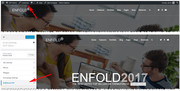
as it has a nice automatic error checking feature and you can see your css changes in real time.
I adjusted the font size for the socket, I saw you tried for 25px, but at smaller screens it would be a issue, so I used a media query to only target medium to large screens.
Best regards,
Mike
Hi,
Thanks for the update. Yes, you can use the text block element. Add this css code if you want to modify the caption further.
.av-image-caption-overlay-center {
    display: table-cell;
    vertical-align: top;
    font-size: 1.3em;
    line-height: 1.5em;
    padding: 7px 0 0 0;
}
Best regards,
Ismael
Hi,
How did you add your own search icon? Please try this css code to move the search shortcode to the left of the map pin icon and increase its size.
#header_meta .sub_menu li {
    float: right;
}

#top .menu-item-search-dropdown > a, #searchform #searchsubmit, .ajax_search_image, .iconfont {
    font-size: 30px;
}
Best regards,
Ismael
Hi,
Use a grid row element with 3 1/3 grid cells
1. add text title and content.
2. Add background image from the cell options.
3. Set custom link from the cell options.
Lastly, we will set the space between the grid cell using Custom CSS.
Or simply copy the below shortcode to your page
[av_layout_row border='av-border-top-bottom av-border-cells' min_height_percent='' min_height='0' color='main_color' mobile='av-flex-cells' id='' av_element_hidden_in_editor='0' mobile_breaking='' av_uid='av-jglq49qe' custom_class='av-custom-grid-space']
[av_cell_one_third vertical_align='top' padding='30px' padding_sync='true' background='bg_color' background_color='#eeee22' background_gradient_color1='' background_gradient_color2='' background_gradient_direction='vertical' src='' attachment='' attachment_size='' background_attachment='scroll' background_position='top left' background_repeat='no-repeat' link='manually,#' linktarget='' link_hover='' mobile_display='' av_uid='av-jglq1ief' custom_class='']

[av_textblock size='' font_color='custom' color='#edae44' av-medium-font-size='' av-small-font-size='' av-mini-font-size='' av_uid='av-jglq0eu0' custom_class='' admin_preview_bg='']
Box Title
Set a background and add a link to this box from the column settings.
[/av_textblock]

[/av_cell_one_third][av_cell_one_third vertical_align='top' padding='30px' padding_sync='true' background='bg_color' background_color='#7bb0e7' background_gradient_color1='' background_gradient_color2='' background_gradient_direction='vertical' src='' attachment='' attachment_size='' background_attachment='scroll' background_position='top left' background_repeat='no-repeat' link='manually,#' linktarget='' link_hover='' mobile_display='' av_uid='av-jglq1pye' custom_class='']

[av_textblock size='' font_color='custom' color='#edae44' av-medium-font-size='' av-small-font-size='' av-mini-font-size='' av_uid='av-jglq0eu0' custom_class='' admin_preview_bg='']
Box Title
Set a background and add a link to this box from the column settings.
[/av_textblock]

[/av_cell_one_third][av_cell_one_third vertical_align='top' padding='30px' padding_sync='true' background='bg_color' background_color='#4ecac2' background_gradient_color1='' background_gradient_color2='' background_gradient_direction='vertical' src='' attachment='' attachment_size='' background_attachment='scroll' background_position='top left' background_repeat='no-repeat' link='manually,#' linktarget='' link_hover='' mobile_display='' av_uid='av-jglq1wa4' custom_class='']

[av_textblock size='' font_color='custom' color='#edae44' av-medium-font-size='' av-small-font-size='' av-mini-font-size='' av_uid='av-jglq0eu0' custom_class='' admin_preview_bg='']
Box Title
Set a background and add a link to this box from the column settings.
[/av_textblock]

[/av_cell_one_third]
[/av_layout_row]
And add the below CSS to Enfold > General Styling > Quick CSS
#top .av-custom-grid-space {
margin-bottom:20px;

}

#top .av-custom-grid-space .flex_cell {
    border-width: 24px!important;
    border-right-width: 0px!important;
    border-bottom-width: 0px!important;
    border-style: solid!important;
    border-color:#FFF!important;

}

#top .av-custom-grid-space .flex_cell:last-child {
    border-right-width: 24px!important;
}
Best regards,
Vinay
I would like to have spaces between lines in a text block. Currently, I press enter several times, and it looks like there are spaces, but when I go to the front-end, it is all packed tightly together. Is there a code to enable me to do this?
Also how do I change the font size of SOME of the text in a text block? (Apart from selecting Heading 1/2/3 etc.)
Thanks
Hi slui,
Here is the code you can put in Enfold > General Styling > Quick Css, if it does not work, put into themes/enfold/css/custom.css
#av_section_1 .a5-mainheader h1 { font-size: 100px; }
If you need further assistance please let us know.
Best regards,
Victoria
Hi vegaspro,
Here is the code you can put in Enfold > General Styling > Quick Css, if it does not work, put into themes/enfold/css/custom.css
@media only screen and (max-width: 767px) {
  #av_section_1.avia-section-small .content {
    padding-top: 10px;
    padding-bottom: 10px;
  }
  #top #wrap_all  #av_section_1 .av-special-heading-tag {
      font-size: 18px;
  }
  #top #wrap_all .avia-button.avia-size-x-large {
      padding: 10px 22px 10px;
  }
  .responsive #top #av_section_1 .container .av-content-small {
    margin-bottom: 0;
  }
  #top #av_section_1 .flex_column.av_one_third.avia-builder-el-3.avia-builder-el-last,
  #top #av_section_1 .flex_column.av_two_third.avia-builder-el-1 {
    margin-bottom: 0px;
  }
}
If you need further assistance please let us know.
Best regards,
Victoria
Here are the codes I used:
#socket .copyright {
display: block;
float: none;
padding-top: 20px;
text-align: center;
width: 100%;
}
#top #wrap_all #socket .social_bookmarks {
float: none;
margin: 0;
position: absolute;
text-align: center;
top: 40px;
width: 100%;
}
#socket .social_bookmarks li {
float: none;
display: inline-block;
}
#socket {
min-height: 240px;
}
#socket .sub_menu_socket {
position: relative;
right: 31.5%;
margin-top: 30px;
}
#top #wrap_all #socket .social_bookmarks {
float: none;
margin: 0;
position: absolute;
text-align: center;
top: 10px;
width: 100%;
}
#socket .social_bookmarks li {
float: none;
display: inline-block;
}
#socket { font-size: 15px; }
Hi,
I’m having problems with the font size changing even though I’m applying CSS via classes.
Class name: a5-mainheader

CSS code:

The font still shows up as 34px

Any ideas on how to get the CSS to take on the font using classes? Thanks.
sl
Hey Kamakshi,
Here is the code you can put in Enfold > General Styling > Quick Css, if it does not work, put into themes/enfold/css/custom.css
@media only screen and (max-width: 767px) {
  .ls-wrapper.ls-in-out h1,
  .ls-wrapper.ls-in-out p  {
    font-size: 18px !important;
  }
}
If you need further assistance please let us know.
Best regards,
Victoria
The following code is what I added:
@media only screen and (max-width: 767px) {
.main_menu .avia-menu, #header_main_alternate {
display: block !important;
}
.av-main-nav > li { display: none; }
li#menu-item-search {
display: block!important;
margin-top: -86px;
right: -25px;
}
.responsive .main_menu {
float: right;
}}
li#menu-item-search>a {
font-size: 28px!important;
}
nav.main_menu { float: right; margin-right: -0.6%; margin-top: 2%; }
Hi, I have used the Advanced layer slider on our website’s homepage.
How can I increase the text size of the layers when displayed on the mobile screen? As of now, the font size is very small on mobile view and makes the website look very unprofessional.
I have been checking the forum but unable to get the right code. Please, can you help me with this urgently?
Hey patricknh,
To add a email icon, go to Enfold Theme Options > Social Profiles > Your social profiles and click the “+” below one of the current icons, then select “Special: Email Icon” and add your “mailto” and email address, or a link to your contact page.
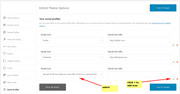
To change the size of the icon, try this code in the General Styling > Quick CSS field:
#top #header .social_bookmarks li a {
    font-size: 20px !important;
}
adjust to suit.
Best regards,
Mike
Hi,
Thank you for using Enfold.
1.) Use this code to adjust the mobile menu breakpoint to 1200px instead of 990px.
@media only screen and (max-width: 1200px) and (min-width: 768px) {}
  .responsive #top .av-main-nav .menu-item-avia-special {
      display: block;
  }

  .responsive #top .av-main-nav .menu-item {
    display: none;
  }
}
2.) Adjust the font size and word wrap property of the h1 element on smaller screens.
@media only screen and (max-width: 1200px) {
  /* Add your Mobile Styles here */
  h1.av-special-heading-tag {
    font-size: 20px;
    word-wrap: break-word;
  }
}
Best regards,
Ismael



