

-
AuthorPosts
-
April 5, 2026 at 3:54 pm #1496602
Hallo,
when i add a SVG icon to a page, it always show very large in the page builder.
Is here a workaround to make them smaller? It is screen filling and looks not nice for editors. April 6, 2026 at 8:34 am #1496620
Hey xeovision,
Thank you for the inquiry.
The SVG is displaying at its natural size because there’s no constraint applied to it. The quickest fix is to wrap it in a div with a custom width. You can do this by adding an html element in a Text or Code Block and place your SVG inside a wrapper div like this:
<div style="width: 60px; height: 60px;">
  <img src="/path/to/your-icon.svg" style="width: 100%; height: auto;" /></div>
Adjust the width and height values to whatever size works best for your layout.
Alternatively, if you’re displaying an icon, you can use the built-in Icon element instead, which gives you full size control directly in the element settings without any custom code. For more details on the Icon element, see:
— https://kriesi.at/documentation/enfold/icon/
Let us know if you have more questions.
Best regards,
IsmaelApril 6, 2026 at 11:10 am #1496630how did you “when i add a SVG icon to a page,”
if it is an Enfold Element like image or image with hotspot ect. – Enfold actually has CSS rules within avia-builder.css / avia-builder.min.css for these cases.
if you like to influence the preview inside textblock and backend:
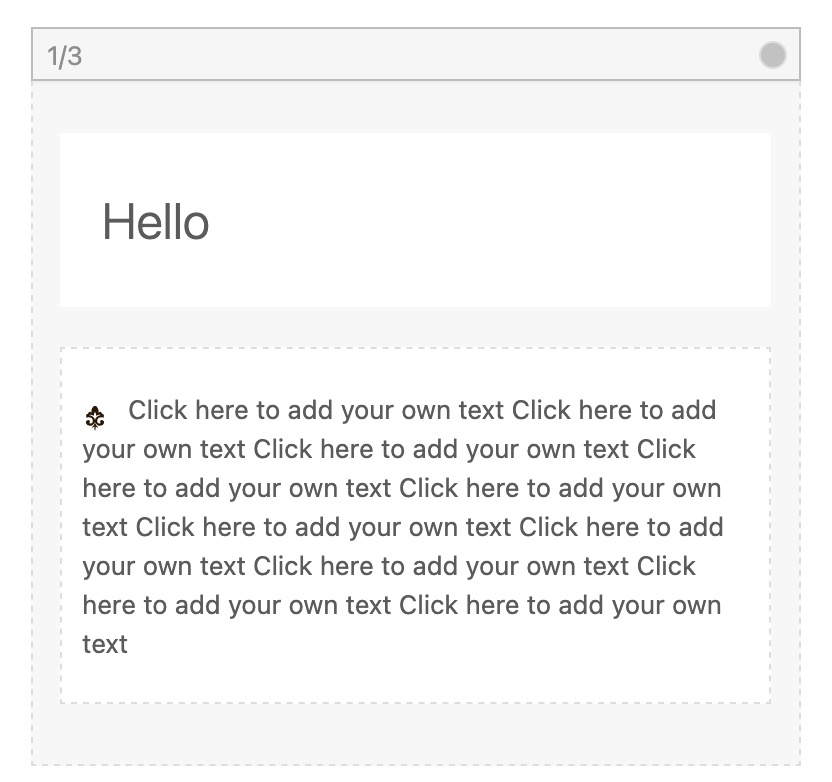
you can set via child-theme functions.php that preview size.function admin_head_mod(){ echo '<style type="text/css"> .wp-admin .avia_textblock img[src*=".svg"] {width: 80px !important;height: auto !important;} </style>'; } add_action('admin_head', 'admin_head_mod');the point is the even not inline svgs need an absolute dimension ( % and auto will not work )
but:
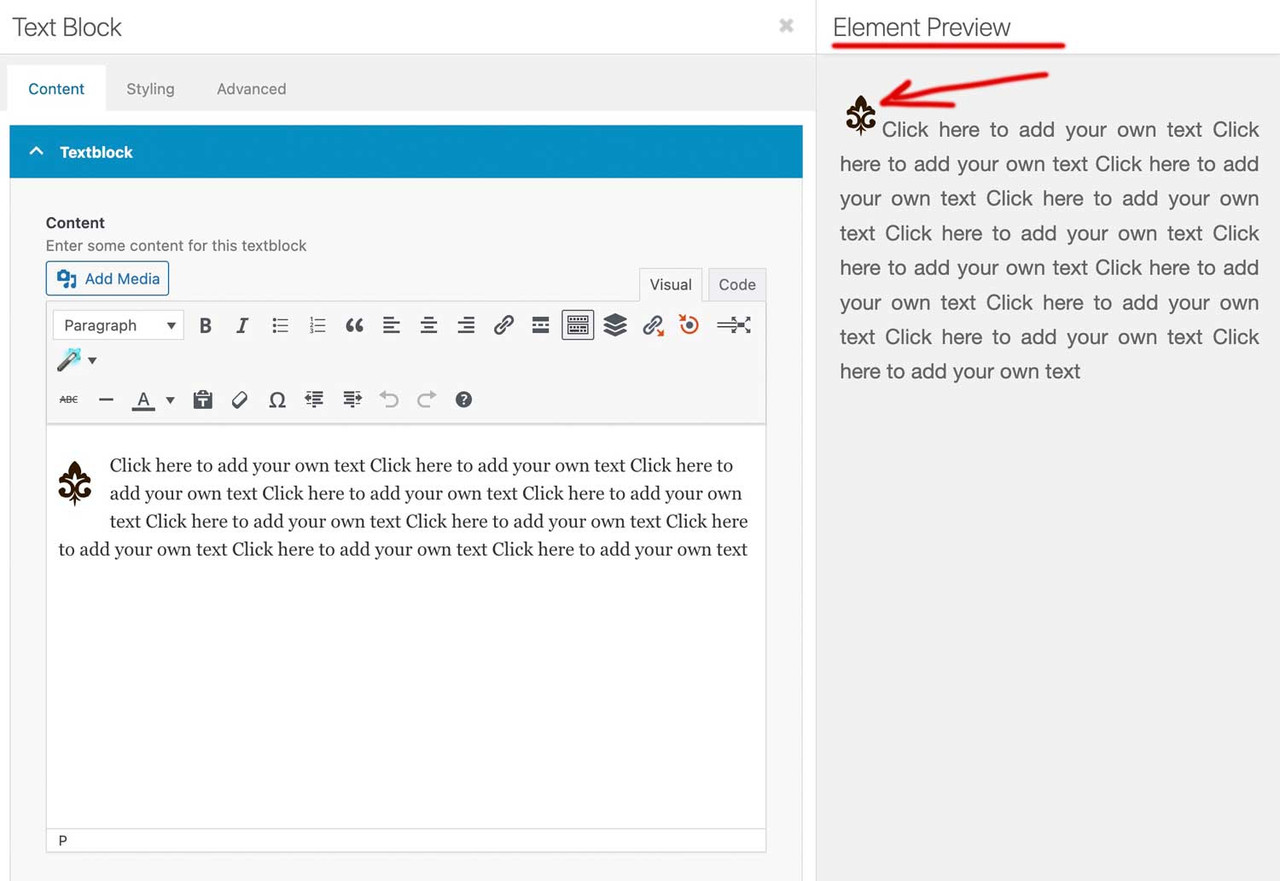
this part where enfold loads this css for the preview window is inside: class-template-builder.php
there are filters we can use to influence the preview now.place a file custom-preview-fix.css inside enfold-child/css/
add_filter('avf_preview_window_css_files', function($css) {
    $css[ get_stylesheet_directory_uri() . '/css/custom-preview-fix.css' ] = 1;
    return $css;
}, 999);
and have inside custom-preview-fix.css:
#av-admin-preview img[src*=".svg"]:not([is-svg-img="true"]) {
  width: auto;
  height: auto;
  max-width: 100%;
  display: block;
}

#av-admin-preview .alignleft { float: left; margin: 0 20px 20px 0; }
#av-admin-preview .alignright { float: right; margin: 0 0 20px 20px; }
#av-admin-preview .aligncenter { display: block; margin-left: auto; margin-right: auto; }
April 6, 2026 at 11:39 am #1496631Unfortunately, I don’t know if it’s possible to apply the size settings from TinyMCE to the preview on the right.
April 6, 2026 at 12:28 pm #1496637EDIT: It is incredibly difficult to transfer the size from the left side of the TinyMCE editor to the preview on the right, depending on the SVG property. And all while preserving the “floating” property.
April 6, 2026 at 12:42 pm #1496638I just add those SVG images as image block. I guess the builder is resizing it automatically to 100% dependig the block split like 1/2 ode 1/3 a.s.o.
April 7, 2026 at 7:15 am #1496655 -
AuthorPosts


- You must be logged in to reply to this topic.