

Tagged: compression
-
AuthorPosts
-
February 7, 2026 at 6:23 am #1494804
Dave Chapple
GuestHey Mike, Ismael,
I do need help. I’ve been uploading images for 3 days, organizing a type-heavy graphic design portfolio. Porting over one site to a new desing based on the Photography theme in a subdirectoryENFOLD Images are not being generated at the size expected, AND Images getting crunched way too much, losing all detail. Even if setting the “Styling” to “No Scaling”. it is still crunching and resizing.
I am running no plug-ins yet.
It is like the images are randomly getting resized to weird sizes down from the original and then being reinterpolated back up. This is all when simply dragging an image into the Portfolio Masonry Gallery.
Is this a simple setting? im hoping I dont have to reimport. the images in the GALLERY look fine.
Dave Chapple
February 9, 2026 at 6:10 am #1494871Hey Dave Chapple,
Thank you for the inquiry.
The theme actually increases the compression quality compared to the default, which can sometimes result in heavier thumbnails or thumbnails with a larger file size than the original images. This is not intentional, but it can happen from time to time.
Please create a test page and provide the URL in the private field so we can check the issue — screenshots would also be helpful.
To adjust the default quality, try to add this filter in the functions.php file, then regenerate the thumbnails.
add_filter("avf_jpeg_quality", "avf_set_quality_mod", 9999, 1);
add_filter("avf_wp_editor_set_quality", "avf_set_quality_mod", 9999, 1);
function avf_set_quality_mod($quality) { $quality = 60; return $quality;}
Use this plugin to regenerate the thumbnails, but make sure to create a site backup first.
— https://wordpress.org/plugins/regenerate-thumbnails/
Best regards,
IsmaelFebruary 10, 2026 at 2:20 am #1494905This reply has been marked as private.February 10, 2026 at 4:44 am #1494906Hi,
Thank you for the information.
Have you tried adjusting the Masonry element’s Styling > Masonry Settings > Image Size to No Scaling (Original Width x Original Height)? This should display the images in their original dimensions.
Best regards,
IsmaelFebruary 10, 2026 at 4:44 am #1494907Hi,
Thank you for the information.
Have you tried adjusting the Masonry element’s Styling > Masonry Settings > Image Size to No Scaling (Original Width x Original Height)? This should display the images in their original dimensions.
Best regards,
IsmaelFebruary 10, 2026 at 5:29 am #1494910Yes, they are all running in no-scaling mode. First thing I checked.
February 10, 2026 at 4:52 pm #1494925And to that end, when resizing images within the Media Library, it is not using the resize within the portfolio, even if I delete the image and reimport. Also, when uploading an image say, 1000 pixels wide @ 72dpi (standard OSX format), when you download the offending image, it will reinterpret the file at 96dpi, and it will be a larger size but more pixelated. I can’t have this. I’m a designer judged on my ability to manage images. Is there a way to disable this internal image manipulation? I have tried emptying browser cache and working in a incognito browser window.
February 11, 2026 at 5:48 am #1494950Hi,
Thank you for the update.
Please note that thumbnail generation is primarily handled by WordPress core, not the theme itself. WordPress automatically creates multiple intermediate image sizes upon upload. While themes (including Enfold) can register additional image sizes or adjust quality settings, the actual generation process is managed by WordPress.
If you would like to disable the creation of thumbnails or other image sizes, you can add the following filter to the child theme’s functions.php file. Please make sure to create a full site backup before proceeding:
add_filter('intermediate_image_sizes_advanced', '__return_empty_array');Best regards,
IsmaelFebruary 11, 2026 at 6:07 am #1494954It is a mild disaster. The PNG images are coming out with pieces if edges missing and bad compression. the image in the media browser is fine and i just took some images in the media browser and modified them from 800 pixels wide to 700 pixels wide. I assume since the “full size” setting is selected within the masonry Gallery, that that would repalce the image with a smaller image. it does not it is still this weird nonsensical size, not related to the original image size. Why?
I am completely unclear as to why there are preset image sizes in your image style settings:
>>
Image Size
Select a custom size for all images. All registered image sizes are shown, make sure you select a valid size for your images.
Theme default is: Masonry (705×705)
<<These image ratios make it seem like if you select 300×300, its gonna take a landscape ratio image and make it square.
AND I basically have USE ORIGINAL IMAGE selected, and it is NOT honoring that setting at all, for every image on the site over 300 images.
What does it force the theme to do if it restricts WordPress from creating image sizes it is looking for?
I am very nervous now about breaking 2 weeks of work. This is crazy.
February 11, 2026 at 6:15 am #1494957thanks for looking into this BTW, I do appreciate it.
When you say “child theme’s functions.php file.” where is that?February 11, 2026 at 6:18 am #1494958Hi,
Thank you for the information.
On the “logos-3-2” page, the images seem to be displaying at their original size. If you’re referring to the images inside the lightbox or image modal, you can add the following code to the functions.php file to display the original image instead of the default “large” thumbnail.
function avf_alb_lightbox_image_size_mod( $size, $context ){
  if( $context == ('av_gallery' || 'avia_masonry') ){
    return 'full';
  }
  return $size;
}
add_filter( 'avf_alb_lightbox_image_size', 'avf_alb_lightbox_image_size_mod', 10, 2 );
If the issue persists, please provide a screenshot of the issue using platforms like FreeImage, ImgBB, PostImages or Dropbox to upload and share the screenshot. Here are the steps to follow:
1.) Visit the website of your chosen platform, such as Savvyify, ImgBB, PostImages or Dropbox.
2.) Locate the option to upload a file or an image.
3.) Select the screenshot file from your computer or device and upload it to the platform.
4.) After the upload is complete, you will be provided with a shareable link or an embed code.
5.) Copy the link or code and include it in your message or response to provide us with the screenshot.Thank you for taking the time to share the screenshot. It will help us better understand the issue you’re facing and provide appropriate assistance.
Best regards,
IsmaelFebruary 11, 2026 at 6:53 am #1494962Issael, I don’t know what you mean by ‘logos-3-2″ page. That is not a page i know about. maybe refresh, my slugs were making bad names at one point due to copying portfolio pages, i think i have corrected all of them. But if you are refering to the LOGOS page with the white on black logos, yes those are displaying 500×500. Everything imported after that is wrong. i dont know why. maybe using a copy of LOGOS for everything else i have created?
I think you are using advanced terminology I can’t recognize. Lightbox…image modal. ? Am I to assume you mean the image gallery that is nested inside the Portfolio Pages for this Photographer Demo?
Im just using your theme demo straight out of the box. the Masonry Image Style settings are not defaulting to the unmolested original uploaded image. It is still converting to 96dpi and apppying a compression that is bad. I dont think this is WP i think it is the theme because the them is not doing with the settings (in the theme) are intended to do, diplay a “NO SCALING, original Width X Original Height.”What exact image compression the Enfold doing, above and beyond what WP is doing?
February 11, 2026 at 7:07 am #1494963I have made some screenshots showing Original uploaded size and the resulting image manipulation. Maybe you can tell me if I am missing some sort of setting. I feel like I am guessing with every setting.
See the link in Private Content.February 11, 2026 at 5:12 pm #1494995This reply has been marked as private.February 12, 2026 at 6:26 am #1495012Hi,
This is an example of a lightbox: https://www.dropbox.com/scl/fo/qjhvtprz88ek01b9z1y9l/APaoqg4LiLru_DNZg2JWNv0?dl=0&e=1&preview=This+image+is+NOT+displaying+as+original+size%2C+but+is+set+it+the+settings+to+be+OG+size.jpg&rlkey=n16cxl91f058axc21qpqzaukg
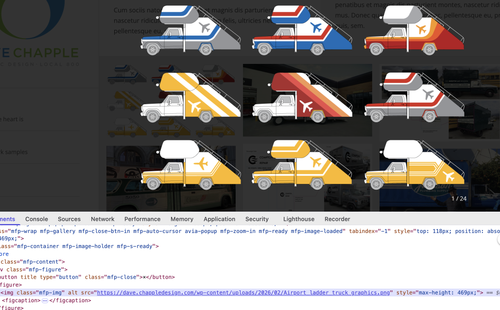
Is that where the problem is? The image being displayed is not the full-size or original version? If that’s the case, then the avf_alb_lightbox_image_size filter we recommended above should help resolve the issue. We’ve added the code in the functions.php file and it’s working as expected. You can now see the original image displayed in the image modal or lightbox.
Best regards,
IsmaelFebruary 12, 2026 at 6:53 am #1495017That did it ismael. I can now see my image sizes are all over the place. I guess resizing problematic images down to say 1500 pixel wide is what I should do next?
Thank you for taking the time to sort this out.
Is there a plugin I should use to inject that code into the Functions.PHP file, to keep it cleaner and more adaptable to theme changes later on?February 13, 2026 at 5:12 am #1495040Hi,
Thank you for the update.
You can use snippet plugins like Code Snippets or WPCode and relocate the filter there. Uploading smaller images is actually recommended, as this makes the site more performant and decreases the loading time. Let us know if you need more info.
Best regards,
IsmaelFebruary 13, 2026 at 5:37 am #1495045With this image compression disabled in the Functions.php or via a WP plugin, will this eliminate the ability for WP to serve up smaller sizes for tables and phones? If so, would introducing a WP plugin like Smush or WP-Optimize, do a better job of creating better images?
February 13, 2026 at 5:45 am #1495047Hi,
Did you add the intermediate_image_sizes_advanced filter? All we added to the functions.php file is the avf_alb_lightbox_image_size filter, which replaces the thumbnail with the full or original image.
If you add the intermediate_image_sizes_advanced filter, no thumbnails will be generated for uploaded images and all elements will use the full size regardless of the viewport size or device.
Installing an image compression plugin, such as WP Smush, should help optimize file generation.
Best regards,
IsmaelFebruary 13, 2026 at 6:46 am #1495048No i did not add “intermediate_image_sizes_advanced” filter.
I took out that code you addd, added it to WPcode plug in and it is working. It is helping me understand more about how this WP Small MED LARGE image file generator is working.
Thank you Ismael. I’m getting there!I might try the WP_Optimise plug in later.
February 15, 2026 at 2:35 am #1495089Hey do you guys have support in the Socials section for upwork.com?
Thats the only outside hub I’m using for work at this pointSee if you can see me in the link:
February 16, 2026 at 7:25 am #1495111Hi,
There is no icon specific to Upwork, but you can add one using the Iconfont Manager. Please check this documentation.
— https://kriesi.at/documentation/enfold/social-share-buttons/#how-to-add-custom-social-icons-to-enfold-options
— https://kriesi.at/documentation/enfold/icon/If you have any additional questions at this time we kindly ask that you open them up in a separate thread. The longer threads get in the forum, they become more difficult to support as they tend to drift off topic and they also make it troublesome for users trying to search for solutions. Keeping threads relevant to their original inquiry ensures that we can keep better track of what has been resolved and that users can more effectively find answers to similar issues they might be experiencing.
Thanks!
Best regards,
Ismael -
AuthorPosts


- You must be logged in to reply to this topic.